

Directory listing (also called directory browsing) is a web server feature that shows all files inside a folder when no index file (like index.html) exists. This leaks sensitive information to attackers. To fix it: add
Options -Indexes to your .htaccess file, or disable “Indexes” in your Apache config. In cPanel, use Index Manager and choose “No Indexing”. For Nginx, set autoindex off;. After making the change, always test by visiting a folder without an index file – you should see a “403 Forbidden” or a blank page, not a file list. This one change immediately closes a common security hole.Imagine a stranger walking into your office and being able to open every filing cabinet, read every sticky note, and copy your entire directory of client contracts. That’s exactly what happens when your website has directory listing enabled.
Most website owners have no idea that their web server might be happily serving up a complete map of every file and folder they’ve ever uploaded. And for WordPress site owners, the risk is even higher because of the sheer number of plugins, themes, and upload directories that often lack index files.
In this comprehensive guide, we’ll walk you through exactly what directory listing is, why it’s dangerous, how to test if your site is vulnerable, and—most importantly—how to disable it permanently across different hosting environments. By the end, you’ll have plugged one of the most overlooked security holes in modern web hosting.
What Is Directory Listing (And How Does It Work)?
A directory listing (also called directory browsing or index listing) is a web server function that automatically displays the contents of a folder when no default index file is present. Normally, when a visitor requests https://yoursite.com/folder/, the server looks for files like index.html, index.php, or default.asp. If one exists, that page is shown. If none exists and directory listing is enabled, the server generates an HTML page that lists every file and subfolder inside that directory.
That list often includes filenames, file sizes, modification dates, and even full paths. For an attacker, this is like receiving a detailed blueprint of your website’s backend.
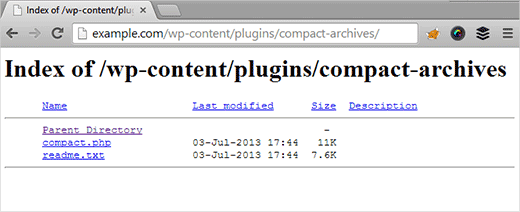
When a browser sends a request to a web server, the server’s configuration determines which file to serve first. Most servers prioritize index.html, then index.php, and so on. If none of those files exist, the server falls back to either showing an error (403 Forbidden) or—if directory listing is on—displaying the full directory contents.
By default, many shared hosting providers disable directory listing for security. But misconfigurations happen. A single forgotten setting, a moved .htaccess file, or a custom server setup can accidentally expose your entire file structure to the world.
index.html file inside any sensitive folder (like /backups/ or /logs/). This provides a second layer of defense in case your server configuration gets overridden.What Data Gets Exposed Through Directory Listings (And Why It’s Dangerous)
To understand the risk, let’s walk through a real‑world attack scenario.
Suppose you run a WordPress site. Your developer created a hidden folder called /secret/ to store a backup of wp-config.php—the file that contains your database username, password, and authentication keys. That folder has no index file. Directory listing is enabled on your server.
An attacker discovers your site and runs a simple directory brute‑forcer (a tool that tries common folder names like /backup/, /admin/, /temp/, /secret/). When they try https://yoursite.com/secret/, the server happily shows them a list: wp-config-backup.php, database.sql, old-theme.zip. They download the backup config file, extract your database credentials, and now have full access to your database—including user emails, password hashes, and private content.
This isn’t theoretical. Security researchers and attackers constantly scan for open directory listings. Services like Shodan and Censys index millions of exposed directories daily.
Other sensitive data often exposed includes:
- Backup archives (
.zip,.tar.gz,.sql) containing database dumps or entire site files - Configuration files (
config.php,.env,settings.ini) with API keys and credentials - Debug logs that reveal internal paths, errors, and sometimes even user session data
- Plugin and theme source code which attackers can scan for known vulnerabilities
- Uploaded files that were never meant to be publicly listed (e.g., scanned invoices, private photos)
Why Disabling Directory Browsing Is a Must‑Have Security Step
Let’s be clear: turning off directory listing alone does not make your website hack‑proof. Security experts call this “security through obscurity”—you’re hiding information rather than fixing vulnerabilities. However, it’s an absolutely essential first step because it removes an easy win for attackers.
Think of it like locking your car doors. A determined thief can still break a window, but you wouldn’t leave your doors wide open with valuables on the seat. Disabling directory listing is that door lock.
Without it, you’re effectively handing an attacker a complete map of your site’s internal structure. They can see exactly which plugins you use, which backup files exist, and where you’ve stored sensitive data. This information accelerates attacks like:
- Version detection – Seeing a folder named
wp-content/plugins/old-gallery-plugin-2.3/tells an attacker exactly which vulnerable version you’re running. - Backup theft – Downloading database dumps or configuration backups.
- Path traversal chaining – Combining exposed paths with other vulnerabilities to read arbitrary files.
Moreover, directory listings can expose files that search engines inadvertently index. A simple site:yoursite.com intitle:index.of Google search might reveal your private folders to anyone.
After you disable directory browsing, you must still harden your website with a web application firewall, strong passwords, regular updates, and security plugins that scan for malware. But disabling directory listing is the low‑hanging fruit you should pick today.
How to Test If Directory Browsing Is Enabled on Your Site
Before you fix the problem, you need to know if it exists. Testing takes less than two minutes.
Method 1: Using FTP (FileZilla example)
- Download and install FileZilla (free).
- Connect to your website using your FTP credentials (host, username, password, port).
- In the “Local Site” panel, create a new folder. Name it something unique like
testlisting. - Drag that folder to the “Remote Site” panel (usually inside
public_htmlor your web root). - Open your web browser and visit
https://yoursite.com/testlisting/.
If you see a list of files (even an empty list), directory browsing is enabled. If you see a “403 Forbidden” error, a blank page, or a custom “Index of /” page but with no files listed (or only a “not found”), you’re safe.
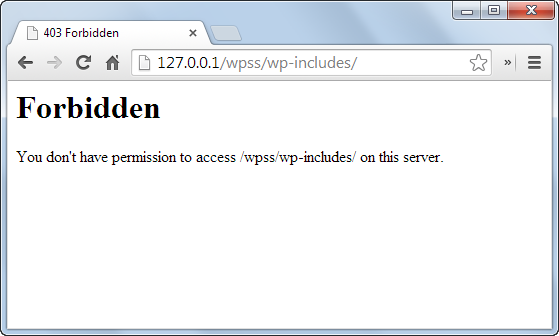
Method 2: Direct browser test (if you know a folder without an index file)
Try accessing a known folder that doesn’t contain index.html or index.php, such as /wp-content/uploads/ (many WordPress uploads folders have no index). If you see a file list, your site is vulnerable. Note: some hosts add an empty index.html automatically, so you might see a blank page even if directory listing is on—this is why the dummy folder test is more reliable.
Method 3: Automated scanner
You can use a free online tool like Probely’s free vulnerability scanner to detect directory listing issues along with other security misconfigurations.
How to Disable Directory Browsing (Complete Guide for All Environments)
We’ll cover four main scenarios: using .htaccess (Apache), cPanel Index Manager, Nginx, and Tomcat. Choose the method that matches your hosting environment.
1. Disable Directory Listing Using .htaccess (Apache Servers)
This is the most common method for shared hosting and Apache‑based servers. The .htaccess file gives you per‑directory control.
Step‑by‑step:
- Connect to your website via FTP or your hosting file manager.
- Locate the
.htaccessfile in your web root (usuallypublic_html). If it doesn’t exist, create a new blank file named exactly.htaccess(including the dot). - Important: Before editing, download a backup copy to your computer.
- Open the .htaccess file in a plain text editor (Notepad, VS Code, etc. – never Word or WordPad).
- Add the following line at the end of the file:
Options -Indexes - Save the file and upload it back to your server, overwriting the old one.
- Test by visiting a folder without an index file (or the dummy folder you created earlier). You should now see a “403 Forbidden” error.
What does Options -Indexes do?
It tells Apache to remove the “Indexes” option, which controls directory listing. The minus sign disables it. If you see Options Indexes somewhere else in the file, that line would override your change, so make sure to comment it out or remove it.
Options -Indexes to the root .htaccess. For extra security, also add IndexIgnore * to prevent Apache from generating a listing even if Indexes is accidentally re‑enabled.2. Disable Directory Listing in cPanel Using Index Manager
If your host provides cPanel, you can disable directory browsing with a few clicks – no manual file editing required.
Steps:
- Log into your cPanel dashboard.
- Under the “Advanced” or “Files” section, click Index Manager.
- Navigate to the directory you want to protect (usually your web root, often
public_html). - Select the folder and click “Edit”.
- Choose the option “No Indexing” (or “No Indexing – Disable directory browsing”).
- Click “Save”.
cPanel will automatically add the necessary directives to your .htaccess file. To apply this recursively to all subdirectories, select the option to apply to “this directory and all subdirectories”.
3. Disable Directory Listing on Nginx
Nginx handles directory listing with the autoindex directive. By default, autoindex is off, but you should verify that no location block has enabled it.
Check your Nginx configuration:
- Locate your Nginx config file (often
/etc/nginx/nginx.confor/etc/nginx/sites-available/your-site). - Search for
autoindex on;inside anylocationblock. - If found, change it to
autoindex off;or remove the line. - Test the configuration:
nginx -t - Reload Nginx:
service nginx reload(orsystemctl reload nginx).
Example of a safe configuration:
location / {
    root /var/www/html;
    index index.php index.html;
    autoindex off;
}
4. Disable Directory Listing on Apache Tomcat
Tomcat uses the DefaultServlet to handle directory requests. You can disable listing globally or per web application.
Global disable (affects all web apps):
- Navigate to your Tomcat installation directory (e.g.,
/usr/local/tomcat/conf/). - Open
web.xmlin a text editor. - Find the
<servlet>block for thedefaultservlet:
<servlet>
    <servlet-name>default</servlet-name>
    <servlet-class>org.apache.catalina.servlets.DefaultServlet</servlet-class>
    <init-param>
        <param-name>listings</param-name>
        <param-value>false</param-value>
    </init-param>
</servlet>
Make sure <param-value> is set to false. If it’s true, change it. If the parameter doesn’t exist, add it.
Per‑web application override:
Create or edit WEB-INF/web.xml inside your specific web app and add the same servlet configuration, but with a unique servlet‑name to override the default.
Common Pitfalls & Troubleshooting
Even after following the steps above, you might still see directory listings. Here’s what to check:
- Cache: Your browser or a CDN might cache the old listing. Clear your browser cache and test from a private window.
- Multiple .htaccess files: A subfolder’s .htaccess could re‑enable Indexes. Search your site for other .htaccess files and ensure they don’t contain
Options +IndexesorOptions Indexes. - Server‑wide configuration: On dedicated servers, the main Apache config (
httpd.conf) might override .htaccess. Check forOptions Indexesinside<Directory>blocks and remove it. - WordPress-specific plugins: Some security plugins or backup plugins create temporary directories with their own .htaccess rules. Scan your
/wp-content/folders for unexpected .htaccess files.
Advanced: Disable Directory Listing Without .htaccess (When Overrides Are Disabled)
Some hosting providers (especially free or low‑cost plans) disable .htaccess overrides for performance or security reasons. In that case, you cannot use Options -Indexes in a .htaccess file. Your options are:
- Contact support – Ask them to disable directory listing globally for your account.
- Use an index file workaround – Create an empty
index.htmlfile in every sensitive directory. This is tedious but works because the server will show the index file instead of a listing. - Switch hosting providers – If your host doesn’t allow basic security configurations, consider moving to a more security‑conscious provider.
How to Verify the Fix (Testing After Disabling)
After applying your chosen method, always test immediately:
- Create a new dummy folder via FTP (or use an existing folder without an index file).
- Visit that folder in your browser using an incognito/private window (to avoid cache).
- You should see a “403 Forbidden”, “Access Denied”, or a blank page – not a list of files.
- Also test a few real directories, like
/wp-content/uploads/or/backup/(if they exist).
If you still see a listing, double‑check the troubleshooting steps above.
Additional Security Measures Beyond Disabling Directory Listing
Disabling directory browsing is just one layer. To truly protect your WordPress site, implement these additional steps:
Install a Web Application Firewall (WAF)
Services like Cloudflare or Sucuri block malicious requests before they reach your server.
Use Strong Credentials & Two‑Factor Authentication
Prevent brute‑force attacks on your WordPress admin area and hosting control panel.
Keep Everything Updated
Core, themes, and plugins – outdated software is the #1 entry point for hackers.
Move wp-config.php Outside Web Root
If possible, place your wp-config.php one level above public_html to prevent accidental exposure.
Also consider using a security plugin like Wordfence or Solid Security (formerly iThemes Security) to automate many of these hardening tasks.
Frequently Asked Questions (FAQ)
A: No, it has no direct impact on SEO. In fact, it can indirectly help by preventing search engines from indexing exposed backup files or duplicate content that might dilute your site’s authority. Google prefers secure websites, so fixing security issues is always positive.
Options -Indexes break any WordPress functionality?A: No, WordPress does not rely on directory listing. It uses index files (index.php) to route all requests. Disabling directory listing only affects folders that lack an index file – exactly what you want to protect.
A: Yes, LiteSpeed is fully compatible with Apache .htaccess directives, including
Options -Indexes. The same steps apply.A: Absolutely. Place a .htaccess file with
Options -Indexes inside the folder you want to protect, or use cPanel Index Manager on a per‑folder basis. For Nginx, you can add autoindex off; inside a location block for that specific path.A: IIS calls this “directory browsing”. Open IIS Manager, select your site, double‑click “Directory Browsing”, and set it to “Disabled”. You can also disable it via the
web.config file with <directoryBrowse enabled="false" />.Options -Indexes but still see a listing. What went wrong?A: Likely causes: another .htaccess file lower in the tree has
Options +Indexes (the last one wins); your main Apache config has AllowOverride None (disables .htaccess); or you placed the directive inside a <Files> block incorrectly. Move Options -Indexes to the very top of your root .htaccess and test again.A: Yes. “Index of /” pages are the visual representation of directory listing. If you see “Index of /folder” in your browser title, directory browsing is enabled.
A: No. SSL encrypts data in transit but does not change how the web server responds to directory requests. An exposed directory is still exposed, whether over HTTP or HTTPS.






Very useful. Thank you
Keep reading and sharing