

How To Download Netflix Movies On Different Devices: Complete 2026 Guide
- Netflix officially supports downloads on iOS, Android, and Amazon Fire tablets only in 2026 — Netflix removed the download feature from its Windows app in 2024 as part of a PWA update, and Mac never had an official download app.
- Downloads expire: Most Netflix downloads remain playable for 7 to 30 days depending on the title and licensing agreement. Some titles also have an annual download limit — once hit, you cannot re-download until the following year.
- Your plan determines how much you can download: Standard with Ads allows 15 downloads per month on 2 devices; Standard allows 100 active downloads on 2 devices; Premium allows 100 active downloads on up to 6 devices.
- PC and Mac users need a third-party solution since Netflix removed official Windows downloading. Tools like FlixiCam and TunePat save Netflix videos as DRM-free MP4 files playable on any device.
- Smart Downloads and Downloads for You are two powerful automation features that make managing your offline library effortless on mobile — they download new content automatically and delete watched episodes to save storage.

Streaming Netflix is second nature for most people now. But what happens when you board a flight, head somewhere with patchy Wi-Fi, or simply want to watch without burning through your mobile data? That is exactly where Netflix’s offline download feature comes in — and in 2026, knowing how it works across different devices matters more than ever, because the rules have changed significantly.
The biggest change you need to know upfront: Netflix removed the download functionality from its Windows desktop app in 2024. The app was converted to a Progressive Web App (PWA) — essentially a browser wrapper — which stripped out offline downloading entirely. If you have been searching “how to download Netflix movies on laptop” and finding the download button missing, you are not doing anything wrong. Netflix made a deliberate platform decision that affected every Windows user globally.
This guide covers everything: how downloads work on every supported device, current plan limits, Smart Downloads, what to do if you need offline Netflix on a Windows PC or Mac, and how tools like FlixiCam and TunePat work for users who need permanent DRM-free copies. Whether you are preparing for a long trip or just planning a Wi-Fi-free evening, here is exactly what you need to know.
Netflix Download Plans: What Each Subscription Allows in 2026
Not all Netflix plans offer the same download privileges. Before you start downloading, it is worth confirming what your current plan actually allows — particularly if you are on the ad-supported tier, which has the most restrictive download policy of any plan.
| Netflix Plan | Monthly Price (US) | Download Devices | Active Downloads Per Device | Monthly Download Limit |
|---|---|---|---|---|
| Standard with Ads | $6.99/month | 2 supported devices | Limited | 15 downloads per month |
| Standard | $15.49/month | 2 supported devices | 100 active downloads | Unlimited |
| Premium | $22.99/month | 6 supported devices | 100 active downloads per device | Unlimited |
Which Devices Support Netflix Downloads in 2026?
Netflix officially supports downloads on the following device categories as of 2026. It is worth confirming your device’s operating system version before attempting to download, as older OS versions may not be supported even on compatible hardware.
| Device Type | Download Support | Minimum OS Required | Notes |
|---|---|---|---|
| iPhone / iPad | ✅ Fully Supported | iOS 16 or later | Download button on title page; Smart Downloads available |
| Android Phone / Tablet | ✅ Fully Supported | Android 8.0 or later | SD card download location available on compatible devices |
| Amazon Fire Tablet | ✅ Fully Supported | Fire OS 5+ | SD card storage option available |
| Chromebook | ✅ Supported | Latest Chrome OS | Click Downloads → Find More to Download |
| Windows PC / Laptop | ❌ Not Supported | N/A | Netflix removed download feature from Windows app in 2024 |
| Mac | ❌ Never Supported | N/A | No official Netflix app for macOS; browser cannot download |
| Smart TV | ❌ Not Supported | N/A | Netflix on Smart TVs is streaming-only; no download option |
How to Download Netflix Movies and TV Shows on iPhone and iPad
Downloading Netflix content on iPhone and iPad is the most seamless offline experience the platform offers. The process is intuitive, the Smart Downloads feature handles library management automatically, and iOS devices offer the cleanest interface for managing your downloaded content.
Step-by-Step: Downloading on iPhone or iPad
- Open the Netflix app and make sure it is updated to the latest version from the App Store.
- Find downloadable content: Tap Downloads at the bottom of the screen, then tap See What You Can Download to browse titles available for offline viewing. Not every title is downloadable due to licensing restrictions.
- For a movie: Open the title page and tap the Download button (downward arrow icon) beneath the Play button.
- For a TV show: Navigate to the season you want. Tap the download arrow next to each individual episode, or use Download Season to save all episodes of that season at once.
- Monitor progress: A blue progress bar appears at the bottom of the app while downloading. Tap Downloads from the bottom menu to see all active and completed downloads.
- Watch offline: Go to Downloads, find the title, and tap Play. You must stay signed in to your Netflix account to access downloads.
How to Download Netflix on Android Phone or Tablet
The Android Netflix download experience mirrors iOS closely, with one meaningful advantage: Android and Amazon Fire devices support downloading directly to an SD card, giving you external storage expansion that iPhone users simply do not have.
Step-by-Step: Downloading on Android
- Open the Netflix app on your Android phone or tablet. Update the app to the latest version via Google Play Store before proceeding.
- Set your download location (if using an SD card): Go to App Settings → Downloads → Download Location and select your SD card.
- Set video quality: In App Settings → Downloads → Video Quality, choose Standard (saves space) or High (better visuals, larger files).
- Find and download: Locate the movie or TV show you want. Tap it to open the description page. Tap the Download icon (downward arrow) next to the episode or use Download Season for a full season batch download.
- Track progress: A download progress indicator appears in the notification bar and within the app. Tap Downloads at the bottom of the Netflix screen to view your full offline library.
- Watch offline: Open Downloads, select your title, and tap Play. Tap the down arrow and select Remove Download when done to free up storage.
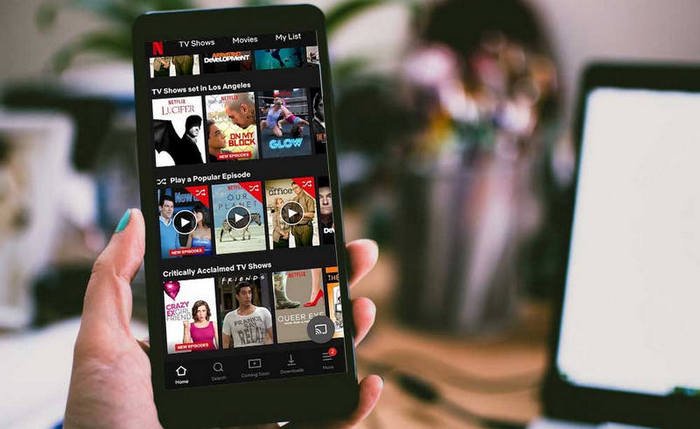
Downloading Netflix to an SD Card on Android
Unlike iOS devices, many Android phones and Amazon Fire tablets support expandable storage via microSD cards. Netflix allows you to redirect downloads to your SD card, which is invaluable if your phone’s internal storage is limited. Set the download location before your first download — you cannot move existing downloads from internal storage to an SD card after the fact without deleting and re-downloading them.
Netflix Downloads on Windows PC and Mac — What Changed in 2026
This is the section that matters most for laptop users in 2026, because the answer has fundamentally changed from what every older guide on this topic says.
Netflix removed the download feature from its Windows desktop app in 2024. The Windows Netflix application was converted to a Progressive Web App — effectively a browser wrapper rather than a native application — and this update eliminated the Download button entirely. Every Windows user who previously relied on the Microsoft Store Netflix app for offline viewing lost that capability.
Mac users face a related but distinct problem: there has never been an official Netflix application for macOS. Mac users have always accessed Netflix through Safari or Chrome, and browsers cannot download Netflix content due to DRM (Digital Rights Management) protections baked into the platform. Screen recording software like OBS or QuickTime also fails on Netflix — the platform uses HDCP (High-bandwidth Digital Content Protection) which causes screen captures to produce a black video with only audio.
The Only Working Solution for PC and Mac Offline Netflix Viewing
For Windows and Mac users who need offline Netflix viewing, third-party downloader applications that interface directly with the Netflix stream — bypassing DRM by capturing the video as it renders — represent the only functional solution. The two most established options in this category are FlixiCam and TunePat Netflix Video Downloader.
Both tools work by launching an embedded Netflix browser within the application, requiring you to log in with your real Netflix account, then downloading the video in MP4 or MKV format to your computer’s local drive. The resulting files are standard video files playable in VLC, Windows Media Player, QuickTime, or any other media player — and can be transferred to any device you own.
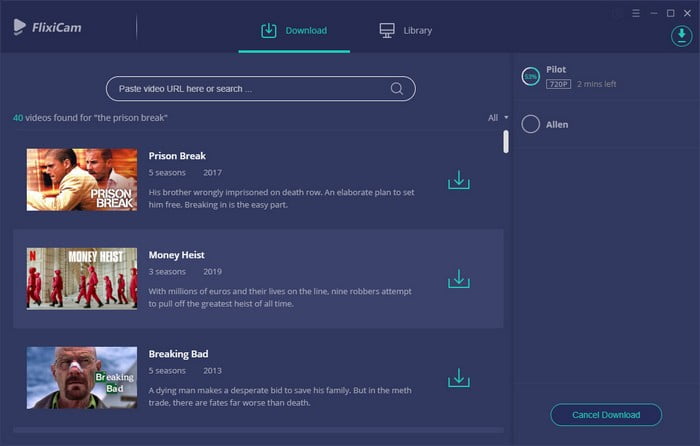
How to Download Netflix Videos on PC Using FlixiCam

FlixiCam is a purpose-built Netflix video downloader for Windows (and now Mac) that saves Netflix content as MP4 or MKV files at up to 1080p resolution, complete with original audio tracks and subtitles. It requires a valid, active Netflix subscription to function — you are logging into your own account, not bypassing authentication.
Step-by-Step: Using FlixiCam to Download Netflix Videos
- Install FlixiCam on your Windows or Mac computer and launch the application.
- Log in to Netflix: Click the search box and type any title — this triggers the Netflix login window. Sign in with your Netflix account credentials.
- Configure output settings: Click the Settings icon in the top right corner to set your preferred output format (MP4 or MKV), video quality (High = 1080p, Medium, or Low), audio language, and subtitle language.
- Search for your title: Type the movie or TV show name into the search box, or paste the Netflix URL directly from your browser.
- Select download options: For TV shows, a window appears letting you select specific seasons and episodes. Click Advanced Download to fine-tune audio tracks and subtitle embedding for each download.
- Start downloading: Click the Download button. FlixiCam begins downloading to your specified output folder.
- Access your files: Click Library within FlixiCam to find completed downloads. The files are standard MP4 or MKV — open them with any media player or transfer them to any device.

How to Use TunePat Netflix Video Downloader
TunePat Netflix Video Downloader works on both Windows (7, 8, 10, and 11) and Mac, making it the more widely compatible of the two major third-party solutions. It saves Netflix content as MP4 or MKV files at up to 1080p with 5.1 surround audio tracks and embedded subtitles, producing files that are fully portable across any device you own.
Step-by-Step: Using TunePat for Netflix Downloads
- Launch TunePat on your Windows or Mac computer.
- Sign in: Click the Sign In button in the top right corner and log in with your Netflix account credentials within the embedded browser.
- Configure settings: Click the Settings icon to set your output format (MP4 or MKV), video quality, audio language, subtitle language, and the output folder path where files will be saved.
- Search for content: Enter the movie or show title in the search box, or paste the Netflix URL directly. TunePat returns matching results from Netflix’s catalogue.
- Select and customise: For movies, click the green download button. For TV shows, select your desired season and episodes first, then click Advanced Download to set per-download quality and subtitle preferences.
- Download: Click Download to begin. TunePat processes the video at high speed compared to real-time recording approaches.
- Transfer to any device: Find your completed downloads in the Library tab. Transfer via USB cable, cloud storage, AirDrop, or any standard file transfer method to your phone, tablet, or external drive.

Smart Downloads and Downloads for You — Netflix’s Automated Offline Features
For mobile users who want their offline library to manage itself, Netflix offers two powerful automation features that most users never configure — and subsequently miss out on.
Smart Downloads
Smart Downloads is available on iPhone, iPad, and Android. When enabled, it monitors your TV show watching behaviour and automatically deletes episodes you have finished watching, then downloads the next unwatched episode of that series the next time your device connects to Wi-Fi. The result is a self-managing library that always has fresh content ready without requiring any manual intervention.
To enable Smart Downloads: Open Netflix → My Netflix (bottom right) → Menu → App Settings → Smart Downloads → Toggle Smart Downloads on.
Downloads for You
Downloads for You takes automation further. When enabled, Netflix uses your viewing history and preferences to automatically download titles it predicts you will want to watch — not just the next episode of shows you are already watching, but new recommendations from the broader catalogue. This feature is not available on ad-supported plans.
To enable Downloads for You: Open Netflix → My Netflix → Menu → App Settings → Smart Downloads → Toggle Downloads for You on. Use the storage slider to set how much space Netflix can use for automatic downloads.
Netflix Download Limits and Expiry — What You Need to Know
Understanding Netflix’s download limitations prevents the frustration of arriving at your destination only to find content unavailable or already expired.
| Limitation Type | Details | How to Avoid Problems |
|---|---|---|
| Download Expiry | 7 to 30 days from download date depending on title licensing | Check expiry date in Downloads section before travel; re-download if necessary |
| Playback Expiry | Some titles expire 48 hours after you first press Play | Do not start watching until you are ready to finish; check title-specific expiry |
| Annual Download Limit | Certain titles can only be downloaded a fixed number of times per year | Download to your primary viewing device first; avoid unnecessary re-downloads |
| Active Download Cap | 100 active downloads per device (Standard/Premium); 15/month (Ads plan) | Delete watched downloads regularly to stay below the limit |
| Device Limit | Downloads tied to the device used; 2 devices (Standard), 6 devices (Premium) | Upgrade plan if household members need simultaneous offline access |
| Account Cancellation | All downloads deleted immediately upon account cancellation | Watch all downloaded content before cancelling; downloads cannot be retained |
How to Fix “Downloads on Too Many Devices” Error on Netflix
The “Downloads on Too Many Devices” error appears when you have reached the simultaneous device download limit for your subscription plan. This is one of the most common errors Netflix users encounter, particularly in households with multiple phones and tablets all running the Netflix app. Fixing it is straightforward once you understand what triggers it.
Method 1: Delete Downloads From Existing Devices
The fastest fix is simply deleting downloads from devices you are no longer actively using.
On mobile (iOS or Android):
- Open the Netflix app and select your profile
- Tap Downloads or More → My Downloads
- Tap Edit in the upper right corner
- Tap the X next to each download you want to remove
To remove a device entirely (via web browser):
- Go to netflix.com and log in
- Click your profile icon → Account
- Click Manage download devices
- Click Remove device next to any device you no longer use — this deletes all downloads from that device at once
Method 2: Upgrade Your Netflix Plan
If your household genuinely needs offline access on more than 2 devices simultaneously, upgrading from Standard to Premium expands your simultaneous download device limit from 2 to 6. Go to netflix.com → Account → Plan Details → Change Plan and select Premium.
How to Download Netflix on iPad — Full Walkthrough

iPad’s larger screen makes it the ideal device for downloading Netflix movies before a flight or trip — the 10.9-inch or larger display delivers a genuinely cinematic experience that phone screens simply cannot match. The download process on iPad is identical to iPhone, with the same Smart Downloads and Downloads for You features available.
- Open Netflix on your iPad and ensure the app is fully updated via the App Store.
- Browse available downloads: Tap Downloads → See What You Can Download to filter the entire library to only downloadable content.
- Download a movie: Open the title page and tap the download arrow beneath the title information.
- Download a TV episode: Go to the series → select a season → tap the download arrow next to each episode. For full season downloads, tap Download Season.
- Manage Smart Downloads: Enable Smart Downloads in App Settings to automate episode management across long series.
- Find your downloads: Tap Downloads from the bottom navigation to access your full offline library and start playback.
How to See Netflix Offline on a Mac — Working Solutions
Mac users face the most restricted official Netflix experience of any platform — there has never been a macOS Netflix application, and Safari and Chrome cannot download Netflix content due to DRM restrictions. However, there are practical workarounds.
The two reliable options for Mac offline Netflix viewing are the same third-party tools available to Windows users: FlixiCam (available for Mac) and TunePat (available for Mac). Both follow the same workflow described in the Windows section above — install the application, log in with your Netflix account within the app’s embedded browser, search for your title, configure quality settings, and download as an MP4 or MKV file to your local drive.
A second option specific to Mac users is AirPlay from a downloaded iPhone or iPad. If you have a device with the Netflix app installed and have downloaded content to it, you can AirPlay that content to your Mac using QuickTime Player → New Movie Recording → select your iPhone as the camera source, or directly to an Apple TV connected to a larger screen. This workaround does not create a file on your Mac, but delivers the viewing experience on a larger display without needing to download on the Mac itself.
Download Quality Settings: Which One Should You Choose?
Netflix offers two download quality levels on mobile devices — Standard and High. Choosing the right one depends on a balance between your available storage, the screen size you are downloading for, and the time you have available before you need the content ready.
| Quality Setting | Approximate File Size (90-min film) | Download Speed | Best For |
|---|---|---|---|
| Standard | 250MB – 500MB | Fast | Phone viewing, limited storage, last-minute downloads |
| High | 500MB – 2GB | Slower | iPad, tablet, large-screen viewing, when storage is plentiful |
Access download quality settings from: Netflix app → More/Menu → App Settings → Downloads → Video Quality. Changes apply to all future downloads — they do not affect content you have already downloaded.
Downloading Netflix via Wi-Fi vs. Mobile Data
By default, Netflix only downloads over Wi-Fi to protect your mobile data allowance. This is the correct default for most users — a single 1080p film can consume 2GB of data, which would devastate a standard monthly data plan in a single download session.
To allow downloading over mobile data: App Settings → Downloads → uncheck Wi-Fi Only. Netflix will then warn you each time you initiate a download over cellular data. Re-enable Wi-Fi Only immediately after any cellular downloads to prevent accidental data consumption.
Where Netflix Saves Downloads on Android (File Manager Guide)
Android users with file manager applications can locate Netflix’s download folder at: Android → data → Device Storage → com.netflix.mediaclient → Documents → Download
The downloaded files are stored in encrypted, obfuscated folder names (numerical strings like “60031262” rather than readable file names) and cannot be played by any media player other than the Netflix app. They are DRM-encrypted specifically to prevent unauthorised copying or transfer. You can move these folders to an SD card for storage management purposes, but re-inserting the SD card into the same device is required for playback — they will not play on any other device.
Offline Netflix Viewing: Practical Tips for Travellers
Getting the most from Netflix offline viewing during travel requires a bit of planning rather than last-minute scrambling at the airport gate. Here is the preparation workflow that consistently delivers a stress-free offline viewing experience.
- Download 48–72 hours before departure on your home Wi-Fi — this gives files time to fully cache and avoids the expiry clock starting too close to your viewing window.
- Check each download’s expiry date in your Downloads section before departure — swipe left on the title (iOS) or tap to open details to see the expiry countdown.
- Download more than you think you will watch — delays, cancelled connections, and extended layovers are unpredictable. Having three films downloaded when you only expect to need one is always the right call.
- Charge your device to 100% and bring a portable battery pack — offline Netflix playback is more battery-intensive than streaming because the device is doing all the decoding work locally.
- Enable airplane mode after your last download completes — this prevents the Netflix app from checking licence validity against the server during your flight, which can occasionally trigger unexpected playback errors on spotty in-flight Wi-Fi.
- Download headphone-friendly content for flights — action films with heavy bass and immersive sound design translate poorly through in-flight earbuds; dialogue-heavy dramas and documentaries are far more enjoyable at altitude.
- Streaming Services: The Best Ways to Enjoy Them in 2026 — How to get the absolute most from Netflix, Hulu, Amazon Prime, and free alternatives.
- Project Free TV Alternative To Watch Movies Online Free — The best free streaming sites when you want options beyond Netflix.
- Is This Anime Streaming Site Legit? — How to evaluate any streaming platform for safety and legal status before visiting.
- Best Apple TV 4K Apps for Streaming — The top apps to install on Apple TV for the best living room streaming experience.
- Different Types of Engaging Video Content — Understanding the video formats that perform best across streaming and social platforms.
Summary
Downloading Netflix movies and TV shows for offline viewing is one of the platform’s most valuable features — but only if you understand what is and is not possible on your specific device in 2026. Mobile users on iOS and Android have the most complete experience, with intuitive download workflows, Smart Downloads automation, and optional SD card storage on Android. iPad users benefit from the same full feature set on a screen size genuinely suited to movie watching.
Windows and Mac laptop users face a more restricted landscape following Netflix’s 2024 PWA update, which removed desktop offline viewing. FlixiCam and TunePat are the practical solutions for these users, producing DRM-free MP4 files that work on any device. Smart TV users have no official offline option and need a phone or tablet as an intermediary.
Whatever device you are using, the principles are consistent: download over Wi-Fi before you need content, check expiry dates, manage your device limit proactively, and use the Smart Downloads feature to automate the process wherever possible.
FAQ
A: Not through the official Netflix app. Netflix removed the download feature from its Windows application in 2024 when it converted the app to a Progressive Web App (PWA). Mac never had a native app with download support. The only way to download Netflix content to a Windows or Mac laptop is through third-party tools like FlixiCam or TunePat, which save the video as a standard MP4 file to your local drive.
A: Netflix downloads typically expire between 7 and 30 days from the date of download, depending on the title’s specific licensing agreement. Some titles also expire 48 hours after you first press Play, regardless of when they were downloaded. Check the expiry date in your Downloads section before any trip. Downloads from cancelled accounts are deleted immediately and cannot be recovered.
A: Standard and Premium plan subscribers can have up to 100 active downloads per device. Standard with Ads subscribers are limited to 15 downloads per month across their permitted devices. Additionally, some individual titles have annual download caps due to studio licensing restrictions — once you hit that title-specific limit, you cannot re-download it until the following year.
A: Yes, but only on Android phones and Amazon Fire tablets that support external storage expansion. Go to App Settings → Downloads → Download Location and select your SD card. iOS devices do not support expandable storage, so Netflix downloads on iPhone and iPad are always stored in the device’s internal memory. Downloads saved to SD cards are still DRM-encrypted and device-specific — they cannot be transferred to another device for playback.
A: Smart Downloads is a Netflix automation feature available on iOS and Android. When enabled, it automatically deletes TV show episodes you have finished watching and downloads the next unwatch episode of the same series when your device connects to Wi-Fi. This keeps your Downloads section fresh and storage-efficient without any manual management. Enable it in App Settings → Smart Downloads. It is not available on the Standard with Ads plan.
A: All downloaded content is deleted from every device on your account immediately when your Netflix subscription is cancelled or expires. You cannot retain Netflix downloads after cancellation — this is a deliberate DRM policy that prevents offline content from persisting beyond the subscription period. If you want to keep Netflix content permanently, tools like FlixiCam or TunePat save downloads as DRM-free MP4 files to your computer before any subscription changes.
A: This error means you have reached your plan’s simultaneous device download limit. Fix it by going to netflix.com → Account → Manage download devices and removing any devices you no longer actively use. Alternatively, delete downloads from existing devices through the Netflix app’s Downloads section. If your household genuinely needs more simultaneous download devices, upgrading from Standard (2 devices) to Premium (6 devices) resolves the issue permanently.




thanks for sharing, it has helped me to find the latest movie that is in the waiting that is captain America civil war. in many similar local sites,
thanks for nice comments, keep reading and sharing
Thanks for sharing this post. I really look forwards to reading more of your content. And I will be glad as well if you could check on my blog
thanks for nice comment, keep reading and sharing
This content is very helpful for me. Thanks for sharing
Hello just wanted to ggive you a quick heads up and let you
know a few of the pictures aren’t lolading correctly. I’m not sure why but
I think its a linking issue. I’ve tied it in twwo different browsers and both
show thhe same outcome.