How to Loop a YouTube Video Step-by-Step
YouTube is a treasure trove of content, but sometimes you want to watch a video on repeat. Whether it’s your favorite song, a tutorial, or a funny clip, looping can save you from hitting the replay button endlessly. In this guide, we’ll show you how to loop a YouTube video step-by-step (with photos) to make your viewing experience seamless and enjoyable.
1. Getting Started
To loop a YouTube video, you don’t need to be a tech whiz. Here’s how to get started:
1.1. Choose Your Video
Pick the YouTube video you want to loop. It could be a music video, a lecture, or a cat meme—whatever tickles your fancy.
1.2. Open YouTube
Open your web browser and go to the YouTube website (www.youtube.com). If you’re using the mobile app, launch it on your device.
1.3. Sign In (Optional)
Signing in to your YouTube account is optional, but it allows you to save your looped videos to playlists for easy access later.
1.4. Find the Video
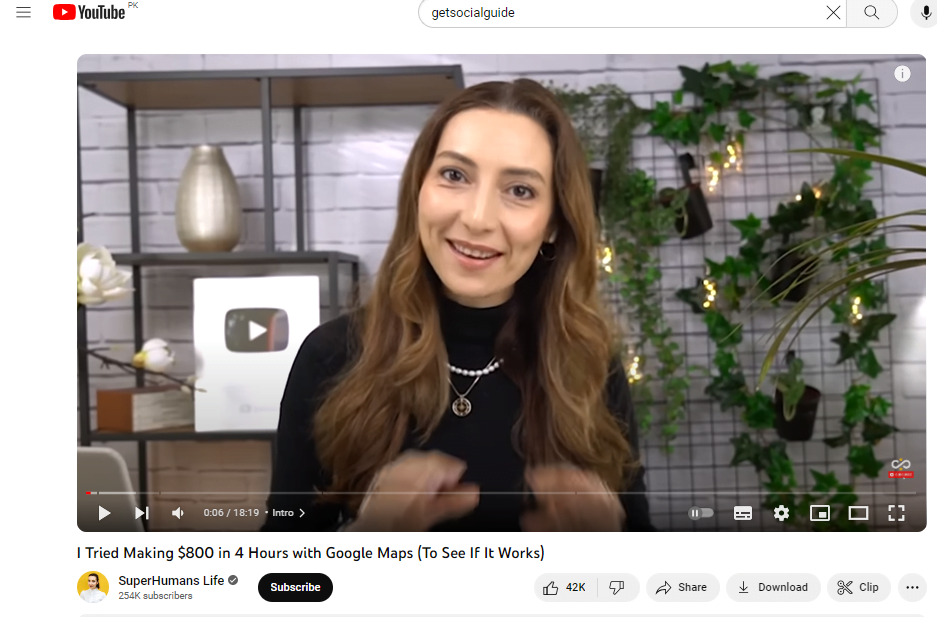
Use the search bar to find the video you selected earlier. Once you’ve found it, click on the video to start playing it.
2. Looping on YouTube
Now that you have your video ready, let’s explore how to loop it effectively:
2.1. Right-Click (Desktop) or Tap (Mobile)

On desktop, right-click on the video player. On mobile, tap the video player. This will open a context menu.
2.2. Loop Option
In the context menu, look for the “Loop” option. Click or tap on it.
2.3. Confirm Loop
A checkmark or similar indicator will appear, confirming that the video is set to loop. You can now enjoy uninterrupted playback.
3. Looping with Extensions (Optional)
If you want more control over looping or if the built-in loop option isn’t available, you can use browser extensions. Here’s how:
3.1. Install a Looping Extension
Visit your browser’s extension store and search for a “YouTube looping” extension. Install one that suits your browser.

3.2. Activate Looping
Once installed, activate the extension while watching a video. Follow the extension’s instructions to loop the video as desired.
4. Advanced Looping Methods
4.1. Loop a Specific Section Using URL Parameters
YouTube supports URL parameters that allow you to specify start and end times. While this doesn’t create a seamless infinite loop, it’s perfect for repeating a specific segment. Simply add ?start=XX&end=YY to the URL, then use a loop extension or right‑click loop to repeat that range. For example: https://www.youtube.com/watch?v=A0xA5vyDgzA&start=30&end=60.
4.2. Use a Playlist to Loop Multiple Videos
Create a playlist containing the video you want to loop, then set the playlist to repeat. On desktop:
- Add the video to a playlist (or create a new one).
- Open the playlist and click the “Repeat” button (circular arrow) until it shows “1” (repeat one video) or the playlist icon with “1” (repeat playlist).
- Now the video (or playlist) will loop indefinitely.
4.3. Third‑Party Websites for Enhanced Looping
Sites like YouTubeLoop.com or Infinitelooper let you paste a YouTube URL and loop any part with custom start/end points. They’re ideal for musicians practicing a tricky section or language learners repeating phrases.
4.4. Keyboard Shortcuts for Quick Looping
While there’s no native keyboard shortcut for looping, you can combine the “L” key (jump forward 10 seconds) or “J” (jump back 10 seconds) with the loop feature. But the fastest way: right‑click and select Loop – it takes less than a second.
5. Best Practices for Looping Videos
- Use high‑quality videos: Looping low‑resolution videos can degrade the experience. Choose videos with at least 720p for clarity.
- Mute if necessary: If you’re looping a video as background audio, use the volume controls to avoid distraction.
- Save loops as playlists: Sign in to YouTube and add frequently looped videos to a “Loop” playlist for quick access.
- Test extensions before committing: Some extensions may conflict with ad‑blockers or other extensions. Test them in incognito mode first.
6. Troubleshooting Common Issues
IssueSolution
| Right‑click doesn’t show Loop option | Try double‑clicking the video to fullscreen then right‑click, or use a browser extension. On mobile, use the YouTube app where loop is available in the video settings menu (three dots). |
| Loop extension stops working after YouTube update | Check the extension’s page for updates. Often developers release patches within days. Alternatively, use the built‑in loop feature. |
| Video buffers repeatedly when looping | Reduce video quality to 480p or lower. Also, ensure your internet connection is stable. Clear your browser cache if the issue persists. |
| Looping a playlist includes ads | If you have YouTube Premium, ads are removed. Otherwise, you may see occasional ads between loops – you can use an ad blocker or manually restart. |
FAQs (Frequently Asked Questions)
Conclusion
Looping a YouTube video step-by-step (with photos) is a straightforward process, whether you’re using the built-in loop feature, a browser extension, or a playlist trick. Now you can enjoy your favorite videos on an endless loop without the hassle of manual replay. Whether you’re practicing an instrument, learning a language, or just vibing to your favorite track, these methods give you complete control. Happy looping!