How to Remove, Disable, or Hide Elementor on WordPress: Complete Guide (2026)
Elementor is one of the most popular page builders for WordPress, powering millions of websites with its intuitive drag-and-drop interface. But there comes a time when you might need to remove Elementor from a single page, disable it entirely, or even hide its traces for security or branding reasons. Whether you’re troubleshooting, switching builders, or white-labeling a client site, this comprehensive guide covers every method to remove, disable, or hide Elementor—step by step.
In this updated 2026 edition, we’ll walk you through multiple scenarios: removing Elementor from a specific page while preserving your content, globally disabling the plugin, hiding Elementor fingerprints with advanced techniques like WP Hide PRO, and even tweaking Elementor settings like section height and vertical dividers. Plus, we’ll share pro tips to ensure your site remains fast, secure, and professional.
Why Would You Need to Remove or Disable Elementor?
Before diving into the how, let’s explore the common reasons site owners and developers seek to remove or hide Elementor:
- Switching page builders: You may want to migrate to another builder like Gutenberg, Beaver Builder, or Divi.
- Simplifying a page: Some pages don’t need the complexity of a builder; plain WordPress editor is enough.
- Performance optimization: Elementor adds CSS and JavaScript files; removing it from unused pages can speed up load times.
- Troubleshooting conflicts: Sometimes a plugin or theme conflict requires deactivating Elementor temporarily.
- White-labeling client sites: Agencies often hide Elementor traces to present a clean, branded experience to clients.
- Security through obscurity: Hiding Elementor’s fingerprints makes it harder for attackers to target known vulnerabilities.
Whatever your reason, we’ve got you covered.
How to Remove Elementor From a Single Page (Without Losing Content)
If you only need to remove Elementor from one specific page—perhaps to rebuild it with the block editor—follow these simple steps. Your content (text, images, etc.) will be preserved and transferred to the WordPress editor, though the layout will be lost.
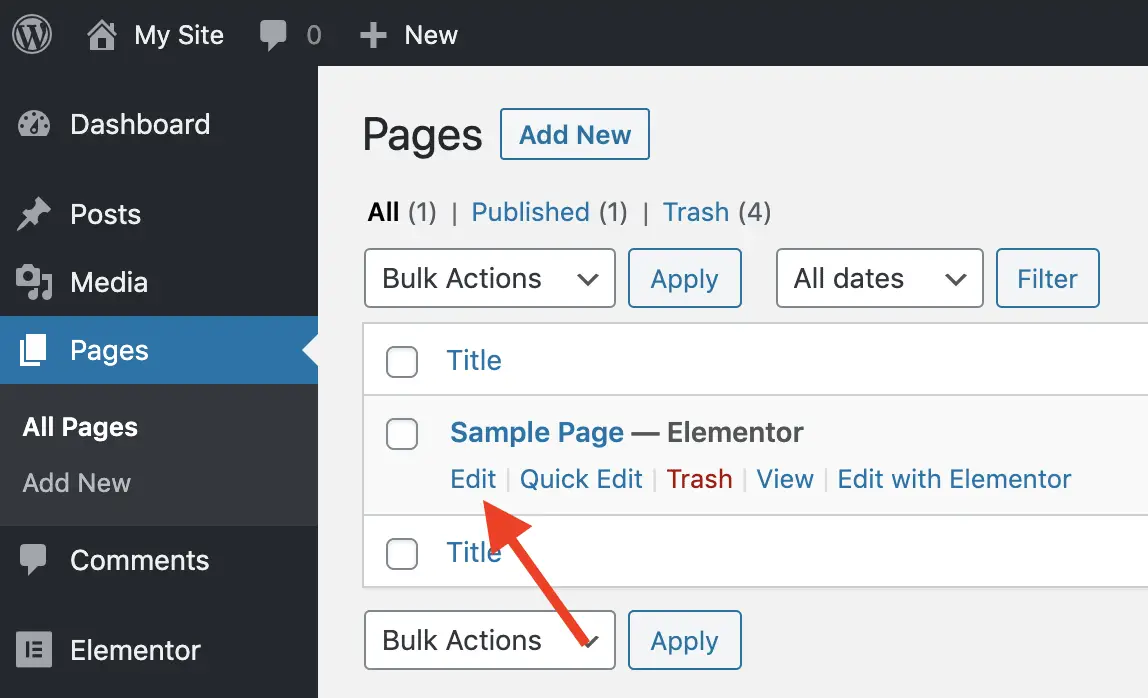
Step 1: Go to the Pages screen in your WordPress Admin panel and find the page that was built with Elementor. Click Edit.
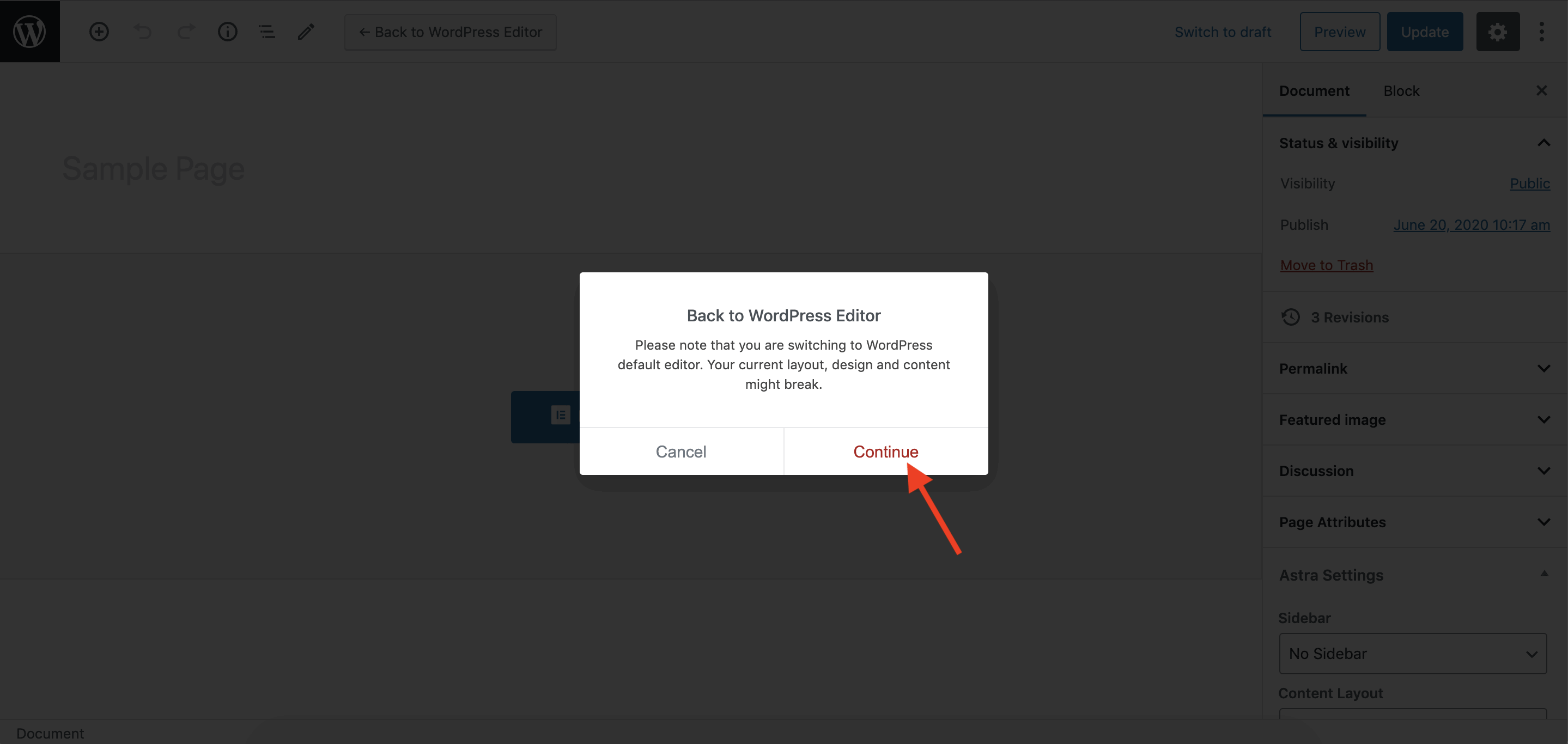
Step 2: In the Elementor editor, click on the Back to WordPress Editor button (the button with the WordPress logo).

Step 3: A warning message will appear, letting you know that the design created with Elementor will be lost. Don’t worry—your actual content (text, images, etc.) will be transferred to the classic WordPress editor. Click Continue.
Step 4: Elementor is now removed from the page. You’ll see your content inside the WordPress editor. You can now reformat it using blocks or classic editor tools.
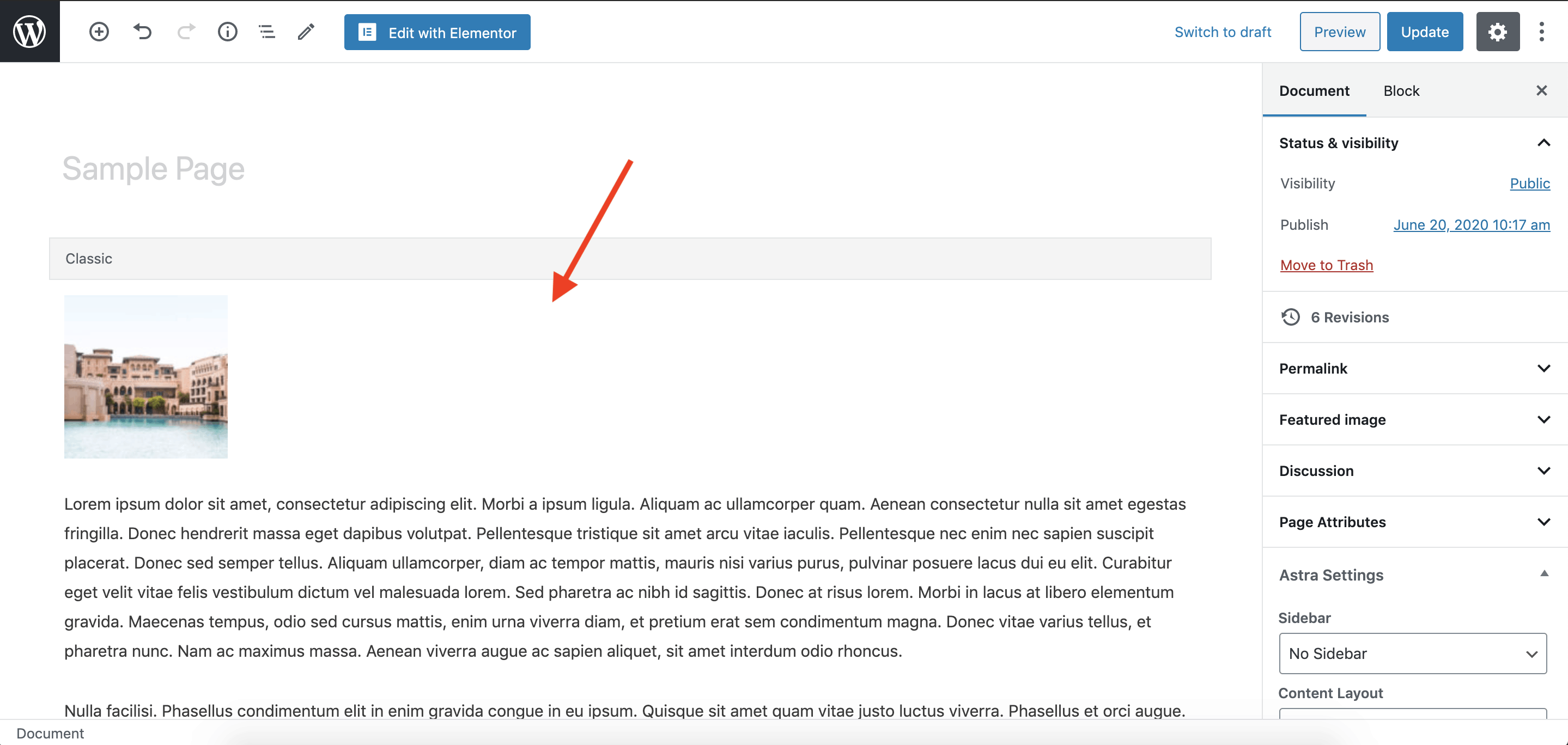
Step 5: Click Update to save your changes.
Pro Tip: Preserve Layout with Blocks
If you want to keep some of the structure, consider using a plugin like “Elementor to Gutenberg” or “Unbender” that attempts to convert Elementor sections into Gutenberg blocks. However, results vary; always test on a staging site first.
What Happens to Your Content After Removing Elementor?
When you use the method above, Elementor strips away its own layout data but leaves behind the raw content—paragraphs, images, headings—as HTML inside the classic editor. This means:
- Text content is preserved.
- Images remain, but their alignment and styling may be lost.
- Any custom CSS or advanced Elementor widgets will be removed.
- You’ll need to manually reapply formatting using WordPress blocks.
If you’re planning a full site migration away from Elementor, consider using a dedicated migration tool or hiring a developer to ensure nothing breaks.
How to Globally Disable Elementor (Without Deactivating the Plugin)
Sometimes you need to turn off Elementor site-wide temporarily—for maintenance, testing, or performance reasons—without fully deactivating the plugin. Here are two methods:
Method 1: Use a Code Snippet (functions.php)
Add the following code to your theme’s functions.php file or a custom plugin. This disables Elementor’s frontend loading for all pages.
add_action( 'init', 'disable_elementor_frontend' );
function disable_elementor_frontend() {
    if ( class_exists( 'Elementor\Plugin' ) ) {
        // Remove frontend scripts and styles
        remove_action( 'wp_enqueue_scripts', [ Elementor\Plugin::$instance->frontend, 'enqueue_styles' ] );
        remove_action( 'wp_enqueue_scripts', [ Elementor\Plugin::$instance->frontend, 'enqueue_scripts' ] );
    }
}
This prevents Elementor’s CSS and JS from loading on the front end, but the admin editor remains accessible.
Method 2: Use a Plugin (e.g., “Plugin Organizer”)
Plugin Organizer lets you selectively disable plugins on specific pages or site-wide. After installing, you can set Elementor to be disabled globally with a few clicks.
How to Completely Uninstall Elementor (and Remove All Traces)
If you’ve decided to stop using Elementor entirely, follow these steps to uninstall it cleanly.
Step 1: Deactivate and Delete via Plugins Page
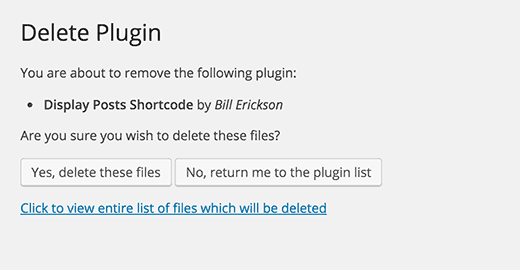
Go to Plugins → Installed Plugins. Find Elementor (and any Elementor Pro or add-ons). Click Deactivate, then Delete.

WordPress will ask for confirmation. Click Yes, delete these files.
Step 2: Clean Up Database (Optional but Recommended)
Elementor stores data in the WordPress database, including post meta, options, and custom tables. To fully remove all traces:
- Use a database cleanup plugin like WP-Optimize or Advanced Database Cleaner to delete orphaned Elementor data.
- Alternatively, run SQL queries (backup first!) to delete options with the
elementor_prefix and post meta keys like_elementor_data,_elementor_version, etc.
Warning: Backup Before Deleting Database Data
Removing Elementor data from the database is permanent and can break pages that still rely on Elementor shortcodes. Ensure you have a full backup and that you’ve migrated all content to another builder before proceeding.
How to Hide Elementor Traces (White Labeling for Security & Branding)
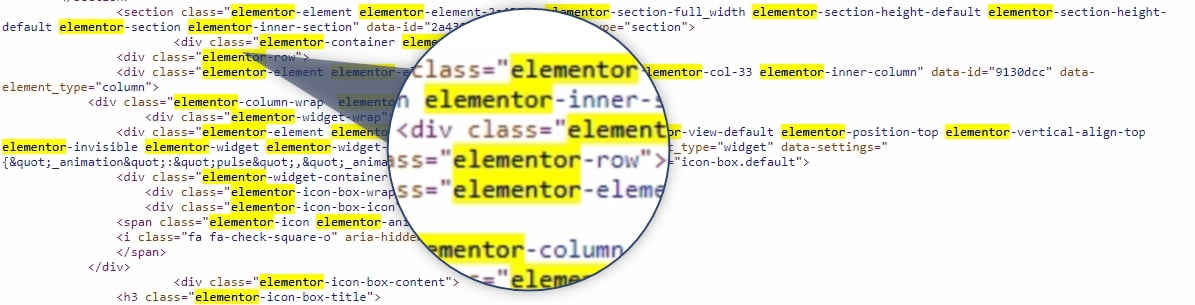
Elementor leaves many fingerprints in your site’s HTML: CSS classes starting with elementor-, JavaScript variables, and meta tags. For security through obscurity or client white-labeling, you may want to hide these traces. This is where advanced tools like WP Hide PRO come in.
Why Hide Elementor?
- Security: Hackers often scan for known plugin versions to exploit vulnerabilities. Hiding the plugin’s identity reduces attack surface.
- Branding: Agencies can present a clean, custom-built site to clients without third-party branding.
- Performance: WP Hide PRO also combines and minifies assets, reducing HTTP requests and improving load times.
How WP Hide PRO Works
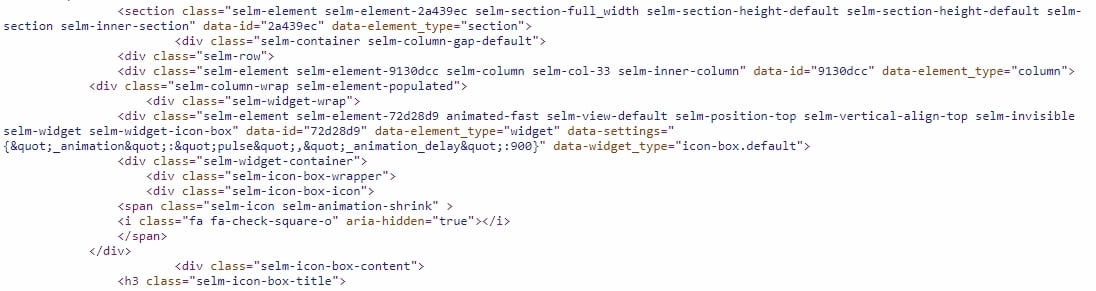
WP Hide PRO replaces every occurrence of “elementor” (and related strings) in your site’s output with custom text you define. It processes CSS and JavaScript files, updating class names, variable names, and file paths without breaking functionality.
Here’s what Elementor’s HTML looks like before hiding:

After WP Hide PRO processes the site, all traces are replaced:
Setting Up WP Hide PRO for Elementor
- Install and activate WP Hide PRO.
- Go to WP Hide → General CSS and enable General CSS Replace.
- Enable CSS Combine and JavaScript Combine to allow the plugin to process the code.
- Add replacement rules: for example, replace “elementor” with “mycustom” (or any string). The plugin will automatically update CSS classes, JavaScript variables, and file paths.
- Save and clear cache.


You can download a sample settings file for Elementor from here and import it as a starting point.
Pro Tip: Test Thoroughly After White Labeling
Replacing class names can affect JavaScript functionality if not done correctly. Always test your site thoroughly after applying replacements—especially interactive elements like sliders, forms, and menus. Use the browser console to check for errors.
How to Reduce Section Height in Elementor (Without Code)
Want to reduce the height of a section in Elementor? It’s simple with the built-in settings. Follow these steps:
- Edit the page with Elementor.
- Click the Add New Section icon (or edit an existing section).
- Select the section by clicking the Edit Section icon (the six dots at the top of the section).
- In the left panel, under Layout, set Height to Min Height.
- Enter a value in the Minimum Height field (e.g., 100px).
- Save your changes.
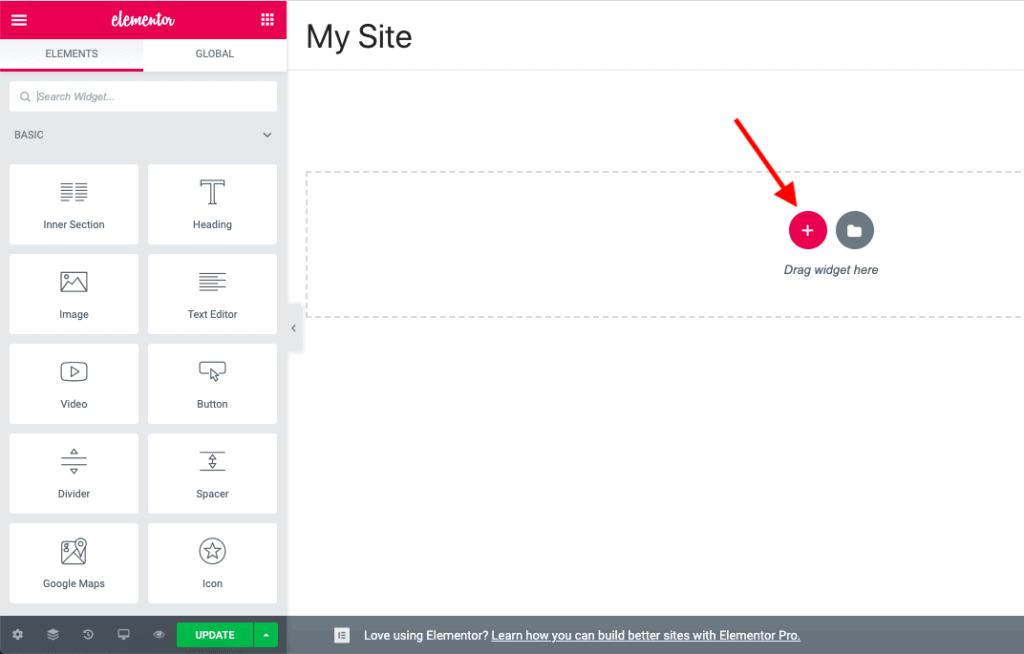


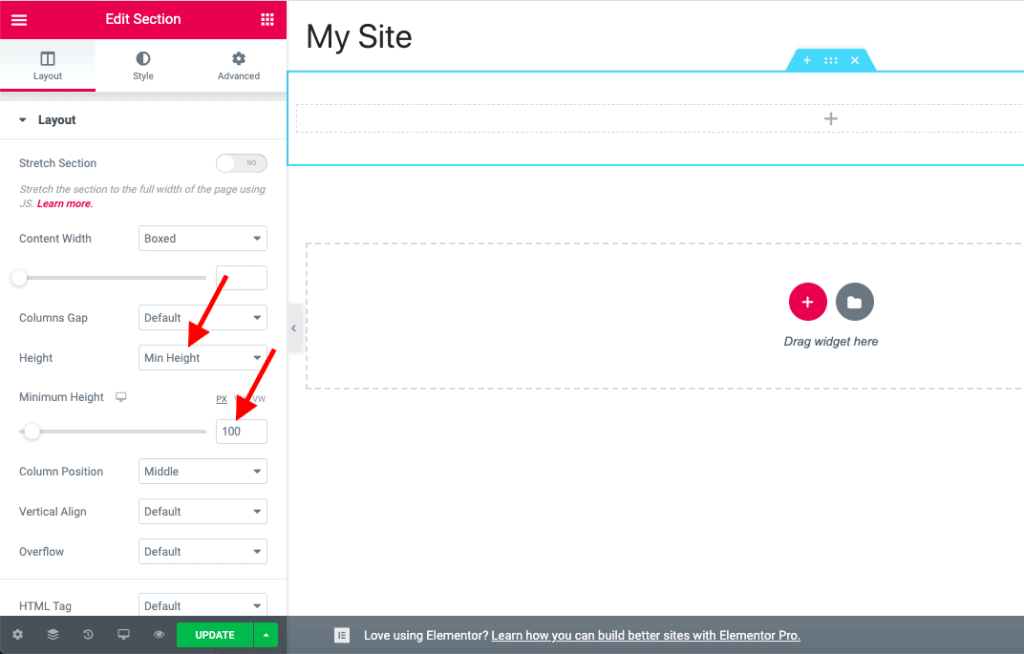
Important: If you add a widget with content taller than the min height, the section will expand to fit the content. To prevent this, use the Style tab to set a background image instead of an Image widget.

How to Add a Vertical Divider in Elementor (Super Simple)
Elementor doesn’t have a built-in vertical divider, but you can easily add one using the free PowerPack Addons for Elementor. Here’s how:
- Install and activate the free PowerPack Lite for Elementor plugin from the WordPress repository.
- Edit your page with Elementor.
- In the Elementor panel, scroll to the PowerPack Elements group.
- Look for the Divider widget (not to be confused with Elementor’s default Divider).
- Drag and drop it onto your page.
- In the widget settings, under General, set Direction to Vertical.
- Adjust styling as needed (color, width, alignment).
- Save your changes.

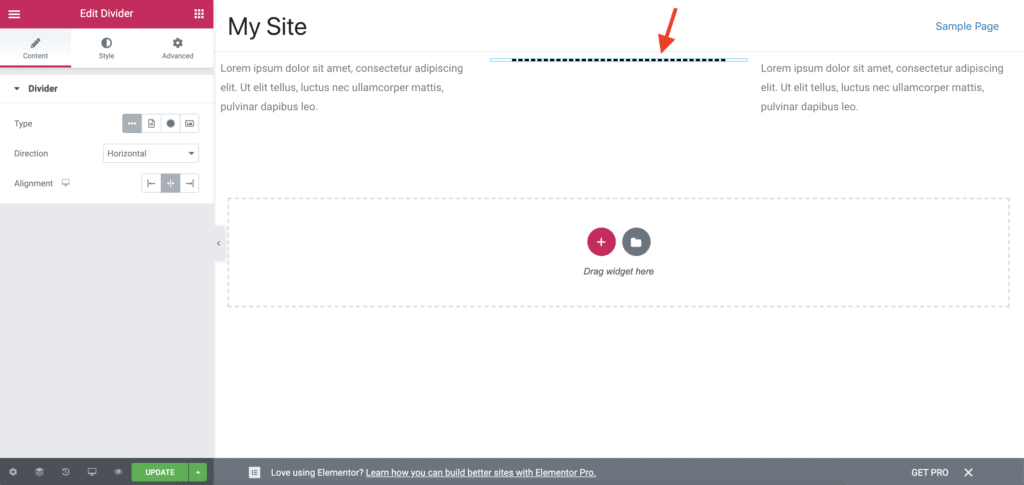

That’s it! You now have a vertical divider without writing a single line of code.
Linking to a particular section of a page (like a “Jump to” link) is easy with Elementor’s built-in Menu Anchor widget.
- Edit the page in Elementor.
- In the widget panel, find the Menu Anchor widget (under General).
- Drag it just above the first widget in the section you want to link to.
- In the widget settings, give it an ID (e.g., “video-tour”).
- Now, edit the button or link that will point to this section.
- In the link field, enter
#video-tour(replace with your ID). - Save changes.

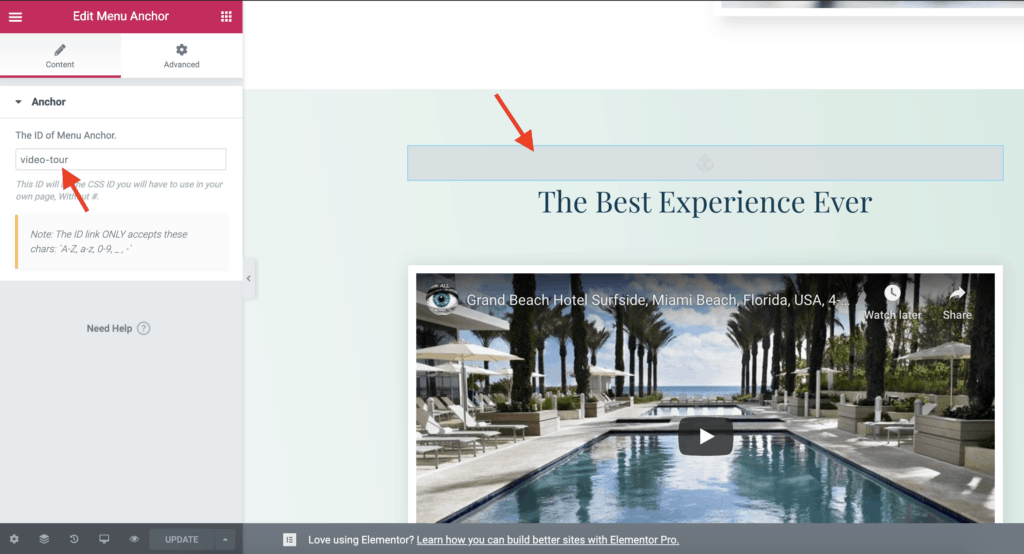

Now clicking the link will smoothly scroll to that section.
FAQ: Elementor Removal and Management
Will removing Elementor from a page delete my content?
No, the content is preserved and transferred to the WordPress editor. However, the layout and styling are lost.
Can I disable Elementor only on mobile devices?
Elementor doesn’t have a built-in option, but you can use custom CSS with media queries to hide certain elements on mobile, or use a plugin like “Asset CleanUp” to selectively disable Elementor scripts on specific devices.
Is hiding Elementor with WP Hide PRO safe?
Yes, WP Hide PRO is a reputable plugin used by thousands. However, test thoroughly after applying changes, as aggressive replacements can break functionality.
What’s the difference between deactivating and uninstalling Elementor?
Deactivating turns off the plugin but keeps its files and data. Uninstalling removes the files and optionally cleans up database data.
Can I use Elementor on some pages and not others?
Yes, by default Elementor is only active on pages you choose to edit with it. It does not load on pages built with the block editor unless you use its templates.
Conclusion
Elementor is a powerful tool, but knowing how to remove, disable, or hide it gives you full control over your WordPress site. Whether you’re troubleshooting, migrating, white-labeling, or optimizing for performance, the methods in this guide cover every scenario. Always remember to back up your site before making major changes, and test thoroughly on a staging environment when possible.
If you found this guide helpful, please share it with fellow WordPress users. For more tutorials, check out our complete WordPress resource library.