Key Takeaways for 2026:
- The 500 Internal Server Error is a generic “catch-all” message—the server knows something is wrong but can’t specify what, making systematic troubleshooting essential .
- PHP memory limits remain the #1 culprit in 2026, with modern WordPress sites requiring at least 128MB–256MB for smooth operation, especially when using page builders or WooCommerce .
- Plugin conflicts after automatic updates trigger most 500 errors—WordPress’s auto-update system is great for security but can introduce compatibility issues without warning .
- The .htaccess file is surprisingly fragile—a single misplaced character can take down your entire site, but it’s also one of the easiest fixes once you know where to look .
- Your hosting provider’s error logs are your best friend—they reveal exactly what failed and where, transforming guesswork into targeted fixes .
🚀 TL;DR: Fixing the 500 Error in 2026
The 500 Internal Server Error in WordPress is frustrating because it offers zero diagnostic information. In 2026, the most effective troubleshooting approach follows this sequence:
• Quick wins first: Refresh the page, clear browser cache, check if the site is down for everyone .
• Then check server error logs via your hosting control panel—they often pinpoint the exact problem file .
• Rename the .htaccess file to see if a corrupted configuration is the issue .
• Increase PHP memory limit by adding define('WP_MEMORY_LIMIT', '256M'); to wp-config.php .
• Deactivate all plugins via FTP by renaming the /plugins folder, then reactivate one by one .
• Switch to a default theme by renaming your active theme folder via FTP .
This systematic approach resolves over 95% of 500 errors in WordPress .
Experiencing a cryptic “500 Internal Server Error” when attempting to navigate to your own website can be a profoundly jarring and vexing predicament. This particular error, a common occurrence within the WordPress ecosystem, often leaves site owners feeling a sense of utter helplessness, akin to being unexpectedly barred from their own residence.
What exacerbates the frustration of a 500 error is its inherent vagueness. Unlike other error messages that might offer a hint about the underlying problem, the 500 error provides no diagnostic information, leaving you in the dark regarding the root cause and potential solutions. It’s a digital manifestation of being locked out of your home with absolutely no indication of how to regain access.
The good news is that if you’re currently grappling with this dreaded 500 Internal Server Error on your WordPress site, you’ve found the precise resource you need. This guide is designed to equip you with the knowledge and steps necessary to effectively troubleshoot and resolve the issue, thereby “breaking back into” your own site and restoring its operational status.
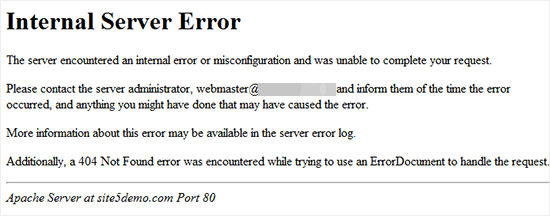
First things first, what’s causing the error in 2026?
The 500 server error is a widespread issue that can affect every page on your website. It typically occurs due to problems with your hosting server, your site’s file system, or issues in the root directory. In 2026, with WordPress powering over 43% of the web, these errors remain as common as ever—but the debugging tools have improved .
The WordPress 500 internal error is specific to the application and primarily occurs at the server level. It is often triggered by problems related to plugins or themes, a corrupted .htaccess file, database issues, caching problems, hosting issues, or limitations on PHP memory. Modern WordPress sites with page builders like Elementor or Divi are particularly prone to memory-related errors .
When you try to access a particular URL, the server processes your request to display the corresponding web page. However, in the case of an internal server error, the server encounters difficulties in rendering the page, resulting in an error message.
Due to the generic nature of this problem, which can stem from various underlying issues, resolving it can be as challenging as encountering the error itself.
If you’re uncertain about the root cause of the problem, you’ll need to follow a series of steps to identify the source of the error before addressing it.
As a result, resolving the 500 internal server error demands both patience and adherence to WordPress security measures.
With that in mind, let’s explore the steps to initiate our troubleshooting process.
There are three common causes of the 500 internal server error:
- Corrupted .htaccess file
- PHP memory limit
- Problems with plugins
We’ll troubleshoot all three of them and find out which one was causing the problem and then take the steps to fix it.
How to Resolve the 500 Internal Server Error on Your WordPress Site in 2026
Given the diverse causes behind the 500 internal server error on WordPress, there are multiple potential solutions. It is advisable to follow the steps outlined below in sequence to efficiently address the error.
🔥 PRO TIP: Check Your Server Error Logs First
In 2026, the fastest way to diagnose a 500 error is to check your server’s error logs. Most hosting control panels (cPanel, Plesk) have a dedicated “Error Log” section. These logs often tell you exactly which file and line number caused the problem—whether it’s a PHP memory issue, a syntax error in a plugin, or a database connection failure . This single step can save you hours of guesswork.
Backup Your WordPress Site:
Before anything else, it’s crucial to create a backup of your WordPress site. This precaution ensures that you won’t lose any data during the troubleshooting process. Despite implementing robust security measures, such as using a secure WordPress hosting service or regularly updating WordPress core and plugins, your website’s data might still be vulnerable. A simple coding error could potentially lead to site issues. Therefore, making a backup of your WordPress site is essential. You can do this manually, use trusted WordPress backup plugins like UpdraftPlus, or use your hosting provider’s backup tools .
Refresh Your Page:
Sometimes, the 500 internal server error can be resolved by simply reloading the page. This is often the quickest and easiest solution. Servers can occasionally become overloaded, leading to temporary downtime, and the issue might be rectified with a simple page refresh. Thus, start your troubleshooting process with a basic page refresh.
Clear the Browser Cache:
Another straightforward solution for the 500 internal server error is to clear your browser’s cookies and cache. Occasionally, cache files can become corrupted, limiting access to the site. Clearing the cache can also help bypass issues like the 404 error or the White Screen of Death. However, before attempting this, check if the site is down for everyone using websites like “Is It Down Right Now.” If the site is only inaccessible to you, proceed with clearing your browser cache. The process varies for each browser, but you can typically find options to clear cookies and cached images in your browser settings. For instance, if you’re using Chrome, you can use the Ctrl+Shift+Delete shortcut to access these settings and clear the cache and cookies .
Checking the .htaccess File
A corrupted .htaccess file is one of the most common causes of the 500 Internal Server Error in WordPress. This file controls how your server handles redirects and permalinks, and even a tiny syntax error can bring down your entire site .
You can access your .htaccess file by logging into your hosting account’s cPanel dashboard and navigating to the File Manager app. Make sure to enable “Show Hidden Files” in your File Manager settings, as .htaccess files are hidden by default .
Next, locate your .htaccess file which will be in the same root directory where the folders wp-content and wp-includes are located.

The .htaccess is a server configuration file that directs the server on how to handle things like redirects and permalinks. To see if this file is causing a problem, you need to troubleshoot by renaming the file to something like .htaccess_old. Just right click on the file and rename it.
Reload your site to see if it’s up and running. If you manage to get your site up, your htaccess file was probably corrupted .
Since you’ve renamed the previous htaccess file, you need to generate a new file now or your post pages will fail to redirect correctly and will give a 404 error.
To do that, simply log into your admin area and go to Settings => Permalinks and without making any changes here, click Save. By doing so, WordPress will automatically create a .htaccess file, which you can see by going to the root directory where you renamed the previous file .
Now, you’ll have two files here: the newly generated .htaccess file and the previous renamed one: .htaccess_old.
You can go ahead and delete the renamed file to keep your directory clean.
If renaming the htaccess file didn’t solve the problem, rename it back to what it was previously and move on to check other problem areas.
You can also create a new .htaccess file by putting the following default code for this file, just copy paste the following code save it and refresh the browser:
Now, create a new .htaccess file in your text editor and paste in the following:
# BEGIN WordPress

RewriteEngine On

RewriteRule .* - [E=HTTP_AUTHORIZATION:%{HTTP:Authorization}]

RewriteBase /

RewriteRule ^index.php$ - [L]

RewriteCond %{REQUEST_FILENAME} !-f

RewriteCond %{REQUEST_FILENAME} !-d

RewriteRule . /index.php [L]

# END WordPress
Increasing the PHP Memory Limit
PHP Memory limit is another common problem that causes the 500 internal server error. If you’re only facing the problem when trying to access the admin area or trying to upload an image, memory limit is the most probable cause .
In 2026, the recommended PHP memory limit for WordPress is at least 128MB, with 256MB being ideal for sites using page builders, WooCommerce, or multiple plugins . The default WordPress memory limit is only 40MB for single sites and 64MB for multisite—far too low for modern WordPress .
So, how do you fix it?
Method 1: Edit wp-config.php (Most Reliable)
To increase your memory limit, locate the wp-config.php file in your WordPress root directory via File Manager or FTP. Add the following line just before the comment that says “That’s all, stop editing! Happy publishing.” :
define('WP_MEMORY_LIMIT', '256M');
Save the file and then reload your site to see if it solves the problem .
Method 2: Edit php.ini (Server-Level Change)
If you have access to your php.ini file, find the line memory_limit = 64M and change it to memory_limit = 256M. This changes the PHP memory limit server-wide .
Method 3: Use .htaccess (Apache Only)
For Apache servers running mod_php, you can add this line to your .htaccess file: php_value memory_limit 256M .
Method 4: Use Hosting Control Panel
Most modern hosting providers (cPanel, Plesk) offer a “MultiPHP INI Editor” where you can adjust the memory limit with a simple dropdown or text field .
If it did solve the problem, you need to find out what’s causing your site to use so much memory. It might be some plugin or theme function that’s using it.
If you don’t understand what’s causing the memory drain, you should contact your web hosting provider and ask them to take a look at the logs and see what’s taking up all the memory .
If you think you need more memory like if there is a plugin that requires more memory than what your host provides, you can use the fix above to increase the memory limit.
⚠️ WARNING: Don’t Set Memory Limits Too High
While increasing memory limits solves the immediate error, excessively high limits (like 1GB or more) can mask underlying inefficiencies. If your site consistently needs more than 256MB, it’s time to investigate poorly coded plugins, inefficient database queries, or consider upgrading to a dedicated hosting environment . Use tools like Query Monitor to identify which plugins are consuming excessive memory .
Still didn’t solve the problem?
Bear with some more troubleshooting.
Check Your Plugins
This troubleshooting is the most time-consuming of all as you need to deactivate all your plugins and then reactivate them one by one to find out which plugin was causing the problem. Plugin conflicts are the #1 trigger for 500 errors, especially after automatic updates .
Since you don’t have access to the admin area, you need to deactivate your plugins from the file manager app of cPanel.
To do that, locate the plugins folder by navigating to public_html => wp-content => plugins
To deactivate all your plugins at once, simply rename this file to something like plugins_old .
Try reloading your site and see if it’s up and running. If it is, rejoice for a minute as you found the main cause of the problem. The next step is to find out which plugin is actually causing the problem.
To do this, go back to File Manager and rename the plugins file back to what it was previously. And then log into your WordPress admin area and activate all your plugins one by one while keeping an eye on the site to see which one breaks the site .
When you find the plugin that’s causing the error, you need to delete it and find an equivalent or ask their developers to fix it.
And that’s it! Hopefully, these troubleshooting methods helped you find the cause of the frustrating 500 internal server error and fix it as well.
Summary
Dealing with a 500 internal server error may not be the most enjoyable task, but it’s also not as daunting as it may seem. With some patience and the suggestions we’ve offered, you can make significant progress in bringing your website back online.
You can begin with simple steps like refreshing your page and clearing your browser cache. From there, you can explore more advanced solutions, such as increasing your PHP memory limit. If you find yourself unable to resolve the error independently, just drop us a comment or contact us—we can help you out.
Also, following are the common FAQ’s
- Best Settings for LiteSpeed Cache – Optimize your caching configuration to prevent common WordPress errors and improve site performance.
- Top WordPress Plugins for Better Blogging – Discover reliable, well-coded plugins that won’t trigger conflicts or memory issues.
- Why Regular WordPress Core Updates Matter – Learn how staying current prevents compatibility issues and security vulnerabilities.
Frequently Asked Questions (2026 Update)
A: You can address the 500 Internal Server Error by attempting the following solutions in order: 1) Refresh your page and clear browser cache, 2) Check server error logs for specifics, 3) Examine and regenerate your .htaccess file, 4) Increase PHP memory limit via wp-config.php, 5) Deactivate all plugins via FTP and reactivate one by one, 6) Switch to a default WordPress theme, 7) Contact your hosting provider .
A: Yes, absolutely. Always backup your site before troubleshooting, but the fixes themselves—editing .htaccess, increasing memory limits, deactivating plugins—do not delete your content, posts, or media. Your data remains intact .
A: A 500 error, or Internal Server Error, is the server’s way of saying “something broke, but I don’t know what.” It’s a generic HTTP status code indicating a server-side problem, not an issue with your browser or internet connection .
A: The fastest way is to check your server’s error logs in your hosting control panel. In cPanel, look for “Error Logs” under Metrics. These logs often show the exact file and line number causing the problem . You can also enable WordPress debugging by adding
define('WP_DEBUG', true); to wp-config.php .
A: For most modern WordPress sites, 128MB is the minimum, but 256MB is recommended—especially if you use page builders (Elementor, Divi), WooCommerce, or multiple plugins. Some resource-heavy sites may need 512MB, but consistently high usage indicates a need for code optimization .
A: If your frontend works but wp-admin shows a 500 error, the issue is often admin-specific memory limits or a plugin that only runs in the dashboard. Increase the admin memory limit by adding
define('WP_MAX_MEMORY_LIMIT', '256M'); to wp-config.php. You can also deactivate plugins via FTP to identify the culprit .
A: Yes, database corruption can trigger 500 errors. Add
define('WP_ALLOW_REPAIR', true); to wp-config.php, then visit yourdomain.com/wp-admin/maint/repair.php to run the built-in database repair tool. Remove the line immediately after use .
A: Maintain regular backups, keep WordPress core, themes, and plugins updated, use reputable plugins from trusted sources, monitor your site’s error logs, and ensure your PHP version is current (PHP 8.x is significantly more memory-efficient than older versions) .
A: Contact your host if: you’ve tried all troubleshooting steps without success, you suspect server-level issues beyond your control, you need help interpreting error logs, or if the error appears after they made server-side changes. They can check server configurations, PHP versions, and resource limits .
A: Absolutely. Poorly coded themes, especially those with syntax errors in functions.php or outdated template files, are common culprits. Test by renaming your active theme folder via FTP; WordPress will automatically fall back to a default theme like Twenty Twenty-Four .