
1. Create Unlimited Polls On WordPress (It’s Free)
If you want to create polls for your WordPress website, you came to the right place. You can create unlimited polls and it’s totally free.
Polls can be very powerful. With them, you can collect different data and create a case study. Also, they are fun and a great way to engage your audience.
To create a poll on a WordPress website is very easy, costs nothing, and you can create as many polls as you want. You can display them on any page or blog post. Whether you run a news site, an e-learning platform, or a small business blog, integrating a simple voting mechanism can transform passive readers into active participants. This interaction not only provides you with valuable market research but also signals to search engines that your content is engaging, which can positively influence your rankings.
2. What makes a good WordPress poll plugin?
A good WordPress poll plugin should indeed provide several essential features to make the process of creating and managing polls as straightforward as possible. However, beyond just functionality, the best tools prioritize user experience (UX) and data integrity. Here are the key features that make a WordPress poll plugin effective:
- Easy Poll Builder: The ability to create polls without needing to write any code is crucial. Users should be able to create polls through an intuitive, user-friendly interface, often utilizing a drag-and-drop builder. The poll builder should allow for various question types, answer options, and customization without a steep learning curve.
- Shortcode Generator or Page Builder Integration: The plugin should offer a shortcode generator that automatically creates shortcodes for each poll. This allows users to easily embed polls in various locations on their website, such as sidebars, blog posts, pages, and footers. If it doesn’t provide shortcodes, it should seamlessly integrate with popular page builders like Elementor or Divi, making poll integration a breeze.
- Poll Results Dashboard: A robust poll plugin should provide a comprehensive dashboard for tracking and analyzing poll results. This dashboard should include:
- Entry Tracker: It should display all poll entries and provide notifications when new entries are submitted. This feature helps users stay updated on the latest responses.
- Charts and Graphs: The plugin should offer visual representations of poll results, including charts and graphs. These visuals make it easy to understand the distribution of responses across your target audience. Common chart types include bar charts, pie charts, and line graphs.
- Customization Options: A good poll plugin should allow for customization of the poll’s appearance to match the website’s design. This includes options for choosing colors, fonts, and styles to ensure the poll seamlessly integrates with the site’s aesthetic.
- Mobile Responsiveness: The plugin should ensure that the polls look and function well on both desktop and mobile devices. Mobile responsiveness is vital as an increasing number of users access websites from smartphones and tablets.
- User Engagement Features: To increase user engagement, the plugin should offer features like the ability to set start and end dates for polls, schedule them, and offer incentives for participation, such as displaying poll results after submission or offering discounts or giveaways to participants.
- Data Export and Integration: Users should be able to export poll data for further analysis. Integration with popular email marketing platforms and customer relationship management (CRM) systems can also be beneficial for collecting user data. Tools like Zapier integration can further automate your workflows.
- Security and Spam Protection: Ensure that the plugin has mechanisms in place to prevent spam submissions and protect user data. Features like CAPTCHA integration, honeypot methods, and token-based voting can be valuable for security and maintaining the integrity of your results.
- Customer Support and Updates: Look for a plugin with a responsive support team and a track record of regular updates to ensure ongoing compatibility with the latest WordPress versions. A well-maintained plugin is a sign of a reputable developer.
- Compatibility: Ensure that the plugin is compatible with your specific WordPress version and any other plugins or themes you’re using on your site.
3. What Do You Need To Create Polls
In order to create and display polls on your website, you need only one thing: a plugin to build a poll. That plugin is Forminator.
Forminator is a premium WordPress plugin from WPMU DEV, but it has a free version with a lot of features that are enough for most people. For more features, you can always upgrade to a pro version. WPMU DEV has been a trusted name in the WordPress community since 2006, which adds a layer of reliability and authority to the plugin.
Also Read: Create Contact Form With Forminator
Actually, Forminator is a contact form plugin with awesome features and a very easy-to-use user interface. But it also has a feature for polls and quizzes. With over 600,000 active installations, it’s a proven solution for creating interactive content.
4. Create Polls With Forminator
In this tutorial, I will explain how to install the plugin, how to create a poll and add different sections, features, or options in 7 simple steps.
So, let’s dive in and create beautiful polls for your website.
5. Step 1: Install & Activate Forminator
First of all, we need to install the plugin from the plugin repository.
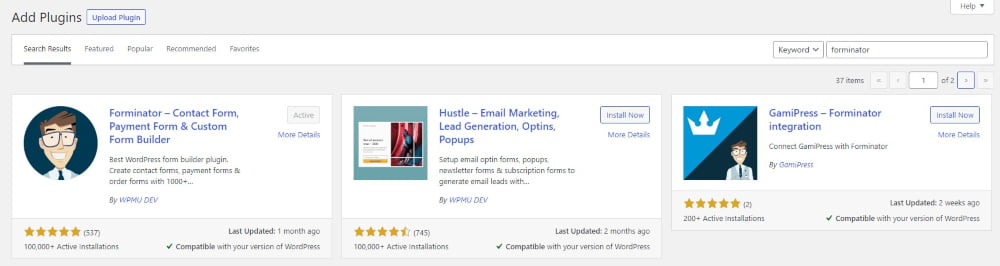
From your WordPress dashboard, go to Plugins > Add New and search for “Forminator.” Install and activate the plugin.
After activation, you will see the new section for the Forminator plugin on the left side of your WordPress dashboard. Go to the Dashboard and from here you can create either a contact form, poll, or quiz. The clean, organized dashboard is part of what makes Forminator a top choice for both beginners and developers.
6. Step 2: Create A Poll
From the Forminator Dashboard, click the Create button in the poll section, give your poll a name, and click another Create button.

Now, you will be redirected to the poll creation interface. On the left side, there are different sections like Details, Appearance, etc. We will cover each of them.
Also, on the top right corner there are three buttons:
- Save Draft – allows you to save draft while building polls
- Preview – you can preview your progress.
- Publish – after you create a poll, you can publish it.
7. Step 3: Create Question & Answers
Polls building blocks are the question and answer, and we create them in the Details section.
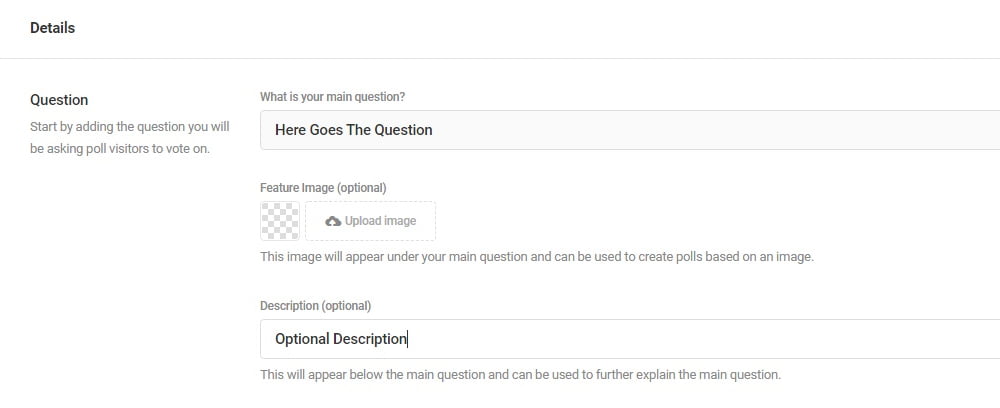
In the Question input, type your question. You can also add a featured image and a description, though they are optional. Using images in your questions can significantly increase interaction rates.
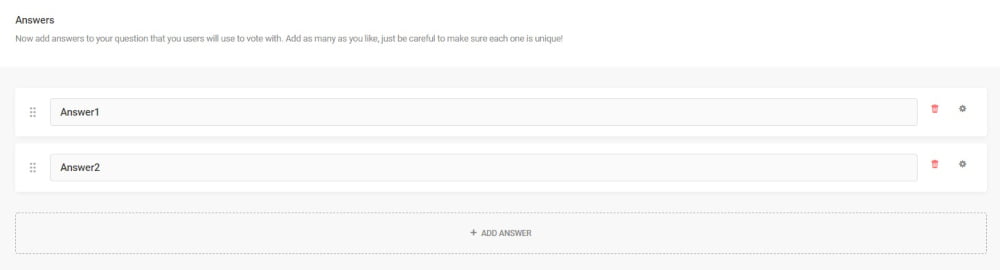
Below that, in the Answers section, you can add unlimited answers to your question by clicking the Add Answer button.
And lastly, input the submit button text like “Vote,” “Submit,” or anything you want.
Now, save it as a draft and continue to the next step.
8. Step 4: Design Your Poll
Go to the Appearance section. From here, you can add a custom design to your poll. You can change the style, colors, and more.
Forminator has four different design styles: Default, Flat, Bold, and Material. Choose which style you like the most. This level of visual customization ensures your polls don’t look like generic add-ons but rather integral parts of your brand.

Then add custom colors to your poll. You can change the color of almost every element of a poll, such as the container, radio buttons, button, success or error messages, etc.
Don’t forget that you can always preview your changes with the Preview button. This way it’s easier to see the changes.
9. Step 5: Change Polls Behavior
After you complete the styling of your poll, go to the Behaviour section. From here you can choose different settings.
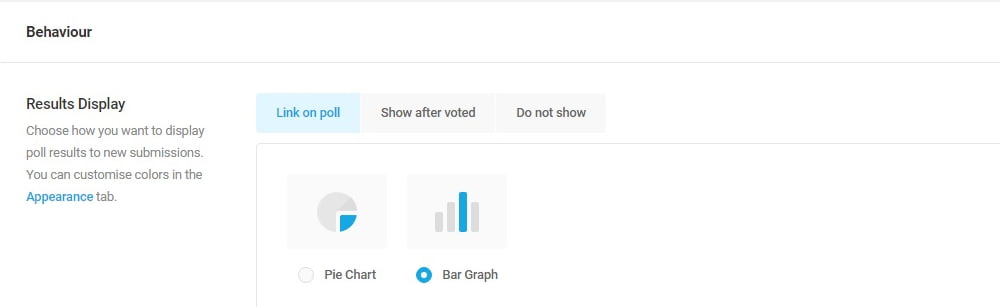
First, you can choose the display style of the results. You can choose between a pie chart and a bar graph. Also, you can totally hide the results or show them after submission. Displaying results in real-time is a powerful way to encourage more participation, as users want to see if their choice is winning.
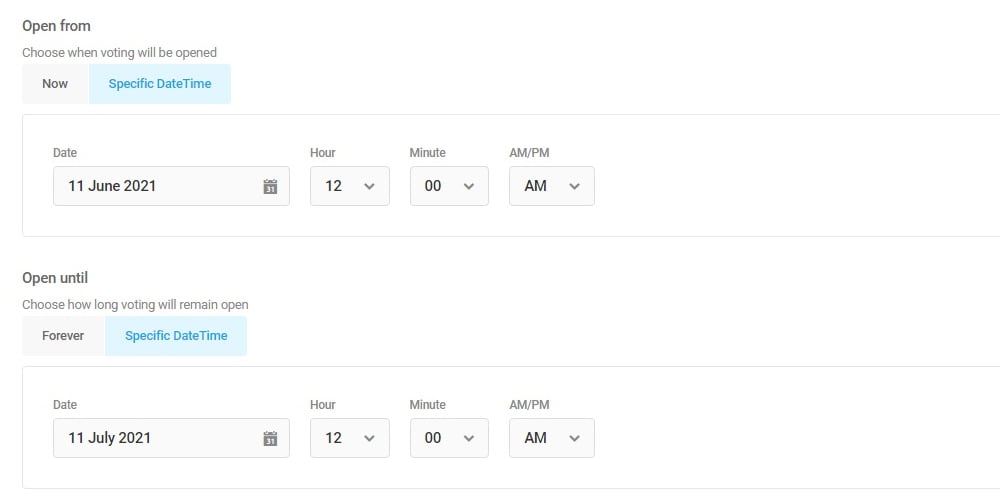
Another important setting here is Vote Opening and Vote Limit. For example, you might want your poll to be active for 7 days. You can do it from the Vote Opening section.
Also Read: Best Free Gutenberg Plugins
Pick a start date in the Open From section and an end date in the Open Until section. Your poll will be active in that range. This is perfect for time-sensitive campaigns or events.
From the Vote Limit section, you can choose how many votes one user can submit. You can use IP or Cookies to identify the same user. This is crucial for preventing ballot stuffing and ensuring your data remains accurate.
Also, from the Rendering section, you can change different settings like AJAX loading and page caching to ensure your polls load quickly and don’t slow down your site.
Pro Tip 🚀
Combine the “Vote Limit” feature with “Show Results After Voting” to create a “call-to-action” loop. For example, run a contest where users vote for their favorite product feature. After they vote, show them real-time results to create FOMO (Fear Of Missing Out) and encourage them to share the poll on social media to get their favorite option to win.
10. Step 6: Optional Features
There are some optional features you can use, such as email notifications and integrations.
If you want to receive an email on every submission, go to Notifications, turn on the feature, and input the recipient email where you want to receive emails.

If you want to use some third-party apps, go to Forminator > Integrations and connect to one of the apps.
Forminator integration works with apps such as:
- FortressDB
- MailChimp
- Google Sheets
- HubSpot
- Slack
- Trello
- Campaign Monitor
- AWeber
- Active Campaign
With over 1,000 pre-built integrations, you can connect your polls to a vast ecosystem of marketing, CRM, and productivity tools. When you connect to one of the apps, you can then go to your polls and use that app with your poll from the Integrations section.
The last optional feature is in Settings. From here, you can disable submission storage in the database and choose how long you want to retain submissions or IPs. This is a key feature for complying with data privacy laws like GDPR.
Warning ⚠️
Be mindful of your data retention settings. While storing data indefinitely might seem useful, it can conflict with privacy laws like GDPR. Use the “Retain Submissions” and “Retain IP” settings in Forminator to automatically delete old entries after a set period (e.g., 30 days). This reduces your legal liability and keeps your database lean.
11. Step 7: Publish & Use Your Poll
After you complete all the steps and create your custom poll, check the preview. If you like the result, click the Publish button.
After publishing it, you will get a shortcode of your poll. You can insert this on any page or post you want, and it will display the poll immediately.
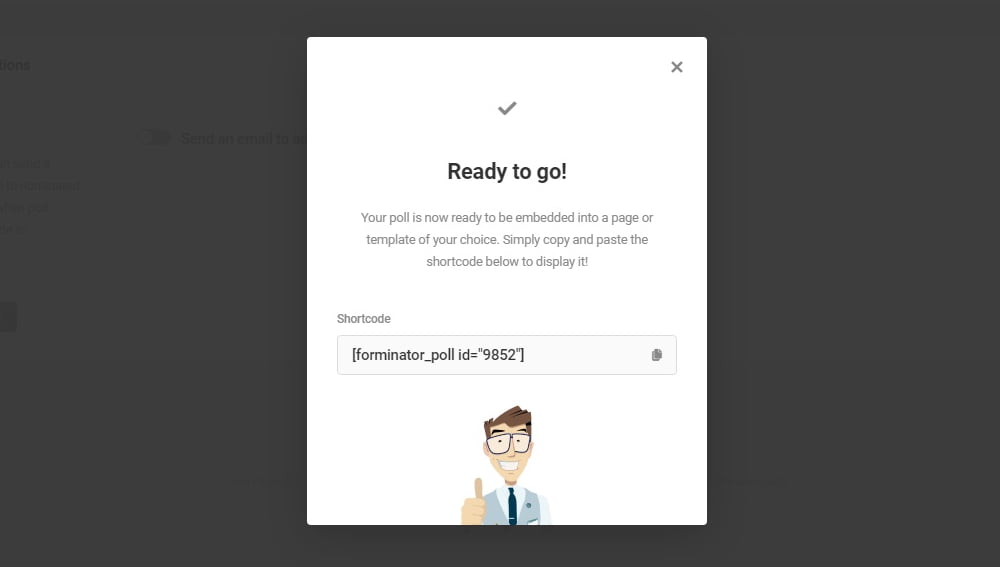
Now you have a fully functional poll that can be displayed on your website, and you can start collecting data.
Of course, you can always edit your polls and change any settings. Just go to Forminator > Polls. Here you will see the list of all your polls. On the right side, there is the Edit button. Click it and change anything you like, then click Update and it will be updated automatically.
Also, next to the Edit button there is a gear icon. From there, you can do different things like copy the shortcode, unpublish the poll, view submissions, duplicate it, export, etc. The ability to duplicate polls is a huge time-saver if you run weekly polls with a similar structure.
12. Wrap Up – Create Unlimited Polls On WordPress
Now you know how to create custom polls on WordPress websites with the Forminator plugin. All this is done with the free version, and it allows you to create an unlimited number of polls, quizzes, or contact forms.
If you want more options and features from Forminator, you can always upgrade to a pro version and create even more beautiful and powerful polls. The Pro version unlocks features like Stripe subscriptions, PDF generation, and advanced geolocation, making it a comprehensive solution for businesses.
Key Takeaways 📝
- Cost-Effective & Scalable: You can create unlimited polls using the free version of Forminator, making it accessible for all website owners, from bloggers to large corporations.
- User-Friendly Design: The drag-and-drop builder, clear settings tabs, and real-time preview make poll creation simple, even for beginners with no coding experience.
- Data Integrity & Engagement: Features like vote limits (via IP/Cookie), scheduling, and real-time result charts help you run fair, engaging campaigns while collecting authentic user feedback.
- Flexible Display & Integration: With shortcodes and Gutenberg blocks, you can place polls in posts, pages, or sidebars. Native integrations with tools like MailChimp and Google Sheets make it a powerful data-collection hub.
Frequently Asked Questions (FAQ) ❓
1. Is Forminator really free for unlimited polls?
Yes, the version available in the WordPress repository is free and allows you to create an unlimited number of polls without any cost. There are no hidden caps on the number of polls or votes you can receive in the free version.
2. Can I see who voted in my poll?
You can view the number of submissions and entries in the backend. However, to identify specific users, you would need to integrate with a third-party app to collect emails or use the Pro version’s additional fields. For anonymous polling, Forminator respects user privacy by default.
3. Will the polls work on mobile phones?
Absolutely. Forminator is built to be fully responsive, meaning your polls will look great and function perfectly on desktops, tablets, and smartphones. This is essential since a large portion of web traffic now comes from mobile devices.
4. Can I stop the poll after a specific date?
Yes. In the Behaviour tab, you can set a specific start and end date for your poll. Once the end date passes, the poll will automatically close and stop accepting votes. You can also choose to hide the poll entirely after the end date.
5. What happens to the data I collect?
By default, data is stored in your WordPress database. You can export this data anytime as a CSV. If you prefer not to store data on your site for privacy reasons, you can disable storage in the settings and send the data directly to integrated services like Google Sheets or via email.
6. How does Forminator compare to other poll plugins?
Unlike minimalist plugins like YOP Poll or WP-Polls, Forminator offers a broader feature set including conditional logic and payments. Compared to WPForms, Forminator’s free version is often considered more generous with features. It strikes a balance between the simplicity of basic plugins and the complexity of advanced form builders.
Additional Resources & Expert Insights 🔗
To further enhance your WordPress knowledge and ensure your site follows best practices, you might find these resources from high-authority websites helpful:
- For a deeper dive into WordPress development standards and security, check out the analyses on Patchstack, which evaluates plugins based on code quality and security practices.
- Learn more about user engagement strategies and how interactive content like polls can reduce bounce rates on WPBeginner, a comprehensive resource for WordPress users.
- For insights into hosting performance and how it affects your poll loading times, review articles on Bluehost.
- Stay updated on Google’s E-E-A-T guidelines to ensure your content, including your polls, builds trust with your audience by visiting the official Google Search Central blog.
Recommended Reading
Forminator on WordPress.org – Official plugin repository page.
WPMU DEV Forminator Pro – Upgrade for advanced features.






nice article keep sharing
http://www.pakistanjobs.pk/online-jobs/
Wow. I struggled for polls and what a great plugin it is. I have to strat using it. great guide.
Thanks keep reading and sharing