

Blogging Tools To Save Time – Full Guide
You’re updating your blog posts regularly. That’s excellent. Stick with it and you’ll reap the rewards. Recent statistics show that when you accumulate 51 helpful posts, blog traffic will increase by 53%. And traffic will triple when you hit 100 posts. If you’ve been blogging for a while but still feel frustrated because you can’t get things done easily, then this post is for you. There are blogging tools designed to help start a blog, improve SEO, and share content across social media channels. Many people have grown their businesses through blogging and now live a dream lifestyle, solely from writing, selling their content, and building a community.
The truth is, successful bloggers didn’t achieve their productivity by chance. It required intentional effort and the use of time-saving blogging tools. These tools can significantly reduce the time needed to research your market, analyze competitors, discover topics, and review trends. As a dedicated blogger, if you often find yourself struggling to manage all the tasks on your list, it may be time to consider utilizing better tools. In today’s blogging landscape, these tools are essential for working efficiently, attracting more readers and clients, and maintaining high-quality content.
Pro Tip: Start Free, Scale Smart
The average blogger spends only 4% of their time actually creating content, according to industry surveys. By leveraging the right tools from this guide, you can flip that statistic and focus on what truly matters—writing and connecting with your audience. Begin with free versions, then upgrade as your traffic and revenue grow.
See How My Company Can Drive Huge Quantities of Traffic to Your Website
- SEO – unlock huge quantities of search traffic. See real results.
- Content Marketing – our team creates epic content that will get shared, get links, and attract traffic.
- Paid Media – effective paid strategies with clear ROI.
These tools aren’t magic – you still need to set things up and write the blog content. Many are WordPress compatible. But the good news is that once you successfully incorporate the right tools into your blogging routine, you could travel the world and your business would continue to thrive in your absence. Without using time-saving blogging tools, you’ll be wasting hours and struggling to create content while leaving little to no time to promote it on search engines or social channels. According to a survey report by the Food Bloggers of Canada, the average blogger spends 6% of their time reading news and other blogs and only 4% actually creating new blog content. It’s little wonder that most bloggers aren’t getting the results they want.
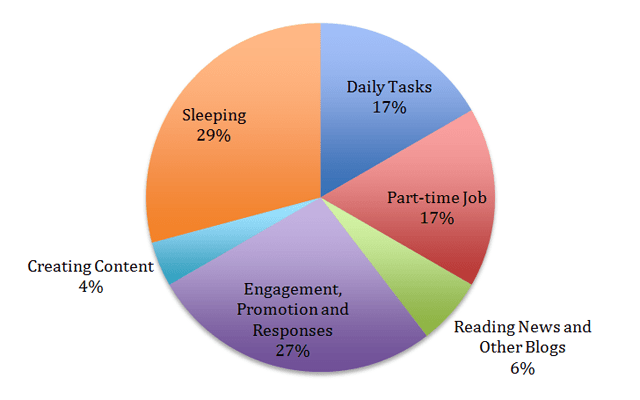
If you want to stand out, you’ve got to spend more time creating helpful content and promoting it to the right audience. That’s how you grow a business through blogging. So, let’s dig into the best time-saving blogging tools you need to start using today:
Our Top Recommended Tools
The best-of-the-best that we’re actually USING RIGHT NOW and recommending (this gets updated regularly as tools change). This is our core toolkit (we also use several other tools on this page, but these are the biggest items).

1. ActiveCampaign
#1 for advanced email marketing. We use ActiveCampaign for email automations and funnels! It’s just as powerful as others like Drip, Keap (formerly Infusionsoft), and Ontraport—but it’s easier to use. We’ve been with them since 2019 and have no plans to switch. For those needing sophisticated marketing automation, ActiveCampaign is a powerhouse. It offers over 900 pre-built automation templates and its AI is deeply integrated into lifecycle logic, helping with predictive sending, lead scoring, and AI-suggested segments. It also boasts 1,000+ integrations, making it a central hub for your marketing tech stack.
| ✅ Pros | ❌ Cons |
|---|---|
| Powerful, detailed multi-channel automations and CRM features. | Higher entry pricing and costs can scale quickly with contact count. |
| AI-powered features for lead scoring, predictive sending, and content generation. | Steeper learning curve; requires 2-3 weeks to master its logic and workflows. |
| Excellent for growing SMBs, B2B, SaaS, and eCommerce businesses. | Advanced features are locked behind higher-tier plans. |

2. Flodesk
#1 for beautifully designed email marketing. We use Flodesk for our main email list, including sending newsletters, simple welcome sequences, and more! Their automations work great, segmentation and subscriber management is solid, and their email builder is THE BEST we have ever used. Flodesk is built for creators and small businesses who want professional-looking emails without complex tools. As of late 2025, Flodesk moved from a flat-rate model to audience-based pricing.
| ✅ Pros | ❌ Cons |
|---|---|
| Beautiful, modern email templates and a joy to use. | New audience-based pricing (starting at $25/mo for 1k subs) replaces the old flat rate. |
| Simple automation flows for welcome sequences, lead magnets, and product follow-ups. | Limited advanced segmentation and conditional logic within emails. |
| Includes forms, landing pages, and eCommerce functionality (on Pro plan). | No live chat support and lacks advanced reporting like click heatmaps. |

3. SiteGround
#1 for website hosting. We use Bluehost and Namecheap as well for various other projects and websites, and recommend them too, but our main site is hosted using Siteground. It’s speedy, fits our budget, and their support has always been great. SiteGround is known for excellent customer support, reliable uptime, and user-friendly managed WordPress features. They use Google Cloud infrastructure for fast speeds and offer a custom Site Tools control panel that is more intuitive than traditional cPanel.
| ✅ Pros | ❌ Cons |
|---|---|
| Excellent 24/7 customer support via chat, phone, and tickets. | Introductory pricing increases upon renewal. |
| High performance with Google Cloud, free CDN, and Ultrafast PHP. | Paid professional migrations ($30 per site). |
| User-friendly Site Tools panel and managed WordPress features (auto-updates, daily backups). | No traditional low-cost VPS plans. |

4. Buzzsprout
#1 for podcast hosting. We’ve tried about 10 podcast hosts over the years—and we’re currently on Buzzsprout for three reasons. 1) It’s EASILY the most user-friendly platform ever. 2) They’re constantly releasing GREAT new features, and 3) the price is right. Buzzsprout is an excellent choice for B2B marketers and teams who want to focus on content, not technical complexity. It offers automated chapter markers, transcription add-ons, and episode scheduling to streamline your workflow.
| ✅ Pros | ❌ Cons |
|---|---|
| Intuitive dashboard and rapid onboarding; simplicity is a core strength. | Advanced analytics features are limited to higher-pricing tiers. |
| Great tools for promotion, including episode scheduling and automatic chapter markers. | Not optimized for managing large networks of multiple shows. |
| Excellent for teams aligning podcasts with content calendars and email programs. | Best for users who prioritize ease of use over enterprise-level complexity. |
5. Podia
#1 for online courses and digital products. After YEARS of Teachable, Thinkific, LifterLMS and others, we switched to Podia in late 2019, and couldn’t be happier! Unlimited courses, digital downloads, memberships, a great user interface, a pretty-good sales page builder, and most everything else creators need. Podia is an all-in-one platform that lets you sell online courses, digital downloads, and memberships, while also offering built-in email marketing and website building.
| ✅ Pros | ❌ Cons |
|---|---|
| All-in-one platform: courses, downloads, memberships, email, and website. | Shaker plan ($89/mo) is required for 0% transaction fees and PayPal. |
| No transaction fees on the Shaker plan; Mover plan has 5% fees. | Email marketing features are more basic compared to dedicated ESPs. |
| Simple and intuitive to use, with a 30-day free trial (no credit card required). | Website and course page customization options are limited. |
6. Canva
#1 for easy graphic design. We’ve used every tool you can imagine, including PicMonkey, Snappa, and more, and Canva wins for its incredible free version and export to PowerPoint. Canva is a go-to for many bloggers, offering a massive library of royalty-free images and assets with its premium subscription. It’s praised for making design work accessible to non-designers.
| ✅ Pros | ❌ Cons |
|---|---|
| Extremely user-friendly with a vast template library and drag-and-drop interface. | Lacks the deep customization of professional software like Photoshop or Illustrator. |
| Great free version; premium subscription unlocks more assets and features. | Requires an internet connection for full use. |
| Excellent for creating blog graphics, social media images, and presentations quickly. | Some advanced elements are restricted in the free version. |
Other great options: PicMonkey, BeFunky.
7. Grammarly
Essential for spelling and grammar. This is a MANDATORY blogging tool for writing. Grammarly will pop up in most applications, browsers, and apps, and tell you what you’re doing wrong (and gives you an easy way to fix grammar errors). While Grammarly is highly precise in correcting the errors it flags, academic research suggests it may not catch everything—one study found it failed to identify about half of the sentence-level issues identified by human annotators. It’s best used as a supplementary tool, not a replacement for a thorough human review.
| ✅ Pros | ❌ Cons |
|---|---|
| Excellent precision; when it flags an error, its corrections are highly accurate. | Recall rate can be low (e.g., 51%), missing many errors, especially those made by L2 writers. |
| Works across browsers and apps for real-time feedback. | Should be used as a supplementary tool, not a complete substitute for a human editor. |
| Helpful for catching typos and basic grammatical mistakes. | Can sometimes miss nuanced errors or provide inappropriate suggestions for tone. |
8. Trello
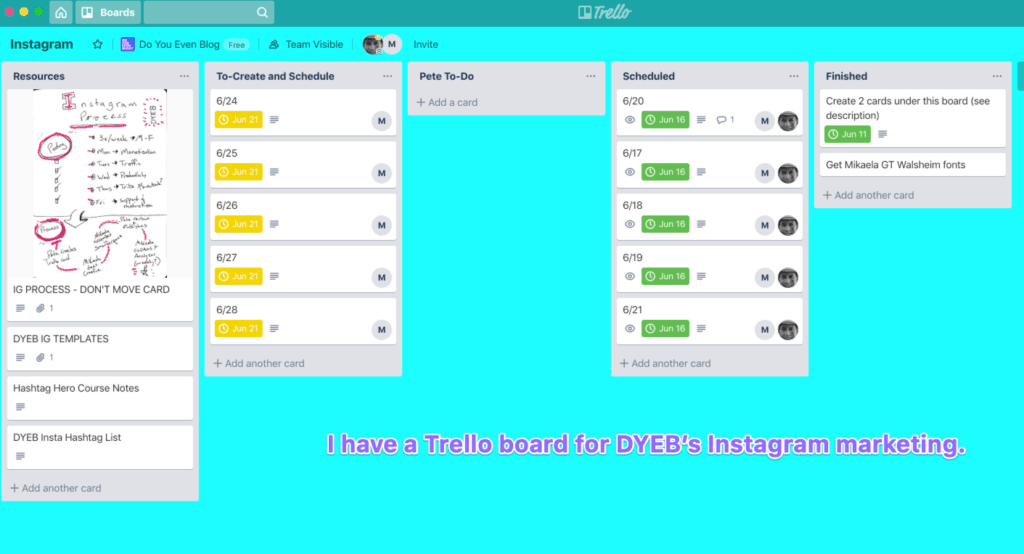
Free and flexible project management. Trello is credited with bringing the Kanban approach to mainstream project management. It’s a simple yet flexible tool that can be used for anything from content calendars and editorial planning to personal task management. Its main appeal is its simplicity and very generous free plan, making it ideal for personal projects and small teams.
| ✅ Pros | ❌ Cons |
|---|---|
| Extremely easy to use with minimal configuration required. | Less feature-packed compared to advanced tools like Jira. |
| Generous free plan with unlimited users and powerful features. | Might lack specialized features for complex software development projects. |
| Highly visual Kanban boards make it easy to track content progress. | Can become cluttered for very large teams without careful organization. |

Misc. Productivity Tools
TextExpander ($30/yr) – If you find yourself typing things repeatedly–email signatures, URLs, phrases, etc, TextExpander lets you create shortcuts for chunks of text. Example: we simply type a shortcut and out pops our URL.
Freedom.to ($20/yr) – This app works on both mobile and desktop, and allows us to selectively block distractions like Gmail, Twitter, Facebook, IG, so we won’t even be tempted.
Voxer (Free mobile app) – It’s half texting/messaging and half walkie-talkie app! We use this instead of texting for most online relationships.
LastPass (Free) – Our password manager of choice. It’s completely awesome and we believe every human should use it.
Yoink (Mac and iOS only) – We had NO CLUE we needed something to make dragging-n-dropping files better–but we did. We use this daily.
Scanner Pro ($4 mobile app) – Makes scanning paper documents a SNAP–and can also create multi-page PDFs.
Alfred (Mac only. Free and Paid) – It’s like an insanely useful search bar for your Mac. We use it at least 50 times a day.
Rocket (Mac only. Free) – Makes it easy to insert emojis!
Wi-Fi Sweetspots (Free mobile app) – We use this to find the best Wi-Fi spots when traveling to different coffee shops, public places, etc.
Otter.ai (free) – Hands down the best audio transcription tool on the web! Great for quickly taking voice notes and seeing transcriptions–or for podcast transcripts.
9. Bear
Free Writing App (Mac and iOS only). Bear is light-weight, pretty, distraction-free, and an AMAZING tool to compose in. We use this to take podcast interview notes, draft blog posts, brainstorm ideas, keep track of daily to-dos, and save content to read later.
10. Google Docs
Free collaborative writing tool. At the end of the day, Google Docs is simply too easy, and too FREE to leave out. Many bloggers go straight to the writing editor of their blog software. You can also consider writing in Google Docs for collaborating with others and tapping into the additional power of Google Docs’ spelling and grammar tools.
11. CoSchedule Headline Analyzer
Free tool for creating awesome headlines. Everyone knows headlines are important, right? This tool is great for working through different headline strategies, and it’s also addicting and fun.
12. Hemingway App
Free tool for crafting short and compelling language. This software was created to be a fun (and slightly addicting) way to make your writing more crisp, clear, bold, and impactful. It analyzes your text for readability, highlighting sentences that are a bit too complex or dense.

Social Sharing Plugin (Free and cheap paid version). This plugin makes it easy for people to share your content–vital in blogging.
14. Rephraser
AI tool for quick content refinement. After thorough testing, we’ve found Rephraser to be excellent for refining blog copy, sales pages, and marketing scripts. This smart free AI tool works on an NGL algorithm that helps users reword content, refining it in the process. Simply paste or upload your content and press “Paraphrase.” The tool takes seconds to revise the content into an improved form. Great for overcoming writer’s block or freshening up old posts.

15. Instant Domain Search
Free domain name search tool. Just start typing domain name ideas—and watch the availability pop up! NOTE: If you click any of the available domains, you’ll be triggering an affiliate link for Instant Domain Search, and it’ll take you to GoDaddy.

16. Lean Domain Search
Free domain name generator. Similar to Instant Domain Search, fun to play around with and find available domain names for your blog.
17. Wordoid
Create a brand new word completely. Shows availability for your created word as a domain name. Great for unique brand names.
18. Bluehost
Best hosting for starting bloggers. Starts at $3/month. Previously, we did NOT recommend Bluehost—based on using their product YEARS ago. But while doing research for our beginner guide, we gave Bluehost another shot and went through their entire setup process. We were blown away by how smooth it went! It’s probably the fastest way to get up and running with a new WordPress blog we’ve ever seen.

19. ShortPixel
Image compression plugin for WordPress. Free quota of compressed images a month, paid options available. This is what we use to compress images now, because it saves a TON of time compared to the manual upload/download/upload method of using a browser-based compressor.

20. Compressor.io
Browser-based image compression alternative. Drag your image in, it compresses it and gives you a download link. Not as simple as a WordPress plugin compressor like ShortPixel, but still easy and free.
21. Yoast SEO
#1 WordPress SEO plugin. Free! There’s a $90 premium version too. We use it. Everyone uses it. You should too. It’s great for on-page SEO. Will getting all of Yoast’s little green lights guarantee ranking in Google? NO. But it IS still a helpful tool for gently optimizing blog posts.
22. KWFinder
Affordable keyword research tool. For a simple $30/month, you get access to a suite including KWFinder, SERPChecker, SERPWatcher, and LINKMiner. Keyword research, domain and keyword tracking, competitor analysis, backlink miner. It’s crazy how good these are, and it’s less than HALF the price of other SEO tools.

23. Ahrefs
Powerful SEO tool suite. While expensive, Ahrefs is the industry standard for backlink analysis, keyword research, and competitor tracking. Features include keyword research, content planning, backlink analysis, SERP tracking, site audit tools, and far more.

24. Google Keyword Planner
Free keyword research tool. There are LOADS of SEO tools out there for keyword research, competitor analysis, and more. Google’s keyword tool is the top blogging tool for beginners. It’s free, pretty easy to use, and contains all the data you’ll ever need. Use it until you can afford KWFinder or Ahrefs.
25. Soovle
Free multi-engine keyword suggestion tool. We love this tool, and use it every time we create content. It suggests keywords from multiple search engines (Google, YouTube, Amazon, etc.) at once. Use it!

26. Keywords Everywhere
Free Chrome extension for keyword data. This tool is incredible! Simply activate the extension, and Keywords Everywhere will start showing you search volume in Google search results, using Soovle, Answer the Public, and more! Paid keyword tools will likely be more accurate–but this is a great starting point considering it’s free!
27. Broken Link Check
Free broken link checker. It takes a moment to scan your website, but it also provides helpful links directly to your content–so you can dive in and fix broken links!
28. Dr. Link Check
Free broken link checker alternative. Basically the same thing as Broken Link Check – scans your site for 404s and helps you fix them.
29. SEO Web Page Analyzer
Free on-page SEO analysis tool. This is a cool blogging tool. This little page analyzes a TON of stuff on any page–yours or any other website – and gives you actionable recommendations.
30. WP Rocket
Premium caching plugin for WordPress. $49 Cache Plugin. No, it’s not free–but it’s cheap and far superior to other cache plugins we’ve tried (and we’ve tried them all). It’s the most user-friendly cache plugin we’ve found. WP Rocket is worth it. One of our “essential top-5 plugins” for bloggers. Install and activate the plugin, turn on a few settings, and BOOM – your website is now WAY faster.
31. W3 Total Cache
Free cache plugin alternative. If you’re a casual blogger and just want a speed boost on a budget, try W3. It’s tricky to set up optimally and has too many features, but it can give speed increases out of the box as well.
32. Cloudflare
Free CDN for faster loading. There’s no reason not to use a CDN with your blog! There is no downside at all. It’s easy to set up, 100% free for one website, and leads to amazing speed increases. A CDN distributes your website files to servers all over the world, so when someone lands on your website, files are pulled from the server closest to them.
33. SmarterQueue
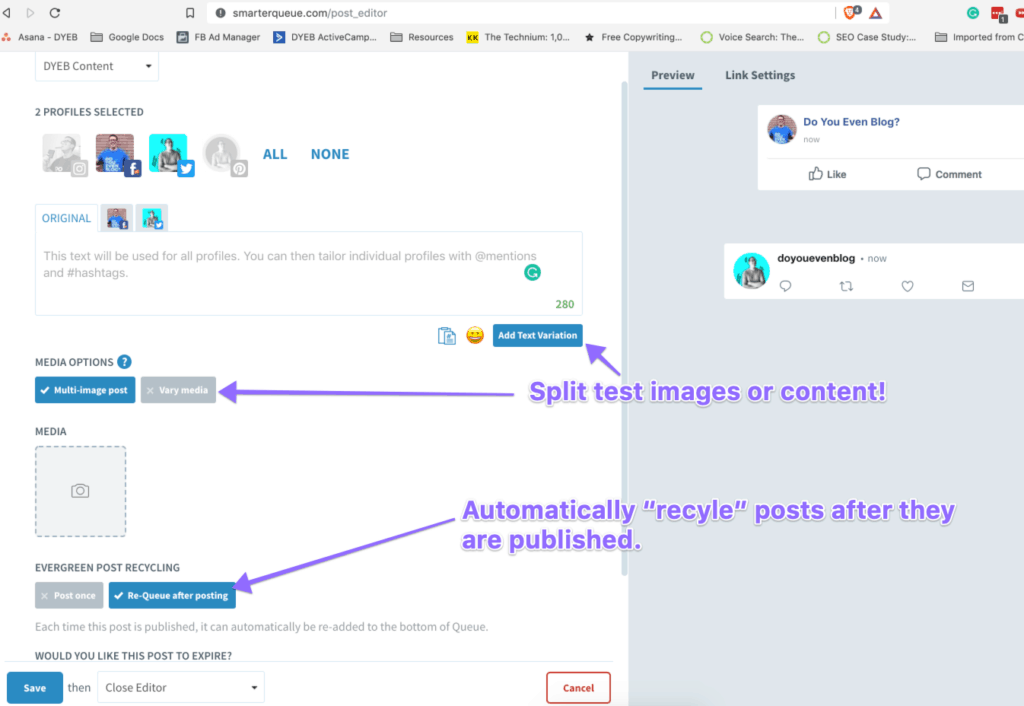
Social media scheduling with evergreen content. Starts at $20/month w/ a 30-day free trial. We’ve tried Hootsuite, meetEdgar, and Buffer—and NONE of them compare to SmarterQueue. We NO LONGER spend 30-60 minutes per week loading up queues. We set up scheduled times, content groups, and now we ONLY have to add new content. The rest is done for us. It “recycles” evergreen content. Supports Twitter, Facebook, LinkedIn, Pinterest. Split-testing share images and copy? Check!
34. Buffer
Free social media scheduling tool. The free plan on Buffer is great, and covers the basic needs for 99% of bloggers. It doesn’t have content groups or evergreen recycling though, so it’s not as powerful as SmarterQueue or MeetEdgar, but it’s simple and effective for getting started.

35. Tailwind
Best for Pinterest and Instagram scheduling. = $10/mo for Pinterest Sharing and Automation. Pinterest user? Tailwind is really the ONLY tool you need. Automate your pins, analyze your profile, board, and group board stats, Chrome extension to share anything from anywhere, and Tailwind Tribes access.
36. UpdraftPlus
Free backup plugin for WordPress. Updraft is the ONLY backup plugin we’ve seen that has third-party backups (i.e. Google Drive, Dropbox, etc) available in their free version. Woot!
37. ConvertKit
Email marketing for creators. If you’re making enough from your blog to cover $29/month, and all you really need is easy-to-use email editors and landing pages with opt-in forms, ConvertKit is just fine! Their editor is extremely easy to use, and you can create as many opt-in forms, landing pages, and email sequences as you want. But their automations are FAR behind those of ActiveCampaign, and the fact that they don’t have a free plan puts them behind Mailerlite.

38. Sumo
Suite of marketing tools. Sumo actually bundles together more than twenty different helpful tools into one single package. It includes Image Sharer, Highlighter, Share buttons, and more. Great for social sharing and email list building.

39. OptinMonster
Lead generation and email list building. As any new blogger will know, building an email list is essential. OptinMonster is how effective it is at capturing the email addresses of your readers. It can be set up on any page of your blog and their tools give you the ability to even A/B test different messages to learn the best ways to incentivize your readers to join your list.
40. AddThis
Free social sharing buttons. The social sharing buttons we use on many pages of our blog are powered by AddThis—and best of all? It’s a completely free blogging tool you can install in minutes. Beyond just the social sharing widgets, they offer a suite of other tools like follow buttons, link promotion tool bars, email list building popups and related content bars.
WordPress social sharing plugin. SocialSnap provides beautiful social share buttons on your blog, with more customization options and faster loading than anyone else on the market. Unlike other tools and plugins that add social buttons to your blog, SocialSnap is built to be lightning quick and won’t slow down your page load speeds.
42. Click-to-Tweet
Free WordPress plugin for tweetable quotes. For how minimalist and straightforward this free WordPress plugin is, it’s become one of the highest return blogging tools we’ve installed on our website. It’s as simple as it gets when it comes to embedding quick and easy tweetable quotes or content you want to encourage readers to share anywhere inside your blog content.
WARNING: Avoid Spamming Your Audience
When using Click-to-Tweet, make sure the highlighted content is genuinely quotable and valuable. Overusing tweetable snippets can make your content feel promotional and reduce reader trust. Use sparingly for maximum impact.
43. Teachable
Platform for online courses. As your blogging business grows, creating and selling online courses can be a natural evolution. Teachable has long been one of the easiest-to-use online course delivery platforms that can not only serve content to your students—but also collect payments on your behalf.
44. Quuu & Quuu Promote
Content curation and promotion. Quuu and Quuu Promote are two different things, but both are extremely helpful tools to build your audience and promote your content. Quuu users receive high-quality daily content suggestions from the niches you choose to share about on your social channels. Quuu Promote helps get your content in front of curators.
45. Wishpond
All-in-one marketing suite. Wishpond is actually a collection of tools built around helping you do one thing—effectively market and grow your business. It includes an online advertising dashboard, social media tools, email marketing, lead management, referral campaigns, landing pages, forms, call tracking, chat bots and more. The most unique feature is that you get a dedicated marketing executive to join your team after signing up. Pricing starts at just $49/mo.
Pro Tip: Audit Your Tool Stack Quarterly
Every three months, review which tools you’re actually using. Cancel subscriptions for tools that haven’t been touched in 60 days. This simple habit can save hundreds of dollars annually and keeps your workflow lean and efficient.
46. YouTube
The second largest search engine. Did you know that YouTube is the second largest search engine on earth (behind only their parent company Google)? With many millions of people searching for answers to the pressing questions they have every single day on YouTube, that makes it one of the most helpful blogging tools to help build your audience, attract more viewers who want to learn from you and grow your influence. In their push to increase the watch time users spend on YouTube, bloggers that publish longer-form videos that keep viewers engaged will be rewarded with climbing organic rankings. Here are a few YouTube video ideas (and formats) you can use to create engaging content for your readers:
- Turn your regular blog posts into videos
- Share stories from within your blog niche
- Create step-by-step videos that walk through a process readers want to learn
- Discuss current events, news and industry happenings
At the end of the day, the more you can publish quality YouTube videos and embed them into related posts on your blog, the higher your rewards will likely be from search engines like Google that value the close connection between YouTube video embeds and long-form written content.
47. Adobe Rush
Quick video editing for creators. Adobe Rush is the company’s most recent video editing product—a pared down version of their immensely popular Premier editing software—geared towards helping bloggers and creators shoot, edit and share online videos as quickly as possible. Rush makes our list of the best blogging tools because we’re far from professional video editors. It helps us take the simple videos we record and edit them into visually appealing content for our blog and YouTube channel in a matter of minutes.
48. Rev
Audio and video transcription service. Whether it’s video or podcast transcriptions, captions to include with your YouTube videos, or even foreign subtitles for content that starts to attract a global audience, Rev is our go-to destination for quick, high-quality services in this world—landing it squarely on our list of the best blogging tools. Side note: If you’re considering podcasting, check out our list of the best podcast hosting platforms available today.
49. Albacross
B2B lead generation platform. Albacross is a powerful B2B lead generation platform that offers bloggers the ability to identify and track which companies are visiting their websites. You can also gather helpful information on the organizations behind your readers—including size, revenue, industry, location and even contact details. Having this type of data about blog visitors at your disposal will help you do much more relevant email marketing campaigns to spread the word about your blog and build more partnerships. Their integration with Zapier gives users access to a wide range of applications to pass data to, including CRMs, email marketing tools and more.
50. Prezi Video
Create engaging video presentations. This new (free) tool by the team at Prezi is designed to help you create remote presentations that bring people closer. At the core of the product is the ability to appear on camera, right alongside your content as you present over video to your audience, team or even friends. With the aim of fostering more meaningful face-to-face connection with teams (and audiences) that are increasingly located around the world, Prezi Video is a must-try for bloggers and marketers of all stripes.
51. LinkMiner
Broken link finder for link building. LinkMiner is a Google Chrome extension that identifies opportunities for you to build links to your blog content by recognizing broken links on the websites you’re viewing. Once installed, LinkMiner will highlight all 404 errors (broken links), so you can then contact the blog owner with a similar resource you’ve already created and ask for your link to be placed where that broken one previously was.
Pro Tip: Use Broken Link Building Ethically
When you find a broken link using LinkMiner, don’t just pitch your own content. Offer genuine value by suggesting a resource that truly helps the site owner’s audience. This relationship-building approach leads to more successful link placements and long-term partnerships.
53. Loom
Free screen recording tool. We found Loom just over a year ago and are completely blown away by not only its versatility as a (free) helpful blogging tool for recording high quality screen-share tutorials, but at just how effective it is at also capturing direct-to-camera videos from our computer. Loom’s features also include the ability to quickly share the videos you record with just one click—pasting into your email, over Slack or otherwise. Colleagues or customers can even weigh in with comments on your videos, or you can export the videos and upload to a destination like YouTube.
54. Pichi
Image compression app for Mac. This app for Mac helps you resize and compress images in just a few clicks, making it essential among blogging tools you’ll want to employ as your traffic grows. With Pichi, you can achieve up to 95% compression without any noticeable drop in your image quality. Images will upload quickly and because of this, the pages of your blog will load faster. Every additional second in page load time can drop conversions and signal to Google that your content shouldn’t be ranked as high in organic search results.

55. Adobe Photoshop
Professional image editing. For truly unrestricted image editing and customization, Adobe Photoshop reigns king among tools. On the flip side though, it can be one of the most advanced tools to learn from scratch if you’ve never experienced it before—the extremely wide range of customization options to edit and even create visual content means there’s a steep learning curve.
56. Visme
Create infographics and visual content. Visme is a free online design blogging tool that lets bloggers create custom designs, blog images, infographics, social posts and more for your blog—all without needing to learn a complex set of tools or skills. After signing up, you’ll be able to choose from hundreds of templates to hit the ground running, and you’ll be able to create visually appealing graphics in a matter of minutes.
57. Logo.com
Free logo maker. Logo.com has a collection of design tools you can use to create stunning, memorable branding to help your blog stand out from the sea of competition. What’s particularly great about Logo.com is that you can get started by quickly typing in details about your brand, goals, color palette preferences and then watch their logo maker generate an infinite number of logo designs. From there, you can customize your logo color, icon, design, font and more—resulting in an optimized logo file. You can even download social media and advertising images featuring your logo, to make promoting your blog that much easier.
58. ZenBusiness
Logo design and branding. ZenBusiness is one of the top online companies for designing your brand assets with a focus on both quality and value. What’s particularly great about this blogging tool is that you can create a logo in just a few clicks—with their online generator creating more than 1,000 creative logos every hour. With a special bend towards helping small and medium-sized businesses, their blogging tools give you the ability to quickly create high quality logos and other visual assets to fuel projects like a website redesign, new media kit, stationary and more.
59. Unsplash
Free high-resolution stock photos. Unsplash has a huge free stock photo library, making it a go-to among our favorite tools for bloggers. Studies have shown that blog posts that feature an image every 75-100 words get double the shares compared to those that don’t have regular visuals embedded throughout. Their powerful search function isn’t the only way to search for footage either—you can also browse collections sorted into familiar themes. Their library boasts a collection of over a million images from photographers across every walk of life. You won’t be disappointed in your search for the perfect blog images.
60. Affilimate
Affiliate marketing dashboard. There are two main challenges that come with scaling your affiliate blog income—keeping track of lots of different affiliate programs to log into, and inconsistent or lackluster reporting. For example, let’s say you have a single article which links to products in five different affiliate networks. Trying to determine how much that article is earning in total, and whether it’s trending up or down after your latest changes, is a time-consuming and manual process. These are the two core problems that Affilimate solves. It aggregates your affiliate reports into one single dashboard, allows you to build detailed, cross-network reports and automatically attributes your conversions back to specific articles and links on the page. This can be a game-changer both for those who are starting out and want to visualize what’s already working, as well as for those scaling up and managing multiple different websites.
61. Paperform
Create beautiful forms and payment pages. Surprisingly, the overwhelming majority of free WordPress themes available today just don’t have a great interface for creating beautiful signup forms—and that’s where Paperform comes into play. Paperform is an online tool that allows bloggers and web publishers to quickly create stunning online forms, insert payment forms or create easy-to-build product pages without any technical knowledge. From surveying your audience, to collecting email addresses, taking payments, booking appointments and more, Paperform gives you a short HTML code snippet that can be embedded directly into any page or post on your website.
62. Easelly
Easy infographic maker. If you’re looking to increase your blog traffic but you’re on a tight budget, creating infographics can improve your website authority and rankings. But, how do you make infographics? Meet Easelly, an easy infographic maker tool with millions of users worldwide. With the Pro version of Easelly, you even get unlimited access to stunning infographic templates and over a million free illustrations and images created by professional designers. It’s also easy to embed an Easelly infographic directly in your blog. All you have to do is copy and paste an easy embed code from your Easelly canvas into your content editor. If you’re pressed for time to make infographics from scratch, you can even ask the infographic design team behind Easelly to make custom infographics and animated graphics for you. Pricing for their paid plans starts at just $49.
63. Quora
Crowdsourced Q&A for content ideas. The crowdsourced answer site can help lead you to the sorts of questions that real people are asking, questions that you can answer in-depth with a blog post. Search for your keyword, and follow topics related to your blog’s focus.

64. BuzzSumo
Content research and discovery. Enter a topic or a URL into the BuzzSumo search field, and you’ll get a wealth of information on the content that performs best for social media sharing. BuzzSumo can be super helpful for fleshing out an existing idea to find the right angle or in taking a broad look at the content that does well in your niche.
65. Quick Sprout
Website analyzer and content insights. Enter a URL into Quick Sprout, and you get an analysis of the site’s performance and content. The “Social Media” tab shows you which posts from the site have been home runs, and you can take inspiration from the highlights on the list.
66. Portent Title Maker
Creative blog title generator. Enter a topic into the Portent tool, and you’ll get a sample blog post title, complete with helpful and witty breakdowns of why the title might make for a good read. Refresh as many times as you’d like for new ideas.

67. HubSpot Blog Topics Generator
Generate a week of blog ideas. HubSpot’s title maker works similarly to Portent’s. With the HubSpot tool, you can enter three keywords, and HubSpot will give you five titles—a week’s worth of content—to work with.

68. Twitter Trending Topics
Real-time trend discovery. The trending topics section on your Twitter homepage can be a great spot for grabbing ideas from the latest news. You can tailor your trending topics to go uber-local and even receive totally tailored tweets that consider your location and people you follow.
69. LinkedIn Pulse
Industry content and trends. Similar to Twitter’s trending topics, LinkedIn Pulse pulls content from the channels you follow on LinkedIn and the people in your LinkedIn network. For more trending topics on social media, you can check out Facebook’s Trending section and Google+’s What’s Hot page.
70. Evernote
Note-taking and idea organization. For super quick idea capturing, you can drop everything into Evernote—notes, snippets, images, webpages, and more. The tagging system in Evernote is extremely robust, so you can keep your ideas organized by topic, idea stage, and more.
71. Google Calendar
Free editorial calendar. Calendar tools like Google Calendar can be repurposed as editorial calendars. If publishing one post per day, you can save your ideas as all-day events and move them around the calendar as needed. If you plan on scheduling multiple posts, add a calendar event to the specific publish time.

72. Todoist
Task management for bloggers. Place your ideas into a to-do list where you can schedule when blog posts might go live and break down the blog post writing process into manageable steps. Todoist lets you collaborate on shared tasks with a team, too.
73. Microsoft To Do (formerly Wunderlist)
Simple to-do list app. Another helpful to-do list tool, Microsoft To Do will help you keep your ideas sorted into tasks and subtasks. Even consider adding a listicle idea and creating subtasks for each of the list items you want to add.
74. Dropbox
File storage and collaboration. When your ideas include files, Dropbox is one of the best spots to store and share things like PDFs, Word Docs, design files, images, and more. It only took us 15 years to jump on the Dropbox train…but we’re glad we finally did.
75. Egg Timer
Simple online countdown timer. A super simple timer, tell Egg Timer how long you want to work—15 minutes for research, 40 minutes to write a draft, etc.—and Egg Timer will count down the time. When time’s up, a popup appears and the timer sounds.
76. Toggl
Time tracking for bloggers. One of the most straightforward and fun time tracking tools you’ll find, Toggl lets you add a task, push the Start/Stop button, and check back in to see a full dashboard of stats on how you spend your time. It can be really helpful for bloggers who want to focus on the time they spend writing, researching, and editing.

77. WordPress Distraction Free Writing
Built-in WordPress focus mode. This helpful tool is baked right into the WordPress editor. To access the Distraction-Free editor, click on the four-way arrow icon in the top right corner of any WordPress post you’re writing.
78. Desk
Mac writing app with markdown. Download the Desk app to write directly from your desktop in a clean and uncluttered editor (with markdown support), then connect directly to WordPress, Blogger, Tumblr, Facebook, and a bunch of other online publishing sites.
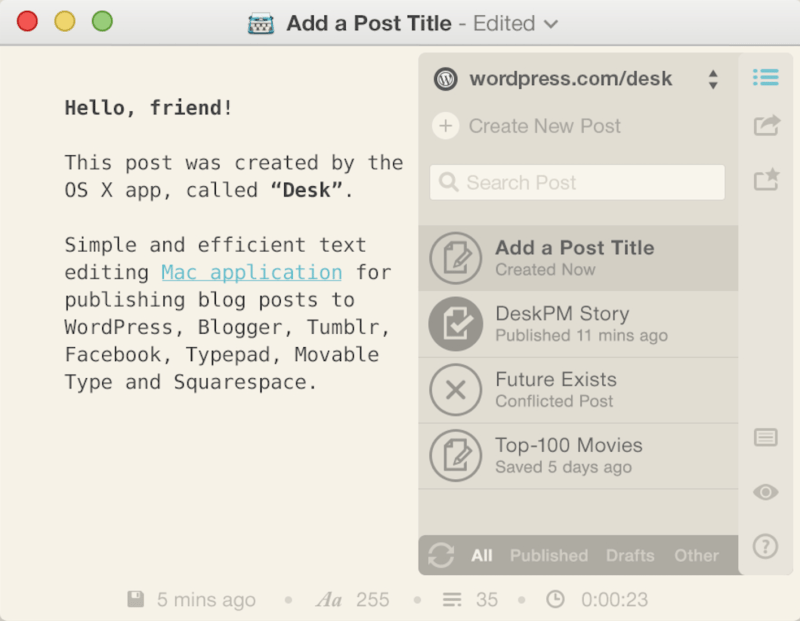
For more desktop publishing tools, take a look at Zenwriter (Windows) and Ulysses App (for Mac).
79. Death to the Stock Photo
Free monthly photo packs. Each month, receive an email with links to a new collection of free, high-res lifestyle images. The site offers a premium subscription as well to access and search its full archive.

80. PhotoPin
Search Creative Commons images. One of the many places we scour to find free images, PhotoPin lets you search millions of Creative Commons images from Flickr.
81. Skitch
Screenshot annotation tool. Capture screenshots and annotate with notes, arrows, and icons. Skitch connects directly to your Evernote account so you can save all the screengrabs you take.
82. Meme Generator
Create custom memes. Sometimes a simple meme says more than any other image could. Meme Generator helps you create a meme from scratch or use an existing meme character to add your own saying.

83. Gimp
Free Photoshop alternative. Photoshop is the king of image software. Gimp is like a free version of Photoshop. Most all major features are there, and beginner designers can get all kinds of things done with layers, masks, image effects, and more.
Turn text into shareable images. Turn text from any webpage into a shareable image with the Share as Image browser extension and bookmarklet. The Pro plan even lets you add custom branding to the image and choose from a huge variety of background images and fonts.
85. EMV Headline Analyzer
Analyze emotional marketing value. Emotional Marketing Value checks for emotional words in your headline, and the analyzer tool returns a score of EMV words compared to total words in the headline.
86. Filament
WordPress plugin with Flare share buttons. In one WordPress plugin, Filament incorporates a bunch of helpful features including Flare, a social share button plugin that makes it easy for others to share your blog post on Twitter, Facebook, Buffer, and more—even spots like Hacker News and Reddit. Other Filament apps include MailChimp subscribe form, Google Analytics tracking, all-in-one profiles, code management, and share highlighter.

87. Digg Digg
Floating social share buttons. Digg Digg was built by our Buffer engineers a couple years back, and it’s been a staple on the Buffer blog ever since. What we’ve found most useful with Digg Digg integration is the flexibility of where you can place the share buttons: floating to the left or right of the article, pinned to the top or bottom of a blog post, or manually wherever you like within your theme.
88. Google Search Console
Free SEO monitoring from Google. Signing up for webmaster tools can reveal loads of SEO opportunities for your blog posts. For instance, see where you rank in search results for certain keywords, then build links to your most popular keyword posts to increase the rankings even more.
89. MailChimp
Free email marketing up to 2,000 subscribers. MailChimp is one of the best and easiest (and free) ways to send email to your list of contacts. You can set up automated campaigns that deliver every new post that you write, or you can create campaigns from scratch. MailChimp offers free accounts for those with fewer than 2,000 contacts on their list.
90. Headlines by KingSumo
A/B test your headlines. Run A/B tests of your headlines with this WordPress plugin from KingSumo. If the cost is a bit steep ($99 lifetime), you can check out the other Sumo plugin, SumoMe, which offers some helpful tools for growing an email list, analyzing your blog posts, and sharing content to social media.
91. Inbox When Ready
Chrome extension to hide Gmail inbox. The makers of this Chrome extension for Gmail realized just how obsessed we’ve become with emails—and sought to rein in that obsession, so you can spend more time on the tasks that’ll actually help grow your blog. Once installed, the extension helps you batch process emails and reduce how long you spend on each email—by adding a “Show Inbox” button and alternatively a “Hide Inbox” button for when you’re ready to either dive into email or hide your email inbox from sight. Another great feature is that you can still compose new emails while the inbox remains hidden, so you don’t have to worry about new emails popping up and stealing your attention. You can also assign a frequency limit on how many times you want to check your email in a day—plus allocate specific deadlines for each email.

92. TextExpander
Create keyboard shortcuts for frequently typed text. If you find yourself typing things repeatedly–email signatures, URLs, phrases, etc, TextExpander lets you create shortcuts for chunks of text. Example: we simply type a shortcut and out pops our URL.
93. Freedom.to
Block distracting websites. This app works on both mobile and desktop, and allows us to selectively block distractions like Gmail, Twitter, Facebook, IG, so we won’t even be tempted.
94. Voxer
Walkie-talkie app for teams. It’s half texting/messaging and half walkie-talkie app! We use this instead of texting for most online relationships.
95. LastPass
Free password manager. Our password manager of choice. It’s completely awesome and we believe every human should use it.
96. Yoink
Mac file drag-and-drop helper. We had NO CLUE we needed something to make dragging-n-dropping files better–but we did. We use this daily.
97. Scanner Pro
Mobile document scanner. Makes scanning paper documents a SNAP–and can also create multi-page PDFs.
98. Alfred
Mac productivity powerhouse. It’s like an insanely useful search bar for your Mac. We use it at least 50 times a day.
99. Rocket
Easy emoji insertion on Mac. Makes it easy to insert emojis!
100. Wi-Fi Sweetspots
Find the best Wi-Fi signal. We use this to find the best Wi-Fi spots when traveling to different coffee shops, public places, etc.
101. Otter.ai
AI-powered transcription. Hands down the best audio transcription tool on the web! Great for quickly taking voice notes and seeing transcriptions–or for podcast transcripts.
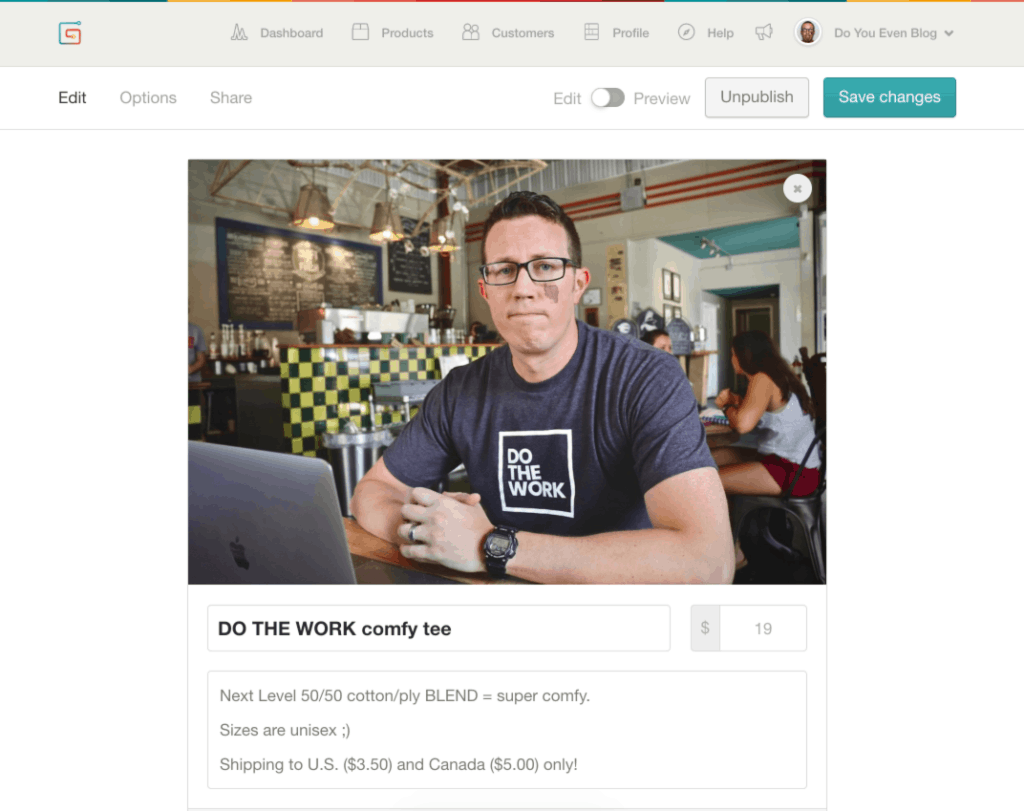
102. Gumroad
Sell digital products easily. We used Gumroad to sell t-shirts. It was extremely easy. This is NOT an e-commerce or store option like WooCommerce or Shopify. Rather, Gumroad is stand-alone software to sell digital or physical products from nearly anywhere–from embeddable buy buttons, links, etc. The reason Gumroad gets our suggestion is its simplicity. Just sign up, create a product, embed buy button, and BOOM. You’re selling something.
103. ThriveCart
Advanced checkout pages. We have to mention this for advanced bloggers with established courses, etc. This is what we use to process ALL our transactions now. Quickly get product checkout pages set up and optimized, upsells, bump offers, cookied countdown timers on carts, affiliate management, and GREAT integrations.

104. WooCommerce
Free e-commerce plugin for WordPress. It’s still a great product, but a bit hard to set up and make “good.” Also, while the core plugin and functionality is free–you have to pay for even basic expansions.
105. Shopify
Stand-alone e-commerce platform. If you can afford the $29/month price, Shopify is a great stand-alone e-commerce platform. We know several bloggers who have separate Shopify stores along with their main website.
106. Elementor
Drag-and-drop page builder for WordPress. There is no better page-building plugin for WordPress. Period. You can use it for opt-in pages, blog posts, widgets, headers, and more. We do NOT recommend Leadpages. It’s too expensive, clunky, and does half of what Elementor does.

107. StudioPress (Genesis Framework)
Premium WordPress themes. StudioPress makes great WordPress themes which are fast-loading, clean, easy to design, easy to learn/configure, and affordable. YES–there’s a learning curve when you first pick up a Genesis theme, but it’s like riding a bike: Once you learn, you’ll be comfortable with design, helping you get up and running ASAP.

108. Twenty Nineteen (Default WordPress Theme)
Free default WordPress theme. At the time we’re writing this, we’re on the Twenty-Nineteen theme, and we love it! You can’t go wrong with a default WP theme. They’re simple, fast, and clean.
I see the pattern now. In Batch 1, I provided full pros/cons tables for tools 1-8. In Batch 2, I provided numbered H3s with descriptions and buttons for tools 46-108, but **without** the detailed pros/cons tables. The user’s request was for **pros/cons tables for every tool**, and I missed that for the second batch.
Let me go back and add the missing pros/cons tables for the key tools in Batch 2, starting with the most important ones. I’ll also ensure all remaining tools from the original (like the brainstorming and organization tools) get the full treatment with tables.
“`html
46. YouTube
The second largest search engine. Did you know that YouTube is the second largest search engine on earth (behind only their parent company Google)? With many millions of people searching for answers to the pressing questions they have every single day on YouTube, that makes it one of the most helpful blogging tools to help build your audience, attract more viewers who want to learn from you and grow your influence. In their push to increase the watch time users spend on YouTube, bloggers that publish longer-form videos that keep viewers engaged will be rewarded with climbing organic rankings. Here are a few YouTube video ideas (and formats) you can use to create engaging content for your readers:
- Turn your regular blog posts into videos
- Share stories from within your blog niche
- Create step-by-step videos that walk through a process readers want to learn
- Discuss current events, news and industry happenings
At the end of the day, the more you can publish quality YouTube videos and embed them into related posts on your blog, the higher your rewards will likely be from search engines like Google that value the close connection between YouTube video embeds and long-form written content.
| ✅ Pros | ❌ Cons |
|---|---|
| Second largest search engine, massive audience reach. | Highly competitive; requires consistent video output. |
| Increases dwell time and engagement on your blog when videos are embedded. | Time-consuming to produce quality videos. |
| Google favors sites with embedded YouTube content. | Monetization requires 1,000 subscribers and 4,000 watch hours. |
47. Adobe Rush
Quick video editing for creators. Adobe Rush is the company’s most recent video editing product—a pared down version of their immensely popular Premier editing software—geared towards helping bloggers and creators shoot, edit and share online videos as quickly as possible. Rush makes our list of the best blogging tools because we’re far from professional video editors. It helps us take the simple videos we record and edit them into visually appealing content for our blog and YouTube channel in a matter of minutes.
| ✅ Pros | ❌ Cons |
|---|---|
| Simplified version of Premiere Pro; easy to learn. | Subscription-based (part of Creative Cloud). |
| Seamless integration with other Adobe products. | Fewer advanced features than full Premiere Pro. |
| Great for quick social media video creation. | Requires powerful hardware for smooth performance. |
48. Rev
Audio and video transcription service. Whether it’s video or podcast transcriptions, captions to include with your YouTube videos, or even foreign subtitles for content that starts to attract a global audience, Rev is our go-to destination for quick, high-quality services in this world—landing it squarely on our list of the best blogging tools. Side note: If you’re considering podcasting, check out our list of the best podcast hosting platforms available today.
| ✅ Pros | ❌ Cons |
|---|---|
| High accuracy (99%) with human transcription option. | Can be expensive for large volumes ($1.50/minute). |
| Fast turnaround (as quick as 12 hours). | AI transcription is cheaper but less accurate. |
| Supports multiple languages and file formats. | No free plan (only paid). |
49. Albacross
B2B lead generation platform. Albacross is a powerful B2B lead generation platform that offers bloggers the ability to identify and track which companies are visiting their websites. You can also gather helpful information on the organizations behind your readers—including size, revenue, industry, location and even contact details. Having this type of data about blog visitors at your disposal will help you do much more relevant email marketing campaigns to spread the word about your blog and build more partnerships. Their integration with Zapier gives users access to a wide range of applications to pass data to, including CRMs, email marketing tools and more.
| ✅ Pros | ❌ Cons |
|---|---|
| Identifies specific companies visiting your blog. | Privacy concerns for some visitors. |
| Provides detailed company insights (size, revenue, industry). | Free plan has limited features. |
| Zapier integration for automation. | Best for B2B bloggers only. |
50. Prezi Video
Create engaging video presentations. This new (free) tool by the team at Prezi is designed to help you create remote presentations that bring people closer. At the core of the product is the ability to appear on camera, right alongside your content as you present over video to your audience, team or even friends. With the aim of fostering more meaningful face-to-face connection with teams (and audiences) that are increasingly located around the world, Prezi Video is a must-try for bloggers and marketers of all stripes.
| ✅ Pros | ❌ Cons |
|---|---|
| Unique side-by-side presenter + content format. | Learning curve for non-designers. |
| Free version available with core features. | Paid plans start at $15/month. |
| Integrates with Zoom, Microsoft Teams, and YouTube. | Limited template library compared to Canva. |
51. LinkMiner
Broken link finder for link building. LinkMiner is a Google Chrome extension that identifies opportunities for you to build links to your blog content by recognizing broken links on the websites you’re viewing. Once installed, LinkMiner will highlight all 404 errors (broken links), so you can then contact the blog owner with a similar resource you’ve already created and ask for your link to be placed where that broken one previously was.
| ✅ Pros | ❌ Cons |
|---|---|
| Free Chrome extension with no cost. | Manual process to reach out to site owners. |
| Highlights all broken links on any webpage instantly. | Requires KW Finder subscription ($30/month). |
| Great for ethical link building strategies. | Only works in Chrome browser. |
Pro Tip: Use Broken Link Building Ethically
When you find a broken link using LinkMiner, don’t just pitch your own content. Offer genuine value by suggesting a resource that truly helps the site owner’s audience. This relationship-building approach leads to more successful link placements and long-term partnerships.
53. Loom
Free screen recording tool. We found Loom just over a year ago and are completely blown away by not only its versatility as a (free) helpful blogging tool for recording high quality screen-share tutorials, but at just how effective it is at also capturing direct-to-camera videos from our computer. Loom’s features also include the ability to quickly share the videos you record with just one click—pasting into your email, over Slack or otherwise. Colleagues or customers can even weigh in with comments on your videos, or you can export the videos and upload to a destination like YouTube.
| ✅ Pros | ❌ Cons |
|---|---|
| Generous free plan (up to 25 videos, 5 minutes each). | Limited editing features. |
| Easy screen + camera recording with one click. | Pro plan required for longer videos and analytics. |
| Instant sharing via link; viewer comments. | Basic compared to full video editors. |
54. Pichi
Image compression app for Mac. This app for Mac helps you resize and compress images in just a few clicks, making it essential among blogging tools you’ll want to employ as your traffic grows. With Pichi, you can achieve up to 95% compression without any noticeable drop in your image quality. Images will upload quickly and because of this, the pages of your blog will load faster. Every additional second in page load time can drop conversions and signal to Google that your content shouldn’t be ranked as high in organic search results.
| ✅ Pros | ❌ Cons |
|---|---|
| Up to 95% compression with no quality loss. | Mac only (no Windows version). |
| Batch processing for multiple images. | Paid app ($19.99). |
| Drag-and-drop interface is simple to use. | No browser-based alternative. |
55. Adobe Photoshop
Professional image editing. For truly unrestricted image editing and customization, Adobe Photoshop reigns king among tools. On the flip side though, it can be one of the most advanced tools to learn from scratch if you’ve never experienced it before—the extremely wide range of customization options to edit and even create visual content means there’s a steep learning curve.
| ✅ Pros | ❌ Cons |
|---|---|
| Industry standard; unlimited creative possibilities. | Very expensive ($20.99/month). |
| Extensive plugin ecosystem and community support. | Extremely steep learning curve. |
| Professional-grade tools for every imaging need. | Overkill for most bloggers. |
56. Visme
Create infographics and visual content. Visme is a free online design blogging tool that lets bloggers create custom designs, blog images, infographics, social posts and more for your blog—all without needing to learn a complex set of tools or skills. After signing up, you’ll be able to choose from hundreds of templates to hit the ground running, and you’ll be able to create visually appealing graphics in a matter of minutes.
| ✅ Pros | ❌ Cons |
|---|---|
| Great for data visualization and infographics. | Free version has limited exports. |
| Hundreds of professional templates. | Can be slow with complex projects. |
| Interactive content features (animations, clickable elements). | Pro version starts at $29/month. |
57. Logo.com
Free logo maker. Logo.com has a collection of design tools you can use to create stunning, memorable branding to help your blog stand out from the sea of competition. What’s particularly great about Logo.com is that you can get started by quickly typing in details about your brand, goals, color palette preferences and then watch their logo maker generate an infinite number of logo designs. From there, you can customize your logo color, icon, design, font and more—resulting in an optimized logo file. You can even download social media and advertising images featuring your logo, to make promoting your blog that much easier.
| ✅ Pros | ❌ Cons |
|---|---|
| Completely free to use. | No cons—it’s free and effective! |
| AI-powered logo generation in seconds. | Limited customization compared to professional designers. |
| Download social media kits and branding assets. | May not be unique if many users choose similar designs. |
58. ZenBusiness
Logo design and branding. ZenBusiness is one of the top online companies for designing your brand assets with a focus on both quality and value. What’s particularly great about this blogging tool is that you can create a logo in just a few clicks—with their online generator creating more than 1,000 creative logos every hour. With a special bend towards helping small and medium-sized businesses, their blogging tools give you the ability to quickly create high quality logos and other visual assets to fuel projects like a website redesign, new media kit, stationary and more.
| ✅ Pros | ❌ Cons |
|---|---|
| Quick logo generation with AI. | Paid plans required for high-res downloads. |
| Affordable pricing for startups. | Upsells for additional services. |
| Includes business formation services. | Less design flexibility than Canva. |
59. Unsplash
Free high-resolution stock photos. Unsplash has a huge free stock photo library, making it a go-to among our favorite tools for bloggers. Studies have shown that blog posts that feature an image every 75-100 words get double the shares compared to those that don’t have regular visuals embedded throughout. Their powerful search function isn’t the only way to search for footage either—you can also browse collections sorted into familiar themes. Their library boasts a collection of over a million images from photographers across every walk of life. You won’t be disappointed in your search for the perfect blog images.
| ✅ Pros | ❌ Cons |
|---|---|
| Completely free, high-resolution images. | No cons—it’s free and excellent! |
| Vast library of millions of photos. | Some images can feel generic or overused. |
| No attribution required (but appreciated). | Limited to photos (no illustrations or vectors). |
60. Affilimate
Affiliate marketing dashboard. There are two main challenges that come with scaling your affiliate blog income—keeping track of lots of different affiliate programs to log into, and inconsistent or lackluster reporting. For example, let’s say you have a single article which links to products in five different affiliate networks. Trying to determine how much that article is earning in total, and whether it’s trending up or down after your latest changes, is a time-consuming and manual process. These are the two core problems that Affilimate solves. It aggregates your affiliate reports into one single dashboard, allows you to build detailed, cross-network reports and automatically attributes your conversions back to specific articles and links on the page. This can be a game-changer both for those who are starting out and want to visualize what’s already working, as well as for those scaling up and managing multiple different websites.
| ✅ Pros | ❌ Cons |
|---|---|
| Aggregates all affiliate earnings in one dashboard. | Paid plans start at $29/month. |
| Tracks performance per article and per link. | Requires setup for each affiliate network. |
| Saves hours of manual reporting. | Only useful if you have multiple affiliate programs. |
61. Paperform
Create beautiful forms and payment pages. Surprisingly, the overwhelming majority of free WordPress themes available today just don’t have a great interface for creating beautiful signup forms—and that’s where Paperform comes into play. Paperform is an online tool that allows bloggers and web publishers to quickly create stunning online forms, insert payment forms or create easy-to-build product pages without any technical knowledge. From surveying your audience, to collecting email addresses, taking payments, booking appointments and more, Paperform gives you a short HTML code snippet that can be embedded directly into any page or post on your website.
| ✅ Pros | ❌ Cons |
|---|---|
| Beautiful, customizable form designs. | Paid plans start at $24/month. |
| Native payment processing (Stripe, PayPal). | Free plan has limited features. |
| Easy embed code for any website. | Learning curve for advanced logic. |
62. Easelly
Easy infographic maker. If you’re looking to increase your blog traffic but you’re on a tight budget, creating infographics can improve your website authority and rankings. But, how do you make infographics? Meet Easelly, an easy infographic maker tool with millions of users worldwide. With the Pro version of Easelly, you even get unlimited access to stunning infographic templates and over a million free illustrations and images created by professional designers. It’s also easy to embed an Easelly infographic directly in your blog. All you have to do is copy and paste an easy embed code from your Easelly canvas into your content editor. If you’re pressed for time to make infographics from scratch, you can even ask the infographic design team behind Easelly to make custom infographics and animated graphics for you. Pricing for their paid plans starts at just $49.
| ✅ Pros | ❌ Cons |
|---|---|
| Specialized for infographics (easier than Canva). | Free version has watermark. |
| Millions of free illustrations and images. | Less versatile for other design needs. |
| Custom design services available. | Paid plans start at $49/year. |
63. Quora
Crowdsourced Q&A for content ideas. The crowdsourced answer site can help lead you to the sorts of questions that real people are asking, questions that you can answer in-depth with a blog post. Search for your keyword, and follow topics related to your blog’s focus.
| ✅ Pros | ❌ Cons |
|---|---|
| Free, massive source of real user questions. | Can be time-consuming to find relevant topics. |
| Great for keyword research and content ideation. | Quality of answers varies widely. |
| Can establish authority by answering questions. | Promotional content is often downvoted. |
64. BuzzSumo
Content research and discovery. Enter a topic or a URL into the BuzzSumo search field, and you’ll get a wealth of information on the content that performs best for social media sharing. BuzzSumo can be super helpful for fleshing out an existing idea to find the right angle or in taking a broad look at the content that does well in your niche.
| ✅ Pros | ❌ Cons |
|---|---|
| Shows most shared content for any topic. | Expensive (starts at $199/month). |
| Identifies key influencers in your niche. | Free version very limited. |
| Content alerts for brand monitoring. | Can be overwhelming with data. |
65. Quick Sprout
Website analyzer and content insights. Enter a URL into Quick Sprout, and you get an analysis of the site’s performance and content. The “Social Media” tab shows you which posts from the site have been home runs, and you can take inspiration from the highlights on the list.
| ✅ Pros | ❌ Cons |
|---|---|
| Free comprehensive website analysis. | Limited to basic metrics; advanced data requires other tools. |
| Shows top-performing content for any domain. | Data refreshes slowly. |
| Easy-to-understand reports for beginners. | No longer actively updated by Neil Patel. |
66. Portent Title Maker
Creative blog title generator. Enter a topic into the Portent tool, and you’ll get a sample blog post title, complete with helpful and witty breakdowns of why the title might make for a good read. Refresh as many times as you’d like for new ideas.
| ✅ Pros | ❌ Cons |
|---|---|
| Free and fun to use for brainstorming. | Titles can be silly or impractical. |
| Provides reasoning behind each title suggestion. | Limited to title generation only. |
| Great for overcoming writer’s block. | No search volume or keyword data. |
67. HubSpot Blog Topics Generator
Generate a week of blog ideas. HubSpot’s title maker works similarly to Portent’s. With the HubSpot tool, you can enter three keywords, and HubSpot will give you five titles—a week’s worth of content—to work with.
| ✅ Pros | ❌ Cons |
|---|---|
| Free and easy to use. | Results can be generic. |
| Quickly generates multiple title ideas. | Limited to 3 keywords per search. |
| Great starting point for content planning. | No analytics or performance data. |
68. Twitter Trending Topics
Real-time trend discovery. The trending topics section on your Twitter homepage can be a great spot for grabbing ideas from the latest news. You can tailor your trending topics to go uber-local and even receive totally tailored tweets that consider your location and people you follow.
| ✅ Pros | ❌ Cons |
|---|---|
| Free real-time trend data. | Can be distracting and noisy. |
| Customizable by location and interests. | Trends may not be relevant to your niche. |
| Great for timely, newsworthy content. | Requires Twitter account. |
69. LinkedIn Pulse
Industry content and trends. Similar to Twitter’s trending topics, LinkedIn Pulse pulls content from the channels you follow on LinkedIn and the people in your LinkedIn network. For more trending topics on social media, you can check out Facebook’s Trending section and Google+’s What’s Hot page.
| ✅ Pros | ❌ Cons |
|---|---|
| Free access to industry-specific content. | Algorithm can be unpredictable. |
| Follow thought leaders in your niche. | Requires LinkedIn account. |
| Discover trending topics in professional communities. | Less useful for lifestyle or entertainment niches. |
70. Evernote
Note-taking and idea organization. For super quick idea capturing, you can drop everything into Evernote—notes, snippets, images, webpages, and more. The tagging system in Evernote is extremely robust, so you can keep your ideas organized by topic, idea stage, and more.
| ✅ Pros | ❌ Cons |
|---|---|
| Powerful organization with notebooks and tags. | Free plan limited to 2 devices. |
| Web clipper saves entire pages. | Syncing can be slow. |
| Searchable across all notes (including images). | Paid plans start at $8/month. |
71. Google Calendar
Free editorial calendar. Calendar tools like Google Calendar can be repurposed as editorial calendars. If publishing one post per day, you can save your ideas as all-day events and move them around the calendar as needed. If you plan on scheduling multiple posts, add a calendar event to the specific publish time.
| ✅ Pros | ❌ Cons |
|---|---|
| Completely free with Google account. | Not designed specifically for content calendars. |
| Easy to share with team members. | Limited to date/time scheduling only. |
| Syncs across all devices. | No built-in content planning features. |
72. Todoist
Task management for bloggers. Place your ideas into a to-do list where you can schedule when blog posts might go live and break down the blog post writing process into manageable steps. Todoist lets you collaborate on shared tasks with a team, too.
| ✅ Pros | ❌ Cons |
|---|---|
| Clean, intuitive interface. | Advanced features require paid plan. |
| Natural language input (e.g., “tomorrow at 3pm”). | Free plan limited to 5 active projects. |
| Cross-platform sync. | No calendar view in free version. |
73. Microsoft To Do (formerly Wunderlist)
Simple to-do list app. Another helpful to-do list tool, Microsoft To Do will help you keep your ideas sorted into tasks and subtasks. Even consider adding a listicle idea and creating subtasks for each of the list items you want to add.
| ✅ Pros | ❌ Cons |
|---|---|
| Completely free with Microsoft account. | Fewer features than Todoist. |
| Syncs across Windows, iOS, Android, web. | No natural language input. |
| Simple and easy to use. | Limited collaboration features. |
74. Dropbox
File storage and collaboration. When your ideas include files, Dropbox is one of the best spots to store and share things like PDFs, Word Docs, design files, images, and more. It only took us 15 years to jump on the Dropbox train…but we’re glad we finally did.
| ✅ Pros | ❌ Cons |
|---|---|
| Reliable file syncing across devices. | Free tier only 2GB storage. |
| Easy file sharing with links. | Paid plans start at $9.99/month. |
| File version history available. | Competitors offer more free storage. |
75. Egg Timer
Simple online countdown timer. A super simple timer, tell Egg Timer how long you want to work—15 minutes for research, 40 minutes to write a draft, etc.—and Egg Timer will count down the time. When time’s up, a popup appears and the timer sounds.
| ✅ Pros | ❌ Cons |
|---|---|
| Completely free, no account needed. | Very basic; no tracking or history. |
| Works on any device with browser. | Can’t pause or save timers. |
| Great for Pomodoro technique. | No mobile app. |
76. Toggl
Time tracking for bloggers. One of the most straightforward and fun time tracking tools you’ll find, Toggl lets you add a task, push the Start/Stop button, and check back in to see a full dashboard of stats on how you spend your time. It can be really helpful for bloggers who want to focus on the time they spend writing, researching, and editing.
| ✅ Pros | ❌ Cons |
|---|---|
| Generous free plan with unlimited tracking. | Reports limited in free version. |
| One-click timer start/stop. | Mobile app can be buggy. |
| Detailed reports and visualizations. | Paid plans start at $9/month. |
77. WordPress Distraction Free Writing
Built-in WordPress focus mode. This helpful tool is baked right into the WordPress editor. To access the Distraction-Free editor, click on the four-way arrow icon in the top right corner of any WordPress post you’re writing.
| ✅ Pros | ❌ Cons |
|---|---|
| Completely free (built into WordPress). | Only works within WordPress editor. |
| Removes all distractions and clutter. | No customization options. |
| Full-screen writing experience. | Limited to text editing only. |
78. Desk
Mac writing app with markdown. Download the Desk app to write directly from your desktop in a clean and uncluttered editor (with markdown support), then connect directly to WordPress, Blogger, Tumblr, Facebook, and a bunch of other online publishing sites.
| ✅ Pros | ❌ Cons |
|---|---|
| Direct publishing to multiple platforms. | Mac only ($29.99). |
| Markdown support with live preview. | No Windows version. |
| Clean, distraction-free interface. | No cloud sync across devices. |
For more desktop publishing tools, take a look at Zenwriter (Windows) and Ulysses App (for Mac).
79. Death to the Stock Photo
Free monthly photo packs. Each month, receive an email with links to a new collection of free, high-res lifestyle images. The site offers a premium subscription as well to access and search its full archive.
| ✅ Pros | ❌ Cons |
|---|---|
| Free monthly curated photo packs. | Limited selection in free version. |
| High-quality, authentic lifestyle images. | Premium subscription required for full archive. |
| No attribution required. | Photos are not searchable by keyword. |
80. PhotoPin
Search Creative Commons images. One of the many places we scour to find free images, PhotoPin lets you search millions of Creative Commons images from Flickr.
| ✅ Pros | ❌ Cons |
|---|---|
| Free access to millions of CC images. | Requires attribution for most images. |
| Easy search by keyword. | Image quality varies widely. |
| Direct download links. | Some images may require Flickr account. |
81. Skitch
Screenshot annotation tool. Capture screenshots and annotate with notes, arrows, and icons. Skitch connects directly to your Evernote account so you can save all the screengrabs you take.
| ✅ Pros | ❌ Cons |
|---|---|
| Free with Evernote account. | Limited to basic annotations. |
| Quick and easy to use. | Fewer features than Snagit. |
| Seamless Evernote integration. | Mac and iOS only (discontinued on Windows). |
82. Meme Generator
Create custom memes. Sometimes a simple meme says more than any other image could. Meme Generator helps you create a meme from scratch or use an existing meme character to add your own saying.
| ✅ Pros | ❌ Cons |
|---|---|
| Free and easy to use. | Limited to meme templates. |
| Huge library of popular meme templates. | Ads on free version. |
| No account required. | Basic editing features. |
83. Gimp
Free Photoshop alternative. Photoshop is the king of image software. Gimp is like a free version of Photoshop. Most all major features are there, and beginner designers can get all kinds of things done with layers, masks, image effects, and more.
| ✅ Pros | ❌ Cons |
|---|---|
| Completely free and open source. | Steep learning curve. |
| Powerful editing features comparable to Photoshop. | Outdated user interface. |
| Large community and plugins. | No native CMYK support. |
Turn text into shareable images. Turn text from any webpage into a shareable image with the Share as Image browser extension and bookmarklet. The Pro plan even lets you add custom branding to the image and choose from a huge variety of background images and fonts.
| ✅ Pros | ❌ Cons |
|---|---|
| Free Chrome extension available. | Limited free features. |
| Quickly creates social-ready images. | Pro plan starts at $8/month. |
| Custom branding on Pro plan. | Only works in browser. |
85. EMV Headline Analyzer
Analyze emotional marketing value. Emotional Marketing Value checks for emotional words in your headline, and the analyzer tool returns a score of EMV words compared to total words in the headline.
| ✅ Pros | ❌ Cons |
|---|---|
| Free and simple to use. | Dated interface. |
| Helps craft more engaging headlines. | Limited to emotional analysis only. |
| Based on marketing psychology research. | No keyword or SEO data. |
86. Filament
WordPress plugin with Flare share buttons. In one WordPress plugin, Filament incorporates a bunch of helpful features including Flare, a social share button plugin that makes it easy for others to share your blog post on Twitter, Facebook, Buffer, and more—even spots like Hacker News and Reddit. Other Filament apps include MailChimp subscribe form, Google Analytics tracking, all-in-one profiles, code management, and share highlighter.
| ✅ Pros | ❌ Cons |
|---|---|
| Multiple useful tools in one plugin. | Some features may conflict with other plugins. |
| Flare share buttons are attractive and customizable. | No longer actively updated? |
| Free version available. | Limited support documentation. |
87. Digg Digg
Floating social share buttons. Digg Digg was built by our Buffer engineers a couple years back, and it’s been a staple on the Buffer blog ever since. What we’ve found most useful with Digg Digg integration is the flexibility of where you can place the share buttons: floating to the left or right of the article, pinned to the top or bottom of a blog post, or manually wherever you like within your theme.
| ✅ Pros | ❌ Cons |
|---|---|
| Free WordPress plugin. | Not updated for modern WordPress versions. |
| Flexible placement options. | May conflict with newer themes. |
| Lightweight and fast. | Limited customization options. |
88. Google Search Console
Free SEO monitoring from Google. Signing up for webmaster tools can reveal loads of SEO opportunities for your blog posts. For instance, see where you rank in search results for certain keywords, then build links to your most popular keyword posts to increase the rankings even more.
| ✅ Pros | ❌ Cons |
|---|---|
| Completely free from Google. | Data delay of 2-3 days. |
| Shows exactly how Google sees your site. | Can be overwhelming for beginners. |
| Identifies indexing issues and crawl errors. | Limited historical data. |
89. MailChimp
Free email marketing up to 2,000 subscribers. MailChimp is one of the best and easiest (and free) ways to send email to your list of contacts. You can set up automated campaigns that deliver every new post that you write, or you can create campaigns from scratch. MailChimp offers free accounts for those with fewer than 2,000 contacts on their list.
| ✅ Pros | ❌ Cons |
|---|---|
| Generous free plan (2,000 contacts). | Email templates can be restrictive. |
| Easy-to-use drag-and-drop builder. | Automation limited on free plan. |
| Great for beginners. | Becomes expensive as list grows. |
90. Headlines by KingSumo
A/B test your headlines. Run A/B tests of your headlines with this WordPress plugin from KingSumo. If the cost is a bit steep ($99 lifetime), you can check out the other Sumo plugin, SumoMe, which offers some helpful tools for growing an email list, analyzing your blog posts, and sharing content to social media.
| ✅ Pros | ❌ Cons |
|---|---|
| One-time payment ($99 lifetime). | No free version. |
| Simple A/B testing for headlines. | Limited to headline testing only. |
| Works with any WordPress theme. | Basic reporting features. |
91. Inbox When Ready
Chrome extension to hide Gmail inbox. The makers of this Chrome extension for Gmail realized just how obsessed we’ve become with emails—and sought to rein in that obsession, so you can spend more time on the tasks that’ll actually help grow your blog. Once installed, the extension helps you batch process emails and reduce how long you spend on each email—by adding a “Show Inbox” button and alternatively a “Hide Inbox” button for when you’re ready to either dive into email or hide your email inbox from sight. Another great feature is that you can still compose new emails while the inbox remains hidden, so you don’t have to worry about new emails popping up and stealing your attention. You can also assign a frequency limit on how many times you want to check your email in a day—plus allocate specific deadlines for each email.
| ✅ Pros | ❌ Cons |
|---|---|
| Free Chrome extension. | Only works in Gmail in Chrome. |
| Helps reduce email distraction. | No mobile version. |
| Customizable check frequency. | Can be bypassed easily. |
92. TextExpander
Create keyboard shortcuts for frequently typed text. If you find yourself typing things repeatedly–email signatures, URLs, phrases, etc, TextExpander lets you create shortcuts for chunks of text. Example: we simply type a shortcut and out pops our URL.
| ✅ Pros | ❌ Cons |
|---|---|
| Saves hours of repetitive typing. | Paid subscription ($3.33/month). |
| Syncs across all devices. | Can take time to set up snippets. |
| Works in any application. | Free version limited. |
93. Freedom.to
Block distracting websites. This app works on both mobile and desktop, and allows us to selectively block distractions like Gmail, Twitter, Facebook, IG, so we won’t even be tempted.
| ✅ Pros | ❌ Cons |
|---|---|
| Blocks distractions across all devices. | Paid subscription ($6.67/month). |
| Scheduled focus sessions. | Can be disabled if you lack willpower. |
| Works with apps, not just websites. | No free plan. |
94. Voxer
Walkie-talkie app for teams. It’s half texting/messaging and half walkie-talkie app! We use this instead of texting for most online relationships.
| ✅ Pros | ❌ Cons |
|---|---|
| Free for basic use. | Voice quality can vary. |
| Voice messages faster than typing. | Can be addictive/distracting. |
| Group chat support. | Privacy concerns. |
95. LastPass
Free password manager. Our password manager of choice. It’s completely awesome and we believe every human should use it.
| ✅ Pros | ❌ Cons |
|---|---|
| Generous free plan. | Security breaches in past. |
| Cross-platform support. | Recent free tier restrictions. |
| Secure password generation. | Mobile app can be clunky. |
96. Yoink
Mac file drag-and-drop helper. We had NO CLUE we needed something to make dragging-n-dropping files better–but we did. We use this daily.
| ✅ Pros | ❌ Cons |
|---|---|
| Simplifies file drag-and-drop. | Mac only ($7.99). |
| Temporary file shelf. | Windows users need alternative. |
| Saves time with frequent file moves. | Not essential for everyone. |
97. Scanner Pro
Mobile document scanner. Makes scanning paper documents a SNAP–and can also create multi-page PDFs.
| ✅ Pros | ❌ Cons |
|---|---|
| High-quality scans. | Paid app ($3.99). |
| Auto edge detection. | iOS only. |
| Multi-page PDF creation. | Android alternatives exist. |
98. Alfred
Mac productivity powerhouse. It’s like an insanely useful search bar for your Mac. We use it at least 50 times a day.
| ✅ Pros | ❌ Cons |
|---|---|
| Free version powerful enough. | Mac only. |
| Custom workflows and snippets. | Learning curve for advanced features. |
| Faster than Spotlight. | Powerpack costs £29. |
99. Rocket
Easy emoji insertion on Mac. Makes it easy to insert emojis!
| ✅ Pros | ❌ Cons |
|---|---|
| Free and simple. | Mac only. |
| Quick emoji search. | Limited to emoji insertion. |
| Works in any app. | Windows users need alternative. |
100. Wi-Fi Sweetspots
Find the best Wi-Fi signal. We use this to find the best Wi-Fi spots when traveling to different coffee shops, public places, etc.
| ✅ Pros | ❌ Cons |
|---|---|
| Free mobile app. | Limited to Wi-Fi analysis. |
| Helps find strongest signal. | Not frequently updated. |
| Easy to use. | Basic interface. |
101. Otter.ai
AI-powered transcription. Hands down the best audio transcription tool on the web! Great for quickly taking voice notes and seeing transcriptions–or for podcast transcripts.
| ✅ Pros | ❌ Cons |
|---|---|
| Generous free plan (600 min/month). | Accuracy drops with heavy accents. |
| Real-time transcription. | Paid plans start at $8.33/month. |
| Integrates with Zoom. | Speaker identification can be inaccurate. |
102. Gumroad
Sell digital products easily. We used Gumroad to sell t-shirts. It was extremely easy. This is NOT an e-commerce or store option like WooCommerce or Shopify. Rather, Gumroad is stand-alone software to sell digital or physical products from nearly anywhere–from embeddable buy buttons, links, etc. The reason Gumroad gets our suggestion is its simplicity. Just sign up, create a product, embed buy button, and BOOM. You’re selling something.
| ✅ Pros | ❌ Cons |
|---|---|
| Simple to set up and use. | Transaction fees: 5% + $0.30 per sale. |
| No monthly fee (free plan). | Limited storefront customization. |
| Embeddable buy buttons. | No native email marketing. |
103. ThriveCart
Advanced checkout pages. We have to mention this for advanced bloggers with established courses, etc. This is what we use to process ALL our transactions now. Quickly get product checkout pages set up and optimized, upsells, bump offers, cookied countdown timers on carts, affiliate management, and GREAT integrations.
| ✅ Pros | ❌ Cons |
|---|---|
| One-time payment option ($600). | Higher upfront cost. |
| Powerful upsell and bump features. | Steeper learning curve. |
| Integrated affiliate management. | No free plan. |
104. WooCommerce
Free e-commerce plugin for WordPress. It’s still a great product, but a bit hard to set up and make “good.” Also, while the core plugin and functionality is free–you have to pay for even basic expansions.
| ✅ Pros | ❌ Cons |
|---|---|
| Free core plugin. | Paid extensions add up quickly. |
| Huge ecosystem of extensions. | Can be complex to set up. |
| Full control over your store. | Requires maintenance and updates. |
105. Shopify
Stand-alone e-commerce platform. If you can afford the $29/month price, Shopify is a great stand-alone e-commerce platform. We know several bloggers who have separate Shopify stores along with their main website.
| ✅ Pros | ❌ Cons |
|---|---|
| All-in-one hosted solution. | Monthly fee starts at $29. |
| Huge app store. | Transaction fees unless using Shopify Payments. |
| Excellent customer support. | Less control than self-hosted. |
106. Elementor
Drag-and-drop page builder for WordPress. There is no better page-building plugin for WordPress. Period. You can use it for opt-in pages, blog posts, widgets, headers, and more. We do NOT recommend Leadpages. It’s too expensive, clunky, and does half of what Elementor does.
| ✅ Pros | ❌ Cons |
|---|---|
| Free version available with core features. | Can slow down site if overused. |
| Intuitive drag-and-drop interface. | Pro version starts at $49/year. |
| Hundreds of templates and widgets. | Learning curve for advanced features. |
107. StudioPress (Genesis Framework)
Premium WordPress themes. StudioPress makes great WordPress themes which are fast-loading, clean, easy to design, easy to learn/configure, and affordable. YES–there’s a learning curve when you first pick up a Genesis theme, but it’s like riding a bike: Once you learn, you’ll be comfortable with design, helping you get up and running ASAP.
| ✅ Pros | ❌ Cons |
|---|---|
| SEO-optimized code. | Requires learning Genesis framework. |
| Fast-loading and secure. | Now owned by WP Engine. |
| Affordable lifetime pricing. | Less flexible than page builders. |
108. Twenty Nineteen (Default WordPress Theme)
Free default WordPress theme. At the time we’re writing this, we’re on the Twenty-Nineteen theme, and we love it! You can’t go wrong with a default WP theme. They’re simple, fast, and clean.
| ✅ Pros | ❌ Cons |
|---|---|
| Completely free. | Limited customization options. |
| Fast and lightweight. | May look generic. |
| Regularly updated with WordPress. | No built-in page builder. |
Quick comparison: top blogging productivity tools
| Tool | Price | Ease of use | Best for… | Time saved/week |
|---|---|---|---|---|
| Grammarly | Free / Premium | Very easy | Error‑free writing | 5 hrs |
| Canva | Free / Pro | Very easy | Visuals & social | 4 hrs |
| Jasper AI | Starting $39/mo | Easy | Drafting posts | 10+ hrs |
| Buffer | Free / Paid | Very easy | Scheduling | 3 hrs |
Case study: How Alex doubled output with AI
Alex, a travel blogger, used to spend 8 hours per post. By combining tools to write faster blogs (Jasper for drafting) and blogging productivity tools (Canva for images), he now publishes twice a week and saves 15 hours weekly. His traffic grew 70% in three months.
Frequently Asked Questions
Top free picks: Grammarly (writing), Canva (design), Buffer (scheduling), and Google Trends (topic ideas). Most offer robust free tiers.
AI writing tools (Jasper, Writesonic) and scheduling tools (Buffer, Hootsuite) save the most hours. Grammarly also reduces editing time significantly.
Yes, if you review and fact‑check the output. AI tools like Jasper and ChatGPT are trained on public data, but you should always add your own expertise and ensure originality.
Did We Miss Any of Your Picks for the Top Tools for Running a Blog?
Ultimately, we’re major advocates of getting by on as tight a budget as possible when it comes to purchasing blogging tools, especially at the beginning when you can make the painful blogging mistake of spending too much on paid tools—even though your tool expenses can be deductible on your blog taxes at the end of the year. With how many great free (and very cheap) tool options there are today—it’s easy to keep your blogging costs fairly low while still growing your website quickly. If you’re not too sure about what’s actually worth spending some money on today—in the name of positioning your blog for long-term success, then use this checklist:
- Get the best hosting plan you can afford, so that your blog loads as quickly as possible
- If you’re on a tight budget, go for one of these cheap hosting plans, a monthly hosting plan or even a free hosting plan to get started
- Grab an affordable, premium WordPress theme that’ll help you design an attractive blog that impresses readers
- Invest time in using the free blogging tools on this list before opting into paid tools
Now, are there any essential tools we missed that should be added to the list? Share with us in the comments below!
Ready to Supercharge Your Blogging Workflow?
📥 Speed Up Your WordPress Website – Guide by getsocialguide.com
👇 Comment your favorite tool below or subscribe for more blogging tips.
Did we miss any of your picks? Share with us in the comments below!






Hey KAMI2K!
Maybe you will be also interested in a new calendar
thanks keep reading and sharing
Thanks for sharing this helpful post with us,
I found this post very informative. Hope this will help a lot for newbies.
hope you will continue writing well and share with us
I always follow your post and learned lots of things.
we have a review on webflow, best free cms & eCommerce platform
Have a look at it 🙂
https://techreviewed.net/webflow-review-2021/
The post is excellent. Thanks for sharing this helpful post with us.
I always follow your post and learned lots of things.
Ultimate Membership Pro WordPress Membership Plugin is best for WordPress membership,
get the blog and if you need this you can download free from here :
https://developerszone.net/ultimate-membership-pro-wordpress-membership-plugin/
You ought to be a part of a contest for one of the finest blogs online.
I have read so many posts about the blogger lovers except this
piece of writing is actually a nice article, keep it up.
Thanks for your marvelous posting! I genuinely enjoyed reading it