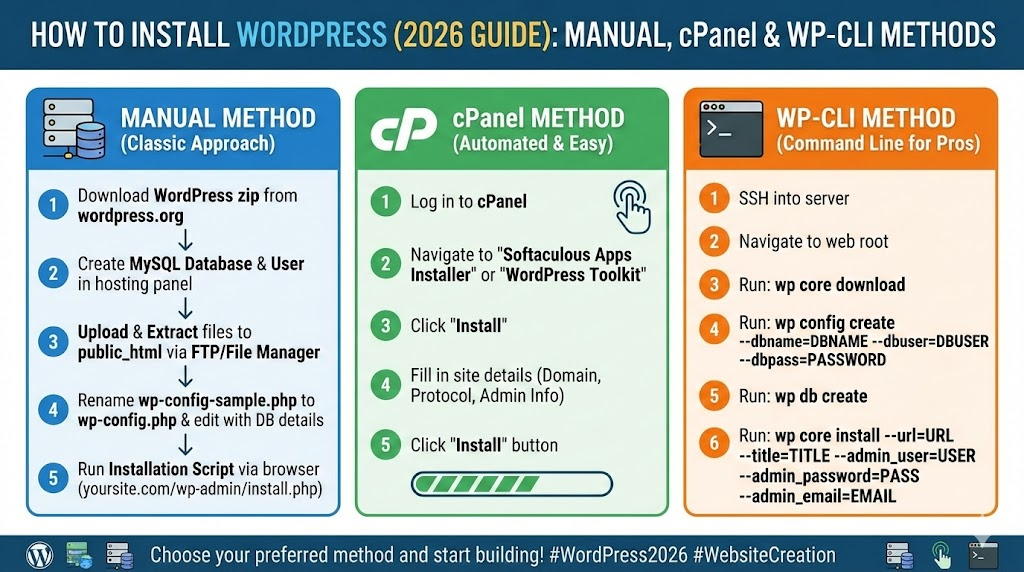
How to Install WordPress (2026 Guide): Manual, cPanel & WP-CLI Methods
WordPress operates as the most commonly used content management system (CMS) worldwide since it powers more than 43% of all active websites. The platform allows all users to build websites because its extensive features enable beginners to establish simple blogs and developers to construct e-commerce websites and membership sites and enterprise-level platforms.
The initial WordPress setup process becomes challenging for new users because of its complexity despite the software’s high popularity. This guide provides you with complete installation information since it presents two installation options which include automatic and manual methods. The article content will teach you the necessary skills to establish your WordPress website which will proceed without any confusing elements or unnecessary difficulties.
📌 Key Takeaways: What You’ll Learn
- Two installation paths: Automatic (cPanel/Softaculous) for beginners, manual for full control and advanced troubleshooting.
- WP‑CLI mastery: Command‑line installation for developers and agencies managing multiple sites.
- Security hardening: Essential steps to lock down your site immediately after installation.
- Performance optimization: Configure caching, CDN, and image compression from day one.
- Troubleshooting skills: Solve common errors like database connection failures and white screens.
📘 Official WordPress Documentation
The WordPress Codex remains the definitive source for installation best practices. This guide builds on those foundations with real‑world examples and expert insights.
According to W3Techs, WordPress powers 43.2% of all websites—more than all other CMS platforms combined. Understanding its installation is the first step into this massive ecosystem.
🔐 Sucuri Security Best Practices
The Sucuri WordPress Security Guide emphasizes that proper installation and immediate hardening reduce the risk of compromise by 80%. We’ll show you exactly how.
Why Understanding Both Installation Methods Matters
While automatic installers simplify the process, manual installation knowledge provides crucial troubleshooting skills and greater control over your website’s foundational structure. Professional WordPress developers and advanced users frequently employ manual methods during WordPress migration projects, debugging scenarios, or when working with specialized hosting environments that lack one-click installers. Understanding both approaches makes you a more versatile website owner capable of handling various technical situations.
What Is Manual WordPress Installation?
Manual WordPress installation involves downloading WordPress core files, uploading them to your server, creating a database, and configuring the wp-config.php file without using automated installers.
This method provides complete control over file structure, database setup, and security configurations.
What Is Automatic WordPress Installation?
Automatic WordPress installation uses hosting tools like cPanel or managed hosting dashboards to install WordPress with one click, automatically creating databases and configuring files in the background.
It is the fastest and easiest way for beginners to launch a website.
Who Should Use Automatic Installation?
✔ Best for Beginners & Fast Launch
- You are launching your first website
- You prefer simple dashboard-based setup
- Your hosting provides one-click installation
- You want to go live quickly
- You don’t want to manage databases manually
Who Should Use Manual Installation?
✔ Best for Developers & Advanced Users
- You deploy sites on VPS or cloud servers
- You need full control over database configuration
- You manage staging and production environments
- You frequently troubleshoot technical errors
- You build custom or enterprise-level projects
Automatic vs Manual WordPress Installation: Quick Comparison
If you’re unsure which method to choose, this side-by-side breakdown makes the decision easier.
| Feature | Automatic Installation | Manual Installation |
|---|---|---|
| Skill Level Required | Beginner-friendly | Intermediate to Advanced |
| Installation Time | 1–5 minutes | 5–20 minutes |
| Control Over Setup | Limited configuration | Full control over files & database |
| Best For | Bloggers, small businesses | Developers, agencies, custom builds |
| Troubleshooting Flexibility | Basic | Advanced debugging possible |
| Security Customization | Standard defaults | Fully customizable |
Your hosting environment significantly impacts website speed, scalability, and long-term performance.
- Multiple websites share server resources
- Budget-friendly and beginner-friendly
- Limited performance during traffic spikes
- Best suited for small blogs and starter sites
VPS (Virtual Private Server)
- Dedicated portion of server resources
- Greater control and customization
- Requires moderate technical knowledge
- Ideal for growing websites
Cloud Hosting
- Scalable infrastructure across multiple servers
- Handles traffic spikes efficiently
- Strong reliability and uptime
- Best for business and high-growth websites
🚀 Modern Performance Stack (2026)
- LiteSpeed or NGINX instead of traditional Apache
- PHP 8.x for improved execution speed
- Redis object caching
- Integrated CDN delivery
How Long Does It Take to Install WordPress?
WordPress installation typically takes between 1 and 15 minutes depending on your chosen method and experience level.
- Managed hosting: Under 1 minute
- cPanel auto-installer: 2–5 minutes
- Manual installation: 5–20 minutes
- WP-CLI installation: 1–3 minutes
Comprehensive Manual WordPress Installation: Complete Step-by-Step Guide
Manual WordPress installation remains essential knowledge for anyone serious about website management. This method is particularly valuable when using cloud hosting providers, virtual private servers (VPS), or dedicated servers that may not offer automated installation options. Even when automatic installers are available, manual installation skills prove invaluable for troubleshooting database connection errors, performing manual migrations, or customizing your installation beyond standard configurations.
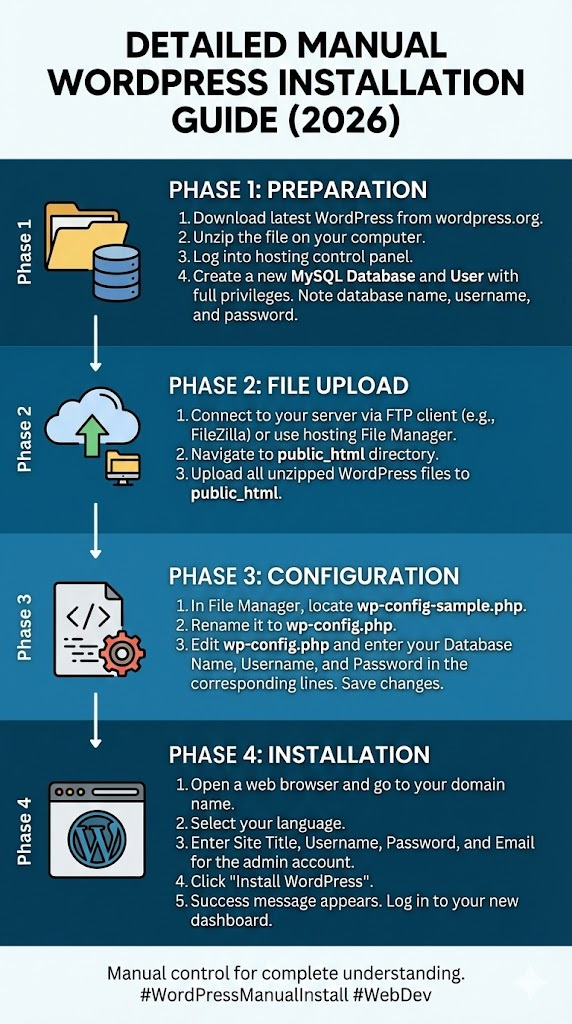
Step 1: Download WordPress from the Official Source
Always obtain WordPress from the official WordPress.org download page to ensure you receive a clean, secure version without bundled malware or unwanted additions. The current version typically downloads as a ZIP file between 10-20MB in size. For security-conscious users, verifying the MD5 or SHA256 checksums against the official WordPress.org values provides additional protection against corrupted downloads.
Step 2: Prepare Your Hosting Environment
Before uploading WordPress files, you must prepare your hosting environment by creating a MySQL database and user. The exact process varies between hosting providers but generally follows these essential steps:
- Access your hosting control panel (cPanel, Plesk, DirectAdmin, or custom dashboard)
- Navigate to the “MySQL Databases” or “Database Wizard” section
- Create a new database with a memorable but secure name
- Create a database user with a strong password (use a password generator for optimal security)
- Assign the user full privileges to the database
- Document all credentials: database name, username, password, and host (usually “localhost”)
⚠️ Critical: Never Use Default Database Names
Never use default database names like “wordpress” or easily guessable usernames like “admin” as these are targeted by automated brute-force attacks. Create unique, non-obvious names for better security.
Step 3: Upload WordPress Files via Secure FTP/SFTP
Secure File Transfer Protocol (SFTP) provides encrypted communication between your computer and web server, protecting your credentials and files from interception. Use professional FTP clients like FileZilla (free), Cyberduck, or WinSCP. Your hosting provider should supply SFTP credentials in your welcome email or control panel.
Critical Upload Considerations:
- Public Root Directory: For primary domains, upload WordPress files to the “public_html” or “www” directory
- Subdirectory Installation: For WordPress in a subdirectory (example.com/blog), create the folder first
- Subdomain Installation: For subdomains (blog.example.com), upload to the corresponding subdomain folder
- File Permissions: Set folders to 755 and files to 644 for optimal security and functionality
Step 4: Run the WordPress Installation Wizard
Once files are uploaded, navigate to your domain in a web browser. The WordPress installation wizard automatically launches, guiding you through these configuration steps:
- Language Selection: Choose from 200+ available languages for your dashboard and default content
- Database Configuration: Enter the database credentials you documented earlier
- Site Information: Provide your website title, administrator username, password, and email address
- Final Installation: Click “Install WordPress” to complete the process
Step 5: Manual Configuration via wp-config.php (Alternative Method)
If the installation wizard encounters database connection issues, you can manually configure WordPress by editing the wp-config.php file:
// Database settings - NEVER share these credentials publicly
define('DB_NAME', 'your_database_name_here');
define('DB_USER', 'your_database_username_here');
define('DB_PASSWORD', 'your_strong_password_here');
define('DB_HOST', 'localhost'); // Change if your host specifies otherwise
define('DB_CHARSET', 'utf8mb4'); // Optimal character set since WordPress 4.2
define('DB_COLLATE', '');

// Security Keys - Generate unique values from WordPress.org
define('AUTH_KEY',         'unique phrase here');
define('SECURE_AUTH_KEY',  'unique phrase here');
define('LOGGED_IN_KEY',    'unique phrase here');
define('NONCE_KEY',        'unique phrase here');
define('AUTH_SALT',        'unique phrase here');
define('SECURE_AUTH_SALT', 'unique phrase here');
define('LOGGED_IN_SALT',   'unique phrase here');
define('NONCE_SALT',       'unique phrase here');
For enhanced security, consider adding these configurations to your wp-config.php file:
- Limit WordPress debugging to development environments with
define('WP_DEBUG', false); - Prevent file editing from the dashboard with
define('DISALLOW_FILE_EDIT', true); - Increase PHP memory limit if needed:
define('WP_MEMORY_LIMIT', '256M');
Automated WordPress Installation via cPanel: The Simplified Approach
cPanel remains the most popular web hosting control panel, offering user-friendly tools for website management. Most cPanel installations include one-click WordPress installers like Softaculous, QuickInstall, or Fantastico, dramatically simplifying the installation process for beginners and professionals alike.
Step-by-Step cPanel WordPress Installation
- Access Auto-Installer: Log into cPanel and locate the “WordPress” or “Softaculous Apps Installer” icon
- Initiate Installation: Click the WordPress icon, then select “Install Now” or similar
- Configure Installation Settings:
- Choose Protocol: Select HTTPS for security if SSL certificate is installed
- Select Domain: Choose your primary domain or subdomain from the dropdown
- Directory Path: Leave blank for root installation or specify a subdirectory
- Site Settings: Enter site name, description (tagline), and enable/disable multisite
- Administrator Account Setup:
- Create a unique administrator username (avoid “admin”)
- Generate a strong password using the built-in generator
- Provide a secure administrator email address
- Select Plugins and Themes: Many auto-installers offer optional popular plugins like WooCommerce, contact forms, or security plugins
- Advanced Options: Configure automatic backups, updates, and email notifications
- Finalize Installation: Review settings and click “Install” to complete the process
💡 Pro Tip: Enable Automated Backups in cPanel
When using cPanel auto-installers, always check “Automated Backups” and configure backup frequency. This provides automatic restoration points if anything goes wrong during installation or subsequent updates.
Post-Installation cPanel Configuration
After automated installation, perform these essential checks:
- Verify your site loads correctly with both HTTP and HTTPS protocols
- Check that permalinks are configured (Settings > Permalinks > Post Name)
- Ensure automatic updates are enabled for security patches
- Set up email functionality using SMTP rather than PHP mail() for better deliverability
Increasing Maximum Upload Size in WordPress
If you encounter upload size restrictions, adjust limits using one of the following methods:
Option 1: Edit php.ini
upload_max_filesize = 64M
post_max_size = 64M
memory_limit = 256M
Option 2: Use .user.ini (For PHP-FPM)
Create or edit a .user.ini file in your root directory with the same values.
Option 3: Hosting Control Panel
Many hosting providers allow you to adjust PHP limits directly inside cPanel or custom dashboards.
⚠️ Important Note
.htaccess modifications may not work on servers using NGINX or PHP-FPM. Contact hosting support if changes do not apply.
Advanced WordPress Installation Using WP-CLI
WordPress Command Line Interface (WP-CLI) provides powerful, scriptable installation capabilities ideal for developers, agencies managing multiple sites, or advanced users comfortable with terminal commands. WP-CLI enables installation, configuration, and management without using a web browser.
Complete WP-CLI Installation Commands
# Download the latest WordPress core files
wp core download --locale=en_US

# Create wp-config.php with database credentials
wp config create --dbname=your_database --dbuser=your_username --dbpass=your_password

# Install WordPress with initial configuration
wp core install --url=https://yourdomain.com --title="Your Site Title" --admin_user=secure_username --admin_password=strong_password --admin_email=you@email.com

# Optional: Install and activate essential plugins
wp plugin install wordfence --activate
wp plugin install yoast-seo --activate
wp plugin install wp-rocket --activate

# Set up permalinks for SEO
wp rewrite structure '/%postname%/'

# Configure timezone and other settings
wp option update timezone_string 'America/New_York'
wp option update date_format 'F j, Y'
wp option update time_format 'g:i a'
WP-CLI Advantages for Advanced Users
- Bulk Installations: Install WordPress on multiple servers simultaneously using scripts
- Automation: Integrate WordPress installation into deployment pipelines and DevOps workflows
- Consistency: Ensure identical configurations across development, staging, and production environments
- Speed: Complete installations in seconds without graphical interface overhead
Managed WordPress hosting providers like WP Engine, Kinsta, and Pagely offer optimized environments specifically engineered for WordPress performance, security, and reliability. These platforms typically provide one-click staging sites, automated backups, and enhanced security features beyond standard hosting.
Benefits of Managed WordPress Hosting Installation
| Feature | Standard Hosting | Managed WordPress Hosting |
|---|---|---|
| Installation Time | 2-10 minutes | 30-60 seconds |
| Automatic Updates | Manual or basic auto-updates | Intelligent, tested updates with rollback |
| Security Measures | Basic firewall and malware scanning | Enterprise firewall, DDoS protection, malware removal |
| Backup Solutions | Manual or plugin-based | Automated daily backups with one-click restore |
| Caching Performance | Plugin-dependent | Server-level caching with CDN integration |
| Support Specialization | General hosting support | WordPress-expert support 24/7 |
Post-Installation Checklist for Managed Hosting
- Verify SSL certificate installation and enforce HTTPS
- Configure global CDN settings for improved global loading speeds
- Set up automated backup schedules and retention policies
- Enable staging environments for safe development and testing
- Configure performance monitoring and uptime alerts
Critical Post-Installation Configuration Steps
Successfully installing WordPress represents just the beginning. Proper post-installation configuration establishes your site’s security, performance, and SEO foundation. Neglecting these steps leaves your website vulnerable to attacks, poor performance, and search engine visibility issues.
Essential Security Hardening Measures
Within the first hour after installation, implement these critical security measures:
- Change Default Administrator Username: If you used “admin” during installation, create a new administrator account with a unique username and delete the default account
- Implement Two-Factor Authentication: Install and configure a 2FA plugin like Wordfence or Google Authenticator
- Limit Login Attempts: Prevent brute force attacks with login attempt limitations
- Change WordPress Database Prefix: If still using default “wp_” prefix, change it via security plugin or manually
- Disable File Editing: Prevent code editing from dashboard via wp-config.php setting
- Install Web Application Firewall: Implement cloud-based or plugin-based WAF protection
Performance Optimization Configuration
Configure these settings before launching your site to visitors:
- Caching Implementation: Install and configure W3 Total Cache, WP Rocket, or similar caching solution
- Image Optimization: Install Smush, ShortPixel, or EWWW Image Optimizer
- Database Optimization: Schedule regular database cleanup with WP-Optimize
- Content Delivery Network: Configure Cloudflare, StackPath, or your host’s CDN solution
- Lazy Loading: Enable lazy loading for images and videos to improve initial page load times
SEO Foundation Configuration
Proper SEO configuration from the beginning prevents technical SEO issues later:
- Permalink Structure: Set to “Post Name” for clean, keyword-rich URLs
- XML Sitemap Generation: Configure with Yoast SEO or Rank Math plugin
- Robots.txt Configuration: Ensure search engines can properly crawl your site
- Google Analytics Integration: Connect your site to analytics for performance tracking
- Search Console Verification: Verify ownership in Google Search Console
- Metadata Configuration: Set up global title and description templates
Comprehensive Troubleshooting: Common Installation Problems and Solutions
⚠️ Always Backup Before Troubleshooting
Always create a complete backup before attempting troubleshooting procedures. Many installation errors can be resolved by restoring from a clean backup rather than attempting complex fixes.
Database Connection Errors
The infamous “Error Establishing a Database Connection” typically indicates incorrect database credentials in your wp-config.php file. Follow this systematic troubleshooting approach:
- Verify database credentials match exactly what your hosting provider supplied (case-sensitive)
- Confirm the database user has proper privileges assigned to the database
- Check if the database service is running on your hosting server
- Test database connection using external MySQL management tools
- Ensure your hosting account hasn’t exceeded its database limit or disk quota
White Screen of Death (WSOD)
A blank white screen after installation typically indicates PHP errors or memory limits:
- Enable WordPress debugging by adding to wp-config.php:
define('WP_DEBUG', true); - Increase PHP memory limit:
define('WP_MEMORY_LIMIT', '256M'); - Check for plugin or theme conflicts by disabling all plugins and switching to default theme
- Review server error logs through your hosting control panel
- Verify PHP version compatibility with your WordPress version
File Permission Issues
Incorrect file permissions prevent WordPress from creating directories, uploading files, or installing updates:
- Recommended Permissions:
- Folders/directories: 755 or 750
- Files: 644 or 640
- wp-config.php: 600 or 640 (more restrictive)
- Permission Correction: Use FTP/SFTP or hosting file manager to adjust permissions
- Ownership Issues: Ensure files are owned by the correct web server user (often www-data or apache)
Maximum Upload Size Limitations
Default PHP settings often restrict uploads to 2MB, insufficient for images or themes:
- Create or edit .htaccess file with:
php_value upload_max_filesize 64M - Create php.ini file with increased limits if your host allows custom PHP configurations
- Contact hosting support to increase limits at server level for persistent changes
- As temporary workaround, use FTP to manually upload large files
Real-World Example: Installing WordPress on a Cloud VPS
Here’s what a typical deployment looks like when installing WordPress on a cloud VPS server:
- Create a Linux server instance
- Install NGINX, MySQL, and PHP
- Secure the server with firewall rules
- Download WordPress using WP-CLI
- Manually configure the database
- Enable SSL using Let’s Encrypt
⚠️ Requires Technical Knowledge
This setup provides maximum flexibility and performance but requires server administration experience.
WordPress Installation FAQ: Expert Answers to Common Questions
How long does WordPress installation typically take?
Installation time varies significantly by method and technical proficiency:
- Managed hosting auto-installer: 30-90 seconds
- cPanel one-click installer: 2-5 minutes
- Manual installation: 5-15 minutes for experienced users, 15-30 minutes for beginners
- WP-CLI installation: 1-3 minutes for command-line proficient users
Do I need technical skills to install WordPress?
While automatic installers make WordPress accessible to complete beginners, understanding basic web concepts significantly improves outcomes. Familiarity with domains, hosting, FTP, and databases helps troubleshoot issues. Many hosting providers offer free WordPress installation services as part of their packages, eliminating the need for technical skills.
Can I install WordPress without a domain name?
Yes, you can install WordPress locally using software like Local by Flywheel, XAMPP, or MAMP. This allows development and testing without a live domain. For live sites, most hosting providers offer temporary URLs during setup, but a proper domain is ultimately required for public access.
What’s the difference between WordPress.com and WordPress.org installation?
This crucial distinction confuses many beginners:
- WordPress.org: Self-hosted software you install on your hosting (complete control, described in this guide)
- WordPress.com: Hosted service where installation is handled automatically (less control, subscription-based)
How do I choose between manual and automatic installation?
Consider these factors when choosing your installation method:
- Automatic if: You’re a beginner, value speed, have standard requirements, or use managed hosting
- Manual if: You need custom configurations, want deeper understanding, work with non-standard hosting, or plan advanced development
📌 Save this guide on Pinterest for later:
Final Recommendations and Best Practices
WordPress installation represents the foundation of your online presence. While the platform’s famous “5-minute install” slogan holds true for basic setups, investing additional time in proper configuration pays long-term dividends in security, performance, and maintainability.
💡 Pro Tip: The First Five Steps After Installation
Regardless of installation method, always perform these immediate post-installation actions: 1) Change the default “admin” username, 2) Install a security plugin, 3) Set up automated backups, 4) Configure SEO settings, 5) Implement caching. These five steps prevent the majority of common WordPress problems.
Maintenance Strategy for Long-Term Success
Your responsibility begins after installation concludes. Implement these maintenance practices:
- Update Schedule: Apply core, theme, and plugin updates weekly after verifying backups
- Security Monitoring: Regularly review security logs and failed login attempts
- Performance Audits: Monthly performance testing using GTmetrix or Google PageSpeed Insights
- Backup Verification: Periodically test backup restoration to ensure recoverability
- Content Audits: Quarterly reviews of content accuracy, link functionality, and media optimization
Continuous Learning Resources
WordPress evolves continuously. Stay updated with these authoritative resources:
- Official WordPress Blog for core updates and security announcements
- WPBeginner for tutorials and beginner guidance
- WP Tavern for WordPress news and community updates
- Make WordPress Core for development insights
Mastering WordPress installation—both automatic and manual methods—empowers you to create, manage, and troubleshoot websites with confidence. Whether you choose the simplicity of one-click installers or the control of manual configuration, understanding the underlying processes makes you a more effective website owner. For additional visual guidance, download our comprehensive PDF tutorial handbook featuring step-by-step screenshots for each installation method.
Thank you for your time and engagement!
If you’re planning to monetize or freelance using your WordPress website, explore these in-depth guides:
- https://getsocialguide.com/tips-to-starting-as-a-freelancer-on-fiverr/
- https://getsocialguide.com/how-to-make-money-on-fiverr/
- https://getsocialguide.com/best-fiverr-profile-description-with-examples/
- https://getsocialguide.com/top-selling-best-gigs-on-fiverr/
- https://getsocialguide.com/side-hustle-portfolio/
>