

MiniTool Partition Wizard | Full Guide & Review
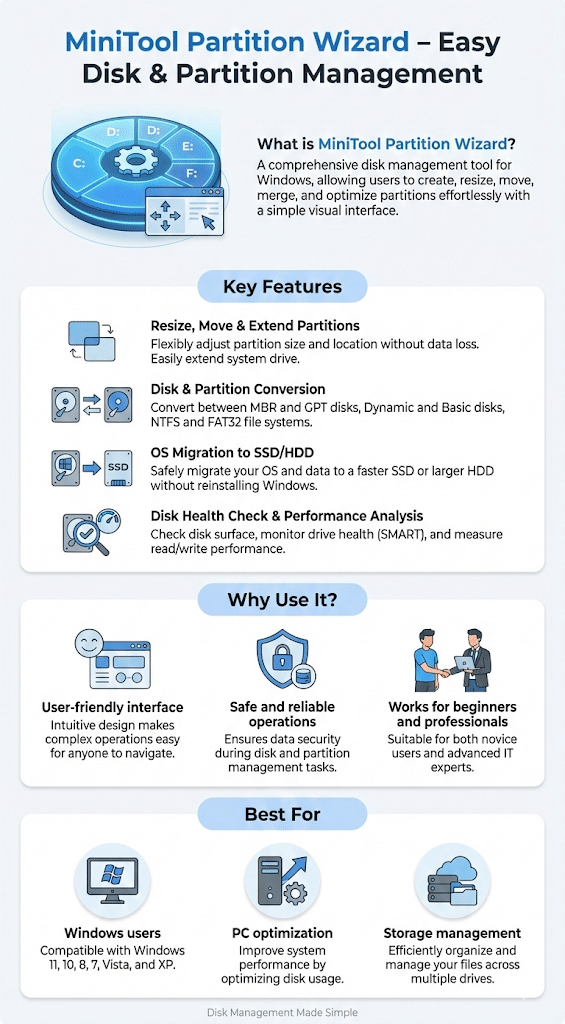
MiniTool Partition Wizard Home Edition is a free, full-featured partition manager that can handle all of your most critical partitioning demands. This free tool stands out from the competition because of the number and quality of functionality it provides. To its already broad array of partition-related capabilities, it now includes partition and disc copy functionality, making it a comprehensive free disk partition software for Windows 10 and 11.
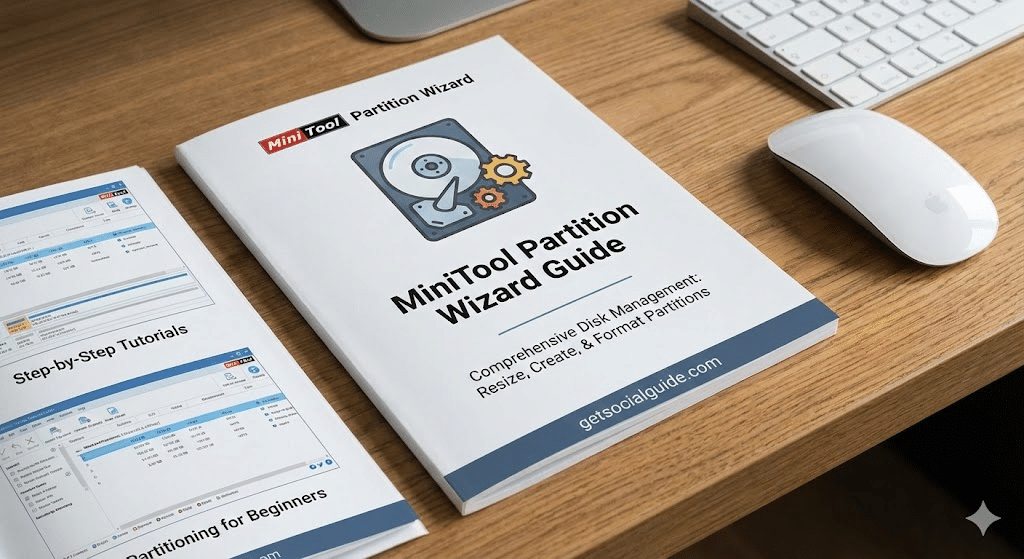
When the application is started, it displays the main menu with links to the partition wizard and a restricted edition of MiniTool Power Data Recovery, which allows you to recover up to 1 GB of accidentally lost or deleted data (including partitions) from any storage device. As useful as this supplementary tool is, the program’s partition-related capabilities is what sets it apart from the competition. Its user-friendly interface will display all partitions – both fixed and removable – on your system’s discs in a clear graphical format, as well as three useful wizards and a variety of other capabilities to assist you in managing your disc partitions in a simple and convenient manner for beginners.
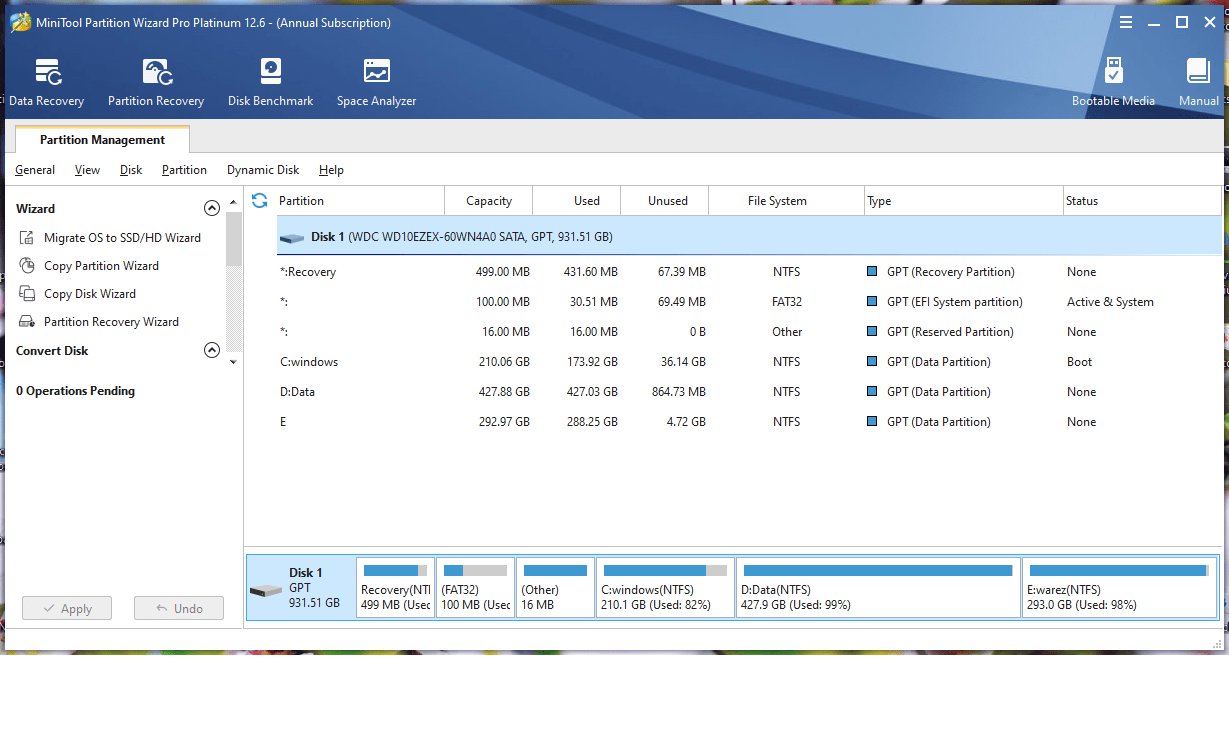
When recovering partitions and copying drives and partitions, the wizards will assist you. Other functions include moving, resizing, creating, concealing, deleting, splitting, aligning, and formatting basic partitions, as well as file system and disc style conversions (for dynamic discs, you’ll need to upgrade to one of the commercial editions offered). Both FAT and NTFS file systems are supported, and MiniTool Partition Wizard allows you to convert between them quickly and easily, making it an excellent tool for converting FAT32 to NTFS without data loss on external hard drives.
Other features include the ability to rebuild a disk’s Master Boot Record (MBR), wipe a full disc, test the surface of any of your discs (including USB external storage units), and convert discs between kinds (GPT and MBR), which is essential for converting MBR to GPT without losing data on Windows 10.
Some deactivated features in the program’s interface will result in a perplexing message advising you that the selected function is not accessible in this Home Edition and asking you to upgrade to one of the commercial editions available. In fact, aside from a collection of unquestionably intriguing and useful “extra functions,” this free Home Edition includes the majority of the tools needed for effective basic disc management and sophisticated partition administration. Overall, this is a tool worth checking out and retaining for free partition management software for home users.
What Is MiniTool Partition Wizard
MiniTool Partition Wizard is a disc management programme for Windows that is one of the best on the market. It makes it simple to perform tasks such as hard disc upgrades, formatting, and backing up, serving as a reliable Windows disk management tool for SSD and HDD optimization.
MiniTool, a software development business that specialises in custom software development, created the programme. Its apps have been downloaded more than 40 million times all around the world. The developer’s goal is to create solutions that are simple and successful for both personal and business customers looking for reliable partition software for data recovery and disk cloning.
As a result, it should come as no surprise that the majority of MiniTool Partition Wizard reviews you may come across are positive. Using this programme, you can do a variety of tasks and make maintaining your hard discs a snap. But what exactly does it have the capability of doing for managing disk space and partition size on Windows PC?
Let’s get this party started.
MiniTool Partition Wizard Features
First, we’ll list all the key features this disk partition software for Windows 11, 10, 8, and 7 offers:
Create/Delete/Format Partition
MiniTool Partition Wizard allows you to organize and manage your hard discs in a variety of ways, providing easy partition formatting tools for FAT32, NTFS, and exFAT file systems.
Begin with the most fundamental functions, such as the creation, deletion, and formatting of partitions, and work our way up from there.
Regardless of which of them you choose to use, the application makes the entire procedure as straightforward as it possibly can be for creating new partitions on unallocated space in Windows.
For example, while creating a new partition, it walks you through all of the necessary processes, such as choosing a drive letter, partition type, file system, and so on, without interrupting your work.
Always keep in mind that when you use the formatting feature, this hard drive management programme will completely wipe out the contents of the target partition. If you choose your system disc, the current operating system will not be able to boot properly, making it crucial for safe disk formatting without losing Windows OS.
Move/Resize Partition
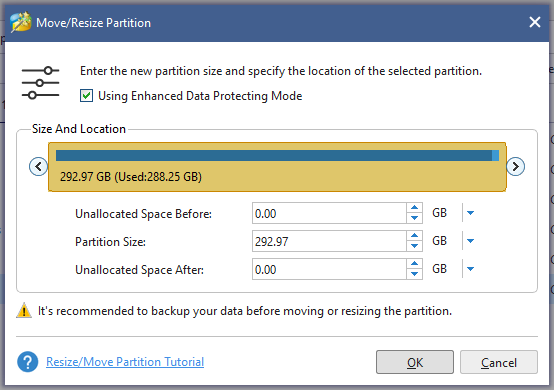
When you wish to adjust the volume size on your dynamic disc, this capability is exactly what you’re looking for for resizing C drive partition to increase space in Windows 10. It allows you to conduct three different operations:
Shrink dynamic volumes into a single basic, mirrored, striped, spanned, or RAID 5 disc to free up capacity for new volumes or to extend current volumes. Unallocated space can be used to extend a mirrored, spanned, striped, or RAID 5 volume, depending on the configuration.
Move your unallocated space to make room for another volume to be added to it.
When you execute this feature, a window will appear in which you can input the new partition size and choose the location of the new partition. All of the options are clearly explained, making it possible for those who have never completed such jobs before to complete them for extending system partition without reinstalling Windows.
As a result, no matter what you want to accomplish, our partition management programme makes the procedure much simpler.
Wipe Disk/Partition
You don’t have to do everything manually if you want to wipe all data from one of your discs. MiniTool Partition Wizard also provides such a feature for secure disk wiping software for complete data erasure.
This feature ensures that everything on a selected disc has been safely and permanently erased. It’s an excellent tool to utilise if you want to protect your privacy when dealing with sensitive information.
No one will be able to retrieve the information once it has been erased. Even if a data recovery application is used, nothing will be found. Furthermore, the bulk of disc manager software does not include a safety net to ensure that nothing important is erased. MiniTool Partition Wizard can help you with it for permanently deleting files from hard drive beyond recovery.
Merge/Split Partition
If you have two or more nearby partitions, you may want to combine them into a single partition. Alternatively, you could choose to split a single large hard disc into several smaller segments for merging disk partitions without data loss on Windows.
Regardless of which of these two jobs you choose to complete, this tool can help. Before merging, if one of your partitions was formatted using the FAT12/FAT16/FAT32 file system, you should use the convert FAT to NTFS tool.
Additionally, the application recommends making a MiniTool bootable disc before combining your C drive with another one. You can then use it to boot up your computer and merge the files. Simply drag the slider left or right to set the sizes of two partitions when splitting them for splitting large partition into two drives on Windows.
Convert FAT to NTFS
Converting FAT and NTFS was already addressed in this MiniTool Partition Wizard review. In many ways, the latter clearly outperforms the former. You can alter the format of an external or internal hard disc or flash drive if you don’t like it. You’ll be able to accomplish the following once you’ve done that for converting USB drive from FAT32 to NTFS without formatting:
Handle files up to 4 GB in size Improved stability and security. Many consumers simply don’t know how to convert FAT to NTFS without software like this. This is why the developers of MiniTool have incorporated this feature into their software.
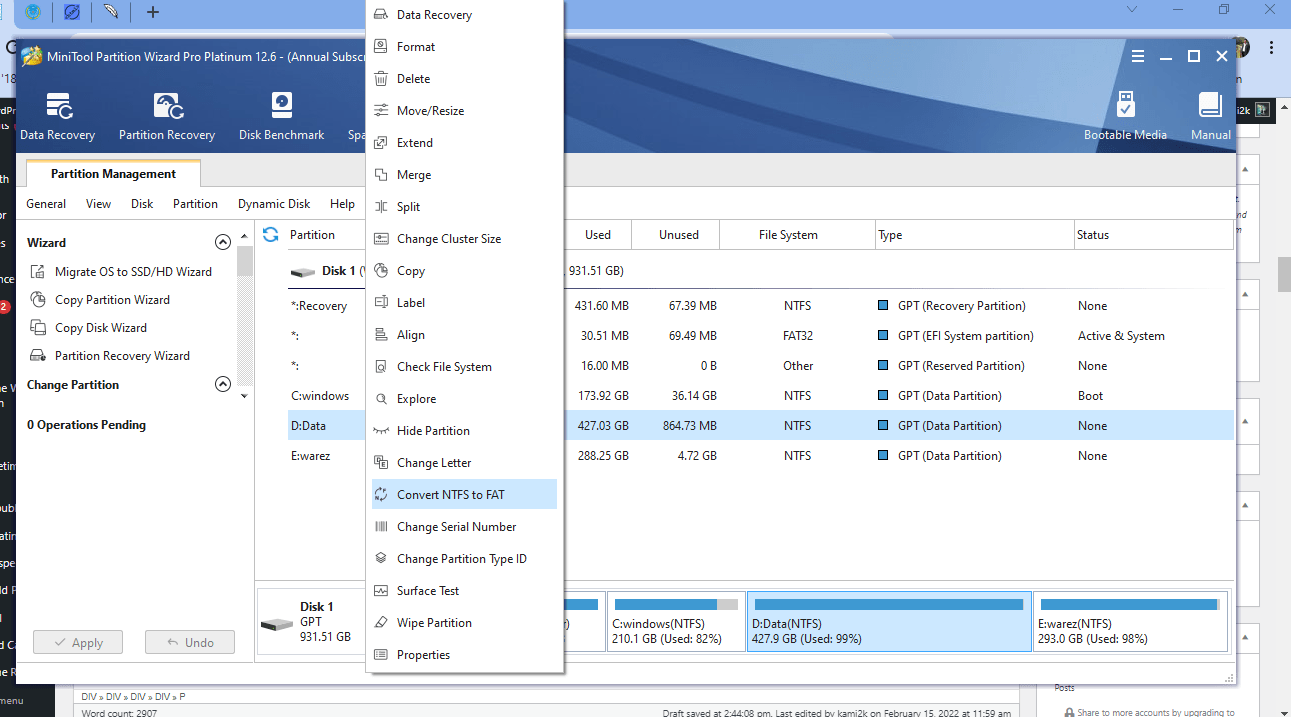
It’s also worth noting that the tool comes with all of the necessary security measures. This ensures that you may complete the conversion without losing any data, making it ideal for file system conversion tool for external hard drives.
Copy Disk/Partition
This clone disk wizard function can be a real lifesaver for cloning hard drive to SSD for faster boot times. It helps you copy all of your partitions and data to another disk. The best part – the program ensures everything you copy can be used normally. You can even boot the computer from the copy of your source disk. When using this function, make sure the target disk is large enough to hold all the data you copy.
Also, before you perform the action, move all the important data from it since everything on it will be removed during copy operations for disk cloning software for Windows 10 migration.
Disk Benchmark
Benchmarking is one of the most effective methods for determining how fast your disc is for SSD speed test and performance benchmarking tool. The procedure entails testing transfer speeds in a variety of settings, including sequential and random.
Sequential read/write is a pattern in which your disc reads or writes big contiguous blocks of data on nearby locations in sequential order. The only difference is that random read/write works for non-adjacent locations. Following the completion of the operation, you will be presented with results in MBps that describe the speed of your disc.
Many users of MiniTool Partition Wizard have praised the feature. When doing a performance test, customers frequently notice the multiple options offered. Just keep in mind that this can take a while. Expect to see temporary folders for the benchmark as well for hard drive performance testing software for Windows.
Disk/Partition Surface Test
The application may perform a variety of other tests. One of these is a disk/partition surface test for checking bad sectors on hard drive with surface scan. If you notice that your computer is slowing down during certain processes, it could be a sign that your hard disc is failing. But how can you tell if it has a problematic sector?

This disc partitioning software can help you do that. It allows you to execute a disc surface test that reads data from each sector and examines its status. When the operation is finished, the disc blocks with problems are highlighted in red. In the event that your hard disc has a problem, the programme suggests moving all of your data and shielding faulty tracks for hard drive health check and diagnostic tool.
Disk/Partition Properties
Another thing you can do with this tool – checks detailed information about your partitions for viewing disk partition properties and storage information.
All you have to do is click on Properties and you’ll see all the important parameters. This includes:
- Usage
- Partition Information
- File System Information
The program will also provide a pie chart that gives you an idea of the present space in your partitions.
Space Analyzer
When you find that your hard disc is running out of space, you can use this Windows partition software to aid you for analyzing disk space usage and finding large files. It can examine everything and tell you which files take up the most space. Then you may go through and eliminate everything you don’t need manually. This function isn’t limited to your internal memory. External hard discs and USB flash drives are supported as secondary storage choices for free disk space analyzer for Windows PC.
Pros – MiniTool Partition Wizard
- The interface that is easy to use and understand for beginners
- Functions for copying discs and partitions are included for data migration
- A comprehensive set of utilities for working with partitions on Windows systems
- Includes a 1 GB data recovery tool for deleted file restoration
- FAT partitions are converted to NTFS and vice versa without data loss
Cons – MiniTool Partition Wizard
- It’s perplexing because the UI incorporates capabilities that aren’t available in the free version
Is MiniTool Partition Wizard Safe?
Now we come to the crux of the matter: is MiniTool Partition Wizard safe to use? The company that created it is a well-known software developer that has been in business for more than a decade. It goes without saying that using its partitions tool for Windows to manage your hard discs will not cause you any problems for safe partition management software without viruses or malware.
It’s a completely unadulterated programme with a proven track record of producing excellent outcomes.
It appears that the developer has handled even the lone difficulty that could arise from the use of a tool of this calibre. The software will not allow you to make any modifications unless it is certain that this is exactly what you want to do. This is ensured by the preview feature, which works wonderfully. Consequently, even if you make a mistake, the programme provides you with an opportunity to correct it for safe disk partitioning with preview before applying changes.
In addition, the organisation has a competent customer service team and a wealth of written resources on which you can rely. We’ll go into greater detail about them later in this MiniTool Partition Wizard evaluation. After all, is said and done, this application is completely safe to use. So, if you want to delve deeper into your hard discs and play with them, you don’t have to search any further for trusted disk management software for Windows computers.
Interface and Ease of Use
Please note that this application is only compatible with Windows. It’s compatible with Windows XP, Vista, 7, 8, and 10, making it a compatible partition software for all Windows versions.
To begin, you’ll see enormous icons at the top of this hard disc partitioning programme. MiniTool’s developers divided the application into sections to accommodate the various functions it may carry out. They all do the same thing, which is to start a new browser window. At all times, the partition management option is accessible.
The wizard will walk you through the full process, regardless of the menu item you select. If you’ve never done anything like this before, you’ll appreciate this feature for user-friendly disk partition wizard for non-technical users.
You don’t have to be extra cautious with our MiniTool partition manager. Having a preview section allows you to keep an eye on what’s happening.
For some reason, the programme doesn’t apply your changes immediately. That way, you’ll be able to catch any errors.
When partitioning your hard drives, having a safety net is a wonderful thing. However, if you’ve already used similar tools, you may find this feature a little bothersome.
Basic choices are highly user-friendly. Changing a disk’s drive letter, for example, will be a piece of cake once you learn how for simple partition tool with intuitive interface design.
The more advanced users may find some of it redundant, but they’ll still have plenty of alternatives to keep them busy. This is particularly true for professional and business plans.
We should also mention that this harddrive partitioning software is available in eight languages. These include:
- English
- French
- German
- Italian
- Spanish
- Portuguese
- Japanese
- Korean
MiniTool Partition Wizard Support
There are also a few handy sections within the company’s knowledge base articles. So, if you need info on how to use Partition Wizard by MiniTool, you’ll find it there for MiniTool Partition Wizard tutorial and user guide resources.
The customer service department of the company is open around the clock. If you’re on the free plan, don’t expect to hear back from the company’s agents soon away, though. Users of MiniTool Partition Wizard Pro are given high priority.
Customer service can only be reached by email at this time. On the MiniTool website, you will find a form to fill out.
The phone numbers are mentioned, but they are only available for sales queries, not for general inquiries.
The comment section at the bottom of the customer service page allows you to ask a few simple questions and receive speedy responses. The majority of the time, the moderators respond to questions within a reasonable amount of time for technical support for disk partition software issues.
Within the company’s knowledge base articles, there are a couple of useful parts to check out. So, if you’re looking for information on how to utilise MiniTool’s Partition Wizard, you’ll find it there.
MiniTool Partition Wizard Pricing
Let’s move on to the pricing plans. MiniTool offers different types of deals for home and business users. If you’re an individual user you can choose between three MiniTool Partition Wizard pro edition plans for personal use:
Pro $59 | License for one PC, one-year free upgrade.
Pro Platinum | $109
License for three PCs, data recovery and partition recovery, one-year free upgrade. At the time of writing of this MiniTool Partition Wizard review, there’s a discount.
Pro Ultimate | $159
License for five PCs, data recovery and partition recovery, lifetime free upgrade.
If you’re a business user there are four available MiniTool Partition Wizard professional edition plans for enterprise use:
Server Lifetime | $259
License for one PC/server, data recovery and partition recovery, lifetime free upgrade
Enterprise | $499
License for 99 PCs/servers in one company, data recovery and partition recovery, one-year free upgrade
Technician | $699
License for 299 PCs/servers in unlimited companies, data recovery and partition recovery, lifetime free upgrade/ You can use MiniTool Partition Wizard for free too if you don’t need all the features.
You will get basic options like partitioning operations, checking the file system, and converting FAT to NTFS. If you want to copy disks, convert dynamic ones to basic, or create bootable media, you’ll need to get a paid plan. So, while the free MiniTool Partition Wizard download for basic partition management works well, it definitely lacks some options.
Our testing also showed that this version also tries to install ShadowMaker. It’s the developer’s backup solution that you can buy separately once the trial expires. Not cool.

F.A.Q | MiniTool Partition Wizard
What is the purpose of MiniTool Partition Wizard?
MiniTool Partition Wizard gives you a variety of options for managing your hard drives and partitions. Some of the options include copying, deleting, and cloning your discs for disk management and partition optimization tasks.
Is MiniTool Partition Wizard a cost-free programme?
Yes, it is correct. The MiniTool website offers a free download of this partition programme. This version, however, does not include all of the features included in the paid plans. You can look it over and see whether you require some of the features that aren’t available to free users for free partition manager software with limited features.
How effective is MiniTool?
If you wish to manage your hard drives or partitions, MiniTool is wonderful software to utilise. It can be a great lifesaver at times, as it simplifies a variety of jobs. MiniTool Partition Wizard is a great app for both new and experienced users, as you can see from our MiniTool Partition Wizard review for effective disk partition software with good user reviews.
You can also read about data recovery in easy way.
Can I use MiniTool Partition Wizard to clone my system disk?
Yes, the disk clone feature in MiniTool Partition Wizard allows you to clone your system disk to another disk without reinstalling the operating system. This is especially useful when upgrading to a larger hard drive or moving from an HDD to an SSD for system disk cloning software for Windows migration.
MiniTool Partition Wizard Review – Verdict
It is for a good reason that MiniTool Partition Wizard is one of the most often used disc management tools. It provides a plethora of options and simplifies the process of managing your partitions for best partition software for Windows 10 and 11 users.
This implies that no matter how much you know about computers, you shouldn’t have any difficulties utilising it. The interface is straightforward, and there is a safety net in place to prevent you from accidentally making changes to your hard discs.
A look at this tool is undoubtedly worthwhile, especially if you’ve been considering partitioning or formatting your hard drive in the near future. The best part is that these features are supported by the free version of Partition Wizard for free disk partition tool with professional features.
You can then upgrade to one of the paid plans if you require additional features for advanced partition management software for IT professionals.





Thanks for sharing nice post on mini tools for pc partition
Thank you for reading! Keep exploring and sharing — knowledge grows when it’s shared.