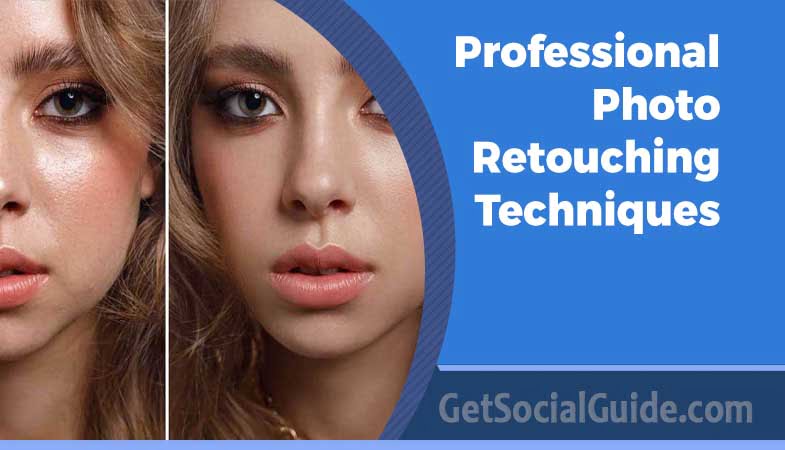
Achieve Picture-Perfect Results with Professional Photo Retouching Techniques
📊 Photo Retouching by the Numbers
- 90% of consumers say image quality is the most important factor in their purchasing decisions
- $1.5 billion global photo editing software market size in 2023, projected to reach $2.3 billion by 2028
- 94% of professional photographers use Adobe Photoshop for retouching
- 67% of consumers say product images influence their perception of brand quality
- 3-5 minutes average time a professional retoucher spends on a single image
- 40% increase in engagement for social media posts with professionally edited images
Where images play a crucial role in capturing attention, photo retouching has become an essential tool for creating visually stunning photographs. Whether you are a professional photographer or an amateur enthusiast, understanding the importance of photo retouching can make a significant difference in the quality of your images. Photo retouching allows you to enhance the appearance of your photographs by removing imperfections, correcting colors, and adding artistic effects. It is a technique that can transform an ordinary photograph into a picture-perfect masterpiece.
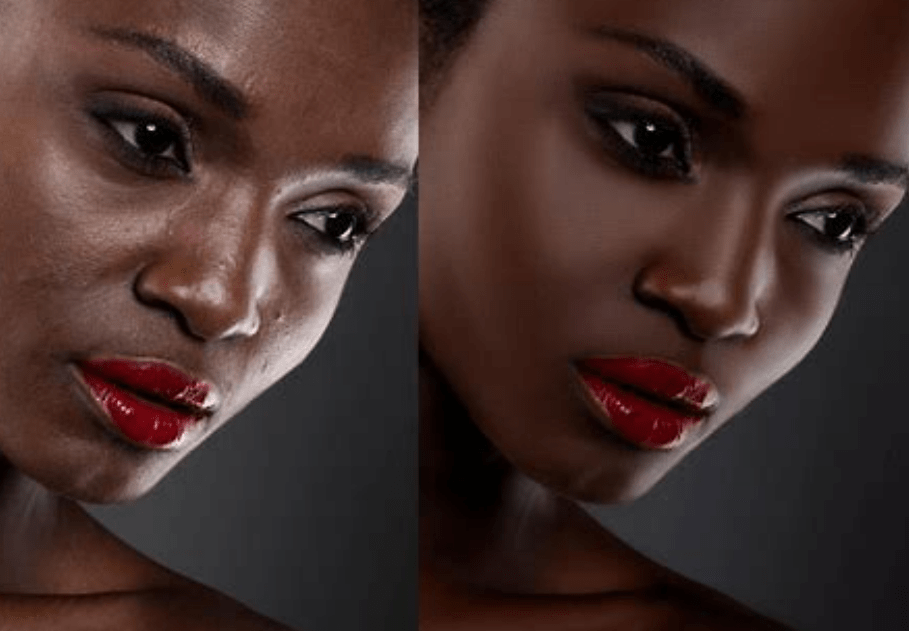
Photo retouching offers numerous benefits, especially in the world of commercial photography. It allows for the removal of blemishes, wrinkles, and other imperfections that can detract from the overall appeal of a photograph. Whether it’s a fashion shoot or a product advertisement, photo retouching ensures that every detail is flawless, creating a lasting impression on the viewers.
Pro Tip: The Art of Invisible Retouching
According to Fstoppers, the best retouching is the kind that goes unnoticed. The goal isn’t to make someone look like a plastic mannequin, but to enhance their natural beauty while maintaining authenticity. Professional retouchers follow the principle: “Retouch until it looks good, then stop.” Over-retouching is immediately obvious and can harm your reputation as a photographer.
Common photo retouching techniques
Photo retouching techniques can vary depending on the desired outcome and the type of photograph being edited. However, there are some common techniques that are widely used in the industry. One such technique is the removal of skin imperfections. Whether it’s acne, scars, or redness, photo retouching can make the skin appear smooth and blemish-free.
Another common technique is color correction. This involves adjusting the colors in a photograph to achieve a more balanced and visually appealing result. Color correction can help enhance the mood and tone of an image, making it more captivating to the viewer.
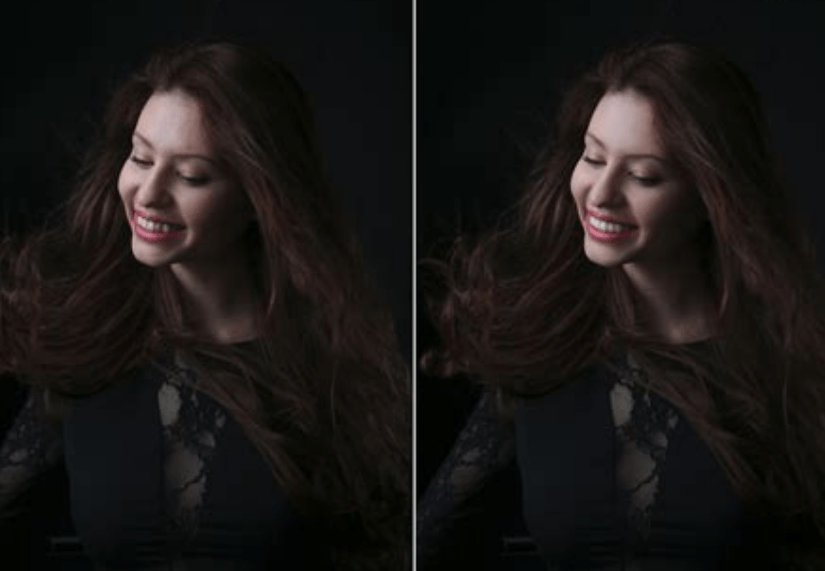
Additionally, photo retouching often involves adjusting the lighting and exposure of a photograph. This can help bring out the details in the shadows and highlights, resulting in a more dynamic and visually striking image.
| Technique | Primary Use | Skill Level | Time Required |
|---|---|---|---|
| Frequency Separation | Skin retouching, texture preservation | Advanced | 5-10 minutes |
| Dodge & Burn | Contouring, depth enhancement | Intermediate | 3-8 minutes |
| Color Correction | White balance, color accuracy | Beginner | 2-5 minutes |
| Healing Brush | Blemish removal | Beginner | 1-3 minutes |
| Curves Adjustment | Contrast and tonal range | Intermediate | 2-4 minutes |
| High Pass Sharpening | Detail enhancement | Intermediate | 1-2 minutes |
Most Essential Technique
Tools and software for photo retouching
To achieve professional results in photo retouching, it is essential to have the right tools and software at your disposal. Adobe Photoshop is the industry standard when it comes to photo retouching. This powerful software offers a wide range of tools and features that allow for precise and detailed editing. From removing blemishes to adding artistic effects, Photoshop provides endless possibilities for enhancing your photographs.
Apart from Photoshop, there are also other software options available for photo retouching. Lightroom, for example, is a popular choice among photographers for its intuitive interface and efficient workflow. It provides comprehensive editing capabilities, allowing for quick adjustments and enhancements.
In addition to software, having the right hardware is equally important. A high-quality monitor with accurate color representation and a calibrated color profile is essential for ensuring that your edits are accurate and consistent across different devices.
| Software | Best For | Pricing Model | Key Features |
|---|---|---|---|
| Adobe Photoshop | Advanced retouching, composites, pixel-level editing | Subscription ($20.99/month) | Layers, masks, frequency separation, advanced selection tools |
| Adobe Lightroom | Batch editing, RAW processing, organization | Subscription ($9.99/month) | Non-destructive editing, presets, catalog management |
| Capture One | Tethered shooting, color grading | Subscription or perpetual ($299) | Superior color handling, tethering, layers |
| Affinity Photo | Budget-friendly alternative to Photoshop | One-time purchase ($69.99) | Layers, masks, HDR merging, focus stacking |
| GIMP | Free, open-source editing | Free | Customizable, plugins, basic retouching tools |
Pro Tip: Monitor Calibration is Essential
According to Adobe’s official guide, working on an uncalibrated monitor is like painting with your eyes closed. Invest in a hardware calibrator like X-Rite i1Display or Datacolor Spyder to ensure your edits look consistent across all devices. Recalibrate every 2-4 weeks as monitors drift over time.
Understanding color correction in photo retouching
Color correction is a vital aspect of photo retouching that can significantly impact the overall appearance of a photograph. It involves adjusting the colors in an image to achieve a more accurate and visually appealing result. Color correction helps ensure that the colors in a photograph are true to life and convey the intended mood and atmosphere.
One of the primary tools used for color correction is the color balance adjustment. This tool allows you to adjust the balance between the primary colors – red, green, and blue – in an image. By fine-tuning these color channels, you can achieve the desired color balance and eliminate any color casts.
Another important aspect of color correction is adjusting the saturation and vibrance of the colors. Saturation refers to the intensity of the colors, while vibrance enhances the muted colors without affecting the already vibrant ones. Fine-tuning these settings can help bring out the richness and depth of the colors in a photograph.
Color correction also involves adjusting the white balance, which ensures that the whites in an image appear neutral and not tinted. By correcting the white balance, you can eliminate any unwanted color casts caused by different lighting conditions.
⚠️ Warning: Common Color Correction Mistakes
- Over-saturation: Pushing saturation too far creates unnatural, cartoonish colors. Aim for realistic vibrancy that enhances without overpowering.
- Ignoring skin tones: When correcting overall color, ensure skin tones remain natural. Use the CMYK values as a guide—skin typically has more magenta than yellow.
- Inconsistent white balance: In a series of images (like a wedding album), ensure white balance is consistent across all shots. Use the eyedropper tool on a neutral reference.
- Color casts: Be especially careful with reflective surfaces like water, glass, and metal, which can pick up and amplify color casts from surrounding environments.
Skin retouching techniques for flawless portraits
When it comes to portrait photography, achieving flawless skin is often a top priority. Skin retouching techniques allow you to smooth out the skin, remove blemishes, and create a more polished and refined look.
One of the most commonly used techniques in skin retouching is frequency separation. This technique involves separating the texture and color of the skin into different layers, allowing for targeted adjustments. By retouching the texture layer, you can eliminate blemishes, wrinkles, and other imperfections while preserving the natural skin texture. On the other hand, retouching the color layer allows for adjustments in skin tone and overall color balance.
Another effective technique in skin retouching is dodge and burn. Dodge refers to the process of lightening specific areas of the skin, while burn involves darkening certain areas. This technique helps create a more three-dimensional look by enhancing the contours of the face and adding depth. It is particularly useful for sculpting the features and highlighting the natural beauty of the subject.
In addition to these techniques, it is crucial to maintain a balance between natural-looking skin and excessive retouching. Over-retouched skin can appear artificial and unrealistic. The goal is to enhance the natural beauty of the subject while still maintaining a sense of authenticity.
| Technique | How It Works | Best For | Common Mistakes |
|---|---|---|---|
| Frequency Separation | Separates texture (high frequency) from color/tone (low frequency) | Removing blemishes while preserving skin texture | Over-blurring low frequency layer creates plastic skin |
| Dodge & Burn | Lightens (dodge) and darkens (burn) specific areas | Contouring, adding dimension, reducing shine | Overdoing creates uneven, patchy skin tones |
| Healing Brush/Clone Stamp | Samples pixels from one area and applies to another | Removing specific blemishes, stray hairs | Repeating patterns, not sampling close enough to target area |
| Portrait Professional | AI-powered skin smoothing and enhancement | Quick retouching, batch processing | Over-smoothing creates unnatural, plastic appearance |
Pro Tip: Frequency Separation Step-by-Step
According to PetaPixel, here’s how to set up frequency separation properly:
- Duplicate your background layer twice (rename them “Low Frequency” and “High Frequency”)
- Hide the High Frequency layer and select the Low Frequency layer
- Apply Gaussian Blur (usually 5-15 pixels) until skin texture is smooth but color remains
- Select the High Frequency layer and go to Image > Apply Image
- Set Layer to “Low Frequency,” Blending to “Subtract,” Scale 2, Offset 128
- Change High Frequency layer blend mode to Linear Light
- Now you can retouch color on Low Frequency layer and texture on High Frequency layer independently
Enhancing details in landscape and product photography
Photo retouching is not limited to portrait photography; it also plays a crucial role in enhancing details in landscape and product photography. Whether you are capturing the beauty of a majestic landscape or showcasing the intricate details of a product, photo retouching can take your photographs to the next level.
In landscape photography, photo retouching can help enhance the colors, contrast, and sharpness of the image. Adjustments to the saturation and vibrance can bring out the vibrant colors of nature, making the photograph more captivating. Additionally, retouching the shadows and highlights can help reveal details that may be lost in the original image.
Product photography often requires meticulous attention to detail, and photo retouching can help enhance these details further. Whether it’s removing dust and scratches or adjusting the lighting to highlight specific features, photo retouching ensures that every aspect of the product is showcased in the best possible way.
Pro Tip: Focus Stacking for Landscape and Product
Creative Bloq recommends focus stacking for maximum sharpness in landscape and product photography. Take multiple shots at different focus distances, then blend them in Photoshop (File > Scripts > Load Files into Stack > Auto-Align Layers > Auto-Blend Layers). This technique ensures everything from foreground to background is tack-sharp—essential for high-end product photography.
In today’s digital world, where social media and e-commerce platforms are flooded with images, photo retouching has become even more critical. Whether you are an influencer looking to create a visually cohesive feed or a business owner wanting to showcase your products online, photo retouching can help you stand out from the crowd.
For social media, photo retouching can involve adjusting the colors and tones to create a consistent aesthetic. Whether it’s a warm and cozy theme or a bright and vibrant one, photo retouching ensures that every image fits seamlessly into the overall feed. Additionally, retouching can help create eye-catching visuals by enhancing the details, adding artistic effects, or creating unique compositions.
In e-commerce, photo retouching is essential for showcasing products in the best possible light. Whether it’s clothing, accessories, or home decor, retouching can help create images that are visually appealing and enticing to potential customers. From adjusting the colors to enhancing the details, photo retouching ensures that every product is presented in its best form.
| Platform | Key Requirements | Retouching Priorities | Best Practices |
|---|---|---|---|
| Square/carousel, high contrast, consistent aesthetic | Color grading, skin smoothing, background cleanup | Create presets for consistency; maintain authentic look | |
| Amazon/eBay | White background, accurate colors, multiple angles | Clipping paths, color accuracy, dust removal | Use product photography standards; include zoom capability |
| Etsy/Shopify | Lifestyle shots, brand consistency | Background enhancement, color vibrancy, shadow adjustment | Show scale and context; maintain consistent branding |
| Vertical format, high resolution | Sharpening, color pop, text overlay preparation | Optimize for pin dimensions (1000×1500); ensure text readability |
⚠️ Warning: E-commerce Image Guidelines
Major platforms like Amazon have strict image requirements. According to Amazon’s seller guidelines, main product images must have pure white backgrounds (RGB 255,255,255), show the actual product (not illustrations), and occupy at least 85% of the image area. Failure to comply can result in image suppression or account suspension.
Tips for achieving professional results in photo retouching
Achieving professional results in photo retouching requires skill, practice, and attention to detail. Here are some tips to help you take your photo retouching skills to the next level:
- Master the basics: Before diving into advanced techniques, make sure you have a solid understanding of the basic tools and concepts in photo retouching. Familiarize yourself with the various adjustment layers, blending modes, and selection tools available in your chosen software.
- Use non-destructive editing: Non-destructive editing allows you to make changes to your photographs without permanently altering the original image. By using adjustment layers and masks, you can experiment with different edits and easily revert to the original if needed.
- Pay attention to details: The key to professional photo retouching is in the details. Zoom in and examine the image closely to identify any imperfections that need to be addressed. Take the time to fix small blemishes, adjust minor color shifts, and refine the overall composition.
- Maintain a consistent workflow: Developing a consistent workflow can significantly improve your efficiency and the quality of your edits. Create a step-by-step process that works for you and stick to it. This can include tasks like cropping and straightening, color correction, skin retouching, and final adjustments.
- Seek feedback and learn from others: The best way to improve your photo retouching skills is to seek feedback from others and learn from their expertise. Join online communities, participate in forums, or attend workshops where you can share your work and receive constructive criticism.
Pro Tip: Create a Retouching Checklist
Professional retouchers use checklists to ensure consistency. Here’s a sample workflow:
- Import and organize files
- Global adjustments (exposure, white balance, contrast)
- Color correction and grading
- Remove distractions and blemishes
- Skin retouching (if applicable)
- Dodge and burn for dimension
- Sharpening and detail enhancement
- Final crop and composition check
- Export in appropriate formats
Following a consistent workflow reduces errors and ensures all images meet your quality standards.
Hiring professional photo retouching services
While mastering photo retouching can be a rewarding journey, sometimes it may be more practical to hire professional photo retouching services. Professional retouchers have the experience, skills, and expertise to bring out the best in your photographs. Whether you have a large volume of images that need to be retouched or you simply want to ensure the highest quality results, outsourcing your photo retouching needs can save you time and effort.
When hiring professional photo retouching services, it is essential to do thorough research and choose a reputable provider. Look for retouchers who specialize in the type of photography you are working with and have a portfolio that aligns with your aesthetic preferences. Communication is key, so make sure to clearly communicate your expectations and provide detailed instructions to ensure the desired outcome.
| Aspect | DIY Retouching | Professional Service |
|---|---|---|
| Time Investment | Hours per image (learning curve) | Minutes per image (expert efficiency) |
| Cost | Software subscription ($10-50/month) | $5-50 per image depending on complexity |
| Quality | Variable, depends on skill level | Consistently high, industry standards |
| Turnaround | Self-paced | 24-72 hours typically |
| Best For | Personal projects, learning, creative control | Commercial work, tight deadlines, high volume |
⚠️ Warning: What to Look for in a Retouching Service
- Portfolio: Always review their portfolio for consistency and style match.
- Turnaround time: Ensure they can meet your deadlines without rushing quality.
- Revisions policy: Understand how many revisions are included and their revision process.
- Communication: They should ask questions about your expectations and provide clear instructions.
- Pricing structure: Be clear about per-image pricing, bulk discounts, and any additional fees.
- File handling: Ask about file formats, resolution requirements, and delivery methods.
Conclusion
Photo retouching is a powerful technique that can transform ordinary photographs into visually stunning works of art. Whether you are a professional photographer or an enthusiast, understanding the importance of photo retouching and mastering the necessary techniques can significantly enhance the quality of your images. From removing blemishes and correcting colors to enhancing details and creating a cohesive aesthetic, photo retouching offers endless possibilities for achieving picture-perfect results.
Remember that great retouching is invisible—it enhances without announcing itself. Whether you’re working on portraits, landscapes, or product photography, the principles remain the same: preserve authenticity while elevating quality. With practice, patience, and the right techniques, you can achieve professional results that captivate viewers and elevate your photography to new heights.
Final Pro Tip: Continuous Learning
The photography and retouching industry evolves constantly. According to Professional Photographers of America, the most successful photographers dedicate time to continuous learning. Follow industry blogs (PetaPixel, Fstoppers), take online courses (CreativeLive, KelbyOne), and practice new techniques regularly. The day you stop learning is the day your work starts falling behind.
Frequently Asked Questions About Photo Retouching
1. What’s the difference between photo editing and photo retouching?
Photo editing typically refers to global adjustments like exposure, contrast, and color balance. Photo retouching is more detailed and localized—removing blemishes, smoothing skin, dodging and burning, and other pixel-level enhancements. Retouching is a subset of editing that requires more advanced skills and attention to detail.
2. How long does it take to learn professional photo retouching?
According to Professional Photographers of America, mastering basic retouching takes 3-6 months of consistent practice. Advanced techniques like frequency separation and compositing can take 1-2 years to master. The key is regular practice and learning from experienced professionals.
3. What’s the best software for beginners?
Adobe Lightroom is often recommended for beginners because of its intuitive interface and non-destructive workflow. As you advance, you’ll naturally move to Photoshop for more detailed retouching. Affinity Photo is an excellent budget-friendly alternative that offers similar capabilities to Photoshop.
4. How much should I charge for photo retouching services?
Rates vary widely based on experience, complexity, and location. Beginner retouchers might charge $10-25 per image, while experienced professionals charge $50-200+ per image. Complex compositing or high-end fashion retouching can command $300-500+ per image. Always research market rates in your niche and region.
5. Is it cheating to retouch photos?
Not at all. Retouching has been part of photography since the darkroom days, where photographers used dodging and burning techniques. The key is transparency—especially in journalism and documentary photography. In commercial, portrait, and fine art photography, retouching is an expected and respected part of the creative process.
6. How do I maintain skin texture while retouching?
Frequency separation is the key technique for preserving texture while smoothing skin. Work on the low-frequency layer for color and tone, and the high-frequency layer for texture. Use low-opacity brushes (20-30%) and build up gradually. Never completely eliminate texture—natural skin has pores and subtle variations that make it look real.
7. What resolution should I work in for professional retouching?
Always work in the highest resolution available. For professional work, 300 dpi at full size is standard. Working at lower resolutions limits your ability to make detailed adjustments and can result in pixelation when images are enlarged. Save your master files as PSD or TIFF to preserve layers and quality.
8. How do I handle skin tones under different lighting?
Use the CMYK color model as a guide—skin typically has more magenta than yellow. Adjust using curves or color balance layers, sampling skin tones with the eyedropper tool. For mixed lighting, use layer masks to apply corrections only to affected areas. Practice on images with challenging lighting to develop your skills.
9. What’s the best way to remove backgrounds?
The Pen Tool offers the most precise selections for product photography. For complex subjects like hair, use channels or dedicated tools like Topaz Mask AI or Photoshop’s Select and Mask workspace. For quick results, the Background Eraser tool can work well on simple backgrounds. Always zoom in and refine edges for professional results.
10. How do I ensure color accuracy across different devices?
Work on a calibrated monitor, use color-managed software, and embed color profiles (sRGB for web, Adobe RGB for print). Soft-proof your images for different output devices. For critical work, create test prints and view them under proper lighting conditions. Consistency comes from a controlled workflow, not guesswork.
You can also check following related posts regarding photography and editing: