How to Backup Your WordPress Site in 2026: Complete Step-by-Step Guide (Manual + Plugins)
- Every WordPress site needs an independent backup strategy — host-provided backups are not reliable enough to depend on. They typically cover only 7–30 days of retention, may not include all file types, and can be permanently lost if your hosting account experiences a billing lapse or platform-level incident.
- UpdraftPlus remains the #1 recommended free backup plugin in 2026 with over 3 million active installations. It backs up files and database, supports scheduled automation, and integrates with Google Drive, Dropbox, Amazon S3, and FTP at no cost — features competitors charge for.
- For WooCommerce stores, real-time backup is non-negotiable: Jetpack VaultPress Backup captures every change instantly, ensuring that even orders placed in the last 10 minutes before a crash are recoverable. Scheduled backups are too slow for active commerce sites.
- The 3-2-1 backup rule is the industry standard: Keep three copies of your data, on two different storage media types, with one copy stored off-site. Example: one backup on your server, one on an external hard drive, one in cloud storage like Google Drive or Amazon S3.
- Always test your restore process before you need it. A backup you have never tested is a file that might work. Restore to a staging environment at least once to confirm your backup is complete and functional.
Why WordPress Backups Matter More Than Ever in 2026
Losing a WordPress site without a backup is one of the most demoralizing experiences a website owner can face. Years of content, carefully curated media libraries, SEO progress accumulated through thousands of hours of work, custom theme modifications, WooCommerce product catalogues — all of it can disappear in minutes from a single security incident, a failed plugin update, a corrupted database, or a hosting server failure.
The statistics confirm that these are not hypothetical risks. Ransomware and malware attacks continue to rise in 2026, with attackers specifically targeting WordPress sites due to the platform’s dominant market share. Hosting failures occur. Human errors happen — a developer accidentally drops the wrong database table, someone deletes a folder in cPanel during routine maintenance, or a theme update corrupts the site’s template hierarchy. Plugin and theme conflicts can crash a site that was working perfectly 30 minutes earlier.
In every one of these scenarios, the difference between a five-minute recovery and a catastrophic, permanent loss is whether you have a current, complete, tested backup. That is the entire case for WordPress backups: not complexity, not technical sophistication, just the fundamental insurance that the work you have invested deserves protection.
What a Complete WordPress Backup Contains
A complete WordPress backup has two components, both of which must be present for a restoration to succeed. Backing up only one without the other leaves you with an incomplete snapshot that cannot reconstruct a functioning site.
1. Website Files
Your WordPress file system contains everything that controls how your site looks and functions:
- Theme files — the PHP, CSS, JavaScript, and image files that control your site’s appearance and layout
- Plugin files — the code for every plugin installed on your site, whether active or inactive
- Media uploads — every image, video, document, and audio file uploaded to your WordPress media library
- WordPress core files — the wp-admin, wp-content, and wp-includes directories
- Configuration files — wp-config.php (containing your database credentials), .htaccess, and any custom scripts or stylesheets
2. MySQL Database
Your WordPress database holds all the dynamic content that makes your site uniquely yours:
- Posts and pages — every piece of published and draft content, complete with metadata, categories, tags, and publish dates
- Comments — all user-generated comments, including metadata and moderation status
- Settings and options — your WordPress configuration, widget settings, menu structures, and plugin settings
- User accounts — all registered users with their roles, capabilities, and profile data
- WooCommerce data — orders, customer records, product data, payment history, and transaction logs
The Backup Frequency Question: How Often Should You Back Up?
Backup frequency should match the rate at which your site changes. The right answer is different for every site:
| Site Type | Recommended Frequency | Rationale | Best Plugin Option |
|---|---|---|---|
| Static brochure site (rarely updated) | Weekly + before any update | Content changes infrequently; weekly covers the window adequately | UpdraftPlus Free |
| Active blog (daily publishing) | Daily automated + before major changes | New posts daily mean potentially losing a day of content without daily backups | UpdraftPlus Free or Pro |
| WooCommerce store | Real-time continuous | Orders placed between backups cannot be recovered from a scheduled backup | Jetpack VaultPress Backup |
| High-traffic news or media site | Hourly + real-time database | Multiple content changes per hour make hourly the minimum acceptable interval | BlogVault or Jetpack |
| Membership or SaaS site | Real-time or multiple daily | User registrations, subscriptions, and activity logs change constantly | Jetpack VaultPress Backup or BlogVault |
Method 1: Backup Through Your Hosting Provider (Managed Backups)
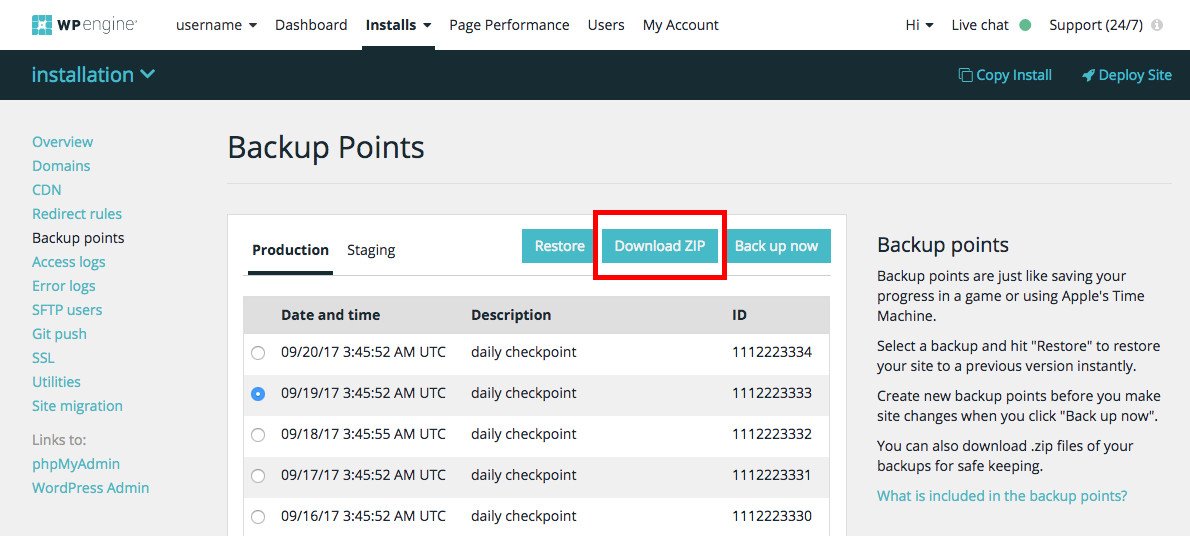
The most frictionless backup approach is selecting a hosting provider that performs automated daily backups as part of their managed service. Managed WordPress hosts like WP Engine, Kinsta, and SiteGround all include daily automated backups covering core files, themes, plugins, and the full database — with point-in-time restoration available from the host’s dashboard.
If your host provides managed backups, supplement them with a personal off-server copy. Log in periodically and download a zip file to your own hard drive. This provides redundancy: if your hosting account is compromised, terminated, or otherwise unavailable, your off-server copy remains accessible independently.
Method 2: Complete Manual WordPress Backup (cPanel + phpMyAdmin)
Manual backups are technically demanding and time-consuming, but understanding the process gives you a deep understanding of what a WordPress backup actually contains — and how restoration works at the file and database level. This knowledge is valuable even if you ultimately use a plugin for day-to-day backup management.
What You Need Before Starting a Manual Backup
Before beginning, gather the following credentials and tools:
- Hosting account login — your cPanel username and password (available from your host’s dashboard or welcome email)
- FTP credentials — server hostname, FTP username, FTP password, and port (usually 21). Find these in your hosting account under FTP settings.
- FTP client — download FileZilla (free, cross-platform) if you plan to use the FTP method
- Backup storage folder — create an organised folder structure on your computer before starting, e.g. “WordPress Backups / sitename.com / 2026-03-22 / Files” and “WordPress Backups / sitename.com / 2026-03-22 / Database”


Part A: Backing Up WordPress Files via cPanel File Manager
cPanel is the most accessible method for most shared hosting users because it requires no additional software and is accessible directly from your hosting account dashboard.
Step 1: Log in to your hosting account and navigate to cPanel. The exact path varies by host: on GoDaddy look for “cPanel Admin”; on Bluehost it may be under “Advanced”; on SiteGround it is under “Site Tools”. If cPanel is not available (common with managed WordPress hosts like WP Engine or Flywheel), use the FTP method below.
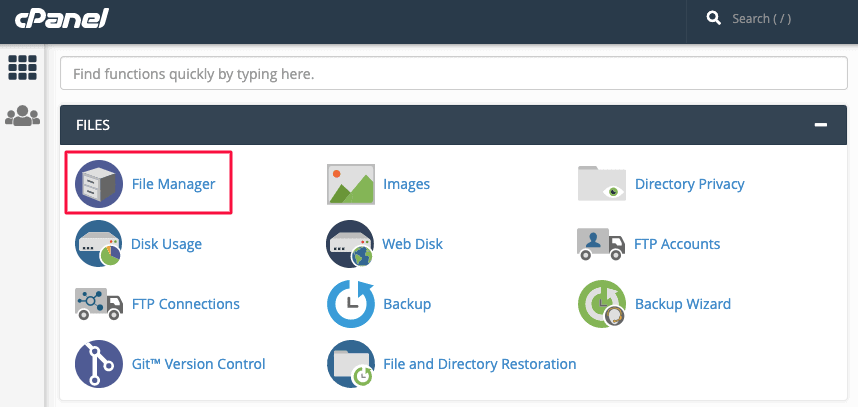
Step 2: Inside cPanel, locate and click File Manager.
Step 3: In the left panel, locate the public_html folder. This is your website’s root directory. Expand it and find the folder for your specific site if you host multiple sites under one account. Your WordPress installation should contain three core directories — wp-admin, wp-content, and wp-includes — along with several PHP and configuration files.

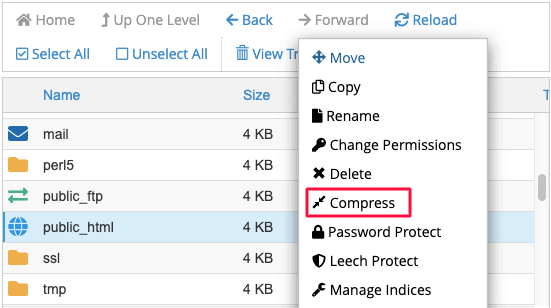
Step 4: Rather than downloading files individually (which is slow and can overload your server), right-click the public_html folder or your site’s folder and select Compress.
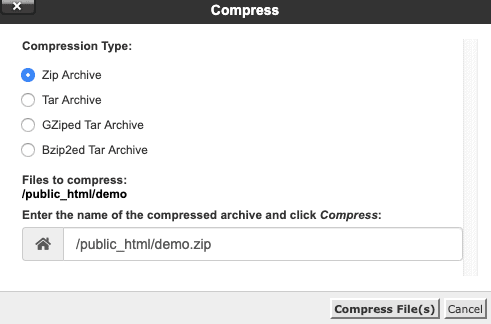
Step 5: Select Zip Archive as the compression format and confirm. Wait for compression to complete (time varies with site size).
Step 6: Once the zip file is created, select it and click Download. Move the downloaded file to your organised backup folder.

Part B: Backing Up WordPress Files via FTP (FileZilla)
The FTP method is necessary if your host does not provide cPanel access, or if you prefer working with a desktop FTP client for large site backups.
Step 1: Open FileZilla. Enter your FTP credentials — server hostname, username, password, and port — in the Quickconnect bar at the top and click Connect.
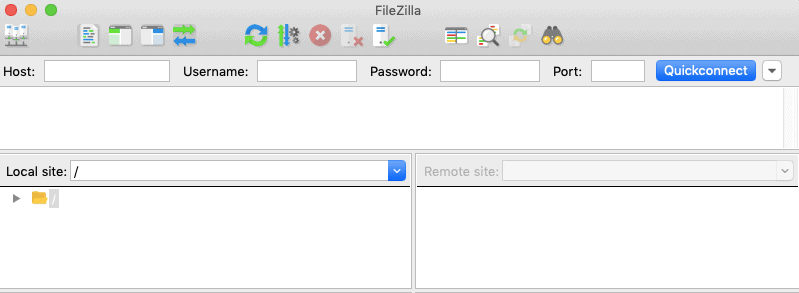
Step 2: Once connected, the right panel (remote site) populates with your server’s directory structure. Navigate to public_html or your site’s specific folder.
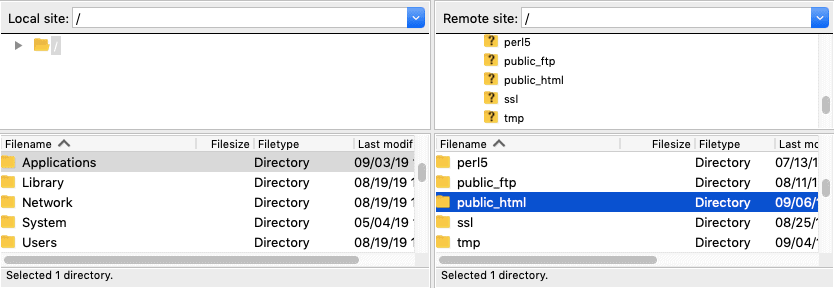
Step 3: Select the folder you want to back up in the right panel, right-click and select Download, or drag it to your local backup folder in the left panel.

Part C: Backing Up the WordPress Database via phpMyAdmin
The database backup is the second essential component. phpMyAdmin is typically accessible from within cPanel.
Step 1: From your cPanel dashboard, navigate to the Databases section and click phpMyAdmin.
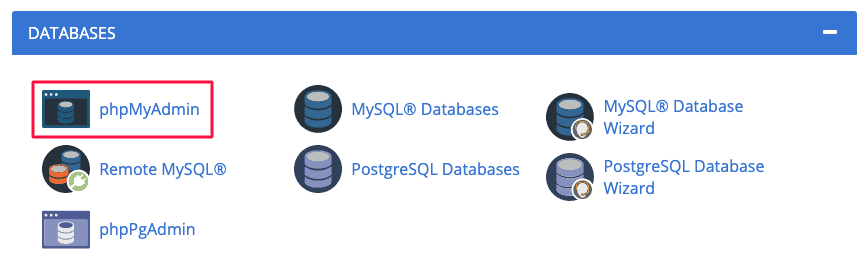
Step 2: Select the Databases tab at the top of phpMyAdmin.

Step 3: Select your WordPress database from the left panel. If you are unsure which database belongs to your site, check the wp-config.php file — it contains the database name in the DB_NAME constant. If you have multiple databases, this file tells you exactly which one WordPress uses.

Step 4: With the database selected, you will see all its tables in the main panel. Select all tables (click the first table, hold Shift, click the last table to select all), then click Export.

Step 5: On the Export screen, leave the format as SQL (the default). SQL format is the universal standard for MySQL database exports and is compatible with all WordPress restore tools and hosting environments. Click Export to download the .sql file.

Move the .sql file to your database backup folder. You now have a complete manual backup — both website files and database.
Essential Steps After a Manual Backup
- Encrypt your backup: A backup file contains your entire website including all credentials in wp-config.php, all user data, and potentially payment information. Encrypt the backup before storing it anywhere external. Use tools like VeraCrypt, 7-Zip with AES encryption, or GPG depending on your system.
- Test the restore: Create a staging environment (via your host’s staging tool or a staging plugin) and restore the backup there. Confirm the site works completely before considering the backup validated. An untested backup is an unreliable backup.
- Store multiple copies in multiple locations: Follow the 3-2-1 rule. Upload copies to at least two cloud storage services (Google Drive, Dropbox, Amazon S3) and keep one local copy. If one storage location becomes unavailable, your other copies remain accessible.
The Real Challenges of Manual WordPress Backups
| Challenge | Why It Matters | Practical Impact |
|---|---|---|
| Time-Consuming Process | Backup speed depends on internet connection, device performance, and server load. Large sites with many media files can take 30–90 minutes per manual backup. | Most site owners stop performing manual backups consistently because the time investment is unsustainable alongside running a business. |
| Server Disconnections | FTP and cPanel connections can drop mid-backup, producing incomplete archives that fail during restoration. | You may not discover the backup is incomplete until the moment you need to restore — the worst possible time to find out. |
| Server Performance Impact | Compressing and downloading large file sets strains server resources, potentially slowing your live site during the backup process. | On shared hosting, large manual backups during peak traffic hours can cause noticeable site performance degradation for visitors. |
| Human Error Risk | Manual file operations in cPanel or FTP involve real risks — accidentally deleting files, overwriting live content, or misidentifying which database to export. | Professional developers use staging environments specifically to avoid these risks when performing manual operations. |
| No Automation | Manual backups only happen when you remember to do them. Weeks or months can pass between manual sessions, leaving long windows of unprotected content. | The most common scenario for catastrophic data loss is a site owner who “meant to set up backups” but relied on manual processes that fell behind schedule. |
These challenges make a compelling case for automated backup plugins as the primary strategy for most WordPress site owners — with manual backup knowledge as a supplementary skill for specific situations.
Method 3: Automated WordPress Backup Plugins — The Best Options in 2026
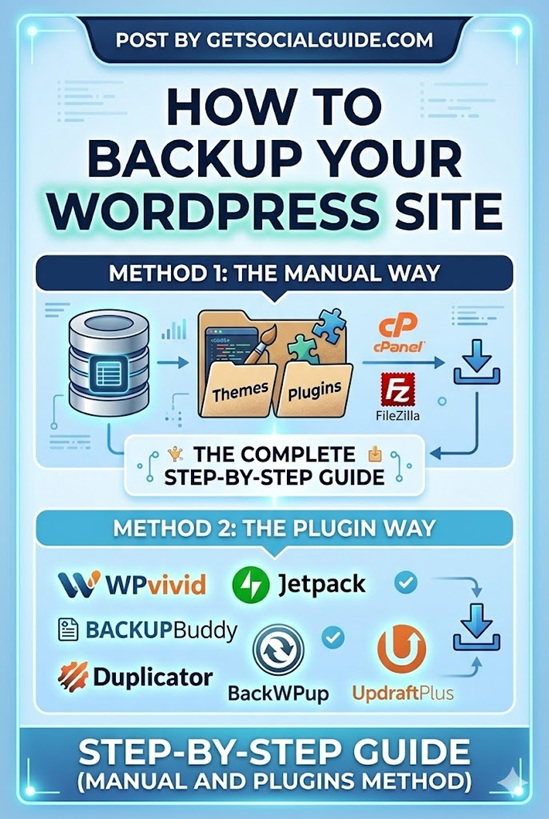
Backup plugins automate everything that makes manual backups difficult: scheduling, cloud storage transfer, database export, file compression, and restoration. The best plugins in 2026 run their backup jobs with zero manual intervention, send backup archives to off-site cloud storage automatically, and provide one-click restoration from the WordPress dashboard. Here are the top options:
UpdraftPlus — Best Free Option (3 Million+ Sites)

UpdraftPlus is the most widely installed WordPress backup plugin with over 3 million active installations — a number that has grown to 5 million by some counts in 2026. Its dominance is earned: the free version covers everything most personal sites and small businesses need, including scheduled automated backups, one-click restoration, and free cloud storage integration with Google Drive, Dropbox, Amazon S3, Rackspace, and FTP. These cloud storage integrations are free to use — a significant differentiator, as many competing plugins lock cloud storage behind paid tiers.
The free version supports backup scheduling from every 2 hours to monthly, with separate scheduling for files and database. For most sites under 1GB in total size, UpdraftPlus Free handles everything reliably.
UpdraftPlus Premium ($70/year for 2 sites) adds incremental backups (backing up only changed files since the last run — dramatically faster and less server-intensive for large sites), multisite support, more cloud storage destinations including Microsoft OneDrive, Backblaze B2, and SFTP, and automatic pre-update backups that create a snapshot before WordPress updates are applied. For content-heavy sites or those approaching 1GB+, the Pro tier’s incremental backup feature is the primary reason to upgrade.
Jetpack VaultPress Backup — Best for WooCommerce and Real-Time Protection

For WooCommerce stores and high-activity sites, Jetpack VaultPress Backup is the definitive recommendation in 2026. The core advantage is true real-time backup — every individual change to the database is captured as it happens, not on a schedule. This means every order placed, every customer registration, every inventory change, and every content edit is immediately backed up to Jetpack’s offsite cloud infrastructure. If your WooCommerce store crashes 20 minutes after a batch of orders comes in, those orders are recoverable.
Jetpack VaultPress also runs entirely on Automattic’s servers rather than your hosting environment, meaning backup jobs consume zero server resources on your site. The activity log feature shows every change with a one-click restore to any specific point — invaluable for identifying exactly when a problem was introduced. A mobile app lets you trigger restores from your phone.
Pricing starts at $4.95/month (billed annually) for daily backups with a 30-day archive. Real-time backup is available at higher tiers and in Jetpack’s security bundles. The Backup-only plan sits at $119/year for real-time protection — worthwhile for any site where even a few minutes of order or membership data loss represents significant financial impact.
BlogVault — Best for Performance-Sensitive Sites and Agencies
BlogVault takes a fundamentally different architectural approach from most backup plugins: it processes backups on its own servers rather than your hosting environment. This off-site processing means backup jobs consume almost zero server resources on your site — a genuine advantage for sites on shared hosting or those already running close to resource limits.
Every BlogVault backup is incremental by default, capturing only files and database rows that changed since the previous run. The plugin includes a one-click staging environment, zero-downtime migration tools, and a centralised dashboard for managing multiple sites simultaneously — making it the strongest option for agencies managing client portfolios.
Pricing starts at $49/year for basic features with premium plans for agency multi-site management. BlogVault is the strongest recommendation for businesses where server performance must not be impacted by backup jobs, and for agencies needing centralised backup management.
Duplicator — Best for Site Migration and Manual Backup Control

Duplicator earns its place on this list through a unique approach: rather than a traditional backup archive, it packages your entire WordPress installation into a ZIP file paired with a special PHP installer file. To restore or deploy, you simply upload both files to a new server location and run the installer — WordPress, themes, plugins, database, and all content are reconstructed automatically without requiring manual database imports or wp-config.php editing.
With over 1.5 million active installations, Duplicator is the most reliable tool in the WordPress ecosystem for site migrations and cloning. The free version lacks scheduling and cloud storage, making it primarily a manual tool. Duplicator Pro ($49.50/year base) adds automated scheduled backups, cloud storage integration, email notifications, and support for large sites. For agencies and developers who regularly move sites between environments, Duplicator Pro’s migration wizard justifies the investment through saved time per project.
BackWPup — Best Technical-Control Free Option

BackWPup is the strongest option for developers and site administrators who want granular control over backup composition without paying for a premium plugin. Unlike UpdraftPlus, which packages everything together, BackWPup allows you to create separate backup jobs for different components — back up only the database on one schedule, only the wp-content/uploads directory on another, and full site files weekly. This level of component-level scheduling reduces backup size and server impact for large sites.
Storage destinations include Amazon S3, Google Drive, Dropbox, Rackspace, FTP, and SugarSync. The free version is fully functional for most configurations, though the restore process is more manual than UpdraftPlus — you may need to unzip and upload files via FTP rather than using a dashboard-based restore button.
WPvivid Pro — Best Value All-in-One Package

WPvivid rapidly earned strong reviews for combining backup, migration, and staging functionality in one package at a price point that significantly undercuts most competitors. The Pro version ($49/year for 2 sites) includes incremental backups, automatic scheduled backups to major cloud storage destinations, one-click staging, and a complete migration wizard with automatic URL replacement.
One important 2026 note: a security vulnerability disclosed in February 2026 affected approximately 800,000 WPvivid installations, involving arbitrary file upload capabilities. The issue has been patched, but it underscores the importance of keeping any backup plugin updated promptly — the same data access that makes backup plugins useful also makes them high-value security targets when vulnerabilities appear. Always run the latest version.
Solid Backups (formerly BackupBuddy)
Previously known as BackupBuddy and now rebranded as Solid Backups under the SolidWP umbrella, this plugin has been protecting WordPress sites since 2010. It offers complete database and file backups, multiple remote storage destinations (Amazon S3, Dropbox, Google Drive, Rackspace, FTP, and BackupBuddy Stash cloud storage), automated scheduling, and the ability to repair and optimise the database — a unique feature among backup plugins. Pricing starts at $99/year for a single site with 1GB of Stash storage included.
WordPress Backup Plugin Comparison: Which Should You Choose?
| Plugin | Best For | Free Version? | Real-Time Backup? | Starting Price | Cloud Storage (Free) |
|---|---|---|---|---|---|
| UpdraftPlus | Most users — best free option | ✅ Yes — fully capable | ❌ Scheduled only (min. 2hr) | Free / $70/yr Pro | ✅ Google Drive, Dropbox, S3 |
| Jetpack VaultPress | WooCommerce, real-time needs | ❌ No | ✅ Yes — continuous | $4.95/month | ✅ Jetpack cloud |
| BlogVault | Agencies, performance-sensitive sites | ❌ No | ✅ Yes | $49/yr | ✅ BlogVault servers |
| Duplicator | Site migration and cloning | ✅ Limited (no scheduling) | ❌ No | Free / $49.50/yr Pro | ❌ Pro only |
| BackWPup | Developers wanting granular control | ✅ Yes — fully capable | ❌ No | Free | ✅ S3, Drive, Dropbox |
| WPvivid Pro | Best value all-in-one | ✅ Basic version | ❌ Scheduled only | Free / $49/yr Pro | ✅ Drive, Dropbox (Pro) |
| Solid Backups | Agencies, database repair needs | ❌ No | ❌ No | $99/yr | ✅ S3, Dropbox, Stash |
The 3-2-1 Backup Rule: The Industry Standard You Should Follow
9 Key Reasons to Back Up Your WordPress Site Regularly
- Server crashes and hardware failures: Hosting server hardware fails. RAID arrays corrupt. Data centres have outages. Without an off-server backup, a hosting-level failure can mean permanent data loss.
- Malicious attacks and ransomware: WordPress sites are actively targeted by automated attack tools. A successful intrusion can encrypt, delete, or corrupt your entire site.
- Human error and accidental deletion: A developer accidentally drops the wrong table, a content editor deletes a media folder, an administrator reverts the wrong setting. Backups make all of these recoverable.
- Corrupted databases: Database corruption can occur from improper plugin deactivations, failed migrations, or server-level issues. A pre-corruption backup is the only recovery path.
- Broken plugin and theme updates: Plugin and theme updates occasionally introduce compatibility conflicts that break site functionality. A pre-update backup lets you roll back the change within minutes.
- WooCommerce data protection: Customer payment records, order history, shipping information, and product inventory represent significant business value that no other recovery method can reconstruct.
- Legal and compliance obligations: Depending on your industry and location, you may have data retention obligations. Backups are part of demonstrating compliance with GDPR, HIPAA, and other frameworks.
- Reputation and brand protection: A hacked site that displays malicious content or phishes visitors damages trust that takes months or years to rebuild. A clean backup restores your site before significant reputation damage occurs.
- Cost of not having a backup: Professional WordPress site rebuilds cost $1,000–$10,000+ depending on complexity. A $70/year backup plugin subscription is among the highest-ROI investments available to any site owner.
- How to Increase WordPress Website Speed — A fast site and a backed-up site are the two foundations of a reliable WordPress operation. This guide covers the speed side.
- Boost Your WordPress SEO with Rank Math: Complete 2026 Tutorial — Protect the SEO work you’ve built — a reliable backup ensures algorithm updates and traffic growth are never at risk from site failures.
- The Importance of Keeping WordPress Core, Themes and Plugins Updated — Updates are one of the most common reasons site owners need to restore from backup — always back up before updating.
- How to Login to WordPress Admin — If a hack or crash has locked you out, understanding admin access helps alongside having a clean backup to restore from.
- Step-by-Step Guide to Fix the 500 Internal Server Error on WordPress — When a server error strikes, a recent backup is often the fastest path to resolution.
Summary
A complete WordPress backup strategy in 2026 combines automated scheduled backups via a reliable plugin, off-site cloud storage, and regular restore testing. For most users, UpdraftPlus Free is the starting point — install it today, configure Google Drive or Dropbox as the storage destination, set a daily or weekly backup schedule depending on how often your content changes, and you have the essential protection layer in place within 10 minutes.
For WooCommerce stores and high-activity sites, Jetpack VaultPress Backup’s real-time continuous protection eliminates the risk of losing orders or customer data between scheduled backup intervals. For agencies managing multiple client sites, BlogVault’s off-site processing and centralised dashboard deliver the best operational efficiency.
Whatever method you choose, act on one principle above all others: test your restore process before you need it. Create a backup, restore it to a staging environment, confirm the site works, and document the steps. That tested, documented restoration process is the difference between a backup that is a genuine safety net and a backup that is just a file sitting in the cloud waiting to fail when you need it most.
FAQ
A: UpdraftPlus is the best free WordPress backup plugin in 2026 with over 3 million active installations, free cloud storage integration with Google Drive, Dropbox, and Amazon S3, and scheduled automated backups. For WooCommerce stores requiring real-time continuous backup, Jetpack VaultPress Backup is the definitive recommendation. For agencies managing multiple sites, BlogVault’s off-site processing and centralised dashboard deliver the strongest operational efficiency. For budget-conscious users who also need staging and migration, WPvivid Pro ($49/year) offers the best value all-in-one package.
A: Backup frequency should match how often your content changes. Static sites that rarely change need weekly backups plus a backup before every update. Active blogs publishing daily need daily automated backups. WooCommerce stores processing orders continuously need real-time backup — Jetpack VaultPress Backup handles this automatically. The universal rule is: always create a backup immediately before any significant change — WordPress core updates, plugin updates, theme changes, or major content restructuring.
A: No — host backups should be treated as a supplementary layer, not your primary strategy. Host backups typically cover only 7–30 days of retention, may not capture all file types, cannot be restored for individual sites on shared accounts without restoring everything, and may be deleted if your account lapses. You will not be notified if a host backup job fails. Always maintain your own independent backup copies using a dedicated plugin that stores backups in off-site cloud storage under your own control.
A: A complete WordPress backup must include two components: (1) Website files — your theme files, plugin files, media uploads (images, videos, documents), WordPress core files, and configuration files including wp-config.php; and (2) The MySQL database — which contains all your posts, pages, comments, settings, user accounts, and WooCommerce data. Backing up only the database or only the files produces an incomplete backup that cannot fully restore a functioning site.
A: The 3-2-1 rule is the industry-standard framework for reliable backup protection: keep three copies of your data, on two different storage media types, with one copy stored off-site. For WordPress this means: one backup on your web server, one in a cloud storage service like Google Drive or Amazon S3, and one on a physical external hard drive. This ensures that no single failure — server crash, cloud provider outage, or hardware failure — eliminates all backup copies simultaneously.
A: Restoration method depends on your backup approach. With UpdraftPlus: go to Settings → UpdraftPlus Backups, find the backup you want to restore, click Restore, and follow the prompts — it handles file and database restoration automatically. With Duplicator: upload the installer.php and archive.zip files to your server root, navigate to yourdomain.com/installer.php in your browser, and follow the deployment wizard. For manual backups: upload the zip file to your server via FTP, extract to the public_html directory, then import the .sql file via phpMyAdmin. Always test your restore process on a staging environment before you need it in an emergency.