How to Use Dropbox: The Complete Beginner’s Guide (2026 Update)
📌 Key Takeaways: Mastering Dropbox in 2026
- Dropbox is cloud storage made simple: Access your files from any device – computer, phone, or tablet – without carrying USB drives or emailing attachments.
- Free tier offers 2GB: Perfect for beginners. Paid plans start at $9.99/month for 2TB, adding features like Smart Sync, account rewind, and extended version history.
- Sync is automatic: Install the desktop app, and any file you add to your Dropbox folder is instantly available everywhere – no manual uploading needed.
- Sharing is flexible: Share links with view/edit permissions, or create shared folders for team collaboration. No recipient account required for basic file requests.
- Security is paramount: Enable two-factor authentication (2FA) to protect your account. Dropbox uses 256-bit encryption for stored files and 128-bit for transfers.
- 2026 updates: AI-powered search, enhanced collaboration tools, and deeper integrations with Microsoft 365 and Google Workspace make Dropbox more powerful than ever.
The Beginner’s Guide on How to Use Dropbox
You may backup files on your computer and retrieve them from anywhere with Dropbox, a cloud-based service for file storage. The ability to share, collaborate, and read prior iterations of a document are just a few of the numerous great tools that are available. Essentially, you may see Dropbox as a huge digital filing cabinet where you can save all of your critical papers. Dropbox has your back, making it simple to access everything you need from the cloud even if your PC malfunctions or you’re not near your usual computer.
Great, isn’t that right? There’s a good reason why Dropbox currently has 600 million users. You will discover what Dropbox is, how to join up, and what types of unique features make Dropbox a wonderful option for backing up and storing your crucial data in this beginner’s tutorial.
What Is Dropbox? Should You Use It?
“The cloud” has developed over the past several years into one of those tech jargon that is frequently used without anyone truly knowing what it means. Basically, when you upload a computer file to the cloud (a document, photo, etc.), it is saved online in addition to on your computer, so even if your computer crashes, sinks in a lake, or becomes otherwise inoperable, you can still access it. Dropbox employs cloud storage, which spreads out your files among several computer servers all over the world. This is advantageous since it shows that your files have been backed up twice.
You can access Dropbox files from any device since they are stored in the cloud. For instance, without utilising a USB drive or emailing it to yourself, you may save your work presentation on your home computer and then open it on your office computer. Dropbox allows you to access files while on the move and is compatible with desktops, tablets, and even smartphones. Additionally, Dropbox “mirrors” any files you upload, synchronising your local PC files with your cloud-based data. By extension, this means that any changes you make to a file are immediately updated in Dropbox.
If your computer breaks or you unintentionally erase a file, you may quickly restore it from Dropbox, along with any prior versions. Another great Dropbox feature is collaboration. Email attachments might fail spam filters or even end up in the wrong hands when you send files to customers or coworkers. Other times, a large attachment bounces before it reaches its intended destination. Instead of attaching a file to an email, Dropbox allows you to send a link to share a file. Various permissions can be specified to regulate access.
What is Dropbox for?
Just to be clear, Dropbox allows you to both store and exchange files. You may always access these files online because they are all backed up in the cloud. Are you prepared to begin?
Getting to Know How to Use Dropbox
To keep copies of their information and save up space on their hard discs, people use cloud storage. However, new users should be aware that uploading items to Dropbox does not instantly erase them from your hard drive. After uploading the files to the cloud, you must erase them from your computer if you wish to do that. However, Dropbox does offer several functionalities that may be used independently.
For instance, changes you make to files you’ve submitted using the desktop app are instantly updated. Additionally, the syncing features allow you to access these files on all of your devices. Even if your machine malfunctions, this method protects your files. You won’t lose your images and other essential papers permanently, for instance, if you store them on the cloud rather than on your hard drive. Even if you believe your computer to be secure, it may nevertheless sustain harm, malfunction, or even be stolen.
⚡ 2026 Update: What’s New in Dropbox
- AI-powered search (Dash): Dropbox Dash uses AI to search across all your connected apps – Google Workspace, Microsoft Outlook, Salesforce – and returns unified results. Find any file, anywhere, instantly.
- Enhanced collaboration: Real-time co-authoring in Microsoft Office files now works seamlessly within Dropbox, with @mentions and task assignments.
- Video review upgrades: Leave frame-accurate comments on videos, with automatic transcriptions and timestamped notes.
- Security Center: New dashboard gives admins visibility into sharing activity, device access, and potential security risks.
- Offline mode for mobile: Mark files as available offline – perfect for travel or areas with spotty connectivity.
Any file submitted to Dropbox may be downloaded to a new or different device, including a desktop computer and a mobile device. This makes switching to a new system much simpler, especially if you have to start again because your old gadget broke down. When it comes to transferring files, Dropbox provides tremendous capabilities.
By using shareable links and a variety of user permissions, sharing your files with others is a straightforward process. Permitted users can furthermore leave comments and ideas on papers, images, and videos. Dropbox may also be used for basic cloud storage. You can add files to your Dropbox account and only save them in the cloud as long as you use the browser client.
Dropbox Pricing & Account Tiers (2026)
By creating a Basic account on Dropbox’s website, you may test it out without paying anything. The 2GB of free storage that Basic offers is plenty if you don’t plan to upload numerous files. The procedure of signing up will be covered in the next section. For personal accounts, Dropbox offers a number of priced solutions. Naturally, you may access more storage and services if your monthly subscription is larger.
- Basic (Free): 2GB storage, file sharing, 30-day version history.
- Plus ($9.99/month or $119.88/year): 2TB storage, Smart Sync, offline folders, account rewind (30-day recovery).
- Professional ($16.58/month or $199/year): 3TB storage, file versioning, shared link expiration, watermarks.
- Business ($15/user/month): 5TB per user, team collaboration tools, admin controls, advanced security.
- Enterprise (Custom pricing): Unlimited storage, advanced compliance, SSO integration, dedicated support.
Plans from Dropbox are available for both personal and business usage.
How Does Dropbox Work With Smart Sync?
The latter enables “Smart Sync” (see our article on what Dropbox Smart Sync is), which is another significant distinction between the commercial and free Dropbox accounts. To simply clarify, you may designate files you produce on your desktop as “online only” by using Smart Sync. They are available for editing whenever you use your computer, but unless you opt to download them, they won’t be kept locally.
Users can’t save data exclusively in the cloud if Smart Sync isn’t available. This probably won’t be a problem if your vehicle has a lot of internal storage capacity. Paying extra to utilise the Smart Sync option will be money well spent if you frequently use up all of your local storage.
How to Sign Up for a Dropbox Account
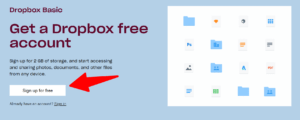
To start utilizing Dropbox, you’ll first must create an account. Fortunately, it solely takes a few minutes to do, and you’ll observe the steps beneath to get began.
- Step 1: Find the “Register” Immediate on the Web site
After you have reached the Dropbox web site, choose “sign up” within the top right-hand nook. - Step 2: Choose “Create an Account”
To create a brand new account, choose the “create an account” possibility. - Step 3: Enter Your Private Particulars
You’ll be prompted to enter your identify, e mail handle and password. (If you wish to preserve your passwords safe, try our decide of one of the best password managers obtainable.) For a barely faster course of, you too can signal as much as Dropbox using your Google account. - Step 4: Choose Your Plan
On the subsequent web page, you may be requested to choose the plan you wish to use. In the event you choose to stick to the free plan, choose the choice “or proceed with 2GB Dropbox Primary plan” situated on the backside of the display screen.
Dropbox will ship you e mail affirmation of your account. You’ll need to confirm your e mail handle earlier than you need to use the service.
As soon as the sign-up course of is full, you may be prompted to obtain Dropbox to your laptop. It’s a good suggestion to do that if you wish to routinely sync information out of your laptop to the service.
How to Use the Dropbox Folder on Desktop
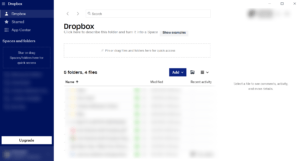
Downloading Dropbox to your desktop routinely creates a Dropbox folder. You should use the steps beneath to sync information to this folder.
- Find the Dropbox Folder
Open “finder” and find “Dropbox” in your “favorites” tray. - Drag and Drop Recordsdata Into Your Folder
To add information, merely drag and drop them into your Dropbox folder. All recordsdata added will probably be synced to your Dropbox account and it is possible for you to to entry them throughout a number of devices. - Save Recordsdata to Your Dropbox Folder
When saving a file, you’ll be able to select to reserve it instantly in your Dropbox folder. All information saved to Dropbox will routinely sync to your account.
How to Use Dropbox on Web
Should you favor to not obtain Dropbox to your laptop, you possibly can add information immediately by the online utility. It’s simple to do; simply observe the directions beneath to start backing up your information.
Importing Information
The very first thing you’ll wish to do with Dropbox is add some information.
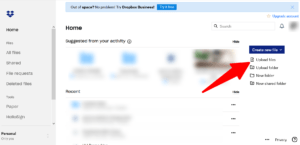
- Navigate to “Add Information/Folder”
Log in to your Dropbox account by way of your internet browser. On the right-hand facet of the house display screen, you’ll see the choice to add a file or folder. Choose the choice you want. - Choose the File
Choose the file you wish to add and faucet “open.” The file will likely be uploaded to your Dropbox account. You may observe the identical course of to add a folder.
Discovering information on the net utility is easy and takes no time in any respect.
- Choose All Information
On the right-hand facet of the house display screen, you will see that six choices. To discover a file or folder, faucet “all information.” You may then browse this part to search out the information you need. - Or Use the Search Bar
Alternatively, if you realize the title of the file or folder you wish to find, you possibly can sort it into the search bar.
There are a number of methods to share a file or folder by Dropbox. If you’d like an in depth look, take a look at our guide on how to share files with Dropbox. Beneath is a short overview of what you should do to share a file out of your laptop.
- Find the File in Your Dropbox Folder
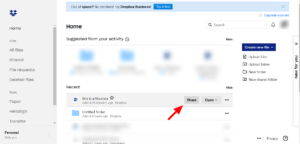
Go to the Dropbox folder in your desktop. Seek for the file you want to share and right-click your mouse. Discover “share” within the dropdown menu and choose it. - Electronic mail the File
To e-mail the file entry immediately, add the contact data for the recipient within the “to:” part. Subsequent, click on “share” and entry to the file will likely be despatched on to the individual you chose. - Generate a Share Hyperlink
As a substitute of emailing your file, you possibly can generate a shareable hyperlink. After selecting “share,” you will note “create hyperlink” on the backside right-hand facet of the window. - Copy the Hyperlink
Subsequent, copy the hyperlink and share it with anybody you want to entry your information.
Feature #2: Use Dropbox to Obtain Information
Let’s say that you just’re on a brand new gadget and also you want entry to a file you saved to Dropbox, however you don’t have the service put in and don’t wish to set up it. As a substitute, your choice is to log in by way of your browser and navigate to the file you wish to obtain.
- Find the File
To obtain a file onto your laptop from the online utility, first find the file utilizing the search perform as outlined above. - Choose the File and Obtain
Choose the file and faucet the ellipsis. From the dropdown menu, choose “obtain.”
Feature #3: Use Dropbox to Restore Information
Should you by chance delete a file or folder, concern not: you could have 30 days to recuperate it (120 days on Skilled plans). Right here’s what you are able to do to recuperate your information.
- Find Deleted Information
On the left-hand facet of the house display screen within the internet utility, you will see that “deleted information.” Choose it to maneuver ahead. - Choose the File You Need to Restore
Choose the file you want to restore and press “restore” on the right-hand facet of the display screen.
Should you would somewhat delete the file utterly, choose “delete completely,” situated beneath the “restore” button.
Feature #4: Use Dropbox to Request Information
File requests will let you invite individuals who don’t have a Dropbox account to add information to yours. Chances are you’ll discover that helpful when you should get information from staff or family members who don’t use the platform. It’s additionally a great way for lecturers to gather information from college students.
- Log in and Find “File Requests”
To request a file, log in to your on-line Dropbox account. On the left-hand facet, you’ll see “file requests.” Click on it to maneuver to the subsequent web page. - Choose “New Request”
Subsequent, choose “new request” on the right-hand facet of the display screen. - Identify the Folder and Add a Description
On the subsequent web page, you’ll be requested to title the information you’re requesting. For instance, you can call them “birthday photographs” or “tax paperwork.” When you’ve selected a reputation, select the folder you need Dropbox to put them in. Faucet “create” to maneuver ahead. - Add Contacts to the Shared Folder
On the subsequent web page, you possibly can add the contacts you want to have entry to the folder. You may both ship the request by way of e-mail, or copy and paste the shareable hyperlink and manually ship it to them.
If you work on a team or need to collaborate with someone on a project, Dropbox gives you the ability to create a shared folder so everyone involved can access files from anywhere. To create a shared folder, login to your Dropbox account and click “new shared folder.” A pop-up box will appear asking you to create a new shared folder or make an existed folder shared.
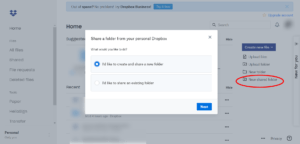
After you make your selection, click “next.” Another pop-up will appear asking you to name your shared folder. If you choose to share a folder that already exists, the pop-up will show you a list of all your existing folders and prompt you to highlight the one you want to make a shared folder. Next, you enter your recipients’ name, just as you would for sharing an individual file or folder.
When you’re done entering the name or email of everyone on the team or project, enter an optional message and click “send.” Dropbox will send the notification to your recipients. If they already have Dropbox, they can add the file or folder to their own Dropbox account. If they don’t have Dropbox installed, they will need to install it before they can access the files.
Feature #6: Enabling Two-factor Authentication
Dropbox has come beneath scrutiny for safety points, which is likely one of the most frequent criticisms levied in opposition to it. In 2016, for instance, cyber attackers exploited 68 million user accounts. Some tech consultants recommend ramping up your safety by investing in third-party encryption software program. It ought to be famous, nonetheless, that Dropbox already makes use of 256-bit encryption for saved recordsdata and 128-bit encryption for recordsdata in switch. Additionally, whereas some third-party encryption software program is free, the plans with essentially the most options and safety value round $50 a 12 months for a person and round $100 for a enterprise.
Happily, Dropbox added options to assist customers preserve their information safer following the 2016 hack. One strategy to safe your account is by enabling two-factor authentication. Two-factor authentication combines two types of verification on your account. For instance: a password and a one-time use PIN or numerical code despatched to you through textual content or electronic mail. To allow two-factor authentication on your Dropbox account, login to your account and click on your profile photograph. From there, click on “settings” after which the “safety” tab.
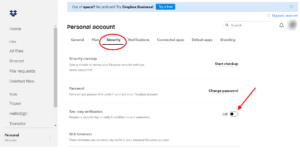
Next, switch the “off” button for “two-step verification” to “on.” For security reasons, Dropbox will prompt you to enter your password again after which you will be guided through the process of turning on two-factor authentication for your account. Two-factor authentication is one of the finest ways, in the opinion of computer experts, to safeguard your papers and files against hacker assaults and data breaches. You may make your data more secure by activating it for your Dropbox account.
Secure Your Account – Enable 2FA
Conclusion – How to Use Dropbox
It’s easy to backup your data and make them available from anywhere using Dropbox. Dropbox is one of the most well-known cloud storage programmes available because to its huge storage and strong features in the free edition. Dropbox is a good option to consider whether you want to backup your work, work with a team, or access your files on the road.
If you upload files to Dropbox, you won’t have to be concerned about losing them if your computer malfunctions. Additionally, it is a fantastic platform for exchanging files and producing new papers. It is a good alternative for folks who wish to view their data on all of their devices because of its sync features. This Dropbox lesson should have given you a better understanding of its capabilities as well as instructions on how to utilise them. Visit our best online backup guide if you’re still looking for the cloud backup solution that’s perfect for you. Did you find this information useful? Do you believe Dropbox to be your best option? Please let us know. Comment below with your thoughts and let us know. Gratitude for reading.
Frequently Asked Questions (FAQ) About Dropbox
1. Is Dropbox really free?
Answer: Yes, Dropbox offers a free Basic plan with 2GB of storage. It’s perfect for testing the service and storing small amounts of data. For more space and features, paid plans start at $9.99/month.
2. Can I access Dropbox files offline?
Answer: Yes. On desktop, you can make files “available offline” by marking them. On mobile, the 2026 update added offline mode – simply toggle the switch next to any file or folder to download it for offline access.
3. How secure is Dropbox?
Answer: Dropbox uses 256-bit AES encryption for files at rest and 128-bit SSL/TLS for files in transit. Two-factor authentication is available and strongly recommended. Business plans add advanced security controls and SSO integration.
4. What happens if I delete a file by mistake?
Answer: Deleted files go to the “Deleted files” folder and can be restored within 30 days (120 days on Professional plans). You can also use “Account Rewind” (paid plans) to revert your entire account to an earlier state.
Answer: Absolutely. You can share a view-only link with anyone – they don’t need an account. If they need to edit, they can request access or you can send them an invite to create a free account.
6. What’s the difference between Dropbox and Google Drive?
Answer: Both are excellent. Dropbox excels at file syncing, cross-platform compatibility, and collaboration features. Google Drive integrates tightly with Google Workspace (Docs, Sheets). Choose based on your workflow – many users use both.
7. How do I cancel my Dropbox subscription?
Answer: Log in to dropbox.com, go to Settings → Plan, and click “Cancel subscription.” You’ll continue to have access until the end of your billing period.
8. Does Dropbox work on Linux?
Answer: Yes, Dropbox offers a native Linux client with full sync functionality. It supports most major distributions including Ubuntu, Fedora, and Debian.
📝 Article Summary: How to Use Dropbox (2026 Edition)
- Getting started: Sign up for a free account, download the desktop app, and your Dropbox folder appears – just drag files in to sync.
- Key features: File sharing (links or direct invites), shared folders for teams, file requests from non-users, and 30-day version history.
- 2026 updates: AI search (Dash), enhanced video reviews, offline mode for mobile, and deeper Microsoft/Google integrations.
- Security: Enable two-factor authentication, use strong passwords, and consider third-party encryption for sensitive files.
- Pricing: Free 2GB; Plus $9.99/month for 2TB; Professional $16.58/month for 3TB; Business starts at $15/user/month.
Dropbox remains one of the most user-friendly and powerful cloud storage solutions. Whether you’re a student, freelancer, or enterprise team, mastering these features will keep your files safe, accessible, and collaborative.
📚 Further Reading from Trusted Tech Resources
- PCMag – Dropbox Review – In-depth analysis and ratings.
- TechRadar – Dropbox Review – Comprehensive feature breakdown.
- CNET – Cloud Storage Comparison – Dropbox vs. Google Drive vs. OneDrive.
- WIRED – Dropbox Review – Expert perspective on usability.
- Bleeping Computer – Dropbox Tutorial – Detailed walkthroughs.
- The Verge – Dropbox Dash AI – Coverage of new AI features.
- Cloudwards – Dropbox Review – Independent evaluation.
- Macworld – Dropbox Review – Mac-focused perspective.
- ZDNet – Best Cloud Storage – Comparison with competitors.
- Gartner – Dropbox Reviews – Enterprise user ratings.