HTTP Error While Uploading Media in WordPress – Complete Trouble shooting
Learn How to Fix HTTP Error When Uploading Images to WordPress Media Library
Have you ever encountered a vague HTTP error when attempting to import an image or other media files onto your WordPress website? This is arguably one of the most frustrating problems site owners face. Unlike other errors that provide a specific code (like 404 or 503), the WordPress HTTP error gives you absolutely no clue what went wrong.
In this guide, we will break down exactly why this happens and provide 11 proven methods to fix it, ranging from simple browser refreshes to server-level configuration changes.
Why Did I Get an HTTP Error?
From our experience managing thousands of WordPress sites, the “HTTP Error” typically originates from two distinct areas:
- Client-Side/User Errors: Issues with your browser session, the file name (using apostrophes or symbols), or the image size.
- Server-Side Errors: Problems with your hosting environment, such as low PHP memory limits, outdated PHP versions, restrictive security firewalls (ModSecurity), or issues with the Imagick processing library.
Since WordPress cannot determine the exact cause, it defaults to the generic “HTTP Error” message. Below, we have organized the solutions from easiest (takes seconds) to advanced.
Method 1: Refresh the Page (Session Timeout)
It sounds too simple to be true, but this is the most common fix. Your browser may have temporarily lost connection with WordPress, or your login session may have expired in the background while the tab was open.
Often, you might see a screen like this if you navigate away:
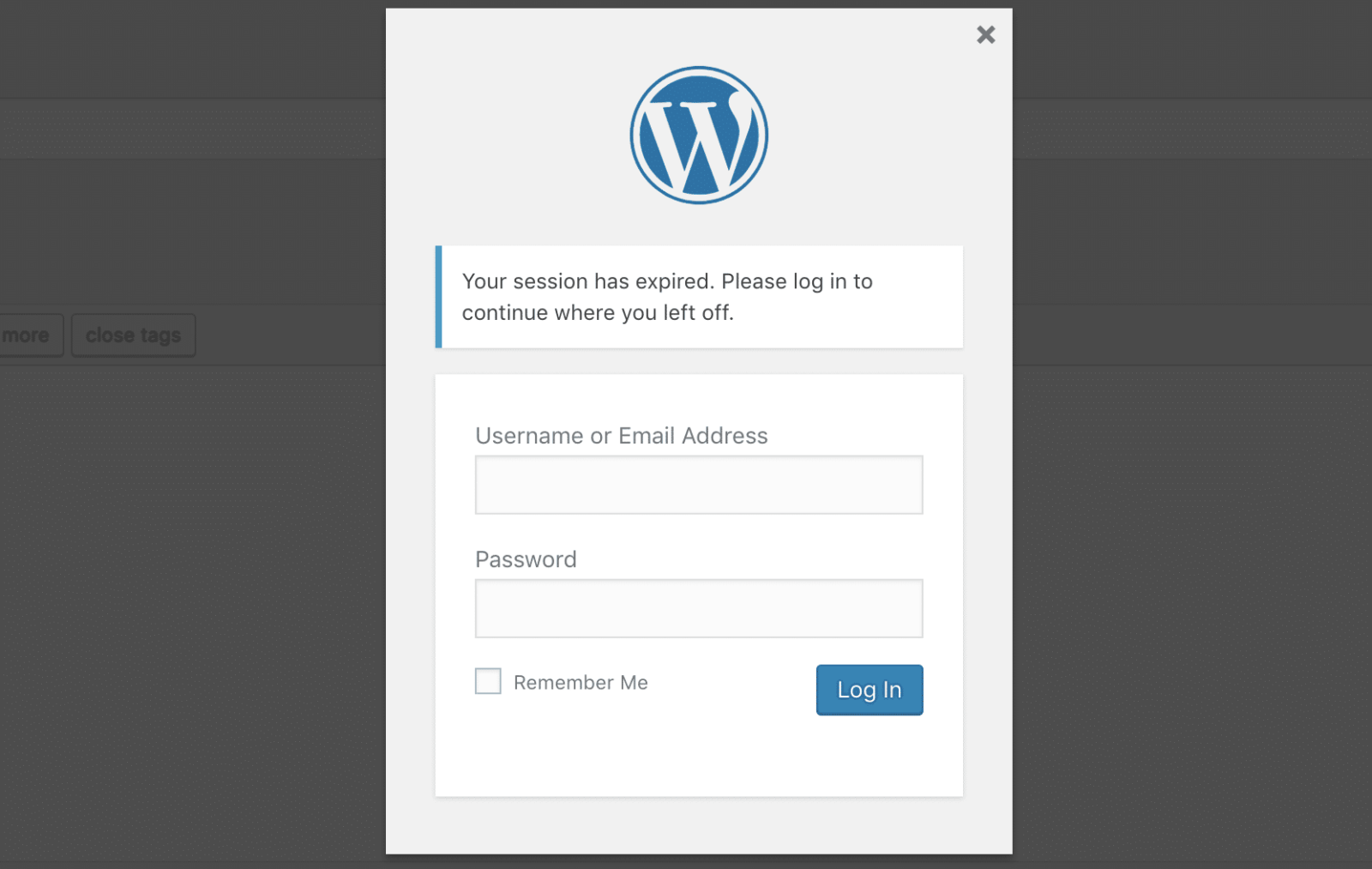
Your session has expired warning in WordPress
The Fix: simply refresh the page (F5 or Command+R). If requested, log back in with your username and password. Once the page reloads, try uploading the media file again.
Method 2: Resize or Shrink the File
Modern cameras and smartphones capture high-resolution images that can be 5MB to 10MB in size. Many shared hosting environments have limits on how much data they can process in a single upload script. If your image is too large (in pixel dimensions or file size), the server script times out, resulting in an HTTP error.
Recommendation:
- Resize images locally to a maximum width of 1920px or 2048px.
- Compress images to keep the file size under 300KB.
- Use an image optimization plugin like Imagify to handle compression automatically.
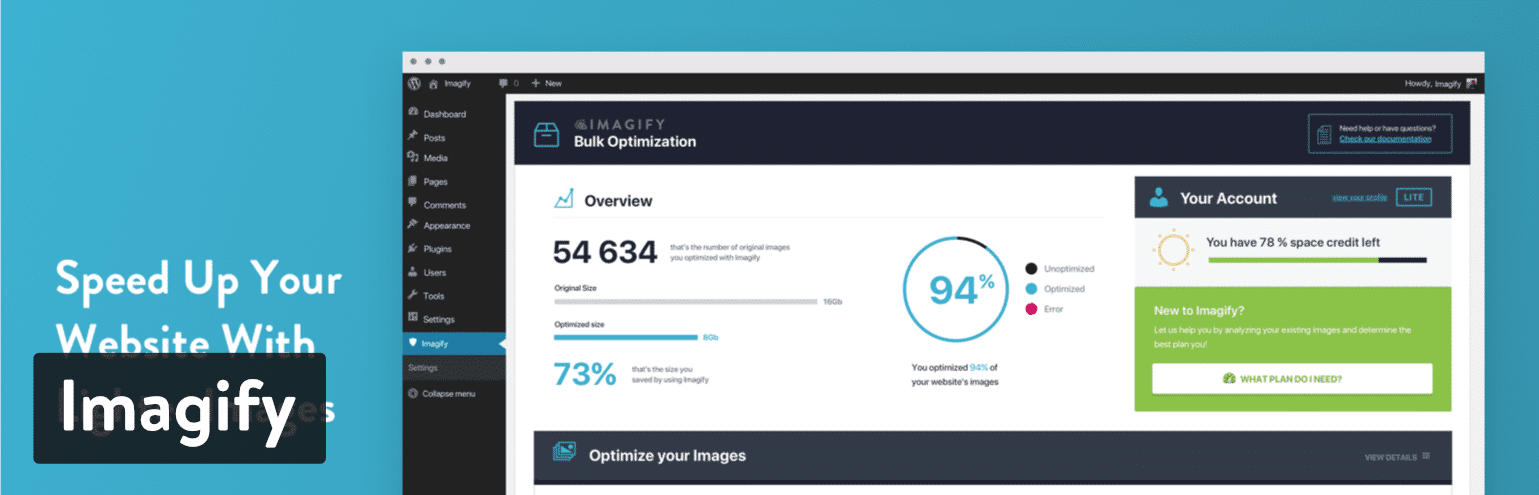
Using a plugin like Imagify can automate file resizing.
Method 3: Rename the Image File
WordPress is generally good at cleaning up file names, but server environments can be picky. If you try to upload a file named My Photo's & Summer Vacation!.jpg, the apostrophe and special characters can confuse the server.
Best Practice: Rename your file locally before uploading. Use only lowercase letters and dashes.
- Bad:
DSC_001 (1).jpgorPhoto %.png - Good:
my-summer-vacation-photo.jpg
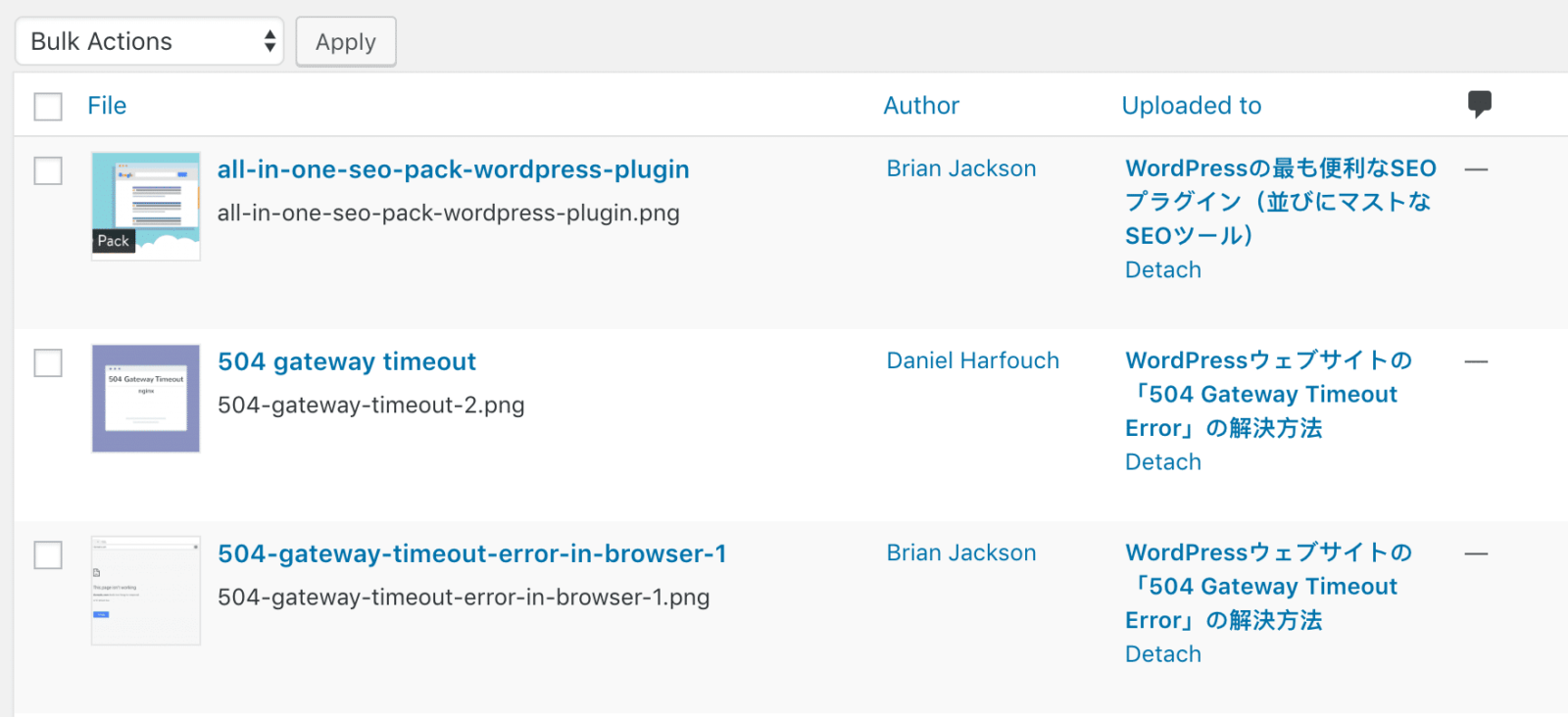
Ensure your file name contains no special characters.
Furthermore, ensure you aren’t uploading a duplicate file name if your server is struggling to overwrite the existing one.
Method 4: Temporarily Deactivate Plugins
If the above methods failed, a plugin might be conflicting with the upload process. Image optimization plugins (which hook into the media library) and security plugins (like WordFence or iThemes) are common culprits.
To test this, go to your Plugins page, select all plugins, and choose Deactivate from the Bulk Actions menu.
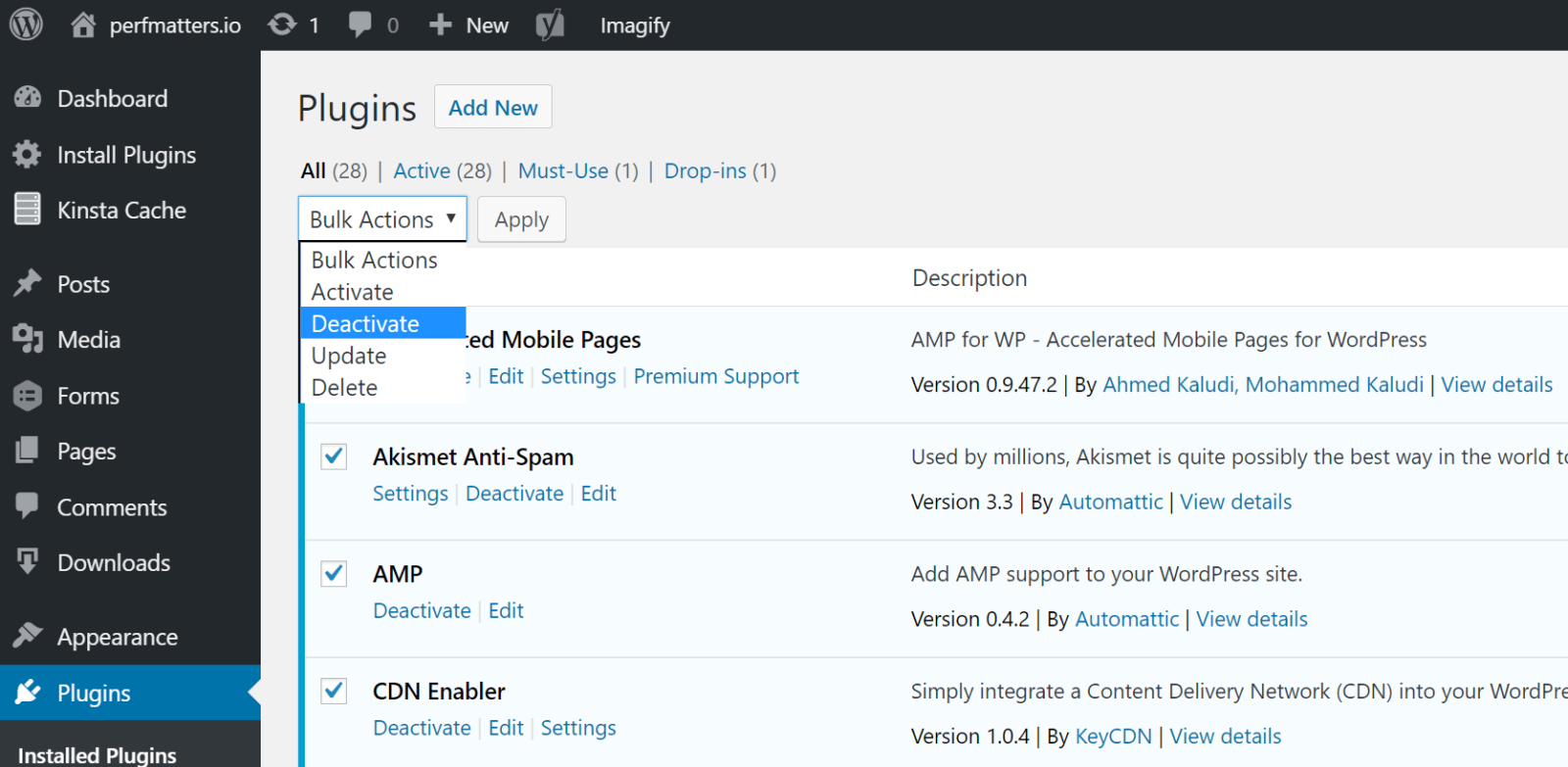
Temporarily deactivate plugins to rule out conflicts.
Try uploading the image again. If it works, you know a plugin is the cause. Reactivate them one by one to find the offender.
Can’t access your dashboard? If the error is so severe you cannot access the admin area, use FTP to rename your plugins folder to plugins_old to force deactivation.
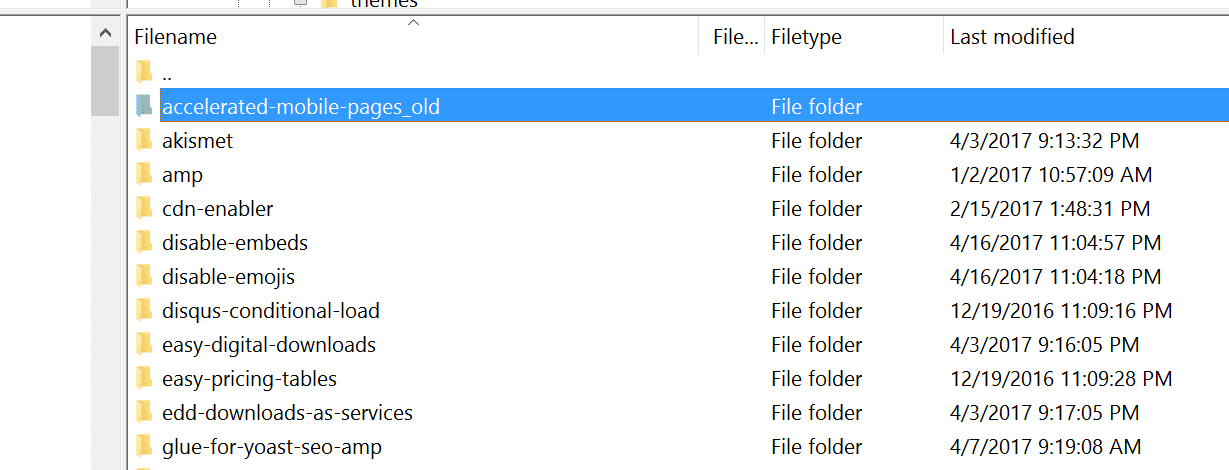
Renaming the plugin folder via FTP.
Method 5: Increase PHP Memory Limit
This is the most effective technical fix. The HTTP error often occurs because your server lacks the available memory (RAM) for the background upload process to complete. By default, many hosts set this low (64MB).
To fix this, edit your wp-config.php file located in your site’s root directory and add the following line:
define( 'WP_MEMORY_LIMIT', '256M' );If you are using cPanel, you can also change this via the “MultiPHP INI Editor” or “Select PHP Version” options.
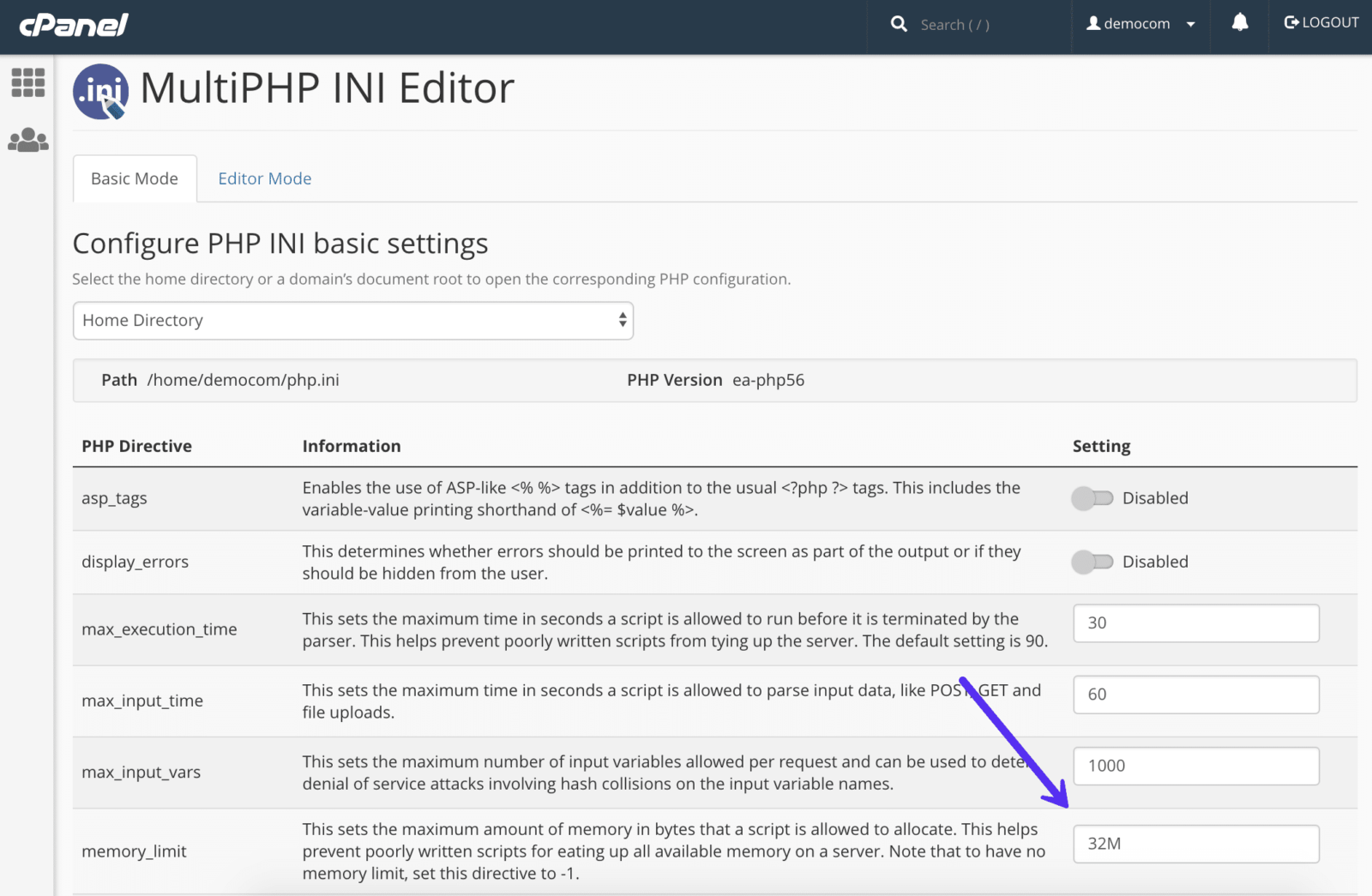
Adjusting memory limits inside cPanel settings.
Method 6: Update Your PHP Version
WordPress officially recommends PHP 7.4 or higher (ideally PHP 8.0+). If you are running an older version (like 5.6 or 7.0), the script may fail due to deprecated functions or security protocols.
Log into your hosting dashboard or cPanel and look for Select PHP Version.
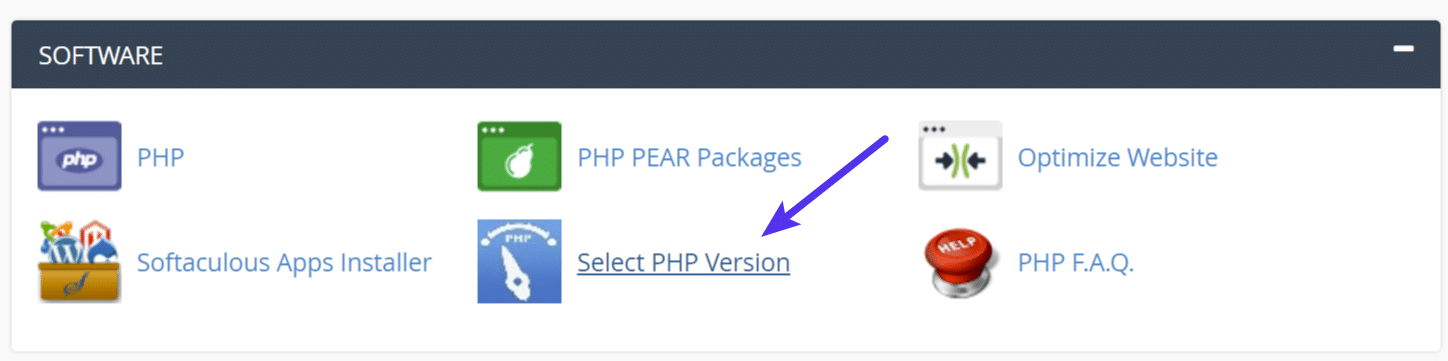
Locate the PHP version selector.
Ensure you select a supported version. This not only fixes the HTTP error but improves your site speed significantly.
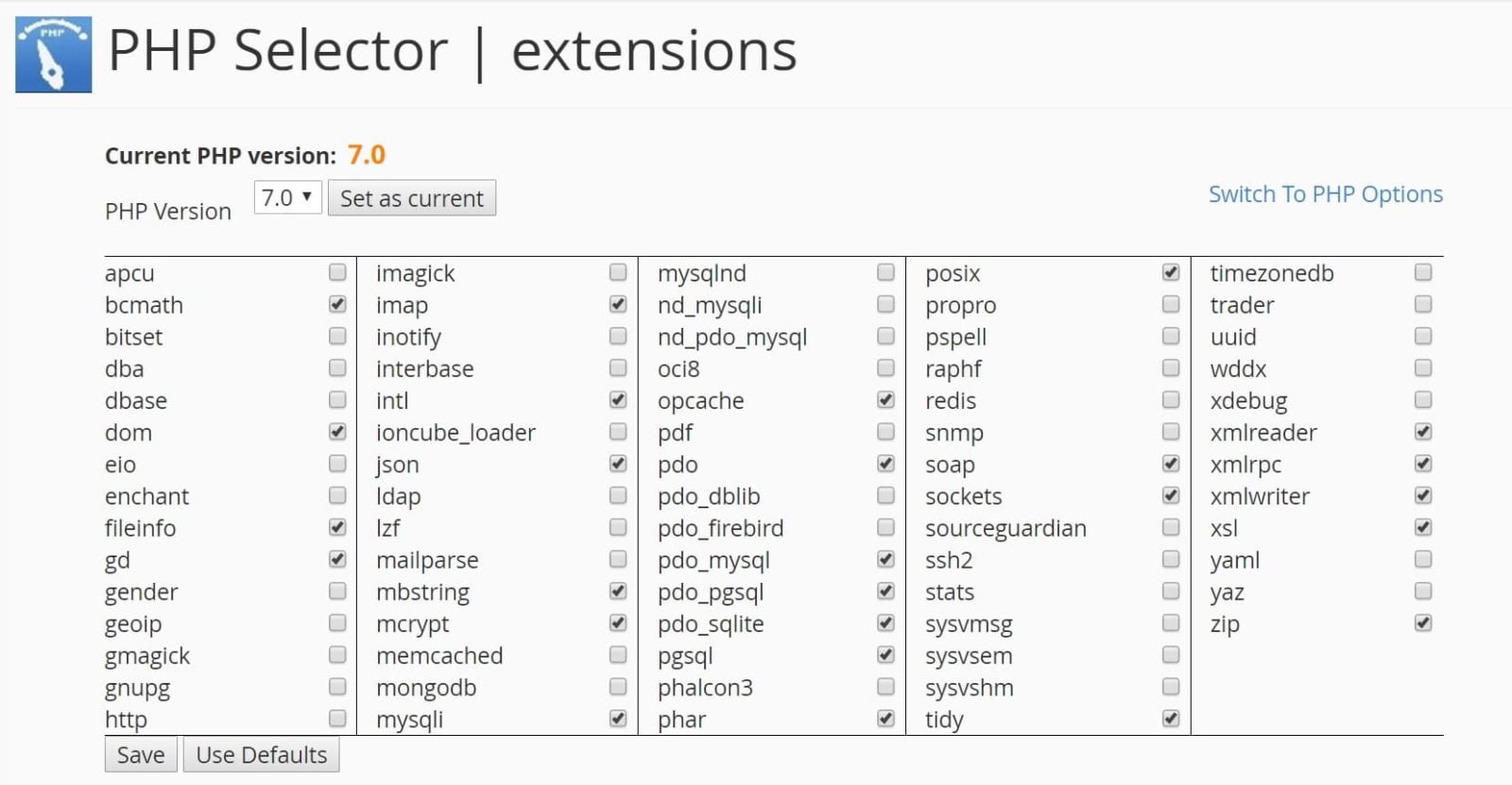
Set your version to the latest stable release supported by your plugins.
Method 7: Check Uploads Folder Permissions
If your file permissions are incorrect, WordPress will be unable to “write” the image file to the disk directory. This typically happens after a site migration.
Using an FTP client (like FileZilla), navigate to /wp-content/uploads/. Right-click the folder and select “File permissions.”
- Directories must be set to 755.
- Files must be set to 644.
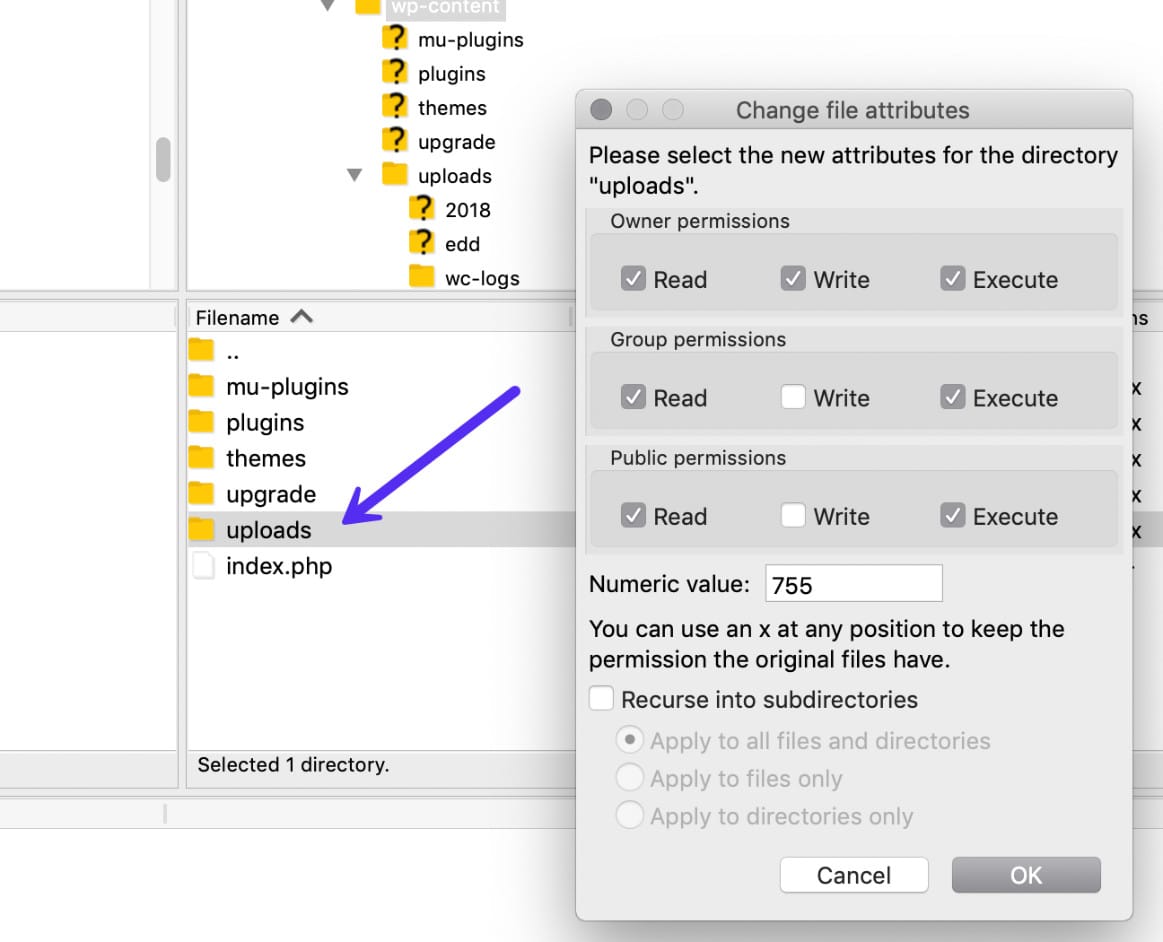
Ensure permissions are set to 755 for directories.
Method 8: Switch Image Library (Imagick vs GD)
WordPress uses two PHP modules to process images: Imagick (ImageMagick) and GD Library. Imagick is the default because it retains better image quality, but it is very resource-intensive and often causes HTTP errors on shared hosting.
You can force WordPress to use the GD Library instead by adding this code to your theme’s functions.php file:
function endurtech_image_editor_gd( $editors ) {
    $gd_editor = 'WP_Image_Editor_GD';
    $editors = array_diff( $editors, array( $gd_editor ) );
    array_unshift( $editors, $gd_editor );
    return $editors;
}
add_filter( 'wp_image_editors', 'endurtech_image_editor_gd' );
Alternatively, if you want to keep using Imagick but limit its resource usage, add this line to your .htaccess file to limit it to a single processing thread:
SetEnv MAGICK_THREAD_LIMIT 1Method 9: Remove Custom Media Library Path
If you recently migrated your site, the “Upload Path” setting in the database might still point to your old server structure. This causes the upload to fail immediately.
Go to Settings > Media. If you see a field labeled “Store uploads in this folder,” ensure it is empty (default) or correct. If the field is not visible, your settings are likely already standard.
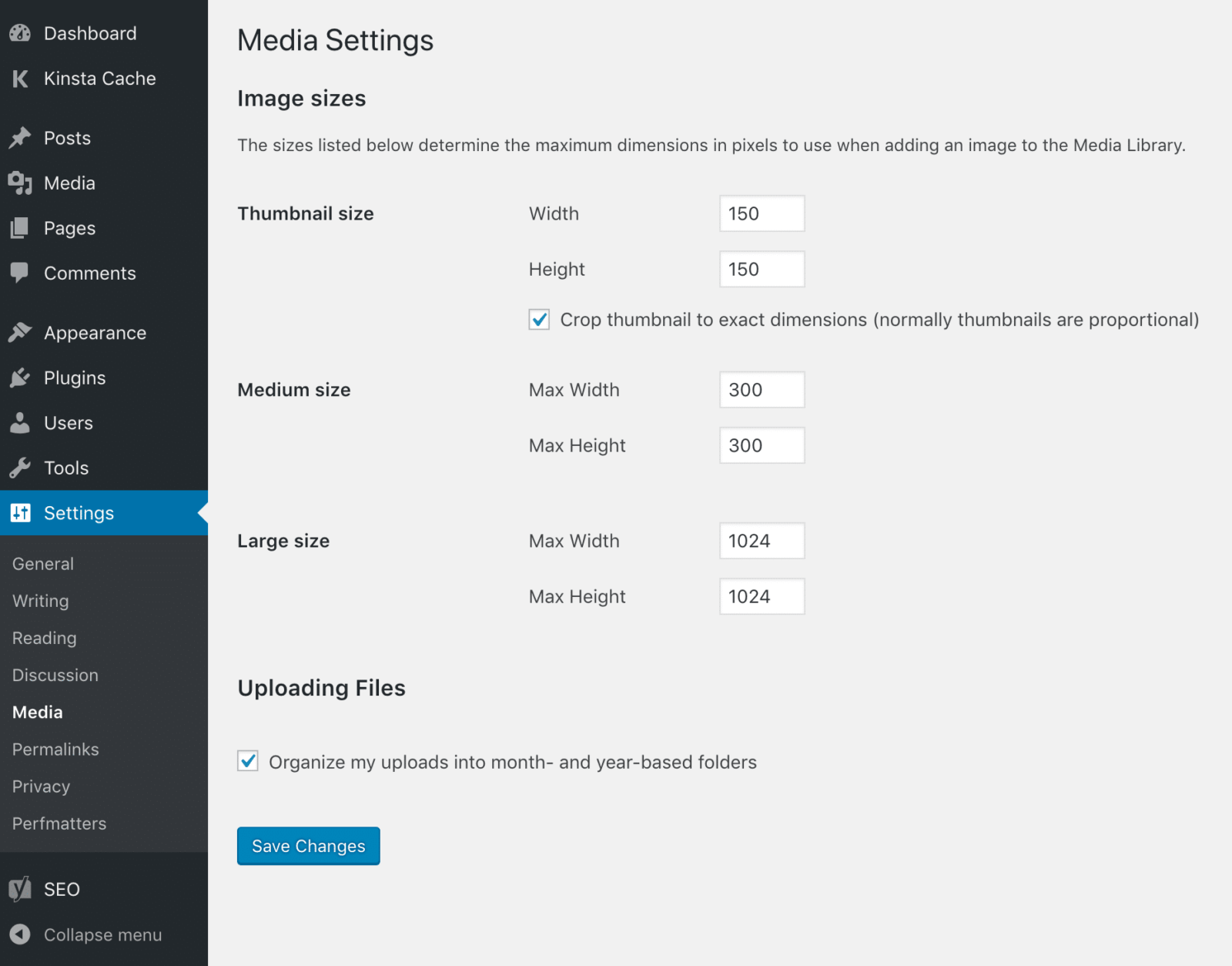
Check for incorrect file paths in Media Settings.
Method 10: Disable ModSecurity
ModSecurity is an open-source firewall installed on many servers. Occasionally, it falsely flags the image upload process as a malicious attack. You can check your cPanel “Error Logs” to see if ModSecurity is blocking the request.
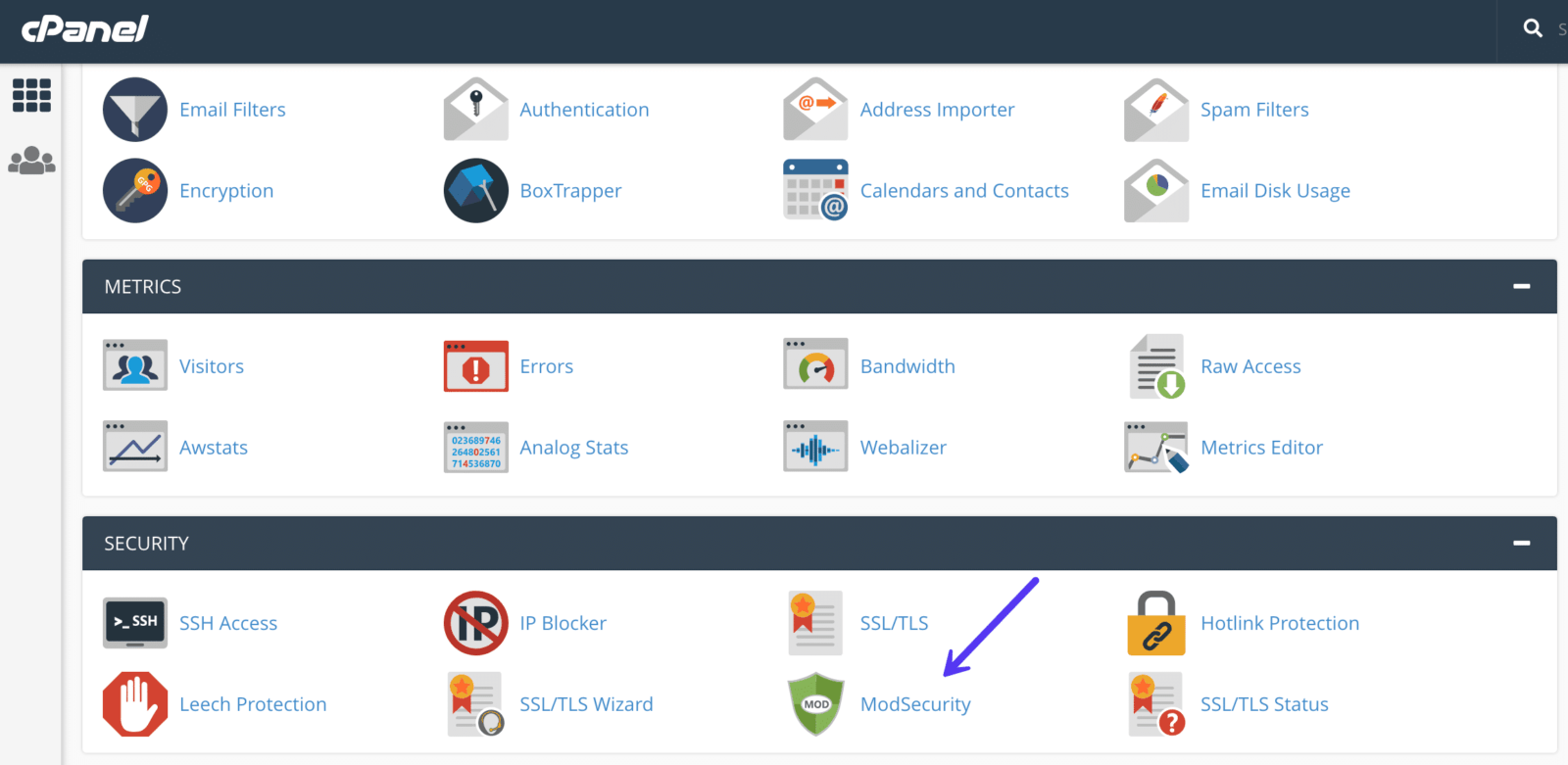
You can temporarily disable it inside cPanel to see if the upload works:
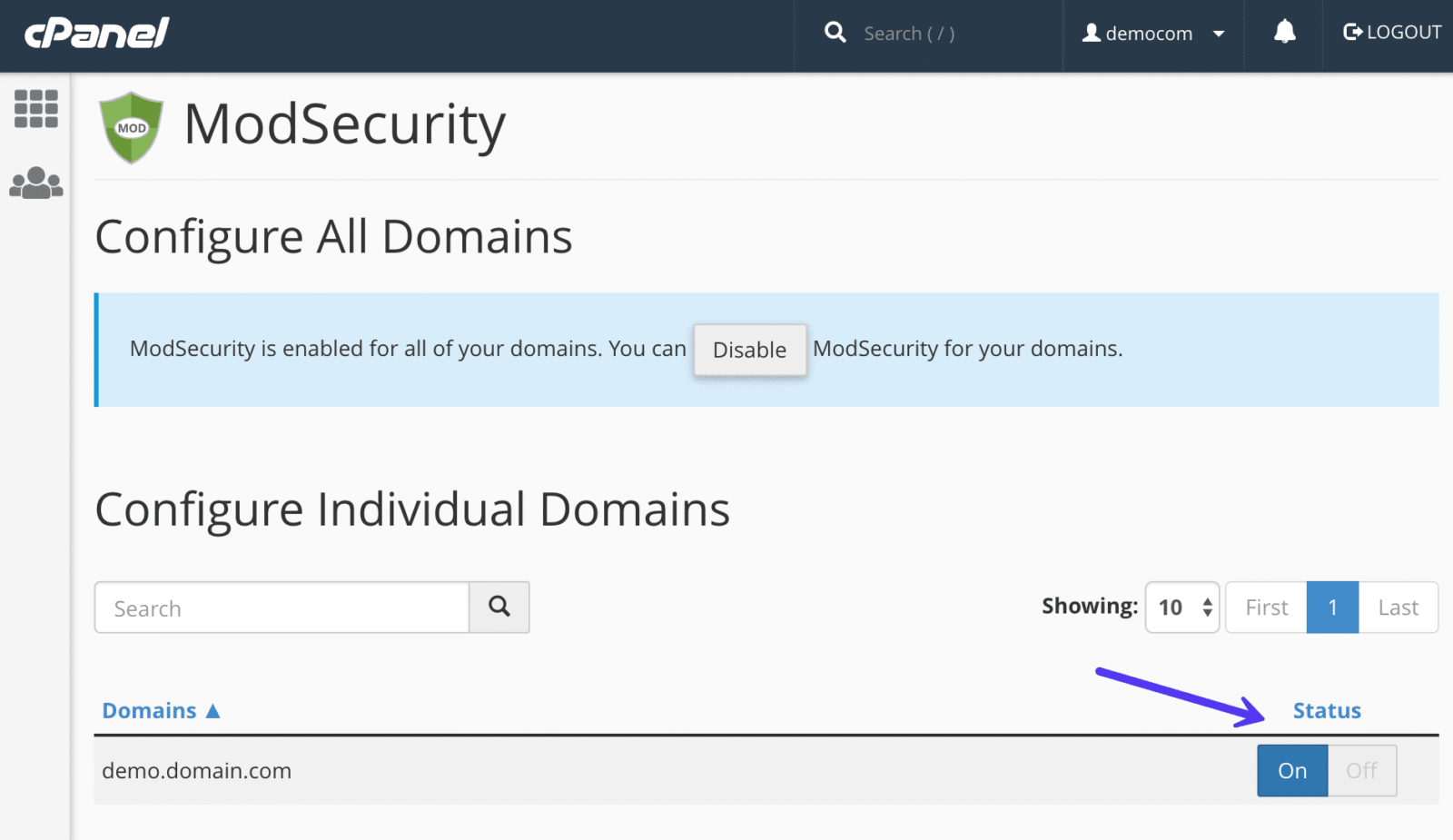
Toggle ModSecurity off temporarily for your domain.
Alternatively, add this to your .htaccess file:
<IfModule mod_security.c>
SecFilterEngine Off
SecFilterScanPOST Off
</IfModule>
Method 11: Ask Your Host
If you have tried all the steps above—resizing images, increasing memory, checking permissions, and disabling plugins—and the HTTP error persists, the issue is likely a deep server configuration or a temporary outage with your hosting provider. Contact their support team and ask them to check the server error logs for the timestamp when you attempted the upload.