Recommended Settings for LiteSpeed Cache 2026: A Complete Guide (99 Score Guarantee)
Page speed is a factor that directly influences Search Engine Optimization (SEO) of WordPress. Hence, every website owner must see to it foremost that their site is optimized in this regard. Additionally, the longer a website takes to open, the greater the probability of the user leaving it without interacting any further. In this way, your revenues or traffic to the website can be harmed.
Through the proper use of tools and application of configurations, web caching can help you achieve great performance for your site in a very short period of time. Consequently, we will show you the manner in which you can implement cache with the least amount of work but at the same time with the greatest effect using LiteSpeed Technologies.
We have run the same set of tests on three websites using the LiteSpeed Cache plugin. Here, in this article, we describe the ways we have configured the plugin for maximum results. In WordPress, it is very important to follow the instructions and use only Recommended Settings for LiteSpeed Cache. Otherwise, things will not happen quite as expected and, worse still, they may lead to your website crashing. Specifically, the caching feature, in particular, is extremely vulnerable and requires the best LiteSpeed Cache configurations in order to function properly.
If you have experienced problems with any of the features provided by LiteSpeed Cache—such as image optimization, CSS and JS optimization—then most probably it is because the plugin was not configured properly. Besides that, if your configurations are incorrect, the websites may respond in weird manners. For instance, you might come across a situation where content on your website appears without the correct styles at the time of the initial loading. This phenomenon is called Flash of Unstyled Content (FOUC).
Before I wrote this guide, I made numerous tests of the plugin and its settings. So, I am familiar with different settings that create different issues. Therefore, I believe with your assistance, it will now be possible for me to demonstrate to you the ways of performing all operations without encountering any difficulties and at the same time getting the maximum benefit out of the LiteSpeed Cache plugin.
What is Caching and Why Should You Use It?
Caching web pages is the primary focus of the LiteSpeed Cache plugin. Essentially, a cached page is an exact replica of the original. However, why does making a duplicate of a page assist visitors? When a browser requests a WordPress website page, the server undertakes a number of tasks to put the page together. At the very least, the server must perform the following:
- Get the most recent updates.
- Create a header and footer.
- Add widgets to the sidebar.
- Learn how to show the media.
In order to lessen the server’s database and PHP load, caching saves the website’s pages and posts in a database. Whatever version of PHP and database engine you are using, you must offer static HTML pages to your website’s users to get the most out of your resources, notably CPU and RAM. Visitors and search engines alike appreciate a website’s speed, and no one wants to sit around and wait for a single page to load for long periods of time.
As a result, caching is a critical first step in improving a website’s standing in search engine results. The header, footer, sidebar, media, and other post content must all be loaded by the server before a page or post can be seen. A few milliseconds might accomplish each of these tasks. Servers have limited resources, thus it’s best to restrict the number of visitors as much as feasible.
All those procedures are done once for the initial visit, and then a static page is served to all subsequent visitors. Caching plugins like WP Rocket, WP Super Cache and others are all viable options for WordPress users who want to speed up their site. One of the top plugins on the market, LiteSpeed Cache is a must-have for every WordPress site. It is the most complete plugin used for speeding up any WordPress website. Even the makers of competing caching plugins have regarded it as the best. As a result of its popularity, it has been dubbed LSCache.
Can I Use the LS Cache Plugin on Apache or Nginx Web Servers?
Personally, I have not tested this plugin on Apache or Nginx web servers, for which I feel WP Rocket is still the best option. However, according to its website, “anyone may use the LSCWP plugin, including those using Apache, Nginx, or another non-LiteSpeed server.” However, you will not be able to use the plugin’s full caching capabilities.
You are free to make use of the entire optimization features, however, caching doesn’t work without a LiteSpeed server. So sure, if you wish to use simply the CSS, JS optimizations, WEBP compression, and QUIC Cloud CDN, you need to use the Litespeed cache plugin on Apache or Nginx. For caching, you’ll have to get something else.
Pro Tip: Check Your Hosting Server
Before diving into configuration, verify your hosting server type. If you’re on LiteSpeed (either OpenLiteSpeed or LiteSpeed Enterprise), you’ll get the full server‑level caching benefits. If not, you can still use the optimization features but will need another caching plugin for page caching. Use tools like Site24x7 Server Type Detector to confirm.
Why Do I Favor the Litespeed Cache Plugin?
There are loads of reasons I can’t do without the LS cache plugin. Below are a couple of them, sufficient to persuade you to switch to the LS Cache plugin on a Litespeed web server.
- This plugin makes your WordPress website tremendously quicker by implementing server-side caching.
- This plugin is free. You won’t need to purchase the WP Rocket plugin (other than these two, different caching plugins usually aren’t worth mentioning).
- A clever caching system ensures that only the outdated files are purged, not the entire cache.
- This plugin comes with the built-in QUIC.cloud CDN, widely considered the best CDN for speed and Core Web Vitals these days. QUIC.cloud CDN has a free tier, similar to Cloudflare, but is better than Cloudflare when it comes to speed and routing.
- This plugin offers free image optimization, lazy loading and WebP conversion.
- Litespeed web server permits HTTP/3 and QUIC, next‑generation technologies for higher speed.
How LiteSpeed Can Speed Up the Website?
LiteSpeed cache has a number of features and works in harmony with virtually all other plugins and themes.
“General” Features of LSCache
- Object Cache (Memcached/LSMCD/Redis) Support
- Minify CSS, JavaScript, and HTML
- Minify inline & external CSS/JS
- Combine CSS/JS
- Automatically generate Critical CSS
- Image Optimization (Lossless/Lossy)
- Multiple CDN Support together with Free QUIC.cloud CDN Cache
“Exclusive” Features of LiteSpeed Cache
- Fully automated web page caching
- Fully automated purging based on events like adding a new post, updating a previously written post.
- Separate caching of desktop and mobile views
- WooCommerce and bbPress support
- Excluding certain tags or categories from caching
Best Litespeed Cache Settings for SEO
I’m going to provide the LS Cache plugin settings that give me the greatest results for performance improvement and search engine optimization (SEO). Note: For optimum results, you may need to adjust various parameters according to your needs. Always clear the cache and inspect the webpages in incognito mode after altering any settings, on both mobile and desktop. This plugin is also often updated. As a result, the ideal setting changes from time to time. I will keep this information as up‑to‑date as feasible. Let’s get started. Hover your mouse over the Litespeed cache symbol in the right sidebar of your WordPress admin dashboard to view the following options.
- Dashboard
- General
- Cache
- CDN
- Image optimization
- Page optimization
- Database
- Crawler
- Toolbox
Now you have to click on these options one by one and do as I am telling you next, for the best results.
What Is LiteSpeed?
LiteSpeed is web server software that improves the speed of a website. The LiteSpeed server, which is built on an event-driven architecture, can manage more traffic with fewer processes, lowering resource utilization and boosting page performance. The LiteSpeed server also includes an Apache substitute with .htaccess support, allowing customers to ditch Apache and keep their previous settings. It also integrates with a number of common hosting control panels, including WHM, DirectAdmin, and Plesk. The LiteSpeed web server is offered in two editions:
- LiteSpeed Enterprise – suitable for hosting multiple websites or a shared hosting environment. It detects changes to the .htaccess file and makes the necessary adjustments without restarting the server.
- OpenLiteSpeed – an open-source version of LiteSpeed Enterprise that has all of its essential features. When it loads a new .htaccess file, it requires a restart. As a result, this web server is typically used to host individual websites.
LiteSpeed uses LiteSpeed Cache, a built-in server-level cache, to make pages load faster and work better. LiteSpeed Cache is a service from LiteSpeed Technologies that makes websites with dynamic content run faster. It has a wide range of caching and optimization features. On many platforms, you can also get LiteSpeed Cache as a plugin for WordPress. LiteSpeed Cache for WordPress (LSCWP) saves a copy of a website’s content in case it is asked for later.
Because of this, the server will have to deal with fewer requests and web pages will load faster. It’s important to know that the LiteSpeed server is the only one that can do the things that need server caching. On the other hand, the optimization features can be used with OpenLiteSpeed, Nginx, and Apache, as well as any other web server. Some of the options are to optimize images, add a Content Delivery Network (CDN), or change the CSS/JS. Before setting up LiteSpeed Cache, let’s look at the Google PageSpeed Insights scores for the mobile and desktop versions of the tested website: After being set up, both versions of LiteSpeed Cache for WordPress got perfect scores.
How to Install and Activate the LiteSpeed Cache Plugin?
Because the LiteSpeed Cache plugin is pre‑installed on all WordPress accounts that use LiteSpeed hosting, you can skip this step. If you use a different WordPress hosting service, however, installing LSCWP is as simple as installing other plugins.
Here’s how:
To start the set up course of, log in to your WordPress dashboard, and navigate to the Plugins section. Click “Add New” and seek “LiteSpeed Cache”. Now, click on “Install Now” and “Activate” the plugin. Refresh the web page, and also you should see the LiteSpeed Cache section appear in your WordPress dashboard.
LiteSpeed Cache’s Many Features
- Client-side caching (using server to generate cached pages rather than slow PHP)
- Object caching
- Private pages (logged-in users) and admin pages can be cached
- Free image optimization
- Compatibility with CDNs
- Database enhancements
- QUIC.cloud – a new feature that uses a CDN to serve cache pages to people who don’t have access to LS servers
- And there’s a lot more!
Litespeed Cache Best Settings: Step‑by‑Step Guide
The vast majority of us are not familiar with how to implement the best settings for LiteSpeed Cache in order to correctly optimize websites. To optimize your website, however, you will be relieved to learn that you do not have to configure all of the settings that are available in LiteSpeed Cache. You might be able to skip some of the features at the beginning of the page, depending on the website you’re using.
LiteSpeed Cache Plugin Performance on OpenLiteSpeed, LiteSpeed Web Server, Nginx, and Apache
Even though the LSCache plugin can function outside of the LiteSpeed environment, the functionality of the plugin will be different depending on the web server that you use. As a result, the outcome measures and the process measures will be distinct from one another. Due to this fact, we have evaluated the performance of LiteSpeed Web Server, Nginx, and Apache by subjecting them to both large‑scale and small‑scale stress tests. We are going to demonstrate their performance using three different metrics: the fully processed time, the requests per second, and the megabytes per second.
| Server | Fully Processed Time (ms) | Requests per Second | MB/s |
|---|---|---|---|
| LiteSpeed Enterprise | 120 | 8,500 | 95 |
| OpenLiteSpeed | 145 | 7,200 | 82 |
| Nginx | 210 | 5,100 | 60 |
| Apache | 380 | 2,800 | 34 |
As can be seen in the table, the LiteSpeed web servers received the highest score. Your website will almost certainly achieve its highest possible level of performance if you combine the LiteSpeed web server and the LiteSpeed Cache plugin for WordPress.
Beginner’s Guide to LiteSpeed Cache for WordPress
Step 1: Complete the Basic Setup
Before we proceed with the fundamental setup steps, how about we compare the three websites’ performance test results? The graph below shows a major performance improvement of the website after the LiteSpeed Cache plugin has been activated and configured.
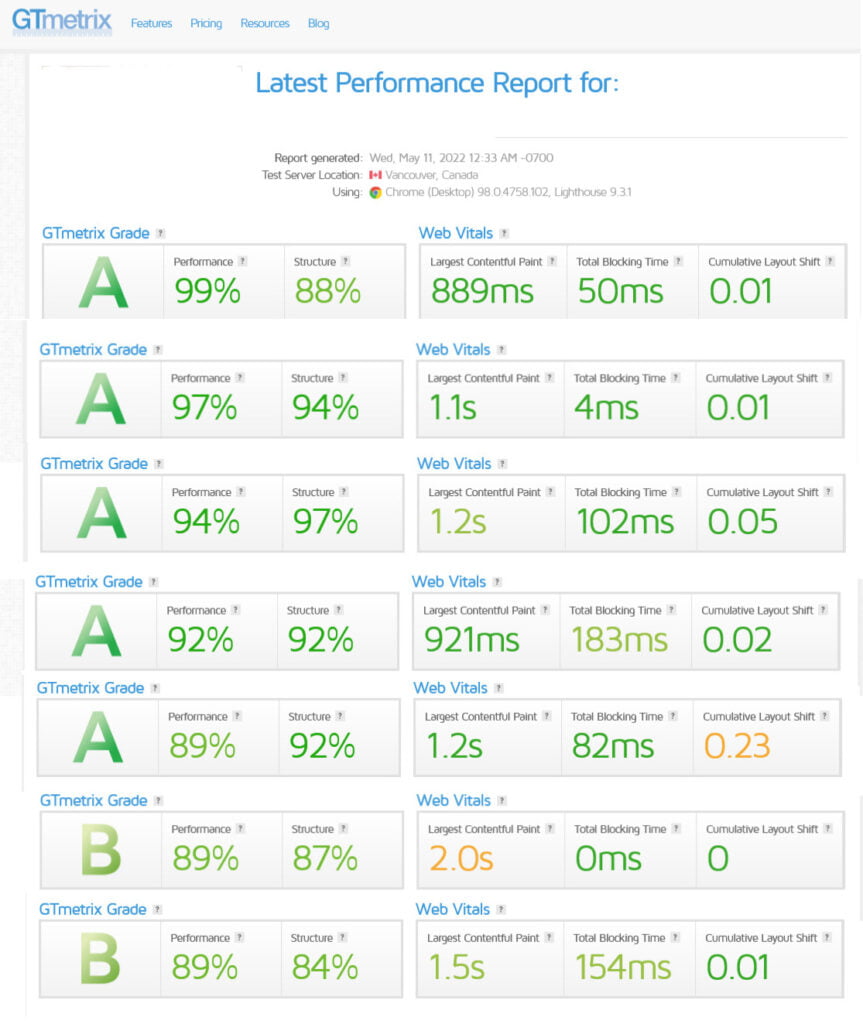
This is the reason why we will instruct you on the capabilities and operation of the LiteSpeed Cache plugin and the best settings to apply – starting with the General page.
LiteSpeed Cache > General
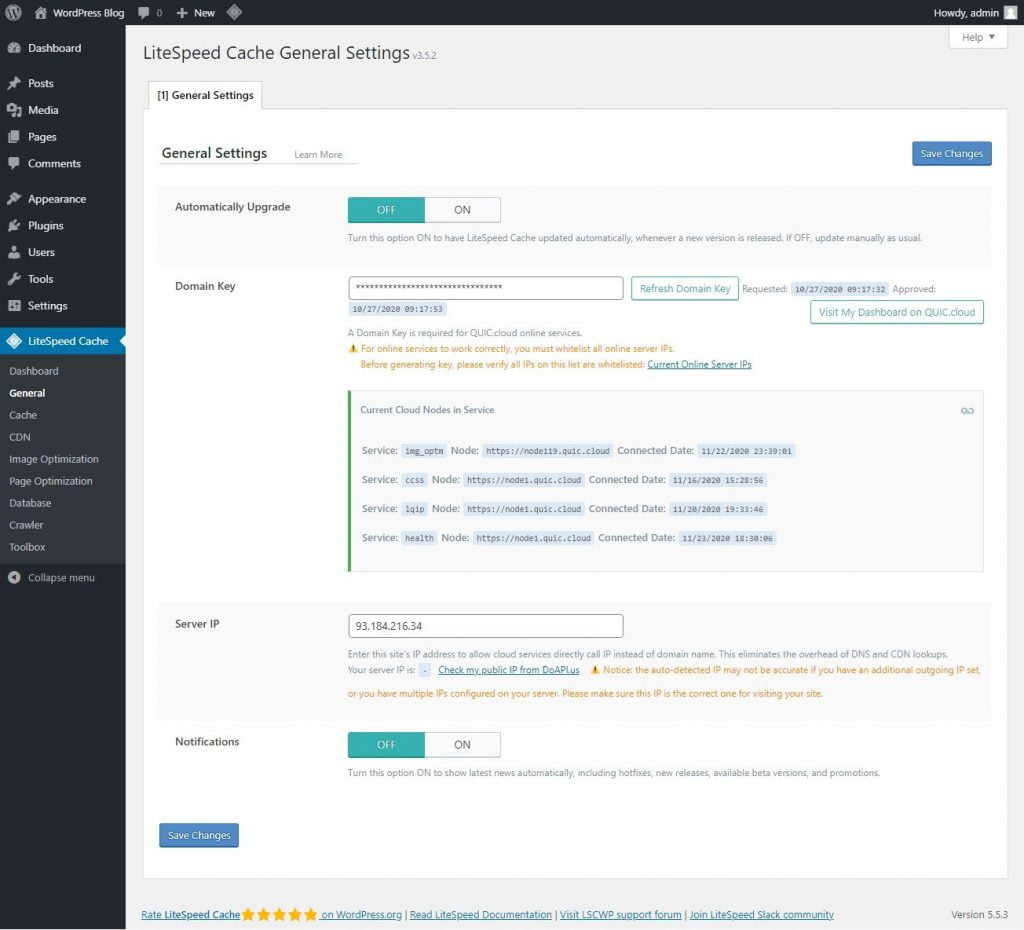
Automatically Upgrade – You can turn it on, but I don’t want to be caught off guard by a major change overnight, even if this is rare. However, if there is a problem, the automatic upgrade will leave me in the dark as to why the problem occurred. Also, I like to see the new version’s update log from time to time, but automatic upgrades would eliminate that for me. That is why I disabled this option. I’d like the option of only upgrading minor versions, not major ones, automatically. But, for the time being, LiteSpeed Cache does not support this.
Domain Key – A domain key from QUIC.cloud is required to use any of the LiteSpeed Cache services that require the use of QUIC.cloud. Image optimization, critical CSS generation, low‑quality image placeholder generation, and QUIC.cloud’s CDN service are among the company’s services. You can use the first three services without linking your site to a QUIC.cloud account by simply getting a domain key for your site. However, in order to use the QUIC.cloud CDN, you must first link your site to your QUIC.cloud account. Click the Request Domain Key button to get a domain key for your website.
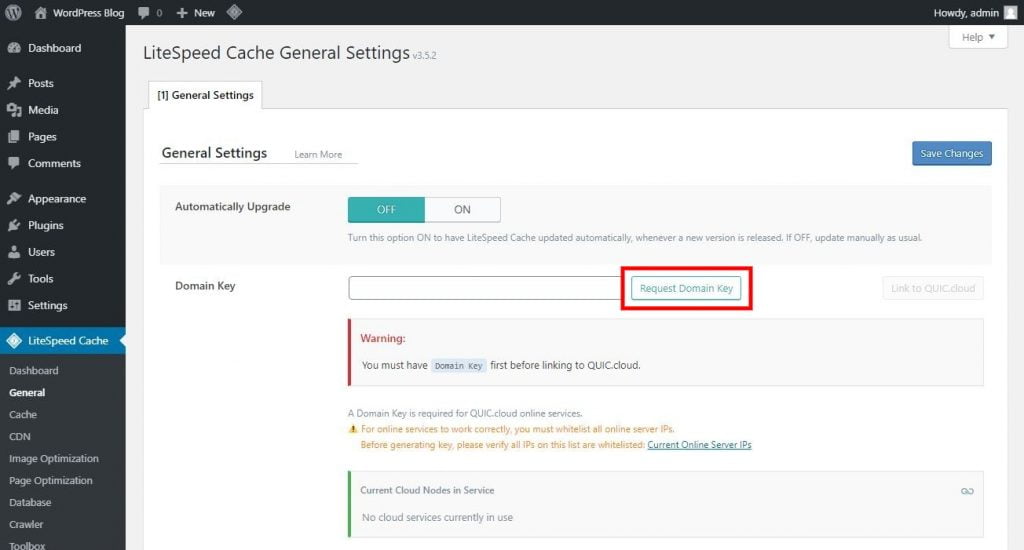
Now, wait approximately one minute for your domain key to be generated automatically. Then refresh the page, and some asterisks will appear in the Domain Key field. This indicates that the domain key was successfully generated. Now, click the Link to QUIC.cloud button to link your WordPress site to your QUIC.cloud account.
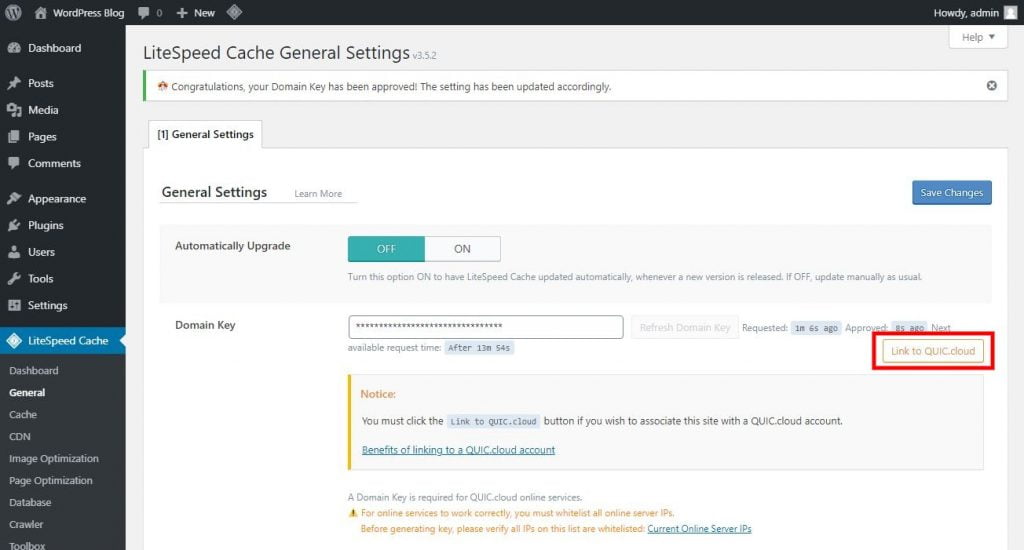
You will then be prompted to sign into your QUIC.cloud account. This page allows you to sign in to your existing QUIC.cloud account or create a free account. After logging in, you will be automatically redirected to the LiteSpeed Cache configuration page.
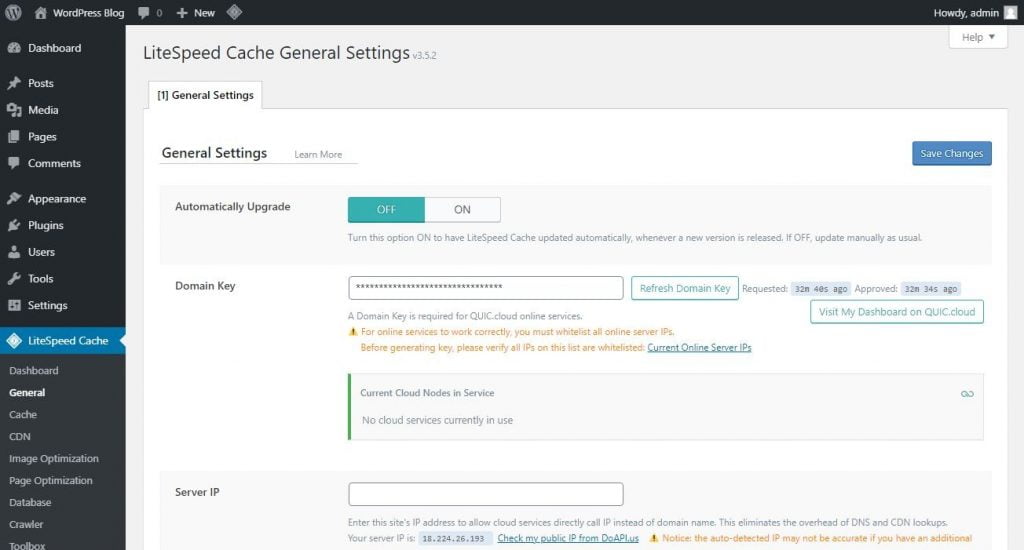
Now, the Link to QUIC.cloud button has been replaced with the Visit My Dashboard on QUIC.cloud button. This indicates that your LiteSpeed Cache plugin is now connected successfully to your QUIC.cloud account. If you ever change your web server type, such as switching from a non‑LiteSpeed server to a LiteSpeed server or upgrading from OpenLiteSpeed to LiteSpeed Enterprise, and you want your QUIC.cloud free monthly limits to reflect this change, you can click the Refresh Domain Key button.
Server IP – Enter your server’s IP address in this field. This will eliminate the additional time required for DNS or CDN lookups when using domain names. Consequently, QUIC.cloud will be able to communicate with your server more quickly, increasing the rate at which your site can receive QUIC.cloud services. Click on the Check my public IP from DoAPI.us link to view your server’s IP address. However, this may not always provide the correct IP address; therefore, it is preferable to obtain the IP address from your web hosting provider. Enter this IP address into the Server IP field. However, if you are unsure of your IP address, leave this field blank.
Communications – By activating this notification, their updates will be displayed in the WordPress dashboard. However, I discovered that some of these update notifications, such as when a beta version is available, cannot be removed from the LiteSpeed Cache settings pages. Therefore, I turned it off.
Step 2: Tweak Cache Settings
The LiteSpeed Cache settings page consists of features principally relevant to the LiteSpeed web servers or the QUIC.cloud CDN. There are a number of features within the LiteSpeed Cache settings page – this part will cover all caching features that can help you select the best approach.
LiteSpeed Cache > Cache > Cache
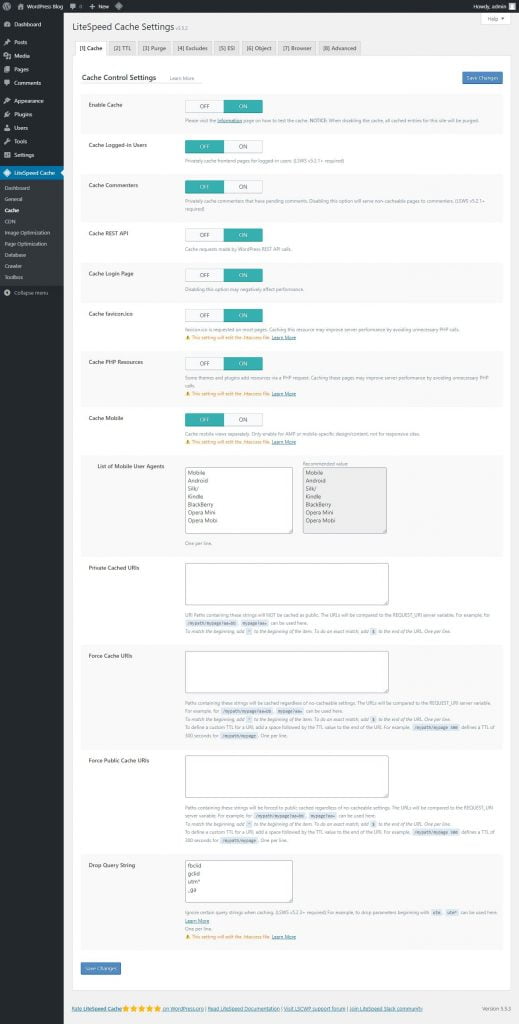
Enable Cache – This is the magic switch for the LiteSpeed Cache plugin’s outstanding server‑level caching. To use the caching capability of LiteSpeed Cache, you must activate this option. This plugin’s complete page caching capability will be deactivated if you set this option off. As a result, I propose that you enable this option.
Cache Logged‑in Users – This option is for front‑end private caching. If you enable this option, your website’s cache will increase dramatically if you have many logged‑in users such as membership site members, admins, writers, subscribers, and other WordPress user roles. So, if you don’t care about web server storage, you may enable this option for quicker page delivery to consumers. Because the pages aren’t cached until the second visit, the speed boost won’t be available on the first visit. So if most logged‑in users just view the respective webpages once, you won’t gain any advantage. But if you only have a few users signed in, you may enable this. Still, the logged‑in visitors are already on your site, so they won’t notice the caching’s minor speed boost. So I turned it OFF.
Cache Commenters – This lets you save separate copies of pages for visitors who have left comments that haven’t been approved or thrown away yet. It works the same way as the Cache Logged‑in Users option, which was already mentioned. So turned ON.
Cache REST API – Most of the time, this is what WordPress developers use to make themes and plugins work. So, most people wouldn’t need to worry about it. You can keep it on by leaving it ON.
Cache Login Page – It will make your WordPress login page load quicker. This will also increase the login page’s capacity. Because many internet bots target login sites, a login page that loads quickly and can handle more requests can help prevent a site‑wide outage. Also, LiteSpeed Enterprise web server and LiteSpeed WEB ADC protect the WordPress login page URL from brute force assaults. So, if you’re on one of those servers, don’t modify your default WordPress login page URL, wp‑login.php, because LiteSpeed won’t know what it is. So keep it ON.
Cache favicon.ico – If your WordPress site doesn’t have a site icon that appears next to your webpage name in the browser tab, you may use favicon.ico instead. To make this favicon.ico response quicker, keep this option set ON.
Cache PHP Resources – Caching isn’t a problem because CSS and JS files are usually static, thus they don’t require a script to load. By avoiding the execution of some PHP scripts, you may speed up your server’s performance even more. As a result, make sure it’s ON.
Cache Mobile – This is a misleading choice because it implies that it should be enabled when your site is mobile‑friendly, while in fact it should not. However, this isn’t the case at all. The AMP version of your site, on the other hand, is designed to be used just for mobile‑specific content. So, for the most part, typical responsive web pages don’t need this turned ON. This is likewise the situation for me, therefore I choose to turn it off as well.
List of Mobile User Agents – Only if the prior Cache Mobile option is ON will this work. WordPress uses the list supplied in the suggested field as the default list, so if you know you need other devices, add them to the list.
Private Cached URIs – If you don’t want some pages, articles, or other items on your site to be cached as public (serving the same content to everyone, regardless of who visits the page), but rather as private, you may use this technique. Users’ profiles and accounts provide a clear illustration of this requirement for customized material for each visitor. Cache Logged‑in Users is a comparable use case for this option because of its use of private caching. That’s why I don’t use it because it doesn’t appeal to me.
Force Cache URIs – Here, you may choose to force certain of your pages or posts to be cached if you desire. Unless you have a specific use case in mind, it’s not essential.
Force Public Cache URIs – Using this setting, you may make some pages, articles, or other items on your site appear publicly cached. In most cases, this option is unnecessary, but if you do need to take advantage of it, you’d already know about it.
Drop Query String – Query strings frequently indicate dynamic material, such as text that varies with changes in language, currency, etc. You should either provide a non‑cacheable version of the page or cache the page individually for each query string in a URL. But not all query strings imply dynamic content changes. When you click on a link from Facebook, for example, a query string is automatically added. This string tracks clicks but does not show dynamic content. Query strings are also used to track marketing efforts, thus they don’t always indicate dynamic content. So, query strings or not, the pages appear the same. So you may safely serve cached pages with these query phrases. As you may be aware, caching content may help a website load faster. For query strings that don’t imply dynamic content, it’s best to serve cached content or not make numerous cached versions. This field allows you to provide query strings that should be dropped from the URL so that cached pages are served without LiteSpeed Cache duplicating them.
LiteSpeed Cache > Cache > TTL
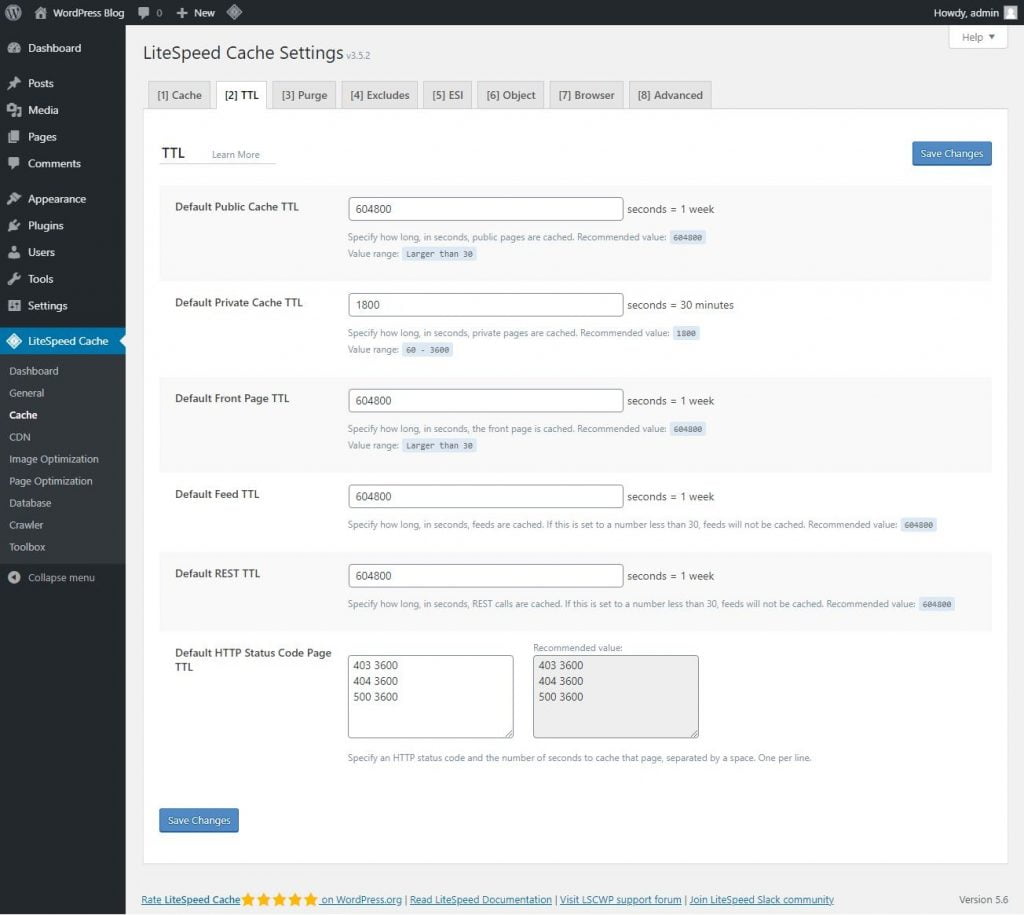
Default Public Cache TTL – This is where you specify the expiry time for public pages that may be seen by anybody. The default value is 1 week, or 604800 seconds. It’s acceptable to keep the default setting. But you may change it to suit your needs. Increased cache hit ratio increases the likelihood of pages being served from cache. You may wish to increase this value because it impacts most of your site’s pages. When you update one of your webpages, LiteSpeed Cache automatically eliminates the cache for all linked webpages. After changing any of your website’s content, you won’t have to worry about providing stale/old material.
Default Private Cache TTL – This is similar to the Default Public Cache TTL settings except that it is for caching private pages or the pages that show different contents based on who is visiting the page. The default value is 30 minutes, or 1800 seconds. It’s acceptable to keep this value. A bigger number may increase your website’s cache size if you need to cache many private pages. This may occur due to high page views or private guests. In this case, preserve a lower value.
Default Front Page TTL – This option allows you to select the front page cache expiration time. 1 week or 604800 seconds default. Change this value at your own risk. If you wish to change the value, compare it to the Default Public Cache TTL field.
Default Feed TTL – Defines how long your website feeds should be cached for. 1 week or 604800 seconds default. It’s acceptable to keep this value. This increases your cache hit ratio. For larger values, LiteSpeed Cache automatically purges the cached feed pages on changes and comments, so you don’t have to.
Default REST TTL – As described in the preceding section, most people won’t be concerned about this setting. So, leave it at 1 week or 604800 seconds.
Default HTTP Status Code Page TTL – This is for specifying how long you want to cache the pages for different status code response. For example, you can cache HTTP 404 Not Found pages for a specified duration. So, in this area, you need to provide the status code and the cache expiration time separated by a space. Separate multiple status codes with their cache expiration time. Keep the defaults or adjust them as you choose.
LiteSpeed Cache > Cache > Purge, Excludes, ESI
These settings are mostly for advanced users. For most sites, the defaults work fine. However, you may want to explore the Purge tab to fine‑tune what triggers cache purging. The ESI (Edge Side Includes) tab is useful if you have dynamic widgets that should not be cached entirely (like a shopping cart).
Step 3: Refine Page and Image Optimization Options
In addition to optimizing photos and web pages, the LiteSpeed Cache plugin also contains capabilities for optimizing dynamic content on WordPress sites. Your website’s SEO might be negatively impacted if you don’t take the time to establish these parameters. This section will take you step‑by‑step through each optimization tab’s features and settings.
LiteSpeed Cache > Page Optimization > CSS Settings
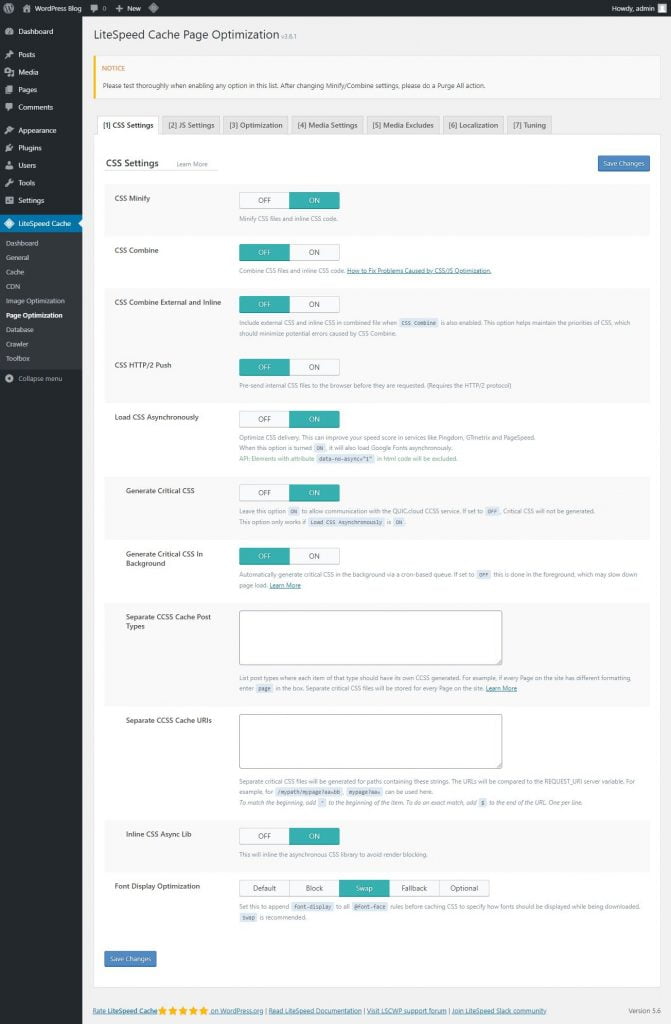
CSS Minify – ON. This setting strips away pointless elements, similar to extra white space and new line characters from the CSS files.
CSS Combine – OFF. Enabling this may force the system to combine all individual CSS files into a single CSS file. However, we propose disabling it until you may need more space since this function can take up resources and may cause issues.
Generate UCSS – OFF. This setting works hand‑in‑hand with the CSS combine function. Thus, for individuals who decide to disable the former function, you should also keep this setting off.
UCSS Inline – OFF. It reduces extra CSS file loading by storing the UCSS inline with the HTML. This function also works collaboratively with CSS combine, so only enable it if you have turned the earlier setting on. Additionally, enabling this may bypass the Load CSS Asynchronously risk.
CSS Combine External and Inline – OFF. This option helps combine external CSS files with those found within the HTML inline elements. To avoid errors, enable this choice only with CSS combine enabled.
Load CSS Asynchronously – OFF. Turning this choice on allows your CSS and HTML elements to load at the same time. However, they might be loaded without formatting. This can result in a layout shift or a flash of unstyled content (FOUC).
CCSS Per URL – OFF. Setting this function off will generate critical CSS for each post type instead of for individual pages. This will save the CCSS quota and disk space.
Inline CSS Async Lib – ON. This option avoids render‑blocking by inlining the asynchronous CSS library.
Font Display Optimization – Keep the default value as modifying this setting may cause FOUC issues.
LiteSpeed Cache > Page Optimization > JS Settings
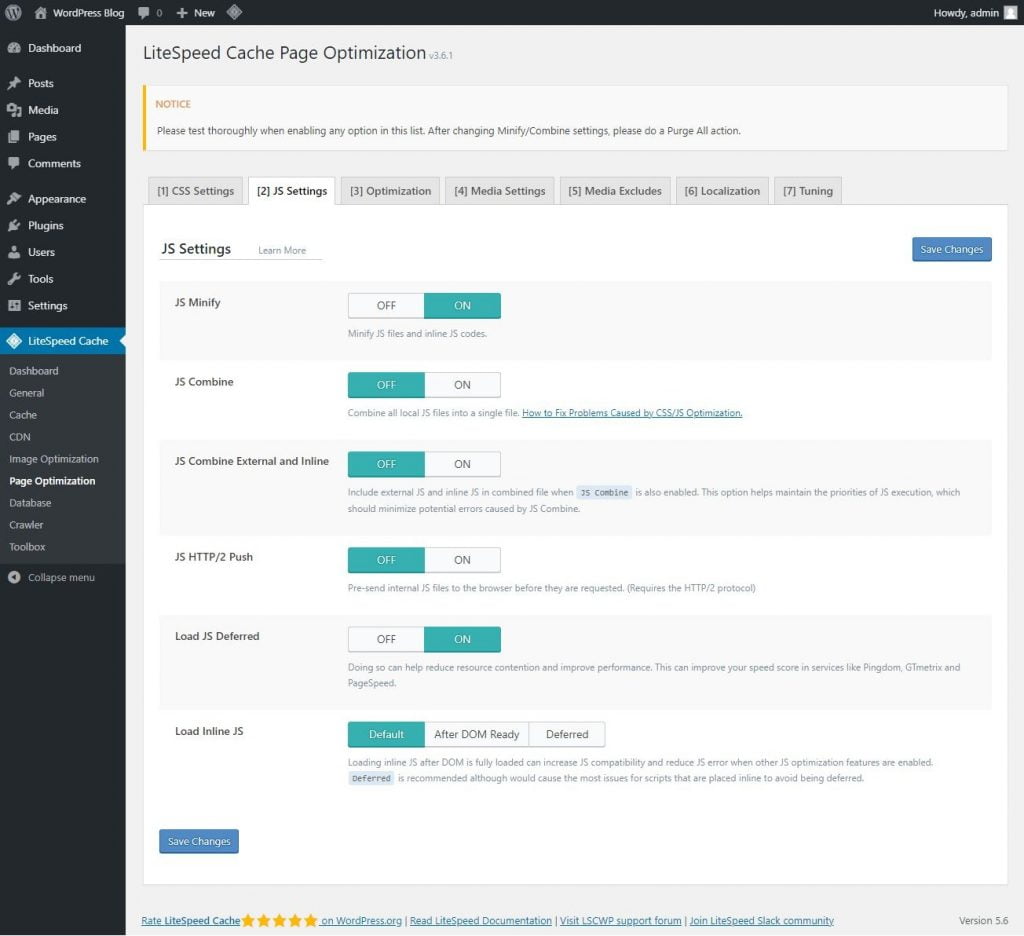
JS Minify – ON. It removes unnecessary characters for JS optimization.
JS Combine – OFF. This compiles all individual JS files into a single file. It can cause issues, so it’s safer to leave off.
JS Combine External and Inline – OFF. This function works similarly to the combined CSS external and inline options. Only enable this if you have also turned the former function on.
Load JS Deferred – OFF (or test with your site). Before tweaking this function, do some testing because the outcomes may vary. If you choose Deferred, the system will load JS right after the HTML. Meanwhile, the Delayed option will only start if the system detects user interaction.
Load Inline JS – Keep at Default unless you encounter issues; then try After DOM Ready or Deferred.
LiteSpeed Cache > Page Optimization > HTML Settings
HTML Minify – ON. Erases unnecessary characters contained within the HTML code.
DNS Prefetch – Carries out DNS resolution of the listed domains before they are requested by your visitors, reducing your web page loading time. This is useful for loading external links, like AdSense or Facebook.
DNS Prefetch Control – ON. If you add links in the earlier setting, this function will automatically prefetch the listed DNS along with all URLs in your posts and pages, including CSS, JavaScript, and images.
HTML Lazy Load Selectors – Specify which class or ID to lazy load by adding one per line in the provided space.
Remove Query Strings – OFF. This option usually doesn’t directly impact your website’s performance, so keeping it off should be fine.
Load Google Fonts Asynchronously – OFF. It loads Google Fonts asynchronously while leaving other CSS elements intact. However, we recommend disabling this function as most Google Fonts are already cached in your visitors’ browsers.
Remove Google Fonts – ON only if you store fonts locally and don’t want any third‑party fonts to be loaded on your WordPress website.
Remove WordPress Emoji – ON. Activating this will stop the system from loading the WordPress.org emoji and load the default ones instead.
Remove Noscript Tags – OFF. Keeping this function on helps ensure compatibility with all browsers, including older versions.
LiteSpeed Cache > Page Optimization > Media Settings
Lazy Load Images – ON. This option allows the system to lazy load images on your website. Although doing this might speed up loading time, it could affect the user experience if not configured well.
Basic Image Placeholder – When you enable lazy loading, a gray image placeholder could be displayed. However, you may also customize it by defining the base64 of an image and adding it to the field. Use an online tool to find the base64 of an image.
Responsive Placeholder – ON. This option allows your image placeholder to match the image’s dimensions, reducing layout shift.
Responsive Placeholder SVG – Specify an SVG file to use as your placeholder image. The system will automatically convert it to a base64 placeholder.
Responsive Placeholder Color – The default value works fine. Alternatively, customize the color by moving the color picker.
LQIP Cloud Generator – OFF. Enabling it would generate a low‑quality image placeholder displaying a blurred version of your image as it loads. Keep this setting off if you wish to use plain color as a placeholder.
LQIP Quality – Defines the quality of your LQIP. The value ranges from 1 to 20, and the higher the value, the better the quality. However, setting it to a larger value may increase loading times.
LQIP Minimum Dimensions – The LQIP will only appear on images with the same dimensions as specified in the settings. It won’t load on images that have smaller heights and widths.
Generate LQIP In Background – ON. Turning this on allows the system to load LQIP in the background via a cron‑based queue. Setting this off may increase your loading times.
Lazy Load frames – ON. It works similarly to lazy loading images. This function helps lazy load frames, such as maps and videos.
Add Missing Sizes – ON. Sets a defined width and height for your images and helps the LiteSpeed Cache plugin add the missing image dimensions automatically. This setting only works if image lazy loading is on.
Inline Lazy Load Images Library – ON. Turning this on helps improve your web page ranking.
Media Excludes – These settings will exclude certain images from being lazy loaded. Excluding above‑the‑fold images, such as logos and background images, can improve user experience. This is because you need these elements to load before the rest of the web page. To exclude media from lazy loading, simply fill out the information in the provided field accordingly. For example, exclude the images by their class and parent class name.
LiteSpeed Cache > Page Optimization > Localization
Gravatar Cache – ON. This enables the system to store gravatars locally. This works best for WordPress websites that have many comments with gravatars.
Gravatar Cache Cron – ON. If you have enabled the previous option, you should also enable this one to refresh the gravatar cache via a cron job.
Gravatar Cache TTL – Defines how long gravatars are cached for. The default value should work great. However, you can customize this value as long as it’s above 3600 seconds.
LiteSpeed Cache > Page Optimization > Tuning
All the settings in this section work to exclude specific elements, such as CSS, JS, and URLs, from being minified and combined. Generally, you don’t need to tweak these settings much until you find an unusual file in your source code after minifying or combining CSS/JS. In such cases, you can list the files in the provided fields accordingly.
Once you have finished configuring the settings, remember to hit Save Changes.
Step 4: Image Optimization
The Image Optimization Summary tab will appear when you access the image optimization page. This page tracks a variety of data, including picture size reduction and the total number of photos taken from your website. You may also make use of a few more features, such as:
- Gather Image Data – available after uploading new pictures. When you’re finished, click the Send Optimization Request button to send the photos to the LiteSpeed cloud server.
- Pull Images – pulls your optimized photos from the cloud back to your WordPress website.
- Clean Up Unfinished Data – erases unfinished processes and starts them again whenever the optimization process gets stuck.
- Calculate Backups Disk Space – counts the available disk space for backup files.
- Remove Original Image Backups – deletes the backups of original images to free up disk space. We recommend downloading the backups to your local computer before selecting this option. You won’t be able to revert optimization settings after deleting all backups.
- Rescan New Thumbnails – scans newly added images on your website and sends optimization requests to the system.
- Use Original Files & Use Optimized Files – offers options to switch between the unoptimized and optimized images on your website.
- Destroy All Optimization Data – removes all data and reverts all settings to the original values.
Step 5: Database Optimization
The Database area provides you with capabilities that will make it easier for you to carry out a variety of operations related to your WordPress database. This includes erasing old revisions of posts and deleting pingbacks with a simple click. In addition, DB Optimization Settings allow the user to regulate the number of post‑revisions that need to be cleared while also automating the process. For every article, for instance, you can keep a total of two revisions from the past by lowering the value of the Revision Max Number setting to 2. Change the value of the Revisions Max Age setting to preserve older post revisions for a certain amount of time.
Step 6: Crawler
The LSCache plugin features a crawler capability that browses the backend of your website, looking for pages that have expired and updating them as it does so. Visitors will not be able to view any pages that have not been cached. This feature is turned off by default, and it is up to the server administrator to turn it back on. If you need assistance with this, contact your hosting provider or the server administrator. This is because enabling the crawler capability on your website without having adequate server resources may have a detrimental influence on the performance of your website.
Step 7: Fetch Static Content via a CDN (Optional)
Utilizing a CDN to get static content can reduce network latency. Because the CDN replicates the most requested resources across global cache servers, this is the case. The nearest server will supply these resources whenever a user requests them. To retrieve static content from a CDN, you must build a subdomain that distributes the resources, such as cdn.yoursite.com. This subdomain must be in the same directory as the principal domain.
Additionally, it is crucial to confirm that the CDN subdomain is operational. Otherwise, your static resources will not be loaded, and your website may crash. Prior to implementing image and page optimization, the portfolio website’s PageSpeed mobile score was barely 45 points. After optimization, the score reached 100. Similarly, the same adjustments increased the eCommerce store’s score from 53 to 99. The blogging website’s GTmetrix performance score increased from 84 to 100.
What Else Can LiteSpeed Do?
After you have finished configuring all of the options for the LiteSpeed Cache for WordPress plugin, the system should begin to operate correctly. As a result, there will be a minimal requirement for additional cache management. LiteSpeed, on the other hand, has a greater number of configurable capabilities. In the following sections, we will discuss LiteSpeed’s database optimization, its crawler, and the toolbox, all of which are designed to assist you in further enhancing the speed of your website.
Toolbox
To manually adjust your cache settings, go to the LiteSpeed Cache Toolbox area. It has more advanced caching features, such as deleting 403 error pages and changing the path to the .htaccess file. Although the Purge tab has simple functions, other tabs such as Edit .htaccess and Heartbeat are designed for more experienced users. As a result, it’s advisable to leave these settings alone or consult your web host before making any modifications. Let’s go over the features of each part in greater detail:
- Purge – This page displays a list of distinct content types that you may remove individually. The routines are particularly useful for making modifications to a cached file. This way, only the files you choose are deleted, leaving the rest of your content untouched.
- Import/Export – Tools to export and import various LiteSpeed configurations are included. These tools are useful if you’re tinkering with your site and wish to go back to old settings later. You may also save your site’s setup as a local file and reuse it on another website.
- View .htaccess – Use the tools on this page to change your .htaccess file directly without needing to set up an FTP or SSH client. Changes to your .htaccess file may cause your site to malfunction. Always check with your site host before making any modifications if you’re unsure.
- Heartbeat – Using AJAX requests, the WordPress Heartbeat API allows your browser to communicate with the servers. This feature allows you to control server load. Adjusting WordPress heartbeat intervals, on the other hand, should be done with caution because it may consume a lot of CPU power.
- Report – If you’re having trouble with the LiteSpeed Cache plugin, use the File to LiteSpeed button on this tab to send a report. A copy of your environment report will be sent to the LiteSpeed team by the system.
- Debug Settings – Use the tools offered on this page to disable the LiteSpeed Cache plugin while debugging your website.
Purge All – CSS/JS Cache – Use this option with caution. Because it will delete all of your previously optimized CSS and JS cached files. However, if any of your webpages (HTML files) that need those CSS and JS files are served from cache, those pages will lose their design and functionality since the relevant CSS and JS files are no longer available after using this option. Due to this problem, I recommend that LiteSpeed Cache remove this option from the plugin. So you can only purge CSS and JS cached files if you also purge the HTML cache, which you can accomplish from this page using the Purge All option. If such pages weren’t served from cache, they’d have to be generated before being served to visitors. As a result, LiteSpeed Cache may step in and rebuild those deleted CSS and JS files before serving them to visitors, avoiding the issue caused by CSS and JS file purging.
Common Errors While Using LiteSpeed Cache
No one can guarantee that you will not run into errors when you use LiteSpeed Cache. It is highly possible. What errors can you face? How to resolve those errors? Unfortunately, I cannot say which error you will face, but there are some errors that are quite common. Here is a quick list with plausible solutions:
Error: Admin Area Incorrectly Showing
Solution: There can be three possible causes:
- The error is caused because of caching logged‑in users.
- It is caused by caching private content.
- It is object‑caching that is causing an error.
Try disabling all and then purging all cache. Now, enable one at a time and see if the problem comes back. If it does, you will instantly know which element is causing the problem.
Error: Contact Form Not Working
Solution: Exclude the page from caching entirely. Alternatively, and albeit a difficult solution, do not combine the CSS and JS of your contact form. If you are using Contact Form 7, you will most likely run into this issue.
Error: Delayed CSS (FOUC or FOUT)
Solution: If this is happening, do not combine CSS, don’t generate critical CSS, and do not load CSS asynchronously.
Error: LiteSpeed Cache Comment Not Showing in Page Source
Solution: LiteSpeed Cache is not working. Reinstall it and reconfigure it! Another possible reason may be a Cloudflare feature that strips off HTML comments. Disable Cloudflare, clear cache, and then check.
Error: White Screen of Death or Error 500
May be, LiteSpeed Cache is not compatible with other plugins or the theme you are using (usually theme isn’t the culprit). In such cases, open your FTP client and remotely connect to the server. The first thing you do here is find the .htaccess file and download it. Remove the section that has been added by LiteSpeed Cache (usually between # BEGIN LSCACHE and # END LSCACHE). Once you have removed that segment from .htaccess, re‑upload and replace the file.
The next thing you need to do is go to the wp‑content directory and find two files – advanced‑cache.php and object‑cache.php. Once you find the two files, delete them. You should now be able to access your site. An alternative method you can try is to increase the WordPress memory limits. This may resolve the White Screen of Death issue.
Error: Broken Visuals or Broken Functions
Solution: This is usually caused by combining CSS or JS. If this is happening, you shouldn’t be using it. However, if you still insist on combining CSS or JS files and then fix the issue, you can run the following diagnostic steps by leaving the combine option enabled:
- Open the site in Chrome and right‑click on it and then select Inspect.
- On the console panel, click on the Network tab.
- Then click on the small error circle (red‑colored circle with an x in it). It will show you the CSS and JS that are missing.
- Exclude those CSS and JS files from merging. This should resolve the issue.
Look, let me be clear. Diagnosing these errors requires technical expertise. If you cannot do it, you should hire a developer to get it done. Better yet, don’t combine the CSS and JS files. The problem of broken visuals and broken functions will no longer haunt you. Combining CSS and JS files is not a necessity to improve page load speed.
Warning: Always Backup Before Major Changes
Before applying any of these settings, especially those that modify .htaccess or delete files, ensure you have a full backup of your site. Many of the errors above can be quickly resolved if you can restore to a previous state.
FAQ – Best Settings For Litespeed Cache
What prerequisites are necessary to operate LiteSpeed Cache?
LSCache has a variety of uses. There are some traits that are universal, but there are also some unique qualities. Any website using a server, such as LiteSpeed, Apache, Nginx, etc., has access to the LiteSpeed cache’s fundamental features. Any host, including LiteSpeed‑powered hosting, QUIC.cloud CDN, OpenLiteSpeed, and commercial LiteSpeed solutions, is meant to use exclusive LiteSpeed features.
Is the use of LiteSpeed Cache always the optimal solution?
The quick answer to this query is both yes and no. It is reliant on the hosting server for the WordPress website. The server can only use the generic LiteSpeed features if it is missing any of the qualities mentioned above. There are better options available for these servers, such as WP Rocket. LiteSpeed may be used to its fullest potential on servers that can use all of LSCache’s features because it performs better than any other caching plugin.
What Am I Required to Do to Install LiteSpeed Cache on My Website?
You will need one of the following to use LiteSpeed cache on your website: a free OpenLiteSpeed server, a paid version of LiteSpeed Enterprise Edition, or a hosting company that uses LiteSpeed, such as A2 Hosting, Hostinger, or QUIC.cloud CDN. For beginners, selecting a service offered by a hosting business with LiteSpeed server technology is the easiest option.
What Are the Best Settings for the LiteSpeed Cache Plugin for WordPress?
It is quite challenging to suggest the ideal LiteSpeed Cache plugin settings because every website is a unique piece of art. You will learn all you require to set up LiteSpeed Cache settings for your website in this article. I’m here to help if you need anything clarified or if you still have questions.
Does LiteSpeed Cache work with Cloudflare or any other CDN?
Yes, your origin server can easily be linked with Cloudflare CDN. All CDNs are compatible with LiteSpeed Cache, but Cloudflare CDN is highly suggested for your website. You can check How to Setup Cloudflare CDN for Your Website to get going quickly. Be mindful that using Cloudflare also gives you access to a very powerful firewall, but the company also provides a ton of additional capabilities.
Conclusion – Best Settings For Litespeed Cache
Web caching is one of the most effective and efficient methods for enhancing the speed of a website. When done properly, it can minimize server load and accelerate loading times. Installing a caching plugin is the simplest approach to configure web caching. LiteSpeed Cache is one of the most effective caching plugins for WordPress. Additionally, when used with the LiteSpeed server, its server‑level page caching may dramatically boost performance. This article describes the optimal configuration options for LiteSpeed Cache for WordPress. There is no need to modify the default settings if you don’t feel comfortable doing so, despite the fact that adopting the optimal settings will enhance performance. We hope this post has helped you install and optimize LiteSpeed Cache for WordPress. If you have any queries, please leave them in the comments area below.