WordPress Widgets Not Showing Fix Guide
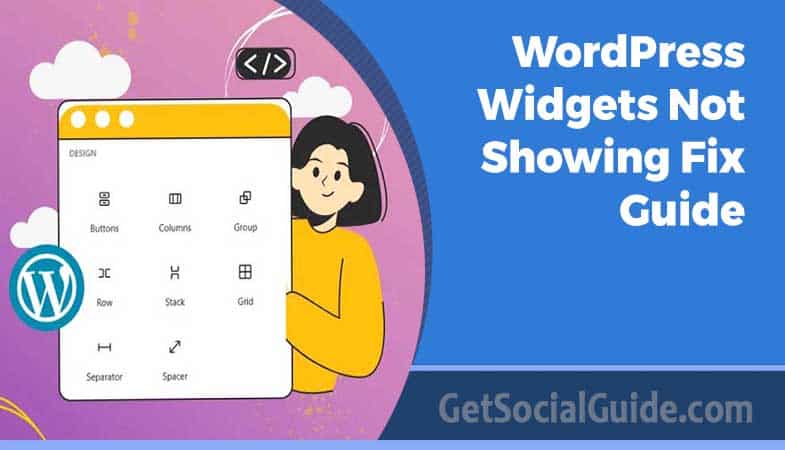
Widgets are the means of WordPress users to change the look and the functionality of their website to a great extent. These flexible, small parts, which are usually placed in the header, the footer, or the sidebar, are a very efficient way to upgrade the user experience. For instance, a search bar placed on your header, a social media feed on your sidebar, or a contact form on your footer – widgets make these integrations practically. The effect of their presence can be so big that they can completely change a simple, default WordPress theme and thus, provide you with a one-of-a-kind branded and engaging online presence.
Widgets are to a great extent the weapon that differentiates a website from others that use the same generic theme. They also allow the utilization of custom content like a friendly welcome message, featured products, or recent blog posts. In addition, widgets can be very effectively used to entice the visitors to call to actions like subscribing by hitting the “Subscribe Now” button or filling in a contact form thus, leading to an increase in conversions.
Being a primary instrument of the WordPress website builder, repairing widget issues is very important. If widgets are not visible in the Appearance menu, then a few remedies can be tried.
Firstly, it is necessary to confirm that the theme is compatible with widget areas; therefore, updating or changing the theme may solve the problem. Secondly, check the user permissions by setting your user role as ‘Administrator’. Thirdly, perform a plugin conflict test by deactivating the plugins one by one to pinpoint the conflicting plugin. Lastly, if nothing works, you can always use the “Classic Widgets” plugin to bring back the usual widget panel.
When the widgets are not updating on the live site, the first thing to do is to check the theme's layout settings for any caching or layout configurations. Besides, a complete clearing of your site cache is the best remedy for those times where what has been done recently on the site is not showing to the visitors.
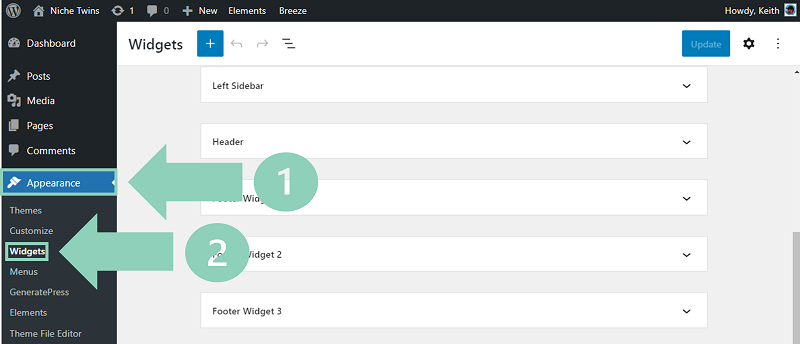
In general, getting to the Widgets area in WordPress is quite simple. After logging into your WordPress admin panel, you just need to find “Appearance” in the menu on the left side and then click on “Widgets.” This leads you to the Widgets customizer panel where you can make changes to the sidebars, footers, or any other widget areas of your website.
But, if the Widgets customizer fails to open or if “Widgets” is not listed in the Appearance submenu, then there is an issue. To clear this up, you can troubleshoot your theme, plugins, WordPress version, and server configuration in that order. Usually, these measures have the effect of locating and resolving the problem.
Update Or Change Your Theme
Though you’ve barely heard of it, a light-weight WordPress theme without support for widgets might be something that you come across once in a while. Such a case can show in various ways. To begin with, the “Widgets” feature may be completely missing from your WordPress dashboard, thereby making it impossible for you to insert or manage widgets. Besides that, the “Widgets” menu could be there, but when you click it an error message comes up. In this instance, a lack of theme codes for recognizing and displaying widgets is the most probable reason that is being pointed out.
The Customizer window will most probably show only “Inactive Widgets” when this is the case, which means that none of the widgets you have previously added will be accessible from your site. If you are using widgets for vital functions like that of showing recent posts, social media feeds, or custom text blocks in your sidebars or footers, this can get in your way.
In case a change of themes does not appeal to you, you can try to fix it by “widgetizing” your current theme. The resource linked to this statement has detailed guidelines on how to perform this action. What this means is that you will be adding some code snippets to the `functions.php` file inside the theme folder that you are using. The added code is what communicates to WordPress the place where it is to put the widgets that you have added.
On the other hand, if modifying source code is something that you don’t feel comfortable with, then it may be more reasonable to change themes. An error can result from wrongly editing code, especially in `functions.php`, and therefore, your site may not function properly. Luckily, almost all of the popular WordPress themes currently have strong widget support. For instance, Astra, OceanWP, and Kadence are popular and offer great customization features. Mike and I are on the same page when it comes to GeneratePress Premium. We have recognized that it opens up numerous widget customization possibilities for you, hence you can not only control the look but the working of your widgets together with your site.
Confirm Your User Role Designation
It is worth mentioning that determining your WordPress user role is one of the things that should be done swiftly. To allow site owners more control over who is allowed to access which areas and features, the WordPress development team have created six different roles.
It is worth mentioning that only the ‘Administrator’ roles are allowed Widgets access. So, if your role is ‘Editor‘, ‘Author‘, or ‘Subscriber‘, you will not have access to this area.
In the case of single-owner-and-operator sites, this is usually not the case. However, for websites where several people have access to WordPress, it is very important to check this step.
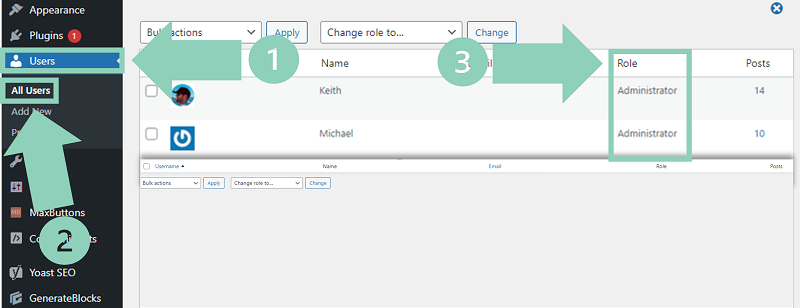
You can determine your current role by going to the WordPress dashboard and choosing Users > All Users. Afterward, find your username and check the ‘Role‘ column for what is written.
Conduct Plugin Conflict Test
Plugin conflicts are a major pain with WordPress troubleshooting, and the disappearance of the Widgets submenu is definitely one of the most common symptoms. The root of this issue is the fact that plugins, which are used to extend the functionality of WordPress, may sometimes send code that conflicts with the theme code thus resulting in unpredictable behavior. To better understand it, think of a recipe: when you add an ingredient that doesn’t go well with the rest, the whole meal doesn’t turn out right. In the same way, a bad plugin may interfere with your theme and cause it to work inefficiently.
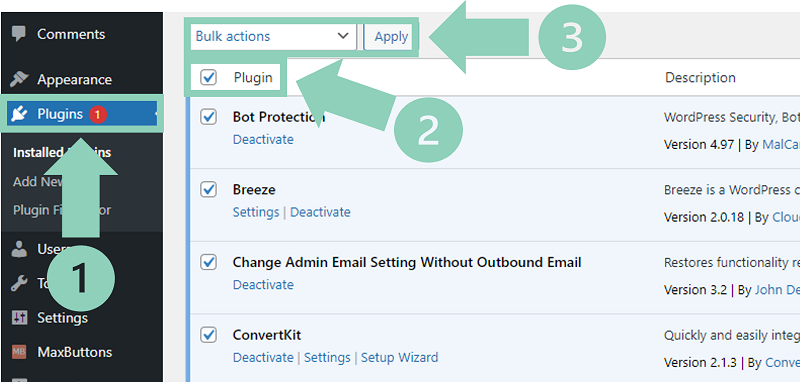
Unfortunately, the only sure way to find out which plugin is causing the problem is by uninstalling them one by one until you find the culprit. Deactivate all your plugins first. This can be accomplished through the WordPress dashboard. Go to “Plugins” which is located in the menu on the left side of your screen. On top of the list of plugins, you will find a checkbox next to the word “Plugin”. Clicking it will select all the plugins installed in your WordPress. After that, the “Bulk actions” dropdown menu which is situated just above the plugin list should be used to deactivate the selected items. You have to select “Deactivate” from the options and then click the “Apply” button.
After the deactivation of all plugins, go again to “Appearance” in your dashboard. In case “Widgets” are back, you are certain that a plugin conflict caused the issue. Following that, you should activate your plugins individually. After each activation, look at the “Appearance” menu and see if the “Widgets” submenu is still there. If at reactivating a certain plugin the “Widgets” submenu disappears, it means that this plugin is your problem source. The best course of action is to remove the problematic plugin and either switch to another or ask the plugin developer for help.
Activate ‘Classic Widgets’ Plugin
At last, consider the Classic Widgets plugin installation. In WordPress, go to the “Plugins > Add New” section. Find “Classic Widgets” by searching. The plugin “Install Now” button is the one you want to press. Then “Activate” is the option you want to click.
It brings back the previous widget layout. You can say, sidebars or footers with text, pictures, or custom HTML – the familiar widgets options will be there. Just like before your widgets should be functioning.
Widgets Not Saving After Update
Just think if your Widgets submenu is there and functioning, but widget changes are not being saved on your live site after an update. Such a maddening problem most often comes down to two main causes. The first reason can be your theme’s layout settings that are still able to override your widget configurations. As an example, your theme may impose a sidebar with a fixed layout. Secondly, it is very probable that you have to clear your website’s cache. Cache keeps old versions of your site, so the changes will not be visible until the cache is cleared. It is quite a common situation that clearing your browser cache together with any server-side caching plugins will bring the solution.
Check Theme Layout Settings
When you add a widget to the sidebar of your WordPress site, but the theme’s layout is set to hide sidebars, your widget will not be visible. It may sound like a very obvious thing, however, this is a point that is often overlooked by beginners when they are learning WordPress.
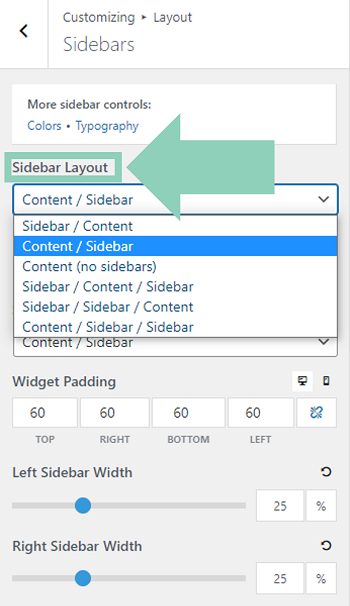
Firstly, check if your sidebars are turned on by going to Appearance > Customize and then checking for the section that deals with Layout or Sidebars. Keep in mind that the exact way can differ greatly depending on your theme. For example, the GeneratePress theme quite often has a way like Layout > Sidebars in the Customizer to get to the sidebars settings.
Just imagine if the GeneratePress theme layout is “Content (no sidebars)”, the widgets which you have added to the sidebar area will not show up on your live website.
Similarly, you can think of the situation when you have developed a widget that is only for the Left Sidebar. If the theme’s layout is set to “Content / Sidebar” (i.e. the sidebar is on the right), then the left sidebar widget will not be visible. In order to display the widgets properly, it is absolutely necessary to align the location of your widget with the layout of the theme.
Clear All Cache
Sometimes, it might take a little while for you to see the changes that you have just made to your website or the widget that you have just published. The reason for that is sometimes caching which is the main technique that web servers use to improve the response time.
You can think of “cached data” as stored snapshots of your website’s elements, such as images, scripts, and HTML files. With this saved data, the browsers can provide the requested data very quickly because they do not have to take the whole procedures of data request and retrieval from the server again which is why the user experience is improved. For instance, a returning visitor will be able to see the same logo that he/she saw in the previous visit without downloading it again.
By the way, caching sometimes cause troubles as it keeps the old versions. If the browser or server is using an older cached version, it won’t display your latest changes. To make sure that the newest version of your website is there for the visitors to see, you have to clear the cache. You are able to do it not only from your browser but also from the web-hosting platform and if you are using a CDN, even from there. When you clear the cache there, you are basically telling the system to get the updated data.
Conclusion
The Widgets feature is a great tool for WordPress users to have more than one way of controlling their website’s look and some of its functions. It is completely devoted to custom content, which can be put in any place like sidebars, footers, or headers. The use of widgets is made very flexible, allowing you to introduce a wide range of items such as texts, pictures, the navigation menus for your site, and even the custom HTML code.
In case the Widgets panel disappears from your WordPress dashboard without any reason, you can take several steps to resolve the problem. The first step is to check the functions.php file of your theme for any lines of code that might be causing the issue. Another option would be to pick another theme.
Please confirm that you have the Administrator role, as widget operations usually require such level permissions. Perform a plugin conflict test in which you turn off plugins one at a time until you find the faulty add-on that causes the conflict. If nothing works, then you can use the ‘Classic Widgets’ plugin, which is an option to the old-fashioned widget interface, to get back your widgets.
When widgets can be found in the dashboard, but they are not showing up on the live site, check not only the theme and layout settings but also the cache of your website. By doing so, the most recent changes will be available to the frontend.