
10 Proven Ways to Block Harmful Content on Your Teen’s Devices
Nowadays, every kid and teen has a digital device. From smartphones and tablets to laptops and gaming consoles, young people have unprecedented access to the online world. While this connectivity offers incredible opportunities for learning and social connection, it also comes with significant risks. In a recent survey, 55% of kids between 11 to 16 years old reported being exposed to inappropriate online content. As children become interested in the internet at an earlier age, the potential for encountering harmful material grows exponentially.
Whether it’s explicit content in a seemingly innocent free game, a video depicting children in adult contexts, or a website that glorifies self-harm, an accidental click can introduce young people to information that confuses, traumatizes, or endangers them. The digital landscape is evolving more rapidly than ever, and with the rise of AI-generated content, deepfakes, and sophisticated social engineering, the line between safe and harmful is blurring in ways parents couldn’t have imagined just a few years ago.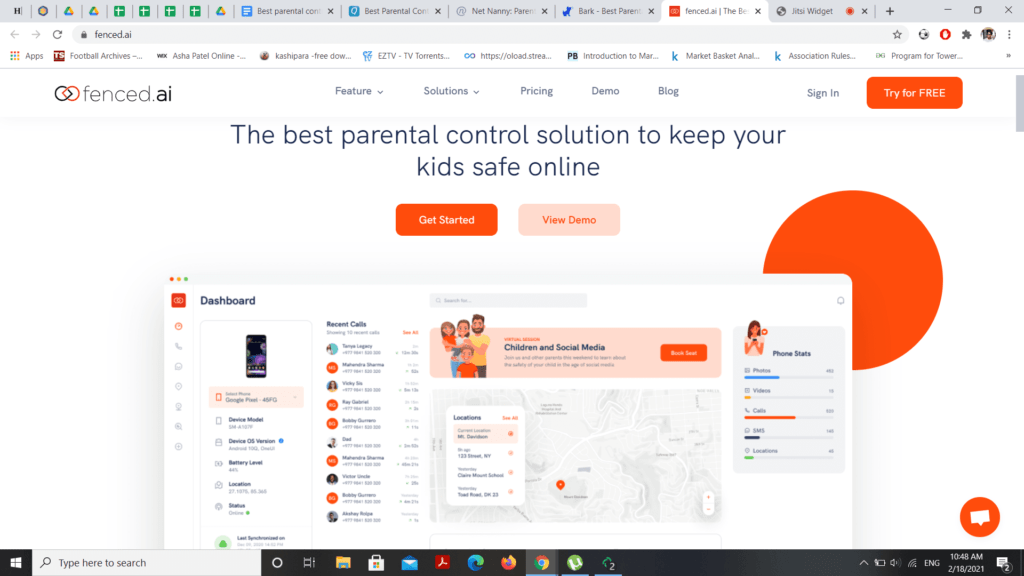
Today, it’s becoming increasingly difficult for parents to filter the harmful content their children encounter. But it’s more important than ever to understand what your teens are seeing online and to take proactive steps to protect them. Harmful content isn’t just about pornography anymore—it encompasses a wide range of materials that can negatively impact developing minds.
Key Takeaway: Protecting teens in 2025 requires a multi-layered approach that combines technical solutions (parental controls, DNS filtering, device restrictions) with open communication and digital literacy education. No single tool is 100% effective, but when you layer multiple protection methods and maintain ongoing conversations about online safety, you create a resilient safety net that adapts to emerging threats .
Understanding the Scope of Harmful Content
Before diving into solutions, it’s crucial to understand exactly what we’re protecting against. The definition of harmful content has expanded significantly in recent years. Here’s what parents need to watch for:
- Pornography and Sexually Explicit Content: Including adult videos, images, and text-based erotica. This now includes AI-generated deepfake content that can superimpose faces onto explicit material .
- Cyberbullying and Harassment: Hate speech, trolling, exclusion campaigns, and coordinated attacks on social platforms. 60% of young people have witnessed online harassment .
- Violent Videos and Photos: Graphic content depicting real-world violence, fights, or gore, including “thrill-seeking” content shared on platforms like Telegram and Discord.
- Pro-Anorexia and Self-Harm Content: Websites and forums that glorify eating disorders, self-harm, and suicide. These communities often use coded language to evade detection.
- Drug, Alcohol, and Smoking Content: Glorification of substance use, “how-to” tutorials, and influencer marketing that normalizes dangerous behavior.
- Gambling Games and Sites: Online casinos, loot boxes in games, and simulated gambling apps that normalize betting behavior.
- Crime, Vandalism, and Terrorism Content: Material that promotes illegal activities or extremist ideologies, including “how-to” guides for dangerous stunts.
- Predatory Chat Rooms and Messaging: Platforms where adults may attempt to groom children, now including encrypted apps that make monitoring difficult.
- Inappropriate Games, Apps, and Cartoon Videos: “Elsagate” style content and hyper-sexualized cartoons specifically designed to target young children through algorithmic recommendations.
- AI-Generated Harmful Content: Synthetic media that can create convincing fake videos, images, and audio of anyone—including your teen’s classmates or celebrities—in compromising situations .
These types of content can create a negative influence and cause lasting damage to developing brains. The good news? There are powerful tools and strategies to block, filter, and manage access to this material. Here are the 10 most effective ways to protect your teens in 2025.
Method 1: Deploy Comprehensive Parental Control Software
It can be challenging to monitor everything your kids see across all their digital devices—smartphones, computers, laptops, and tablets. Most kids and teens are remarkably tech-savvy, often more so than their parents. They may stumble upon harmful content accidentally, or in some cases, actively seek ways around restrictions.
To effectively monitor their digital devices, robust parental control software is essential. Modern parental control apps have evolved far beyond simple website blocking. They now serve as comprehensive digital wellness platforms that provide insights into your child’s online life while respecting their growing need for privacy.
Fenced.ai stands out as a comprehensive solution, offering social media monitoring, browser history tracking, and an intelligent alert system. With these tools, you can block harmful content on your kid’s devices remotely. If your teen attempts to access inappropriate content or use restricted apps, the software sends you a real-time notification, allowing you to address the situation immediately.
To get started, purchase the premium features from a trusted provider like fenced.ai, install the app on your child’s devices, and connect them to your parent dashboard. Once configured, you can monitor activity from anywhere, receiving detailed reports and alerts that help you stay informed without constant hovering.
PRO TIP: Look for Inappropriate Image Detection
Choose software that offers AI-powered inappropriate image detection. Tools like AirDroid Parental Control and FamilyTime can scan the camera roll and detect risky images before they’re sent or received. This adds a crucial layer of protection against sexting, cyberbullying, and exposure to unsolicited explicit images in messaging apps.
Beyond Basic Blocking: What Modern Parental Control Apps Offer
When evaluating parental control solutions, consider these advanced features that go beyond simple website filtering:
- Location tracking with geofencing: Receive alerts when your child leaves or enters safe zones like school, home, or a friend’s house.
- Live screen mirroring: Some premium apps allow you to see your child’s screen in real-time, useful for understanding exactly what they’re seeing.
- One-way audio monitoring: In extreme cases, some apps offer ambient listening to ensure your child’s physical safety.
- App installation blocking: Prevent teens from downloading new apps without approval, stopping them from circumventing blocks by switching to new platforms.
- Detailed activity reports: Understand not just what was blocked, but what your child searched for, giving insight into their evolving interests and potential peer pressures.
Apps like FamiSafe, Qustodio, and Net Nanny also provide comprehensive activity reports that help you have informed conversations with your teen about their online choices .
Method 2: Lock Down Browsers with Google SafeSearch and Family Link
Google’s SafeSearch is a powerful, free tool that helps filter explicit content from search results. First, ensure your kids use Google Chrome as their primary browser, and enable SafeSearch on all devices—both mobile and desktop.
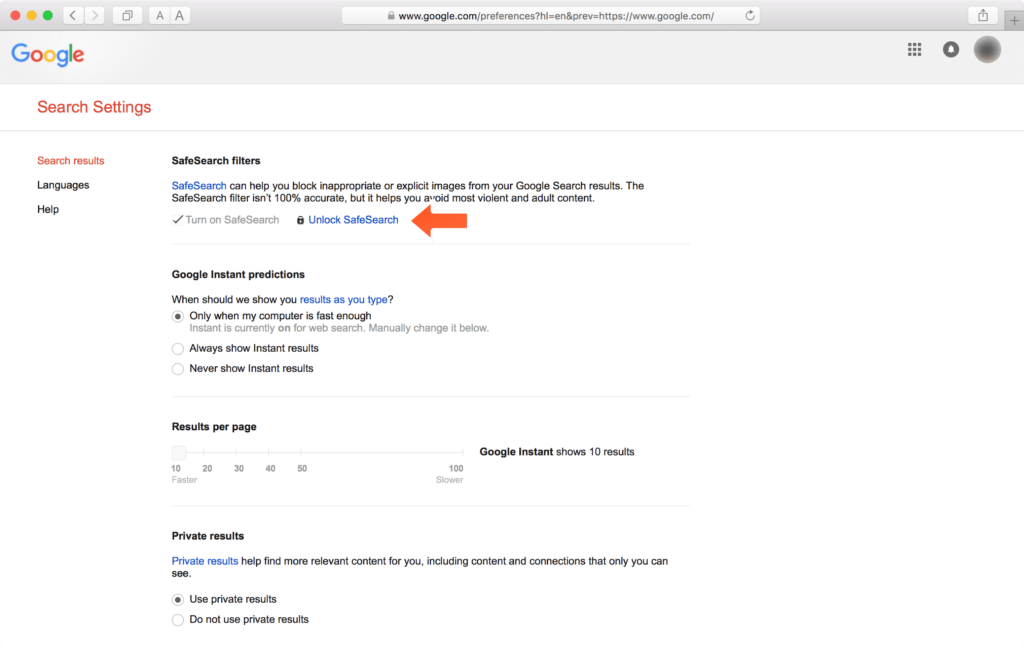
On an iPhone: Open the Safari app and go to Google search. Tap the three-line menu icon, go to Settings, and choose “Hide explicit results.” This activates SafeSearch for that browser session.
On an Android: The steps are similar, with Google as the default search app. Open the Google app, tap your profile picture, go to Settings > Hide explicit content, and toggle it on.
On a PC: Open Google Chrome, click the three-dot menu, go to Settings, search for “SafeSearch,” and enable the filter. For persistent protection, consider using Google’s Family Link app to manage settings remotely.
CRITICAL WARNING: SafeSearch Limitations
SafeSearch is account-based and browser-specific. If your child signs out of their Google account, uses a different browser (like Firefox or Edge), or switches to incognito mode, SafeSearch may be disabled. Always combine this with device-level restrictions and consider using Family Link to enforce SafeSearch across all Google services .
Strengthening SafeSearch with Google Family Link and Play Store Controls
Google Family Link takes protection further by allowing you to manage your child’s entire Google experience. With Family Link, you can:
- Approve or block apps your child wants to download from the Play Store
- Set screen time limits and lock devices remotely
- See your child’s location (with their device on)
- Manage their Google Account settings, including SafeSearch enforcement
- Receive activity reports showing which apps they use most
On Android devices, pair SafeSearch with Play Store parental controls. Open the Google Play Store, go to Settings > Family > Parental Controls, and create a PIN. Here you can restrict app downloads based on age ratings (Everyone, Low Maturity, High Maturity, etc.). This prevents teens from downloading mature-rated apps or adult-content apps disguised as harmless tools.
Method 3: Master Built-In Controls with iOS Screen Time
For iPhone and iPad users, Screen Time is a powerful built-in tool that doesn’t require downloading additional apps. It provides detailed insights into device usage and robust content restrictions. You can also link your device with your child’s for remote management.

Setting up Screen Time:
- Go to Settings > Screen Time and tap “Turn On Screen Time.” Choose “This is My Child’s iPhone” if setting up directly, or use Family Sharing to manage remotely.
- Tap Content & Privacy Restrictions and enable the toggle (it will turn green).
- Set a Screen Time passcode that your child doesn’t know—this prevents them from changing restrictions.
- Under Content Restrictions, configure:
- Web Content: Choose “Limit Adult Websites” or “Allowed Websites Only” for younger children.
- Apps: Block apps based on age ratings.
- Store Purchases: Require approval for all downloads and purchases.
- Game Center: Restrict multiplayer games and friend additions.
PRO TIP: Enable Communication Safety in iOS
Use the Communication Safety feature in Screen Time. When enabled, it scans photos and videos on the device and blurs them if nudity is detected—before your child views or sends them. This works in Messages, AirDrop, the system-wide photo picker, and even FaceTime video messages. It’s one of the most effective protections against unsolicited explicit content.
Advanced iOS Restrictions for Teens
Under Content & Privacy Restrictions, dive deeper into specific controls:
- Web Content: “Limit Adult Websites” automatically blocks many explicit sites while allowing normal browsing. For younger kids, “Allowed Websites Only” creates a whitelist where they can only visit sites you explicitly approve (like PBS Kids, National Geographic, or school portals).
- Siri Web Search: You can restrict what Siri searches for, preventing explicit content from appearing in voice search results.
- Explicit Music, Podcasts, and News: Block explicit language in Apple Music, podcasts, and Apple News.
- Game Center: Restrict multiplayer gaming and adding friends—crucial for protecting teens from online predators in gaming environments.
iOS 17 and later versions have enhanced these features with better reporting and more granular controls. Regularly review your Screen Time reports to understand your child’s usage patterns and adjust restrictions accordingly .
Method 4: Use Browser Extensions Like BlockSite
For desktop browsing, browser extensions offer an additional layer of customizable protection. BlockSite is a popular choice that helps block specific websites and applications across Chrome, Firefox, and Edge.
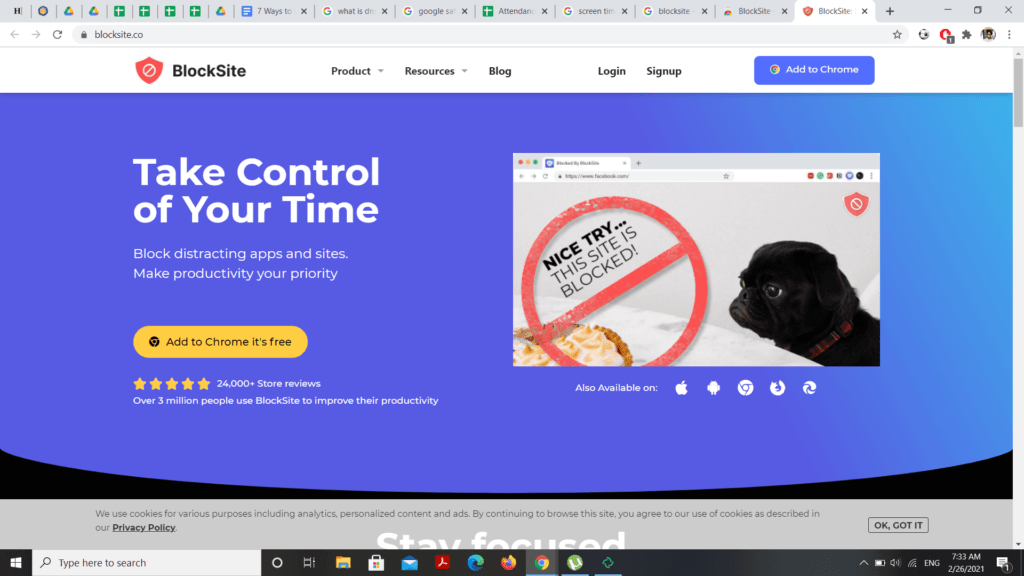
Setting up BlockSite:
- Install the BlockSite extension from the Chrome Web Store or Firefox Add-ons.
- Create a list of websites you want to block. You can add specific URLs or block entire categories (adult content, gambling, social media).
- Set a password to prevent your teen from disabling the extension.
- For mobile protection, download the BlockSite app from Google Play and sync it with your desktop extension using the QR code feature.
- Enable “Strict Mode” to block incognito browsing attempts.
CAUTION: Tech-Savvy Teens Can Disable Extensions
Browser extensions are often the easiest for teens to disable. Many can simply right-click the extension and select “Remove from Chrome.” To counter this, look for extensions that offer password protection and “harder to disable” modes. Better yet, use extensions in conjunction with operating system-level controls (like Windows Family Safety) that are more difficult to bypass .
Alternative Browser Extensions for Family Safety
Beyond BlockSite, consider these alternatives:
- uBlock Origin: Primarily an ad blocker, but can be configured to block specific domains and content categories.
- FoxFilter: Specializes in porn blocking and works across browsers with password protection.
- WebFilter Pro: Offers comprehensive content filtering with category-based blocking and detailed logs.
The psychology of blocking matters too. Extensions like BlockSite are excellent for reducing “habitual” visits to distracting or mildly inappropriate sites. They create a soft boundary that prompts users to think before clicking. However, for truly harmful content like pornography or violence, you need more robust, system-level solutions that users cannot easily circumvent .
Method 5: Configure a Family-Friendly DNS Server
Every website has an IP address—a numerical identifier that computers use to find each other. DNS (Domain Name System) translates human-friendly website names (like google.com) into these IP addresses. By changing your DNS server to a family-friendly option, you can filter content at the network level before it ever reaches your child’s device.
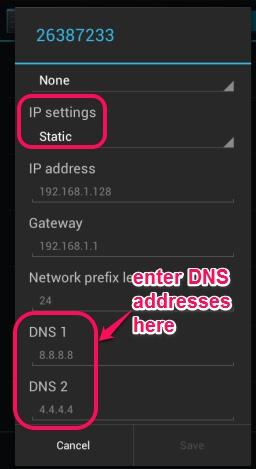
To change DNS on a mobile device:
- Go to WiFi Settings and tap the “i” icon next to your connected network.
- Scroll down to Configure DNS and switch from Automatic to Manual.
- Delete existing DNS servers and add family-friendly alternatives like:
- OpenDNS FamilyShield: 208.67.222.123 and 208.67.220.123
- CleanBrowsing Family Filter: 185.228.168.168 and 185.228.169.168
- Cloudflare for Families (Malware + Adult Content): 1.1.1.3 and 1.0.0.3
- AdGuard DNS Family Protection: 94.140.14.15 and 94.140.15.16
- Save the settings and reconnect to WiFi.
PRO TIP: Set DNS at the Router Level for Whole-Home Protection
For the most robust protection, change DNS settings on your home router. This ensures every device connecting to your WiFi—including friends’ phones, new tablets, gaming consoles, and smart TVs—is automatically protected. Log into your router’s admin panel (usually at 192.168.1.1 or 192.168.0.1), find DNS settings under Internet/WAN setup, and replace automatic DNS with family-friendly options .
Understanding Different DNS Filtering Levels
Different DNS providers offer varying levels of filtering:
- OpenDNS FamilyShield: Blocks adult content, proxies, and phishing sites. Free and easy to set up.
- CleanBrowsing Family Filter: Offers stricter filtering that blocks adult content, mixed content, and social media. Includes forced SafeSearch and YouTube Restricted Mode.
- Cloudflare for Families: Blocks malware and adult content. Lightweight and privacy-focused.
- AdGuard DNS: Offers category-based filtering (adult content, gambling, social media) and blocks trackers and ads.
DNS-level filtering is invisible to users—they won’t even know it’s there until they try to access a blocked site and see a “blocked” message. It’s one of the most effective tools because it works across all devices and is difficult to bypass without technical knowledge .
Method 6: Leverage Your Internet Service Provider’s Parental Controls
Most Internet Service Providers (ISPs) offer built-in parental control software or features. These tools allow you to block websites and apps at the network level, often with user-friendly dashboards accessible from any browser.
How to use ISP controls:
- Log into your ISP account online (Comcast, AT&T, Verizon, etc.).
- Look for “Parental Controls,” “Family Safety,” or “Security” sections.
- Enable content filtering and select categories to block (adult, violence, gambling, etc.).
- Set time restrictions for internet access.
- Save changes—they apply to your entire home network.
The Rise of ISP-Level AI Safety Features
ISPs are moving beyond static filters. Companies like Comcast and AT&T are launching AI-powered online safety assistants that provide real-time guidance and step-by-step help for configuring safety settings across devices. These services can proactively suggest blocks based on emerging threats and provide centralized dashboards to manage safety across phones, tablets, and consoles .
Some ISPs now offer:
- Threat intelligence feeds: Automatically block newly discovered malicious or inappropriate sites.
- Usage insights: Weekly reports showing which categories your family accesses most.
- Custom profiles: Different filtering levels for different family members based on age.
- Pause internet: One-click ability to pause internet access during dinner or homework time.
CRITICAL WARNING: ISP Controls Only Work at Home
ISP-level controls only work when devices are connected to your home network. As soon as your teen leaves the house and uses mobile data (4G/5G) or connects to a friend’s WiFi, the ISP filters are completely bypassed. Always combine ISP tools with on-device controls (like Screen Time or Family Link) for protection everywhere .
Method 7: Set Up Microsoft Family Safety on Windows
Windows includes an integrated OS feature called Microsoft Family Safety. By creating a child account, you can access robust parental controls including web filtering, screen time limits, and activity reporting.

Setting up Microsoft Family Safety:
- Go to Settings > Accounts > Family & other users.
- Click Add a family member and select “Add a child.” Enter your child’s email address or create a new one.
- Once added, go to account.microsoft.com/family to access the full suite of controls.
- Under your child’s profile, configure:
- Content restrictions: Toggle on “Block inappropriate websites and searches” and set web filtering to “Strict” or “Allow list only.”
- Screen time: Set time limits per device (PC and Xbox).
- App and game limits: Block apps based on age ratings.
- Spending: Require approval for Microsoft Store purchases.
- Sign in to your child’s Windows device with their Microsoft account to apply restrictions.
PRO TIP: Use Activity Reports for Teaching Moments
The activity reports on account.microsoft.com/family show you which sites your child visited and which were blocked. Use this information to have meaningful conversations about why certain content is inappropriate. Ask questions like, “I saw you tried to visit X—can we talk about what you were looking for?” This transforms restrictions into teaching opportunities .
Deep Dive into Windows 11 Family Safety Features
Once your child’s account is set up, explore these advanced options:
- Web filtering options:
- Allow list only: Your child can only visit sites you explicitly approve. Ideal for younger children.
- Block inappropriate websites: Automatically blocks adult content while allowing normal browsing.
- Custom allow/block lists: Add specific sites to block or allow regardless of category filters.
- App and game restrictions: Block apps based on age ratings (e.g., PEGI 3, 7, 12, 16, 18).
- Screen time scheduling: Set different limits for weekdays and weekends. For example, 2 hours on school days, 4 hours on weekends.
- Location sharing: See your child’s location when they’re using their Windows device.
- Xbox integration: The same settings apply to Xbox consoles when your child signs in with their Microsoft account.
Microsoft Family Safety is one of the most comprehensive free solutions available, especially for households with Windows PCs and Xbox consoles .
Method 8: Enable Restricted Mode on YouTube and Other Video Platforms
YouTube is the second-largest search engine in the world and a primary source of entertainment for teens. Unfortunately, it’s also home to inappropriate content that can slip through algorithmic cracks. Enabling Restricted Mode helps filter out mature content.
To enable YouTube Restricted Mode:
- Open YouTube and click your profile picture.
- Select Restricted Mode at the bottom of the menu.
- Toggle “Activate Restricted Mode” to on.
- Repeat this for each browser and device your child uses—Restricted Mode doesn’t sync across platforms.
For more permanent protection, consider using YouTube Kids for younger children, which offers curated, age-appropriate content. However, teens often find YouTube Kids too limiting, so Restricted Mode is the better option for middle and high schoolers.
Beyond YouTube:
- TikTok: Enable “Digital Wellbeing” mode and set screen time limits. Use “Restricted Mode” to filter inappropriate content.
- Instagram: Use “Sensitive Content Control” to limit sensitive posts in Explore.
- Snapchat: Enable “Family Center” to see who your teen is friends with and who they’ve messaged recently.
- Discord: Use “Safe Direct Messaging” to scan and block explicit content.
PRO TIP: Create a Supervised Google Account for YouTube
For teens under 13, create a supervised Google Account through Family Link. This allows you to manage YouTube settings remotely, approve content, and receive activity reports. You can also set content level preferences (Explore, Explore More, or Most of YouTube) based on your child’s maturity .
Method 9: Establish a Family Digital Contract and Open Communication
Technical solutions are essential, but they’re only half the equation. The most effective protection comes from combining technology with ongoing, open conversations about online safety.
Creating a Family Digital Contract:
- Sit down with your teen and discuss the risks of harmful content, cyberbullying, and online predators.
- Collaboratively create rules for device use, including:
- Which apps and sites are allowed
- Time limits for daily use
- What to do if they encounter inappropriate content
- Consequences for breaking rules
- Write these rules down and have both parents and teens sign the contract.
- Review and update the contract every 6 months as your teen matures.
Topics to discuss regularly:
- Digital footprint: Everything online is permanent. Discuss how posts and messages can resurface years later.
- Stranger danger: Not everyone online is who they claim to be. Establish rules about communicating with people they haven’t met in person.
- Critical thinking: Teach teens to question sensational content, verify sources, and recognize misinformation and deepfakes.
- Peer pressure: Discuss how friends might pressure them to view inappropriate content or share personal information.
- Reporting: Ensure they know how to report inappropriate content or interactions on every platform they use.
WARNING: Punishment vs. Education
If your teen comes to you after seeing something disturbing or making a mistake online, your reaction matters tremendously. Overly harsh punishment discourages them from reporting future incidents. Instead, thank them for coming to you, discuss what happened, and work together to prevent it from recurring. You want to be their ally in online safety, not their adversary .
Method 10: Stay Informed About Emerging Threats and New Platforms
The digital landscape changes constantly. A platform that’s safe today might introduce new features tomorrow that expose teens to risks. New apps and social networks emerge regularly, often designed specifically to attract younger users away from parent-monitored platforms.
How to stay informed:
- Follow parenting technology blogs: Sites like Common Sense Media, Protect Young Eyes, and Family Online Safety Institute provide up-to-date reviews and safety guides.
- Talk to other parents: Share information about what apps your kids are using and what safety measures work.
- Check your teen’s devices regularly: Look for unfamiliar apps and ask about them. If an app claims to be a calculator but looks different, it might be a “vault” app hiding content.
- Review privacy settings together: Every few months, sit with your teen and review privacy settings on all their social media accounts.
- Understand new technologies: Learn about AI-generated content, deepfakes, and how they’re being used to create realistic fake videos and images. Discuss these with your teen so they can recognize potential manipulation.
PRO TIP: Use “Discovery” Mode on Parental Control Apps
Many parental control apps offer a “discovery” or “learning” mode that alerts you to risky behavior without automatically blocking it. This is ideal for teens—it gives them autonomy while keeping you informed. You can then discuss concerns rather than imposing blanket blocks. This approach respects their growing independence while maintaining appropriate oversight .
Putting It All Together: A Layered Protection Strategy
No single method is 100% effective. Tech-savvy teens can find ways around most individual protections. The key is creating multiple layers of defense that work together:
- Layer 1 (Network Level): Family-friendly DNS on your router blocks content at the source for every device.
- Layer 2 (Device Level): Parental control software or built-in OS restrictions (Screen Time, Family Safety) provide on-device protection everywhere.
- Layer 3 (App Level): Platform-specific settings (YouTube Restricted Mode, TikTok Digital Wellbeing) filter content within popular apps.
- Layer 4 (Browser Level): Extensions like BlockSite add customizable filtering for web browsing.
- Layer 5 (Human Level): Open communication, digital contracts, and ongoing education prepare teens to make good choices even when technical controls fail.
This multi-layered approach ensures that if one method fails (your teen finds a way around DNS filtering, for example), other layers still provide protection .
FAQs: Blocking Harmful Content on Teen Devices
Conclusion: Raising Resilient Digital Citizens
Hence, there are numerous ways to block inappropriate content, but these 10 methods represent the most effective strategies for 2025. However, blocking all content may not be fully effective without the human element. Technology alone cannot replace active parenting.
As a parent, it’s essential to have ongoing conversations with your children about harmful content and its negative effects. Encourage your kids to avoid mature content and to come to you immediately if they encounter something disturbing. Make sure they understand digital safety basics: never share personal information, be wary of strangers online, and think before clicking.
Establish clear rules for device use and ensure your kids follow them. But also explain the reasoning behind the rules—teens are more likely to follow guidelines they understand and agree with. Ask your middle or high schooler about who they follow on social media, what games they play online, and if they’ve ever seen anything that made them uncomfortable. For teens, the goal shifts from strict blocking to teaching self-regulation and critical thinking.
Discuss the permanence of online actions, the risks of sharing personal data, and the importance of questioning influencer content and viral challenges. Help them understand that not everything they see online is true, and that AI-generated content can create convincing fakes.
Remember, the ultimate aim is to raise resilient digital citizens who can navigate the online world safely, not just children who are locked behind digital walls. By combining the technical methods above with open communication, you create a secure and trusting environment for your children to explore, learn, and grow. Digital parenting isn’t about installing an app and forgetting about it—it’s about maintaining an ongoing dialogue that evolves as your children mature .
Quick Recap: Your 10-Step Action Plan for Digital Safety
- Install robust parental control software like fenced.ai, Qustodio, or Net Nanny for real-time monitoring and alerts.
- Enable Google SafeSearch on all browsers and pair with Family Link for comprehensive Google account management.
- Configure iOS Screen Time with a strong, secret passcode and enable Communication Safety.
- Add browser extensions like BlockSite to desktop browsers for customizable filtering.
- Change your home DNS servers to family-friendly filters like OpenDNS or Cloudflare for Families.
- Activate your ISP’s parental controls as a network-level backup.
- Set up Microsoft Family Safety accounts on all Windows devices and Xbox consoles.
- Enable Restricted Mode on YouTube and configure safety settings on TikTok, Instagram, and other social platforms.
- Create a family digital contract with clear rules and consequences, reviewed regularly.
- Stay informed about emerging threats and new platforms—knowledge is your best defense.
For more parenting resources and digital safety guides, explore our articles on social media’s impact on teens, digital parenting tools, and social media red flags every parent should know.






Thank you For Providing us Instant approval blogs.
Thank you for sharing these crucial tips on blocking harmful content for kids and teens. In today’s digital age, it’s essential for parents to take proactive steps to protect their children online. Your comprehensive guide provides valuable insights and practical solutions. Great job!
You’re very welcome! We’re delighted that you found our post on getsocialguide.com informative and useful. Thank you for the kind words, and we’re glad to hear that you enjoyed our blog. If you have any more questions or need further information, feel free to ask!
Thanks for sharing this beneficial info, it was really helpful.
You’re very welcome! We’re delighted that you found our post on getsocialguide.com informative and useful. Thank you for the kind words, and we’re glad to hear that you enjoyed our blog. If you have any more questions or need further information, feel free to ask!