
How To Send An Image To The Back In Google Docs: The Ultimate Guide for 2025
This article describes how to use the drawing tool in Google Docs to “send an image to the back”. With this method, you can change the position of the image locally without the need for external apps like Google Slides or Microsoft Word. Whether you are creating a newsletter, a business proposal, a flyer, or simply want to add visual flair to your document, mastering image layering is a game‑changer.
Using the drawing window in Google Docs, you can effortlessly send an image to the back of your file. Thus, there is no need to switch between different platforms for image editing, which saves the time and makes the whole process more efficient. In this comprehensive guide, we’ll walk you through every step, offer advanced tips, compare with alternative methods, and answer the most common questions.
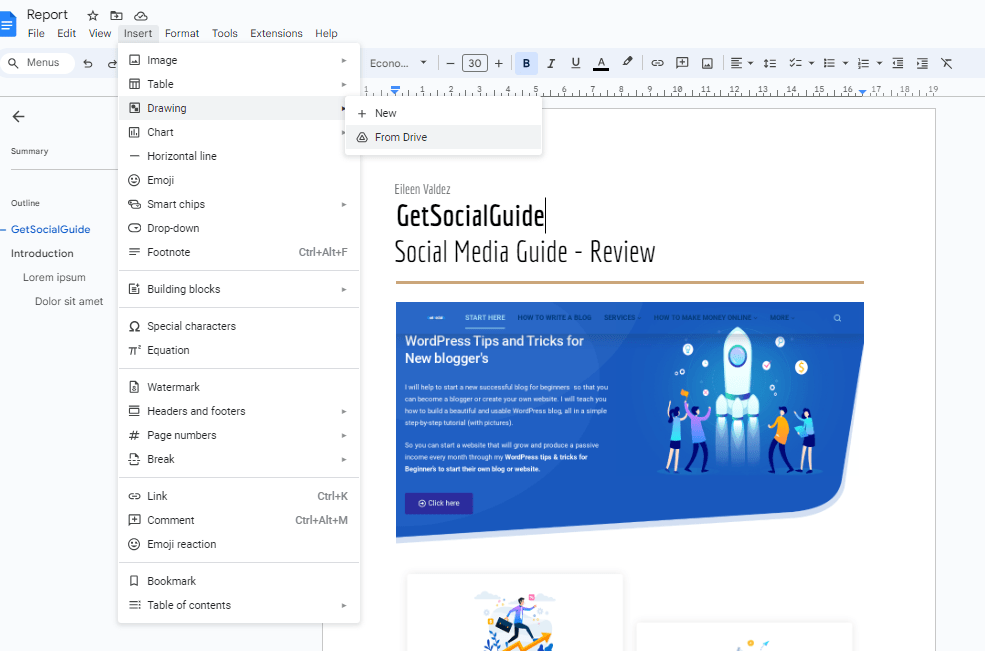
First, open your Google Docs file and click “Insert” in the menu bar. In the dropdown menu, click “Drawing” and then “New”. This will lead you to the drawing window where you can insert and edit images.
Step By Step Guide On How To Send An Image To The Back In Google Docs
- Open Google Docs on your PC
- Make sure you are logged in to your account.
- At the top of the Ribbon menu, there are certain tabs that can help you with other editing and formatting options.
- Open your Google Docs document and go to the page where you want to insert the image.
- Click on “Insert” in the menu bar, then select “Drawing” and choose “New” to open the drawing tool.
- In the drawing window, click on the “Insert” tab and choose “Image” from the drop-down menu.
- Select the image you want to insert from your computer or from your Google Drive.
- Once the image is inserted, click on the image to select it.
- In the toolbar at the top, click on the “Arrange” icon (it looks like a stack of squares).
- From the options that appear, select “Order” and choose “Send to back” to move the image behind other elements on the page.
- You can also adjust the size and position of the image by clicking and dragging its corners or edges.

- Now you need to make sure that the image you have selected is is along with the text.
- Simply go to the actions menu placed at the top left corner of the drawing display window.
- The drop-down menu will show various options like group, cut, copy, guides, show ruler, duplicate, order, and other options.
- Search for the order option. The drop-down menu will appear on your screen with will show the options and backward and send to back.
- Click the option to send backward.

Why Use the Drawing Tool Instead of Direct Image Insertion?
Google Docs offers two ways to insert images: directly into the document (inline) or via the drawing tool. When you insert an image directly, you can wrap text around it, but you cannot layer multiple images or send one behind another. The drawing tool creates a canvas where every inserted element (images, shapes, text boxes) can be independently ordered. This makes it ideal for:
- Creating professional headers with logos and background images
- Designing simple infographics without leaving Docs
- Adding watermarks or stamps
- Building annotated diagrams
- Overlapping images to create collages
According to Google Workspace official documentation, the drawing tool supports grouping, aligning, and distributing elements, giving you control comparable to basic desktop publishing software.
Alternative Methods: When the Drawing Tool Isn’t Enough
Sometimes you need to layer images that are inserted directly into the document (not inside a drawing). While Google Docs doesn’t natively support “send to back” for inline images, you can achieve similar results using these workarounds:
1. Use a Single‑Cell Table
Create a 1×1 table, set the table border to zero (in Table Properties), and paste or insert your image inside the cell. You can then add text or other images in separate cells, or use absolute positioning by setting the table to “Wrap text”. However, this method is limited to two layers.
2. Use Google Slides for Advanced Layouts
If your project requires complex layering, consider creating the layout in Google Slides. Slides has full layering controls (right‑click > Order > Send to back). Once done, you can download the slide as an image or PDF and insert it into your Google Doc. This is especially useful for creating polished flyers and presentations.
3. Export to Microsoft Word (as a Last Resort)
If you have access to Microsoft Word, you can download your Google Doc as a .docx file, open it in Word, and use Word’s advanced layering features. Then re‑upload to Google Docs. Keep in mind that some formatting may shift.
Frequently Asked Questions (FAQ) About Image Positioning in Google Docs
How may a photo be added to a Google Doc without rearranging the text?
The picture is added to your document where your cursor was when you click on it in the Insert window. Step 3: After a single click on the image, a brief menu of choices appears beneath it. Step 4: Select “wrap text” from that option. The image and text are automatically centred. However, for background images, always use the drawing method described above.
How does Google Docs overlay images?
If you haven’t done so already, open your Google document and add an image. Click All image options after choosing the picture you contributed to the Google Doc. In the list of options on the right, select Wrap text. Select the second image you’ve added to the Google Doc, then click All.
Note: This method works for images inserted directly, but to overlay them, you need to use the drawing tool and manually layer them using “Order”.
How can I place a picture in front of any passage?
You can follow these steps if you’re dealing with an image you made using the Drawing toolbar: Choose the picture. From the Draw menu on the Drawing toolbar, select the Order option. A submenu is displayed by Word. Go to the submenu and select Send Behind Text. The picture must move in front of the text.
In Google Docs, how can you overlap images?
You can now easily slide one image onto the other since the image margins have been set to zero. To overlap images, insert both into the drawing canvas, select each, and use the “Arrange” → “Order” menu to bring one forward or send one backward. Group them if you want to move them together.
How can images be overlaid on Google Slides?
In Google Slides, select the image, right‑click, choose “Order”, then “Bring to front” or “Send to back”. This works natively without needing a separate drawing canvas. Slides is often better for multi‑image layouts.
How can I use Power Point to insert an image behind text?
Click the image to choose it, then select the “Format” tab to place the image behind the text. Click the “Send Backward” button under the “Arrange” section. Two selections will be presented in a drop-down menu. Image is sent back one level when “Send Backward” is selected.
How do I move an image in Google Docs to another location?
While Using the Google Docs App, Move Images. After opening the document and selecting the edit/pencil button to enter editing mode, carry out the following actions: To reveal the boxed corners, tap the image once. When you reach this point, you are prepared to move it. When you have the image where you want it, tap and hold it while dragging it there.
How are images overlaid?
Detailed directions for producing an image overlay. Open Photoshop and add your secondary photos to another layer in the same project after adding your basic image. Drag and drop your images into place after resizing them. Change the file’s name and location. Click Save or Export.
Can I use Google Sheets to include both text and an image in a cell?
The ability to insert a picture straight into a cell in Google Sheets gives it an edge over Microsoft Excel. No matter where you put the image, Sheets will adjust it to fit the cell. Additionally, you can put a new image on top of several cells or relocate an existing one into a cell.
How do I add a background picture to Excel cells?
Select Background under Page Layout. When the Insert Pictures dialogue appears, click the Browse button next to From a file to choose a picture from a folder in the Sheet as the background.
In Google Docs, how can I make an image’s backdrop transparent?
By selecting the image, clicking the Image choices button above the document, selecting the Adjustments tab, and adjusting the Transparency slider, you can alter the transparency of a Google Docs image. (Note: This works for images inserted directly; in the drawing tool, you must select the image and use the transparency slider from the image formatting toolbar.)
How is a picture wrapped in Google Docs ?
Choose the picture. After performing a right-click on the picture, select Image settings. The Image Options menu will appear as a result. Navigate to the Text Wrapping tab in Image Options.
Why won’t Word allow me to attach a photo to the back?
Ensure that the Format tab is visible on the ribbon. When using Word 2007 or Word 2010, click the down arrow next to the Send to Back tool in the Arrange group.
How can I make a Word graphic appear behind text?
Choosing a Graphic to Be Hidden by Text. Ensure that the ribbon’s Home tab is visible. Select Objects by using the Select tool (included in the Editing group) after clicking it. Without respect to any text that could be obscuring the visual, click on it.
What’s the purpose of text wrapping?
both in front of and behind text. The text flows over the picture when the Behind Text option is selected. This can be helpful if you want to add a backdrop or watermark effect to a certain area of the page. The image might be shown in front of the text by selecting this option.
In PowerPoint, how can you send a shape to the back?
To move something from the back or front: Choose an item. Select Bring Forward or Send Backward from the drop-down menu on the Format tab. Choose Send to Back or Bring to Front from the drop-down menu. sending something backwards. The things will switch places. the rearranged things.
In PowerPoint, how can I make a picture disappear into the background?
Select Format Background > Picture or texture fill with a right-click on the slide. From there, you can choose your image from a variety of locations, including the clipboard, the internet, or a local device file.
Key Takeaways: Mastering Image Layering in Google Workspace
- Always use the drawing tool for background images or multi‑element designs in Google Docs.
- Layering within a drawing gives you full control via the “Order” menu.
- For complex layouts, consider Google Slides or external graphic tools, then embed the result.
- Transparency adjustments can be made directly in Docs, but drawing‑tool images may need separate handling.
- Group elements after arranging them to keep your layout intact during future edits.
Conclusion
I really hope that this detailed manual on sending an image to the back in Google Docs is really useful to you. By the guidelines set forth in this piece, you will be competent to handle pictures and produce documents that are pleasing to the eye. If it is layering images, putting them behind text, or just moving them around in your file that you need to do, this guide has given you the walkthrough on how to do it.
Besides Google Docs, we have also discussed the steps to inserting and handling pictures in Google Sheets and Google Slides. This is to make sure that you get a complete understanding of how to work with images in different apps from the Google Workspace.
When you have these image manipulation skills under your belt, you will be able to decorate your files, pitches, and data with attractive and engaging visuals. Remember, inserting images can totally change the look and the power of your projects.
We really hope that you find this write-up worthy and that it will help you to use images efficiently in your Google Docs, Sheets, and Slides. Keep up the good work!