
What is a WordPress Theme?
- Design of your website: The visual aesthetic and branding.
- Navigation & Header Menu: How users move through your site.
- Font styling: Custom sizes, colors, and typography choices.
- Website Color Palette: Coordinating your brand colors.
- Widget Locations: Sidebar and footer content placement.
- Page Layouts: Creating unique designs for different sections.
- Web Page & Blog Post Styles: Enhancing the readability of your content.
- Additional Style Details: Borders, hover effects, and animations.
While WordPress provides in-built tools for editing, doing so effectively requires specific WordPress theme customization skills to ensure your site remains fast and SEO-friendly.
📌 Key Takeaways: Editing WordPress Themes Safely
- WordPress theme editing gives you full control over design, layout, fonts, colors, and functionality.
- Three main methods: Theme Customizer (beginner‑friendly), Theme Editor (code‑based), and Page Builders (drag‑and‑drop).
- Always use a child theme before making code changes – otherwise, updates will erase your customizations.
- Test changes on a staging site first to avoid breaking your live website.
- The “Additional CSS” panel is the safest place for minor styling tweaks.
- Understanding the template hierarchy helps you edit the right file for the right job.
- Hooks (actions & filters) allow upgrade‑safe modifications without touching core files.
Why Should You Edit Your WordPress Theme?
There are plenty of reasons to modify your WordPress theme. Beyond aesthetics, editing helps differentiate your brand, optimize site structure, and add high-end functionality.
1. Differentiate Your Brand
Most WordPress website owners use stock WordPress themes. Even with thousands of options, your competitors might be using the same template. Customizing your theme makes your site uniquely yours. Don’t forget: while editing the design, ensure your site is secure with an SSL certificate to build user trust.
2. Correcting a Non-Ideal Selection
If your current theme doesn’t meet your goals, it’s time to choose a WordPress theme that better fits your purpose. If switching themes isn’t an option, editing the existing UI is the best way to improve functionality and appearance.
3. Customize Website Structure
A well-organized website structure is a cornerstone of professional design and SEO. Structure plays a critical role in how search engines crawl your site. Customizing your layout offers an enhanced user experience (UX), which can lead to higher conversion rates.
4. Add New Functionality
Editing your theme allows you to go beyond styling and add specialized features. There is a massive market for WordPress plugins. For example, you can integrate a collaborative publishing WordPress plugin to allow teams to edit collaboratively on WordPress. This is perfect if one team member handles the writing while another manages the Blog Post SEO.
5. Appeal to Your Target Audience
Your target audience has specific expectations for design, font legibility, and color psychology. By editing your theme, you can modify the “look and feel” to influence how visitors perceive your brand.
2026 Trends: What to Consider When Editing Your Theme
In 2026, user expectations have evolved. When customizing your WordPress theme, keep these trends in mind:
- Dark mode support: Many users prefer dark interfaces. Use CSS media queries (`prefers-color-scheme: dark`) to offer automatic dark mode.
- Minimalist, fast‑loading layouts: Google’s Core Web Vitals are ranking factors. Avoid bulky sliders and animations that slow down your site.
- Accessibility (WCAG 2.2): Ensure sufficient color contrast, keyboard navigation, and screen‑reader compatibility. Editing your theme is the perfect time to add `aria` labels and semantic HTML.
- Block‑based editing (Full Site Editing): Many modern themes use the Site Editor. Learn how to customize global styles, templates, and template parts directly from the editor.
How to Edit WordPress Theme — 3 Methods
Most website owners reach out to WordPress theme developers for WordPress theme customization. However, you can definitely learn to edit a WordPress theme by yourself. Here are the 3 methods you can use to edit your WordPress theme.
WordPress Theme Customizer
WordPress Theme Customizer is the most straightforward way to edit a WordPress theme. In fact, it’s the default way to make visual changes in your WordPress theme without having to worry about anything. Let’s see how to access WordPress Theme Customizer to edit a WordPress theme:
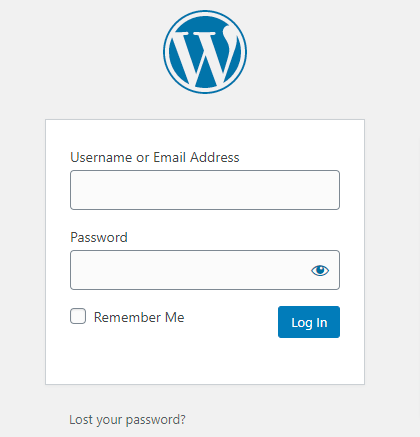
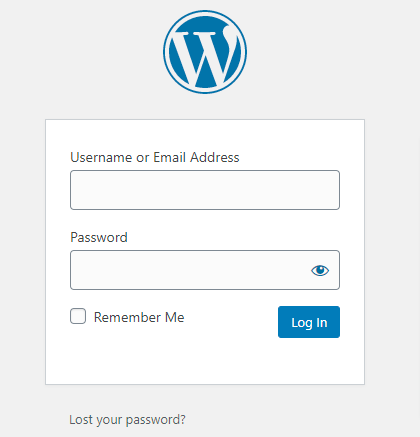
Step#1 — Log in to your WordPress Admin Dashboard. You can check alternative ways to log in to your WordPress dashboard for a quick reference.
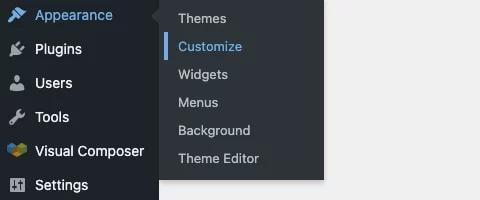
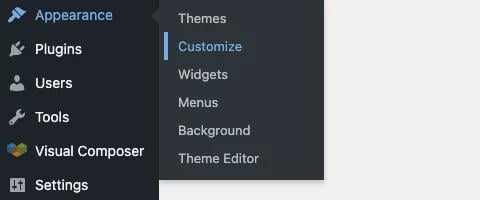
Step #2 — Navigate to the Appearance option from the left-side menu and click on Customize from the dropdown menu.
Step #3 — Upon clicking Customize, you’ll be redirected to WordPress Theme Customizer.
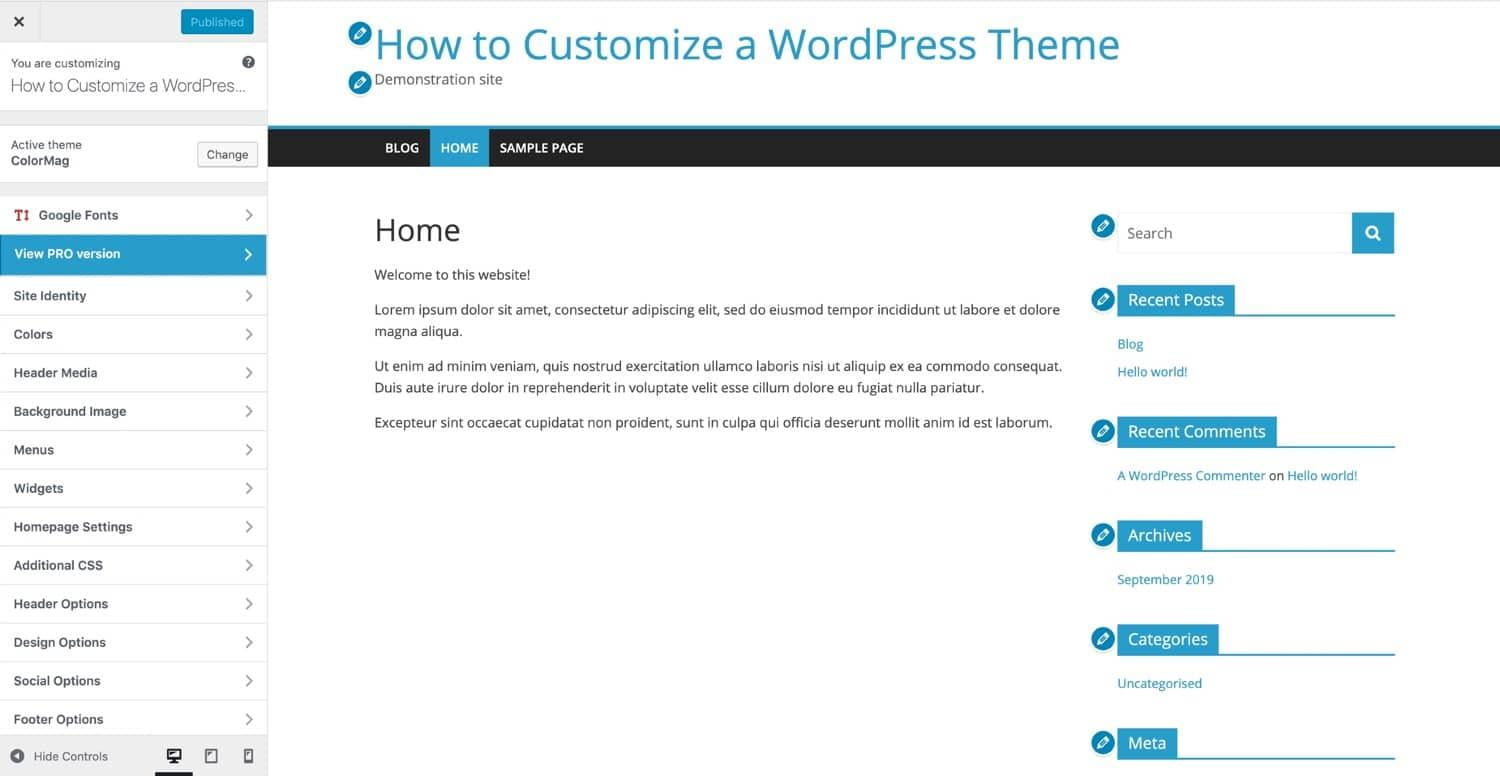
Step #4 — Once you’ve made your desired changes in the WordPress Theme Customizer, click on Save & Publish to finish the process.
WordPress Theme Editor
Another way to edit a WordPress theme is via Theme Editor. Unlike the first method, WordPress Theme Editor allows you to edit your theme using code. If you’re doing this for the first time, we recommend using a child theme so that it doesn’t affect the original files. With that, let’s see how to access WordPress Theme Editor to edit a WordPress theme.
Step #1 — First of all, log in to your WordPress Admin Dashboard.
Step #2 — Next, navigate to Appearance from the left-side menu and click on the Theme Editor option from the dropdown menu.
Step #3 — From Theme Editor, you can edit the style.css & function.php files of your WordPress theme.
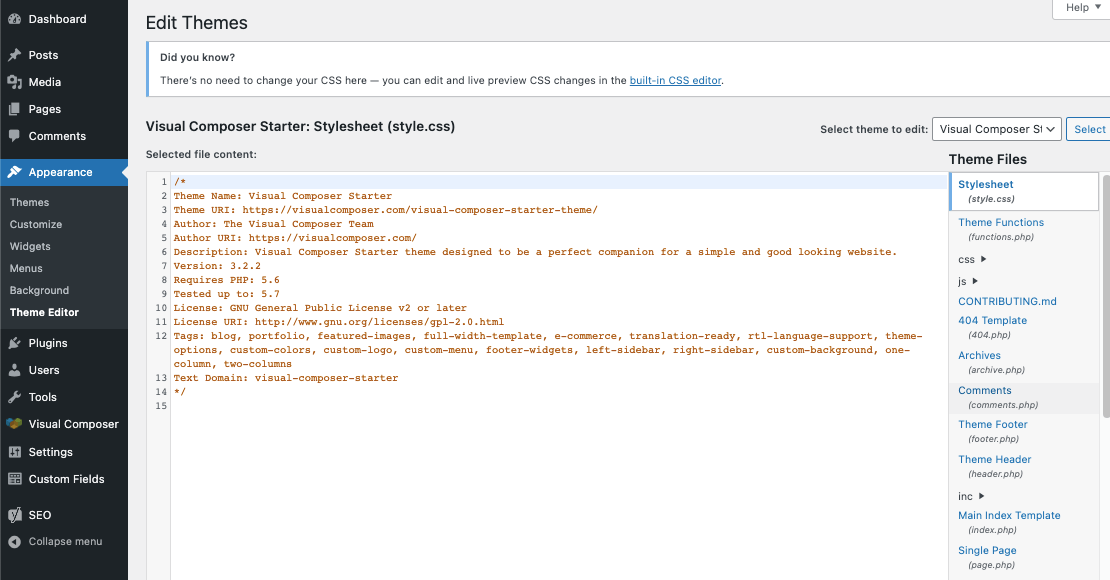
Step #4 — Once you’ve made your desired changes, live preview the changes you made in the built-in CSS editor. If everything looks good to go, click on the Update button to publish the changes to your live website.
Third-Party Page Builders
The last method you can use to edit your WordPress theme is third-party page builders. Page builders are WordPress plugins that make it easy for WordPress website owners to customize their website appearance with a drag-and-drop interface. Elementor, for example, is one such page builder plugin that is widely popular in the WordPress community.
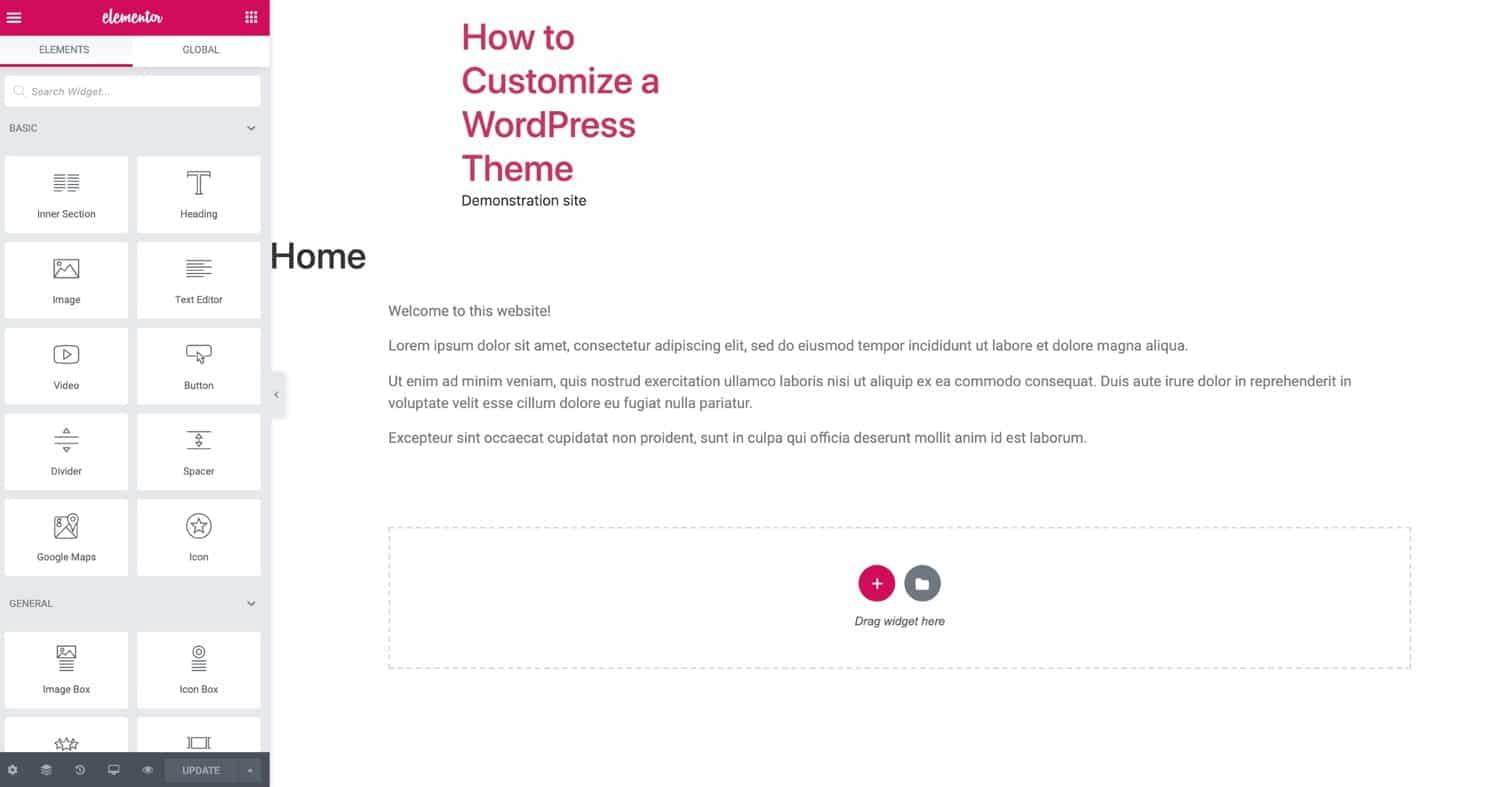
Using Elementor Pro, you can even edit your posts, pages, widgets, header menu, and more with the drag-and-drop interface. Furthermore, Elementor Pro offers extensive flexibility compared to the in-built WordPress Theme Customizer. If you’re planning to use Elementor Pro for your WordPress website, we have a special Elementor Pro Discount Code for you. Depending on your WordPress theme, you can install a page builder plugin that is most compatible with your theme and start using its drag-and-drop interface to start making your desired changes. Alternatively, you can also utilize other WYSIWYG editors to make your desired changes to your WordPress theme.
How to Create a Child Theme (Step‑by‑Step)
A child theme is a sub‑theme that inherits all the functionality and styling of its parent. It’s the only safe way to make code changes. Here’s how to create one manually:
- Create a new folder in
/wp-content/themes/and name it (e.g.,mytheme-child). - Inside that folder, create a file named
style.csswith the following header:/* Theme Name: MyTheme Child Theme URI: https://example.com/ Description: Child theme for MyTheme Author: Your Name Template: parent-theme-folder-name Version: 1.0.0 */
- Create a
functions.phpfile in the same folder and enqueue the parent and child styles:<?php function my_child_enqueue_styles() { wp_enqueue_style( 'parent-style', get_template_directory_uri() . '/style.css' ); } add_action( 'wp_enqueue_scripts', 'my_child_enqueue_styles' ); ?> - Activate your child theme from Appearance → Themes. Now you can safely edit any template file by copying it from the parent into your child theme folder.
If manual creation seems complex, plugins like Child Theme Configurator automate the process.
Essential Pre-Editing Checklist: Before You Start
Before you change a single line of code or adjust a color, proper preparation is essential. Following this checklist can save you hours of frustration and prevent you from breaking your live site.
Critical Warning: The Child Theme Mandate
Never, under any circumstances, edit the files of your parent theme directly. When WordPress updates your theme, all your custom changes will be wiped out instantly and permanently. Always create and activate a child theme before making any code-level modifications. This creates a safe layer where your customizations are stored separately and preserved through updates.
- Create a Full Backup: Use a reliable backup plugin like UpdraftPlus or BlogVault to create a complete backup of your site’s files and database. Store it in a secure, off-server location like Google Drive or Dropbox.
- Set Up a Staging Site: A staging site is an exact clone of your live website where you can test changes safely. Most quality managed WordPress hosts (like WP Engine, Kinsta, or SiteGround) offer one-click staging. If your host doesn’t, use a plugin like WP Staging to create one.
- Install a Code Editor: If you plan to edit code, ditch the basic Notepad. Use a dedicated code editor like Visual Studio Code or Sublime Text. They offer syntax highlighting, error detection, and auto-completion, making coding safer and easier.
- Clear Your Cache: Before and after making changes, clear your site’s cache (from your caching plugin and/or hosting panel) to ensure you’re seeing the most recent version of your site.
Pro Tip: The Browser Developer Tools Shortcut
Before writing any CSS in your theme files, test styling changes live using your browser’s Developer Tools (F12). You can modify colors, fonts, margins, and more in real-time on your live site. Once you’re happy with the look, you can simply copy the perfected CSS code from the browser and paste it into your child theme’s style.css file. This is the fastest way to prototype design changes.
Understanding Theme File Hierarchy: What to Edit and Where
A WordPress theme is like a puzzle made of template files. Knowing which file controls which part of your site is half the battle. The hierarchy dictates which file WordPress uses to display a particular page.
Here’s a simplified breakdown of the most common template files and their purpose:
| Template File | What It Controls | Common Edits |
|---|---|---|
| header.php | The top section of every page (logo, menu, header area). | Adding custom logo code, modifying navigation structure, inserting tracking scripts. |
| footer.php | The bottom section of every page (copyright, widgets, footer menu). | Changing copyright text, adding footer widgets, inserting footer scripts. |
| style.css | The visual styling of your entire site (colors, fonts, spacing, layout). | All CSS changes to appearance. This is the most frequently edited file. |
| functions.php | The “brain” of your theme. Adds features and modifies core functionality. | Enqueuing scripts/styles, registering widget areas, adding custom PHP functions. |
| index.php | The main blog posts listing page (fallback template). | Altering the main blog loop structure. |
| page.php | The template for individual static pages (About, Contact). | Creating custom page layouts without a page builder. |
| single.php | The template for individual blog posts. | Modifying post layout, adding author boxes, changing meta data display. |
For example, if you want to change something that appears on every page (like the header), you edit header.php. If you want to change how all your blog posts look, you edit single.php.
Advanced Customization: Going Beyond the Basics
Once you’re comfortable with the core methods, you can unlock more powerful customizations.
1. Creating a Custom Page Template
Sometimes you need one page to look completely different. You can create a unique template for it.
- In your child theme folder, create a new file, e.g.,
page-custom.php. - At the very top, add this template header comment:
/*
Template Name: My Custom Landing Page
*/
- Copy the code from your theme’s
page.phpfile into this new file and modify it as needed. - Save the file. Now, when you edit a page in the WordPress editor, you’ll see “My Custom Landing Page” as a template option in the Page Attributes panel.
2. Using Hooks: Actions and Filters
Hooks are the cleanest, most upgrade-safe way to modify theme functionality. They let you “hook” your custom code into specific spots in the WordPress core or theme without editing the original files.
- Actions: Let you add content at specific points (e.g., adding HTML after a post). Code goes in your child theme’s
functions.php. - Filters: Let you modify existing data before it’s displayed (e.g., changing excerpt length). Code also goes in
functions.php.
Example: Add a custom message after every post.
// Add to child theme's functions.php
function my_custom_post_message() {
    echo '
‘; } add_action( ‘the_content’, ‘my_custom_post_message’ );
3. Overriding Templates with a Child Theme
This is the core principle of safe editing. To change a template file:
- Identify the file in the parent theme you want to change (e.g.,
header.php). - Copy that file from the parent theme folder (
/wp-content/themes/parent-theme/) to your identical child theme folder (/wp-content/themes/child-theme/). - Edit the copied file in your child theme. WordPress will now use your child theme’s version instead of the parent’s.
Choosing the Right Method: A Decision Guide
Not sure which editing path to take? This guide will help you match your goal with the best method.
| Your Goal | Recommended Method | Difficulty Level | Risk Level |
|---|---|---|---|
| Change colors, fonts, or background images | WordPress Customizer or Page Builder | Beginner | Very Low |
| Rearrange homepage sections visually | Page Builder (Elementor, Beaver Builder) | Beginner | Low |
| Add custom CSS for fine-tuned styling | Customizer’s “Additional CSS” panel or Child Theme style.css | Intermediate | Low |
| Add a new widget area or menu location | Child Theme’s functions.php file using hooks | Intermediate | Medium |
| Modify the HTML structure of your header/footer | Child Theme (copy and edit header.php/footer.php) | Advanced | Medium-High |
| Create a completely unique page layout | Create a Custom Page Template in Child Theme | Advanced | Medium |
Pro Tip: The “Additional CSS” Safety Net
For minor to medium CSS tweaks, always use the WordPress Customizer’s “Additional CSS” panel first. This CSS is stored separately from your theme files and is designed to be a safe place for customizations. It persists through theme updates and is easier to manage for beginners. Only move CSS to your child theme’s style.css file when you have a large volume of stable, final styles.
Common Editing Tasks & How to Execute Them
Let’s apply what we’ve learned to solve specific, common problems.
- Task: Change the Site Title Font & Color.
- Method 1 (Easiest): Go to Appearance → Customize → Typography/Colors (options vary by theme).
- Method 2 (More Control): Use the “Additional CSS” panel in the Customizer with code like:
.site-title {
    font-family: 'Arial', sans-serif;
    color: #ff0000 !important;
}
- Task: Add a Social Media Icon Menu to the Header.
- Recommended Method: Use a plugin like Menu Icons or your theme’s built-in menu settings if available. For code, you would add HTML/PHP for the icons to your child theme’s
header.phpfile and style them in CSS.
- Recommended Method: Use a plugin like Menu Icons or your theme’s built-in menu settings if available. For code, you would add HTML/PHP for the icons to your child theme’s
- Task: Remove the “Category:” Prefix from Archive Titles.
- Method: Add a filter to your child theme’s functions.php file:
add_filter( 'get_the_archive_title', function ($title) {
    if ( is_category() ) {
        $title = single_cat_title( '', false );
    }
    return $title;
});
- Method: Add a filter to your child theme’s functions.php file:
📝 Article Summary: How to Edit WordPress Themes – Complete Guide
- A WordPress theme controls design, layout, navigation, fonts, colors, and more – editing it personalizes your site.
- Three primary editing methods: Theme Customizer (live preview), Theme Editor (code), and Page Builders (drag‑and‑drop).
- Always use a child theme for code changes to prevent loss during updates.
- Test modifications on a staging site before pushing to production.
- The “Additional CSS” panel is safest for small style tweaks; use Developer Tools to prototype.
- Understand the template hierarchy (header.php, footer.php, style.css, functions.php) to edit efficiently.
- Advanced techniques: custom page templates, hooks (actions & filters), and overriding parent templates.
- After editing, test responsiveness, cross‑browser compatibility, plugin functionality, and site speed.
FAQ
End Note
Learning how to edit a WordPress theme isn’t difficult. And after reading this post, hopefully, you have finally learned how to edit your WordPress theme without external help. Your next job is to identify the appropriate method to edit your WordPress theme and start making customizations that suit your brand.
Once you’re done with customizations, make sure to test your website functionality, loading speed, and cross-browser compatibility. If you spot any issues, let’s say a loading speed issue, make sure to rectify it so that they don’t hurt your rankings and traffic. Conversely, if you can’t seem to resolve the loading speed issue on your own, contact a digital agency offering WordPress Speed Optimization Services to get your issue resolved.
Final Checklist Before Going Live
Before you push your beautifully edited theme to the world, run this final check on your staging site:
- Responsive Test: Resize your browser window. Does everything look good on mobile, tablet, and desktop?
- Browser Test: Check your site in Chrome, Firefox, and Safari. Are there any glaring differences?
- Plugin Compatibility: Do all your essential plugins (forms, SEO, e-commerce) still work correctly?
- Speed Test: Run a test on GTmetrix or PageSpeed Insights. Did your edits cause a performance drop?
- Link & Function Test: Click every major button, form, and navigation link to ensure they work.
📚 Trusted Resources for WordPress Theme Development
- WordPress Theme Developer Handbook – Official documentation.
- WordPress Core Handbook – Advanced coding standards.
- Smashing Magazine – WordPress Section – Best practices and tutorials.
- Kinsta – WordPress Theme Development Guide – Modern approaches.



Thank you so much for sharing this useful information! It’s helped me a lot.
The explanation of the content is very detailed and easy to understand.