The Ultimate Google Keep Guide: Student Tips, Gemini AI, and Advanced Workflows (2026)
Introduction to Google Keep
Google Keep has been a prominent player in the note‑taking app landscape for almost a decade. Developed and released by Google, it is among the many free applications the company has introduced in recent years. With its longevity and continuous updates, Google Keep has established itself as a reliable tool for enhancing productivity and organization.
At its core, Google Keep is a versatile note‑taking app designed to help users capture and manage their thoughts, ideas, and tasks. Whether you’re a student, professional, or anyone looking to stay organized, Google Keep offers a range of features that make it a valuable tool in your productivity arsenal. And the best part? It’s completely free, giving it a competitive edge over many other note‑taking apps and software available in the market.
One of the key strengths of Google Keep lies in its user‑friendly interface. It provides a straightforward and intuitive experience, allowing users to quickly adapt to the app’s functionalities. Even if you’re new to note‑taking apps, Google Keep’s simplicity makes it easy to dive in and start organizing your thoughts effortlessly.
While its ease of use is a standout feature, Google Keep also offers advanced capabilities that go beyond basic note‑taking. These features empower users to effectively track, sort, and retrieve their most important items whenever they need them. Whether you’re managing to‑do lists, setting reminders, capturing voice notes, or annotating images, Google Keep has got you covered.
Overview of Google Keep
With Google Keep, you can easily organize your notes by using labels, colors, and categories. This enables you to create a personalized system that suits your preferences and allows for quick navigation and retrieval of specific information. The ability to search through your notes using keywords further enhances the app’s organizational power, ensuring that no important detail gets lost in the digital clutter.
Another notable aspect of Google Keep is its seamless integration with other Google services. As part of the Google ecosystem, it effortlessly syncs with your Google account, enabling you to access your notes across various devices. This integration extends to Google Docs, allowing you to seamlessly transfer content from your notes to your documents, streamlining your workflow and saving valuable time.
Furthermore, Google Keep offers collaborative features that facilitate teamwork and information sharing. You can easily share notes or entire labels with others, making it an ideal tool for group projects, team coordination, or simply sharing ideas with friends and colleagues. This collaborative aspect fosters efficient communication and ensures everyone stays on the same page.
Google Keep is an exceptional tool that can revolutionize the way you organize and manage your workload effectively. In this comprehensive article, we will provide you with a step‑by‑step guide on how to utilize Google Keep as a student.
If you’re new to Google Keep, we suggest starting with our Beginner’s Guide to Google Keep. This resource will walk you through the basics and help you familiarize yourself with the app’s features and functionalities. Additionally, if you’re eager to become a power user, don’t miss our article on the best tips and tricks to master Google Keep. It’s packed with valuable insights and techniques to enhance your productivity.
Benefits of Using Google Keep for Students
- It is free to use
- It is available on all platforms
- It has a minimal learning curve
It is free to use
Google Keep is free, making it ideal for students who have a limited budget.
It is available on all platforms
Google Keep can be accessed on various platforms, including web, Windows, macOS, Android, and iOS.
It has a minimal learning curve
Despite its powerful features, Google Keep is easy to use and approachable for students.
How to Use Google Keep? (Features Deep Dive)
Google Keep offers various features that can benefit students:
Time management
You can use Google Keep to add reminders and keep track of how you spend your time.
Clip Reference Resources on the Web
With Google Keep’s bookmarking features, you can save websites and valuable resources for future reference.
Location‑based Reminders
Location‑based reminders can notify you about specific tasks when you reach designated locations.
Real‑time Idea Capture
Use Google Keep to quickly capture and access ideas and concepts across your devices.
Detailed Note Taking
Replace traditional paper notes with Google Keep, which allows collaboration and easy sharing with classmates.
Learning Goals (for Teachers)
Teachers can create learning goals within Google Keep to motivate students and celebrate their achievements.
Annotation and Drawing
Enhance learning and engagement by drawing flowcharts, mind maps, and annotating images in Google Keep.
Habit & Task Tracking
Track your habits and create checklists for daily tasks using Google Keep.
Group Task Management
Collaborate and work on notes, projects, and assignments with classmates using Google Keep.
Voice Notes
Create voice notes in Google Keep for reminders or to improve language pronunciation and fluency.
🚀 Google Keep + Gemini AI Integration (2026 Update)
Google has deeply integrated Gemini AI into Google Keep, turning simple notes into smart assistants. You can now:
- Auto-generate checklists from a rough note (e.g., “plan a study schedule” → detailed hourly plan).
- Summarize long notes into bullet points – perfect for lecture transcriptions.
- Find information across your Keep library using natural language queries like “show me all notes about the Civil War from last month”.
- Create draft emails or documents directly from Keep notes and push them to Gmail or Google Docs with one click.
To enable this, ensure you have a Google Workspace account with Gemini access or the new Google One AI Premium plan. Once activated, click the “Ask Gemini” button inside any Keep note.
📘 Using Google NotebookLM with Keep
For students and researchers, NotebookLM (Google’s AI‑powered research assistant) now synchronizes with Keep labels. You can:
- Export an entire Keep label (e.g., “Biology 101”) directly into a NotebookLM project.
- Let NotebookLM generate study guides, timelines, and practice quizzes based on your notes.
- Pull insights from multiple notes and combine them with uploaded PDFs, slides, and web links.
This turns Keep from a simple capture tool into the frontend of a personal research database.
🖥️ For IT Professionals & Sysadmins: Keep as a Runbook
Google Keep isn’t just for students – IT teams use it for lightweight documentation and on‑call runbooks.
- Color‑coding by severity: Red = critical incident, Yellow = pending tasks, Green = completed.
- Shared labels for team knowledge bases (e.g., label: #oncall-checklist).
- Location‑based reminders for server room maintenance when you enter a specific data center.
- Voice notes for hands‑free logging during troubleshooting.
Pro tip: Use Google Keep’s official API to programmatically create notes from monitoring alerts.
🎨 Visual Organization: Theming & Note‑Specific Wallpapers
One underrated feature in Google Keep is the ability to set different background wallpapers for individual notes. This acts as a powerful visual cue for quick scanning:
- Use a “grid” wallpaper for project management notes.
- Use a “dark gradient” for personal journal entries.
- Add a “light pastel” for quick grocery lists.
To change a note’s wallpaper: open the note → click the palette icon → select “Add background” → choose from Google’s library or upload your own image. This small step dramatically improves recognition speed.
Top Reasons to Use Google Keep
- Free and Accessible: Google Keep is completely free to use and is available on multiple platforms, including web, Android, and iOS. You can access your notes from any device with an internet connection.
- User‑Friendly Interface: Google Keep has a simple and intuitive interface, making it easy for anyone to start using it without a steep learning curve.
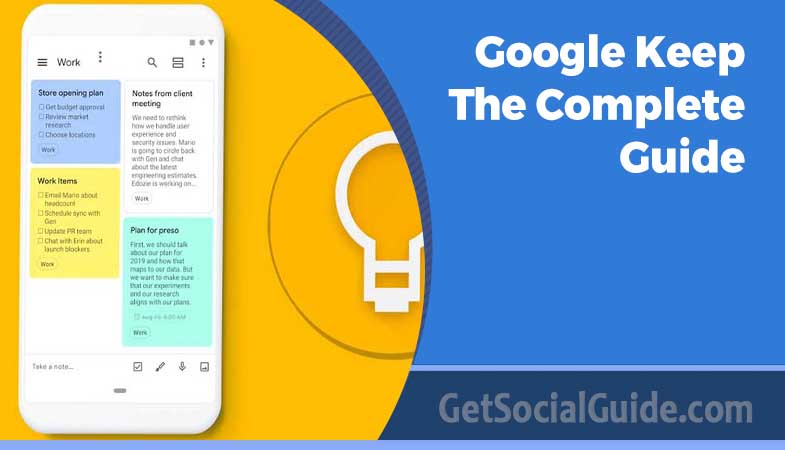
- Versatile Note Formats: Keep supports various note formats, including text, lists, images, voice recordings, and drawings. You can mix and match different formats within a single note, allowing you to capture information in the way that suits you best.
- Real‑Time Syncing: All your notes in Google Keep sync in real‑time across devices. This feature ensures that your notes are always up to date and accessible from any device.
- Color‑Coding and Labeling: You can color‑code your notes and add labels to categorize and organize them. This makes it easy to visually identify and sort your notes based on different subjects or projects.
- Reminders and Notifications: Keep allows you to set reminders for your notes, ensuring that you don’t forget important tasks or deadlines. You can also receive notifications on specific dates or when you reach a particular location.
- Collaboration and Sharing: You can collaborate with others by sharing notes or entire labels. This feature is useful for group projects or when you need to share information with classmates, colleagues, or friends.
- Google Integration: Google Keep seamlessly integrates with other Google services, such as Google Docs, allowing you to quickly transfer information between apps. You can also use voice commands with Google Assistant to create and manage notes hands‑free.
- Search and Organization: Google Keep provides powerful search capabilities, allowing you to find specific notes or information quickly. Additionally, you can organize your notes using labels, colors, and archiving, making it easy to keep track of and declutter your notes.
Overall, Google Keep stands out as a free and feature‑rich note‑taking app that offers a seamless user experience and excellent integration with other Google services. It’s a versatile tool that can help boost productivity and keep you organized in various aspects of your life.
Can You Use Google Keep for Class Notes?
Yes, Google Keep is an excellent tool for taking class notes. It helps organize tasks, set reminders, and allows collaboration with classmates.
Image to Text OCR in Google Keep
Google Keep’s image‑to‑text feature allows you to capture notes by taking pictures and converting the text into editable format.
📊 Google Keep vs. Evernote vs. OneNote vs. Notion
Verdict: Keep wins for speed, simplicity, and price. Use it as your “capture layer” – then push complex content to Docs, Notion, or OneNote.
Takeaway & Summary
- Speed over complexity: Keep is designed for frictionless capture. Don’t over‑organize; use labels, colors, and search to retrieve notes later.
- Labels are tags, not folders: Attach multiple labels to a single note (e.g., #projectX #research). This creates a fluid, searchable database instead of a rigid filing cabinet.
- Location‑based reminders: Set notes to pop up exactly when you reach a place (e.g., “pick up milk” when you arrive at the grocery store).
- Voice & image notes accelerate capture: Use voice memos and photo‑to‑text to save ideas ten times faster than typing.
- Collaboration is built‑in: Share notes or entire labels with classmates or teammates. Real‑time editing works like Google Docs.
- Google Keep + Gemini AI: Use Gemini to auto‑generate checklists, summarize notes, or find information across your Keep library using natural language.
- Think of Keep as your “second brain” inbox – not the archive. Use it to collect, then process weekly.
📋 Was this guide helpful?
(Your feedback helps us improve)
- Top Mobile App Design Companies
- Social Media Integration for B2B
- How to Check Backlinks in Google Search Console
- B2B Lead Generation with Social Media
FAQ