How to Show Latest Tweets on WordPress Without a Plugin (4 Proven Methods for 2026)
Twitter has consistently grown its influence as a real-time information platform where users express opinions, share experiences, and engage with brands. For businesses, this makes it a goldmine of user-generated content (UGC). When customers tag your brand or mention your products, they’re creating authentic social proof that can significantly impact purchasing decisions.
As a brand, having a strong Twitter presence is highly beneficial. People tagging and mentioning you to express their opinions about their experience with your website is a great way to collect authentic and reliable UGC. But how do you leverage this content most effectively? By bringing it directly to your website.
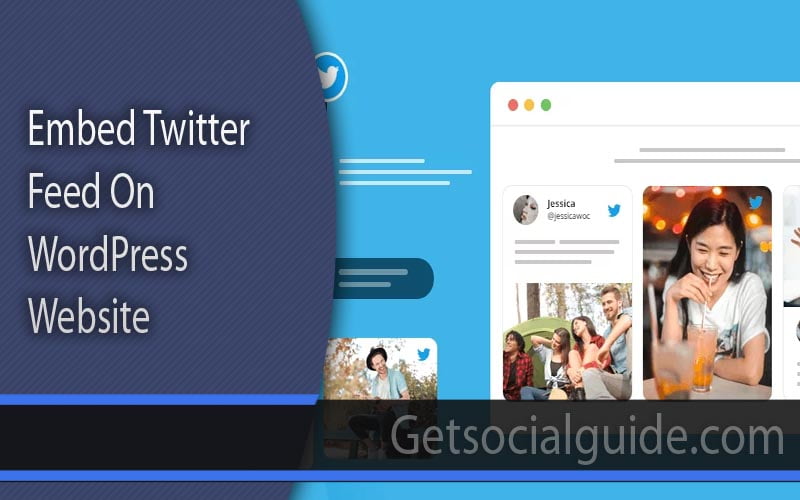
Embedding your Twitter Feed on your WordPress website not only enhances your site’s overall look and feel but also provides visitors with relevant, valued content that keeps them engaged with your brand. By showcasing your social media presence on your website, you’re reaching a massive audience while leveraging both Twitter and your website’s strengths. This is one of the best approaches to attracting new users and improving conversion rates.
However, many website owners worry about slowing down their sites with heavy plugins or paying for premium solutions. The good news? There are multiple ways to display your latest tweets on WordPress without installing a single plugin. In this comprehensive guide, we’ll walk through four proven methods—from simple Twitter tools to code-based solutions—so you can choose the approach that works best for your technical skill level and business needs.
Key Takeaway: Displaying live Twitter feeds on WordPress without plugins is entirely achievable using Twitter’s native embed tools, social media aggregators with embed codes, or custom code snippets. The best method depends on your needs: simple single tweets use Twitter’s native option; multiple tweets with customization require aggregators; full control demands custom coding. Each approach has trade-offs between ease of use, features, and performance .
Why Display Twitter Feeds on Your WordPress Site?
Before diving into the technical how-to, it’s worth understanding why integrating Twitter into your website matters. Social media feeds serve as dynamic content that keeps your site fresh and engaging without constant manual updates .
Social Proof and Trust: When visitors see real-time tweets from customers praising your products or engaging with your brand, it builds immediate credibility. User-generated content is perceived as more authentic than brand-created marketing materials .
Increased Engagement: Twitter feeds encourage visitors to spend more time on your site, reducing bounce rates and improving SEO signals. Engaging content keeps users hooked and exploring further .
Fresh Content Automatically: Every time you tweet, your website updates automatically. This signals to search engines that your site is active and relevant, potentially boosting rankings .
Cross-Platform Growth: Displaying your Twitter feed can convert website visitors into Twitter followers, growing your social audience while you sleep .
Now, let’s explore exactly how to make this happen without weighing down your site with unnecessary plugins.
Method 1: Twitter’s Native Embed Tool (For Individual Tweets)
Twitter offers a simple, built-in way to embed individual tweets. This method is perfect for showcasing specific customer testimonials, important announcements, or viral content—but it only works one tweet at a time .
Step-by-Step Instructions:
- Navigate to the tweet you wish to embed on Twitter’s website or app.
- Click the three dots menu icon located at the top-right corner of the tweet.
- Select “Embed Tweet” from the dropdown menu. This will redirect you to Twitter’s Publish platform at https://publish.twitter.com/.
- Customize the embed (optional). Twitter’s tool allows you to set alignment (left, center, right) and choose whether to include the original Tweet’s parent conversation.
- Copy the generated embed code that appears below the tweet preview.
- In your WordPress admin, navigate to the page or post where you want the tweet to appear.
- Switch to the “Text” or “Code” editor (not the visual editor) and paste the embed code exactly where you want the tweet to display.
- Update or publish your page, then preview to ensure it appears correctly.
Advantages of This Method:
- Official and reliable: Directly from Twitter, so it won’t break with platform updates.
- Responsive design: Embedded tweets automatically adjust to mobile screens.
- Interactive: Visitors can retweet, like, and reply without leaving your site.
Limitations to Consider:
- One tweet at a time: No option to display a live feed of multiple tweets.
- No customization: Limited to Twitter’s default styling; you cannot change colors, fonts, or layout.
- No moderation: If you embed a tweet that later gets deleted, your visitors will see an error message.
- Manual updates: Adding new tweets requires repeating the process for each one.
This method works best for showcasing a handful of carefully selected tweets, such as a rotating testimonial section or highlighting major announcements .
Social media aggregators like Taggbox Widget offer a powerful middle ground between simplicity and customization. These tools let you create beautiful, customizable Twitter feeds that update automatically—without installing a WordPress plugin .
Why Aggregators Are Popular in 2026:
Social media aggregators have evolved significantly. Modern platforms offer AI-powered content moderation, advanced analytics, and seamless embedding across any website platform . They handle the complex API connections so you don’t have to, while giving you complete creative control .
Step-by-Step Instructions Using an Aggregator:
- Sign in to your aggregator account (such as Taggbox Widget, Juicer, or Walls.io). Most offer free trials or limited free plans.
- Choose Twitter as your source platform from the available options.
- Select your connection type: Aggregators typically offer multiple ways to pull content:
- Hashtag: Display tweets containing a specific hashtag (e.g., #YourBrand)
- Mention: Show tweets that mention your @username
- Handle: Display your own account’s tweets
- Geo-location: Pull tweets from specific locations
- List: Show tweets from a curated Twitter list
- Favorites: Display tweets you’ve liked
- Advanced: Combine multiple sources with complex rules
- Curate your feed: Most aggregators let you review and approve content before it appears publicly. You can remove irrelevant or inappropriate tweets, ensuring only the best content displays.
- Customize the appearance: Use the editor panel to adjust:
- Layout options (grid, masonry, carousel, slider)
- Color schemes to match your brand
- Font styles and sizes
- Header and footer designs
- Animation effects
- Apply moderation filters: Use profanity filters to automatically block explicit content, and create keyword blacklists for terms you don’t want associated with your brand.
- Click “Publish” when your feed is ready.
- Choose “WordPress” as your website platform from the options.
- Adjust width and height settings to match your site’s layout.
- Copy the generated embed code.
- In WordPress, navigate to the page where you want the feed and switch to the “Text” editor.
- Paste the embed code exactly where you want the feed to appear.
- Update the page and preview to ensure everything displays correctly.
Advanced Features Worth Considering:
Modern aggregators offer powerful analytics that track widget performance, including impressions, clicks, and engagement metrics . This data helps you understand which content resonates most with your audience and optimize your social strategy accordingly .
Some platforms now include AI-powered sentiment analysis, automatically tagging positive, neutral, and negative mentions so you can feature the best reviews prominently .
Advantages of Aggregators:
- Multiple tweets in one feed: Display dozens or hundreds of tweets in a single, organized widget.
- Automatic updates: New tweets appear automatically without manual intervention.
- Full customization: Match the feed perfectly to your brand’s visual identity.
- Moderation tools: Control exactly what appears, removing spam or inappropriate content.
- Analytics: Track performance and optimize your strategy.
- No plugin required: The embed code method keeps your WordPress installation lean.
Limitations to Consider:
- Cost: Most quality aggregators charge a monthly fee, especially for commercial use.
- External dependency: Your feed relies on the aggregator’s service staying operational.
- Learning curve: Some platforms have more features than you may need, which can feel overwhelming initially.
This method is ideal for brands that want a dynamic, constantly updating social presence on their website without the overhead of custom coding .
When selecting an aggregator, prioritize platforms that offer:
- Reliable uptime: Check reviews for service stability
- Responsive support: You’ll need help when things go wrong
- GDPR compliance: Important if you serve European visitors
- Performance optimization: Ensure the embed code doesn’t slow your site
- Free trial: Test before committing financially
Method 3: Twitter Publish Tool for Timelines (Twitter’s Official Multi-Tweet Solution)
Many WordPress users don’t realize that Twitter offers an official tool for embedding entire timelines, not just individual tweets. The Twitter Publish platform supports several timeline types :
- Profile Timeline: Displays tweets from a specific user account
- Search Timeline: Shows tweets matching a search query (hashtag, keyword)
- Collection Timeline: Curated tweets you’ve organized
- List Timeline: Tweets from a Twitter list you’ve created
Step-by-Step Instructions:
- Visit https://publish.twitter.com/ (the same tool used for single tweets).
- In the URL field, enter the Twitter profile URL, hashtag search URL, or list URL you want to embed. For example:
- Profile:
https://twitter.com/YourBrand - Hashtag:
https://twitter.com/hashtag/YourHashtag - List:
https://twitter.com/i/lists/123456789
- Profile:
- The tool will detect the timeline type and generate a preview.
- Customize the embed using the options:
- Height: Set a fixed height for the timeline
- Theme: Choose light or dark to match your site
- Link color: Customize the color of links within tweets
- Language: Set the interface language
- Copy the generated embed code.
- In WordPress, navigate to your page and switch to “Text” editor mode.
- Paste the code where you want the timeline to appear.
- Update and preview.
Advantages of Twitter Publish Timelines:
- Official and free: Directly from Twitter, no third-party costs.
- Multiple tweets: Displays a scrolling list of recent tweets.
- Responsive: Automatically adapts to different screen sizes.
- Interactive: Visitors can engage with tweets directly.
- No plugin needed: Pure embed code solution.
Limitations to Consider:
- Limited customization: Only basic theme and color options; you cannot create custom layouts.
- No moderation: Every tweet from the source appears automatically—you cannot filter inappropriate content.
- Speed impact: Twitter’s embedded timelines can sometimes slow page loading.
- API changes risk: Twitter’s embed functionality depends on their API, which has changed dramatically in recent years.
This method strikes a balance between simplicity and functionality—perfect for brands that want a live feed without the complexity of aggregators or custom coding .
Method 4: Custom Code Using Twitter’s API (For Developers)
For complete control over how your tweets appear, consider building a custom solution using Twitter’s API. This approach requires significant technical knowledge but offers unlimited flexibility .
Understanding the Technical Requirements:
Twitter’s API v2 requires authentication using OAuth 2.0 with PKCE or OAuth 1.0a for user context . You’ll need to:
- Apply for a Twitter Developer Account and create a Project.
- Generate API keys and tokens for authentication.
- Make API requests to fetch tweets from your timeline, mentions, or search results.
- Process the JSON response and format it as HTML.
- Cache the results to avoid hitting rate limits and improve performance.
- Style the output using CSS to match your brand.
Basic PHP Skeleton for a Custom Twitter Feed:
Here’s a simplified example of how you might structure a custom Twitter feed in WordPress without a plugin:
<?php
// Add this to your theme's functions.php or create a custom plugin

function fetch_latest_tweets($count = 5) {
    // Your Twitter API credentials
    $bearer_token = 'YOUR_BEARER_TOKEN';

    // API endpoint for user timeline
    $url = "https://api.twitter.com/2/users/YOUR_USER_ID/tweets?max_results=$count&tweet.fields=created_at,public_metrics";

    $args = array(
        'headers' => array(
            'Authorization' => 'Bearer ' . $bearer_token,
        ),
    );

    $response = wp_remote_get($url, $args);

    if (is_wp_error($response)) {
        return array();
    }

    $body = wp_remote_retrieve_body($response);
    $data = json_decode($body, true);

    return isset($data['data']) ? $data['data'] : array();
}

// Shortcode to display tweets
function twitter_feed_shortcode($atts) {
    $atts = shortcode_atts(array('count' => 5), $atts);
    $tweets = fetch_latest_tweets($atts['count']);

    if (empty($tweets)) {
        return '<p>Unable to load tweets at this time.</p>';
    }

    $output = '<div class="twitter-feed">';
    foreach ($tweets as $tweet) {
        $output .= '<div class="tweet">';
        $output .= '<p>' . esc_html($tweet['text']) . '</p>';
        $output .= '<span class="tweet-date">' . date('F j, Y', strtotime($tweet['created_at'])) . '</span>';
        $output .= '</div>';
    }
    $output .= '</div>';

    return $output;
}
add_shortcode('twitter_feed', 'twitter_feed_shortcode');
?>
Then add CSS to style your feed and use [twitter_feed count="5"] in any page or post to display your latest tweets .
Important Considerations for Custom Code:
- Rate limits: Twitter’s API limits how many requests you can make. Implement caching (e.g., transients in WordPress) to store results for 5-15 minutes .
- Authentication: Keep your API keys secure—never expose them in client-side code.
- Error handling: Always provide fallback content when the API is unavailable.
- Maintenance: Twitter occasionally changes their API; custom code requires ongoing updates.
- Performance: Poorly optimized API calls can slow your site; always cache results.
Advantages of Custom Coding:
- Complete control: Display tweets exactly how you want, with custom HTML and CSS.
- No third-party dependencies: You’re not relying on external services staying operational.
- Lightweight: No heavy plugins or external scripts if optimized well.
- Integration possibilities: Combine tweet data with other site features.
Limitations to Consider:
- Technical expertise required: Not suitable for beginners or non-developers.
- Maintenance burden: You’re responsible for keeping the code working as APIs evolve.
- Development time: Building a robust solution takes significantly longer than using existing tools.
- Security risks: Improperly secured API keys can compromise your account.
This method is best for development teams building custom websites with unique requirements that off-the-shelf solutions can’t meet .
Alternative Method: Using Tweet Screenshots
A surprisingly effective method used by many brands is simply taking screenshots of tweets and posting them as images with captions. This approach offers unique advantages .
How to Implement:
- Take clean screenshots of tweets you want to feature. Use tools like CleanShot or browser extensions that remove clutter.
- Upload the images to your WordPress media library.
- Insert them into pages or posts as standard images, optionally arranging them in galleries or carousels.
- Add captions that provide context or highlight key points.
When This Method Shines:
- Highlighting specific testimonials: Choose the absolute best reviews and feature them prominently.
- Creating curated collections: Build galleries of user-generated content for social proof sections.
- Preserving content: Screenshots don’t disappear if the original tweet is deleted.
- Complete design control: Arrange images exactly as you want, with your own styling.
Limitations:
- Not dynamic: Screenshots don’t update automatically; you must manually add new ones.
- Not interactive: Visitors can’t click through to retweet or reply.
- Accessibility concerns: Screen readers need proper alt text for images.
This low-tech approach works wonderfully for brands that want to showcase a small, curated selection of the very best tweets without worrying about live feeds or technical complexities .
Twitter’s API has undergone significant changes in recent years. Methods relying on the official API (including Twitter’s own embed tools) may experience unexpected changes or disruptions. Always have a backup plan, and consider using social media aggregators as they handle API changes on your behalf, insulating your website from platform instability .
Comparing Your Options: Which Method Is Right for You?
To help you choose the best approach, here’s a detailed comparison of all four methods across key factors:
| Method | Best For | Technical Skill | Cost | Customization | Multiple Tweets | Auto-Update |
|---|---|---|---|---|---|---|
| Twitter Native Embed | Single tweets, testimonials | Beginner | Free | Minimal | No | No |
| Twitter Publish Timelines | Live profile or hashtag feeds | Beginner | Free | Basic | Yes | Yes |
| Social Media Aggregators | Customized, moderated feeds | Intermediate | Monthly fee | Extensive | Yes | Yes |
| Custom API Code | Complete control, unique needs | Advanced | Free (developer time) | Unlimited | Yes | Yes |
| Tweet Screenshots | Curated, static collections | Beginner | Free | Complete | Yes | No |
Performance Considerations for Embedded Twitter Content
Regardless of which method you choose, embedded social media content can impact your site’s performance. Follow these best practices to keep your site fast :
- Implement lazy loading: Ensure Twitter widgets only load when they’re visible on the screen.
- Use asynchronous loading: Twitter’s embed codes typically load asynchronously, but double-check that they’re not blocking page rendering.
- Limit the number of embeds per page: Each embed adds external scripts and requests.
- Consider caching: For API-based methods, cache results aggressively to reduce external calls.
- Monitor page speed: Use tools like Google PageSpeed Insights to check the impact of your embeds.
Future Trends: What’s Changing in 2026 and Beyond
The social media landscape continues evolving, and Twitter (now often called X) is no exception. Here’s what to watch for :
API Evolution: Twitter’s API continues to change, with some previously free tiers now requiring payment. This makes third-party aggregators more attractive, as they handle these changes behind the scenes .
Federation and the Fediverse: With the rise of decentralized platforms like Mastodon and Bluesky, brands may need to pull content from multiple sources. Aggregators are already adding support for these networks .
AI-Powered Curation: Modern tools use AI to automatically identify the best content from your feeds, highlighting top-performing tweets and filtering out low-quality posts .
Privacy-First Embedding: New regulations and user expectations are pushing for embedding solutions that respect visitor privacy, with options to load content only after user consent .
FAQs: Displaying Twitter Feeds on WordPress
Conclusion: Choose the Method That Fits Your Goals
Twitter remains a powerful platform for gathering authentic user-generated content that builds trust and engages website visitors. While other social platforms focus on photos, Twitter’s text-based format encourages creativity and authentic expression within character limits .
By displaying your Twitter feed on your WordPress site, you keep users updated on brand news, product launches, and customer experiences. Since websites are often the first point of contact between brands and users, a well-integrated Twitter feed can even help you gain more Twitter followers when visitors enjoy your website content .
For most users, social media aggregators offer the best balance of features, customization, and ease of use—without requiring heavy plugins. Twitter’s native timeline embed works well for simpler needs, while custom coding provides ultimate flexibility for developers. And never underestimate the simplicity of tweet screenshots for carefully curated testimonials.
Start with the method that matches your technical comfort level and business requirements. You can always upgrade to a more sophisticated solution as your needs evolve. The most important thing is bringing that valuable social proof to your website, where it can work hardest for your brand.
For more WordPress optimization tips and social media integration strategies, explore our guides on growing your Twitter audience, social media marketing, and WordPress SEO best practices.