WordPress Theme Editor Missing (Solved) – Complete Troubleshooting Guide 2026
The Theme File Editor allows WordPress users to customize their selected theme’s underlying code directly within the dashboard.
This means that with just a little bit of coding know‑how, you can have maximum control over the look and feel of your website.
Typically, the theme editor can be accessed by navigating to Appearance > Theme File Editor. At least that’s when things are working properly! For a number of different reasons, you may find that this option is no longer available.
If you discover the WordPress theme editor missing from the Appearance drop‑down menu, first ensure your selected theme is fully activated. Next, check your security plugin settings and then update the ‘wp‑config.php’ file directly. Finally, deactivate all plugins and reactivate them one by one to isolate the source of the error.
IMPORTANT NOTE: Some users will notice that their Plugin File Editor is also missing. Following these same four troubleshooting steps will enable both the theme and plugin file editor.
💡 Pro Tip: Before Editing Any Theme File, Always Create a Child Theme
Directly editing your parent theme’s files will cause all customizations to be lost when the theme updates. Instead, create a child theme and edit its files. This preserves your changes and keeps your site safe. Most premium themes (like GeneratePress) offer built‑in child theme options or hooks to avoid core file edits entirely.
Why Does the Theme Editor Go Missing?
Before diving into fixes, it helps to understand why this happens. The theme editor can disappear for several reasons:
- The theme is not fully activated (common with beginners).
- A security plugin explicitly disables the file editor for safety (most common among experienced users).
- The
DISALLOW_FILE_EDITconstant is set totruein yourwp‑config.phpfile – often added by hosting companies or security plugins. - A plugin conflict is blocking the Appearance menu item.
- Your user role does not have sufficient permissions (e.g., you’re logged in as an Editor, not Administrator).
Now, let’s solve it step by step.
Step 1: Activate Theme
One of the most common reasons that users who are new to WordPress encounter this problem is simply because their selected theme is not yet fully activated.
Once you have identified your desired theme (Mike and I use and strongly recommend the GeneratePress theme), selecting Install is not enough. You must also select Activate to fully deploy the theme on your live site.
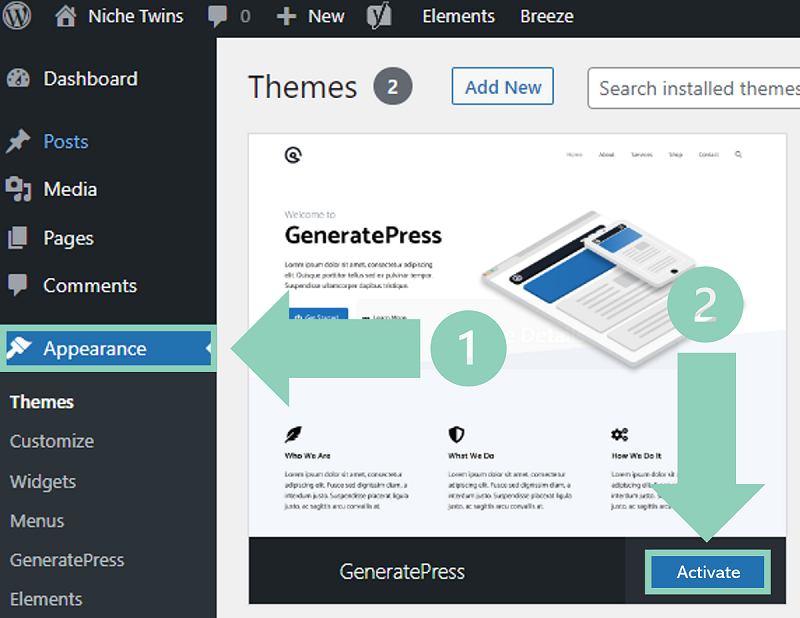
The theme editor option is not enabled and will remain unavailable until theme activation is complete. It’s as simple as that. Once activated, head back over to the Appearance sub menu and ‘Theme File Editor‘ should now appear as an option.
Again, this particular fix is directed to new users who are just starting out on their website building journey.
⚠️ Warning: Never Edit a Theme That Is Not Your Active Theme
If you have multiple themes installed, the Theme File Editor only appears for the active theme. Switching to a different theme changes which files are editable. If you’re editing a theme that isn’t live, you won’t see your changes on the front end. Always verify which theme is active before editing.
Step 2: Inspect Security Plugin Settings
More experienced site owners who encounter this problem will typically find that their security plugin is to blame.
As it turns out many popular security plugins, such as SiteGround Security and iThemes Security, have specific settings that allow you to disable the theme editor.
For site owners who allow multiple users access to their WordPress account, this can actually be a pretty useful feature. Primarily it ensures that unauthorized users cannot access the editor, helping to prevent potentially critical coding errors.
To confirm whether or not your security plugin is in fact the culprit, you will need to inspect your settings. Notably, depending on the specific plugin you have activated, the exact steps you need to take will vary.
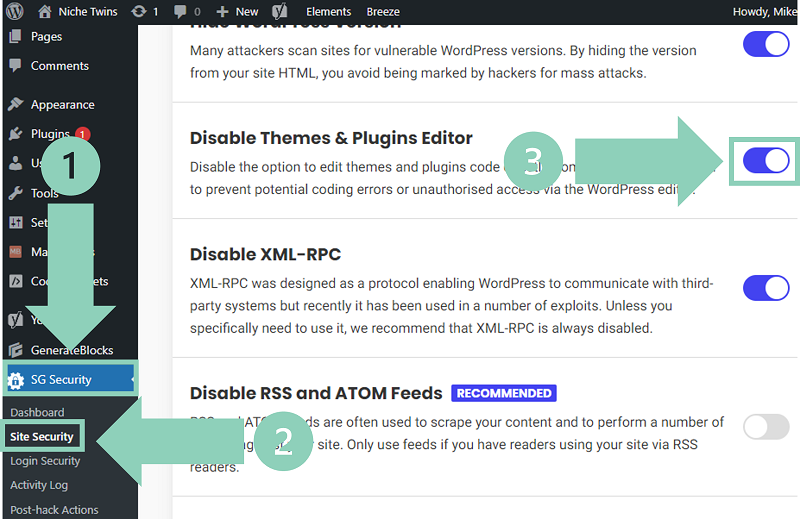
If you have the SiteGround Security plugin activated, navigate to SG Security > Site Security and disable the toggle button next to Disable Themes & Plugin Editor. Once again, click Save and reload the page.
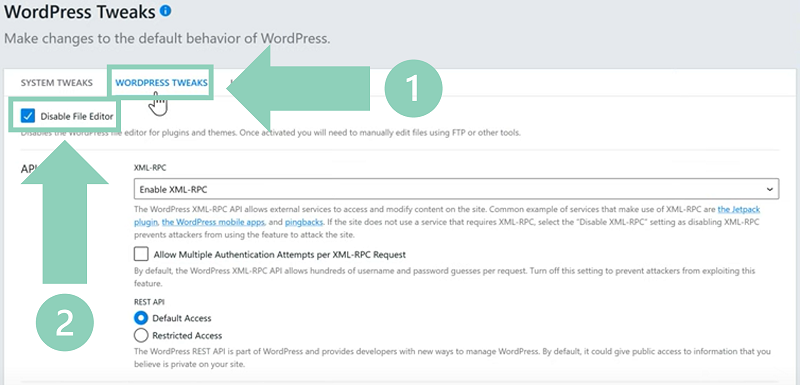
Alternatively if you are using the iThemes Security plugin, within the WordPress dashboard select Security > Settings > Advanced. Then click the WordPress Tweaks tab and uncheck the box next to Disable File Editor. Lastly click Save and refresh the page!
So you’re not using either of these security plugins? Don’t just skip ahead! If you have a different security plugin activated, be sure to review all corresponding settings to fully rule this possible cause out. Common plugins with this feature include:
- Wordfence (under “Advanced Firewall Options” or “Disable WordPress File Editing”)
- Sucuri Security (under “Hardening” section)
- All In One WP Security & Firewall (under “File System Security” tab)
- Jetpack Security (through “Protect” or “Settings”)
🔍 Pro Tip: Use a Plugin Conflict Tester
If you’re unsure which plugin is blocking the editor, install a plugin like Health Check & Troubleshooting. It lets you deactivate all plugins only for your user session without affecting normal visitors. Then you can safely test if the theme editor reappears.
Step 3: Update ‘wp-config.php’ File
If the issue persists, another option you can consider is updating your ‘wp-config.php’ file directly.
You can access this file by logging into your cPanel or by installing the WP File Manager plugin. I personally recommend using the plugin option here as some folks may have trouble accessing their cPanel. The plugin route is also a little less intimidating.
Regardless of which approach you take, right‑click on the wp-config.php file and select Code Editor.
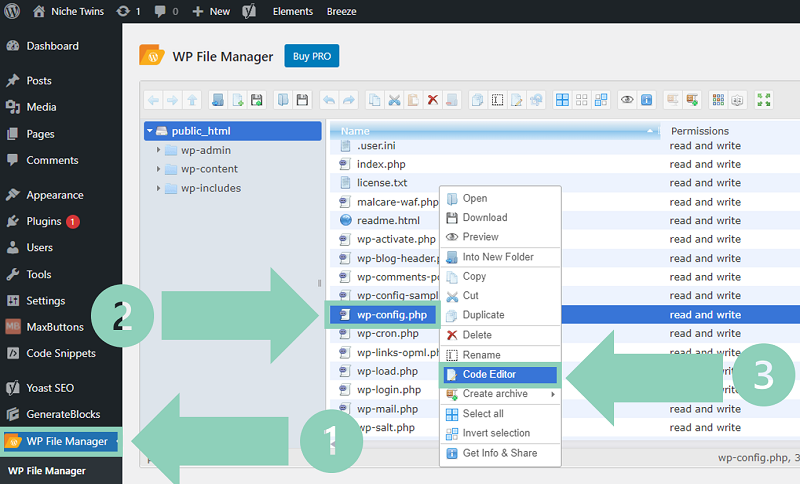
Next, within the Code Editor field locate the following line: “define(‘DISALLOW_FILE_EDIT’, true)“. Once located, simply change the text line “true” to “false” and click Save & Close.
Following a page refresh the theme editor will now be enabled and available.
What if the line doesn’t exist? If you cannot find define('DISALLOW_FILE_EDIT', true) anywhere in your wp‑config.php, then the constant is not set. In that case, the issue is not here – proceed to Step 4.
⚠️ Critical: Backup Your wp‑config.php Before Editing
A single typo in wp‑config.php can break your entire site (white screen of death). Before making any changes, download a copy of the file to your computer. If something goes wrong, you can restore it via FTP or cPanel. Alternatively, use your hosting provider’s file manager backup feature.
Step 4: Deactivate & Reactivate All Plugins
Unfortunately, if all else fails there is a high likelihood that you have a faulty plugin that is not compatible with your theme.
To check if this is the case, manually deactivate all of your plugins and reload the WordPress dashboard. If the Theme File Editor reappears, start reactivating your plugins one by one.
Between each plugin activation, go back to Appearance and determine if the theme editor option is still available. If it is, continue on. If it is not, the latest plugin you activated is the source of the error.
IMPORTANT NOTE: A buggy plugin could also be the reason why Widgets is missing from the Appearance menu.
At this stage you have a few options. You can either delete the faulty plugin and live without it or search for a different plugin that serves the same purpose. Alternatively, if the plugin is critical to your website, consider reaching out to the development team for support.
Alternative Methods to Edit Theme Files (When the Editor Is Gone)
Even if you never manage to restore the built‑in theme editor, you still have several safe ways to edit your theme files:
1. Use FTP/SFTP (FileZilla, WinSCP)
Connect to your server using FTP credentials (provided by your host). Navigate to /wp-content/themes/your-theme-name/. Download the file you want to edit, make changes locally using a code editor like Visual Studio Code, then upload it back. This method works even if the theme editor is completely disabled.
2. Use cPanel File Manager
Most hosting providers offer cPanel. Log in, go to File Manager, navigate to the same theme folder, right‑click the file, and select “Edit”. cPanel’s built‑in editor is safer than many third‑party plugins.
3. Use a Dedicated Code Snippets Plugin
If you only need to add small pieces of PHP code (e.g., custom functions), install a plugin like Code Snippets. It lets you add custom PHP without ever touching theme files – the safest option of all.
4. Use a Child Theme and Upload via WordPress Admin
Create a child theme, then zip and upload it through Appearance > Themes > Add New > Upload Theme. You can then edit child theme files safely using the theme editor (if enabled) or FTP.
⚙️ Pro Tip: Never Use the Built‑in Editor on a Live Site
Even when the theme editor is available, avoid editing files directly on a production site. One syntax error will break your site. Instead, use a local development environment (Local WP, XAMPP) or a staging site. Make changes there, test thoroughly, then deploy via Git or FTP. This is the professional workflow that separates hobbyists from experts.
Security Implications of Enabling the Theme Editor
Before you rush to re‑enable the theme editor, understand the risks. The built‑in file editor is a double‑edged sword:
- Convenience vs. Security: If a hacker gains access to your WordPress admin account, they can instantly modify any theme file, injecting malicious code or backdoors. Disabling the editor is a recommended security hardening step.
- Accidental Breakage: A single misplaced semicolon or missing closing bracket will make your entire site inaccessible (white screen). Without FTP access, you may be locked out.
- Best Practice: Keep the editor disabled on production sites. Use local development or staging for changes. If you absolutely must use the live editor, enable it temporarily, make your change, then disable it again immediately.
Many managed WordPress hosts (Kinsta, WP Engine, Cloudways) disable the file editor by default for security reasons. In those cases, you won’t find a setting to re‑enable it – you’ll need to use SFTP or a staging environment instead.
Best Practices for Safe Theme Editing
Follow these guidelines to avoid common pitfalls:
- Always use a child theme – Never edit parent theme files directly.
- Backup before editing – Use a backup plugin like UpdraftPlus or your host’s backup system.
- Test on staging first – Most managed hosts offer one‑click staging sites. Use them.
- Keep a local copy – Download all theme files to your computer for version control.
- Use error logging – Enable
WP_DEBUGin wp‑config.php to see PHP errors instead of white screens. - Disable the editor after use – Set
define('DISALLOW_FILE_EDIT', true);back to true once you’re done editing.
🔑 Key Takeaways
- The most common reason for a missing theme editor is an inactive theme – always activate after installation.
- Security plugins (SiteGround Security, iThemes, Wordfence) often disable the file editor by default. Check their settings first.
- If the
DISALLOW_FILE_EDITconstant is set totruein wp‑config.php, change it tofalse. - A plugin conflict can also hide the editor – deactivate all plugins and reactivate one by one to isolate the culprit.
- Even if you can’t restore the editor, you can still edit files via FTP, cPanel, or code snippets plugins.
- Enabling the theme editor is a security risk – use it temporarily only, or better yet, use a staging/local environment.
- Always create a child theme before editing any theme files. Parent theme edits will be lost on update.
- Back up your site before any file editing – prevention is cheaper than recovery.
Summary & Final Word
If your WordPress theme editor is not showing, follow these four steps to re‑enable it:
- Double‑check that your selected theme is fully activated
- Adjust your security plugin settings
- Access the ‘wp-config.php’ Code Editor and modify the ‘disallow file edit’ code
- Deactivate all of your plugins and reactivate them one by one
In most cases, one of these steps will restore the missing Theme File Editor. However, remember that the built‑in editor is not the only way – and often not the safest way – to customize your theme. Modern WordPress development workflows rely on child themes, staging environments, and version control. Use the tools that protect your site while giving you the flexibility you need.
Let us know how you got on in the comments section below – we’d love to hear from you!
Frequently Asked Questions (FAQ)