12 Best YouTube to MP4 Converter for Mac in 2026
Introduction
In today’s digital landscape, YouTube has become the world’s largest video repository, hosting everything from educational tutorials and documentary deep-dives to music videos, podcasts, and full-length films. Whether you’re a student saving lecture recordings for offline study, a content creator archiving reference material, or a frequent traveler wanting to enjoy your favorite playlists without an internet connection, having a reliable way to convert and download YouTube videos as MP4 files is essential.
If you’re a Mac user, you’ve likely encountered the challenge of finding a trustworthy, safe, and efficient YouTube to MP4 converter that works seamlessly with macOS, especially with Apple’s transition to Apple Silicon (M1, M2, M3, M4 chips). Many online converters are riddled with intrusive ads, pop-ups, or even malware, while desktop software varies wildly in speed, output quality, and feature depth. After extensive research and hands-on testing of over 20 different tools — analyzing conversion speed, format support, resolution preservation, batch processing capabilities, and overall user experience — we’ve curated this definitive list of the 12 best YouTube to MP4 converters for Mac in 2026.
This guide not only reviews each tool in detail but also explains the key features you should look for, addresses important legal and safety considerations, and provides actionable recommendations based on your specific use case. Whether you prioritize 4K/8K downloads, batch processing of entire playlists, AI upscaling, or simply a free, no-fuss solution, you’ll find the perfect match here. Let’s dive in.
What Is a YouTube to MP4 Converter and Why Do You Need One?
A YouTube to MP4 converter is a software application — available as a desktop program, browser extension, or online web service — that extracts video data from YouTube and saves it as an MP4 file on your local device. Unlike simply bookmarking a video, an MP4 download lets you watch content offline, integrate it into presentations or video editing projects, preserve it in case it’s removed from the platform, or transfer it to other devices (such as tablets, smartphones, or media players) that may not have a stable internet connection.
Modern converters go far beyond basic downloading. The best tools in 2026 offer features such as:
- Batch processing: Download entire playlists or channels with a single click.
- Resolution flexibility: Save videos in resolutions ranging from 144p up to 8K UHD.
- Format conversion: Convert downloaded files to MP4, MOV, AVI, MKV, WebM, and more.
- Audio extraction: Rip audio tracks as MP3, M4A, FLAC, or AAC.
- Subtitle preservation: Automatically download captions in multiple languages.
- Editing tools: Trim, crop, rotate, or merge clips before exporting.
- AI enhancement: Upscale lower-resolution footage using AI algorithms.
By using a YouTube to MP4 converter, you can effortlessly — often with just a few clicks — download various types of YouTube content as MP4 files, including live streams, podcasts, music videos, regular uploads, entire playlists, and even full channels.
Key Features to Look For in a YouTube to MP4 Converter for Mac
Not all converters are created equal, especially when it comes to macOS compatibility and performance. When evaluating which tool to use, pay close attention to the following criteria:
- Mac Optimization (Apple Silicon Support): With Apple moving away from Intel chips, native support for M1, M2, M3, and M4 chips ensures faster processing, lower energy consumption, and smoother overall performance. Tools like 4K Video Downloader and Wondershare UniConverter now offer fully optimized Apple Silicon versions.
- Format & Codec Compatibility: Ensure the converter supports the MP4 container with H.264 or H.265 (HEVC) codecs, as these provide the best balance of quality and file size. Additional format support (MOV, MKV, AVI, WebM) is a bonus.
- Resolution Options: The best tools let you choose output resolutions from standard 480p all the way up to 4K and even 8K UHD. This is crucial if you plan to watch downloaded content on large 4K monitors or TVs.
- Batch Download & Playlist Support: If you regularly need to save multiple videos or entire channels, batch processing is a must. Look for tools that can parse YouTube playlists and channels and download all videos at once.
- Download Speed & GPU Acceleration: Hardware acceleration (using your GPU) can dramatically reduce conversion times, especially for large files or high-resolution videos.
- Audio Extraction: Many users only want the audio track. Converters with a dedicated “YouTube to MP3” mode save you an extra step.
- Subtitle & Metadata Preservation: Automatically downloading subtitles (closed captions) and preserving video metadata (title, description, thumbnail) is a valuable feature for content curators and researchers.
- Safety & Privacy: Avoid online converters that ask for personal information, bombard you with ads, or have a history of malware. Desktop software from reputable developers is almost always safer.
Top 12 YouTube to MP4 Converters for Mac in 2026 — Detailed Reviews
After rigorous testing across multiple Mac systems (including Intel‑based MacBooks and Apple Silicon MacBook Pros), we’ve ranked these 12 tools based on performance, features, safety, and value. Each entry includes a detailed description, key features, pros and cons, and a direct link to the official website.
1. Movavi Video Converter — Best All-Rounder with AI Upscaling
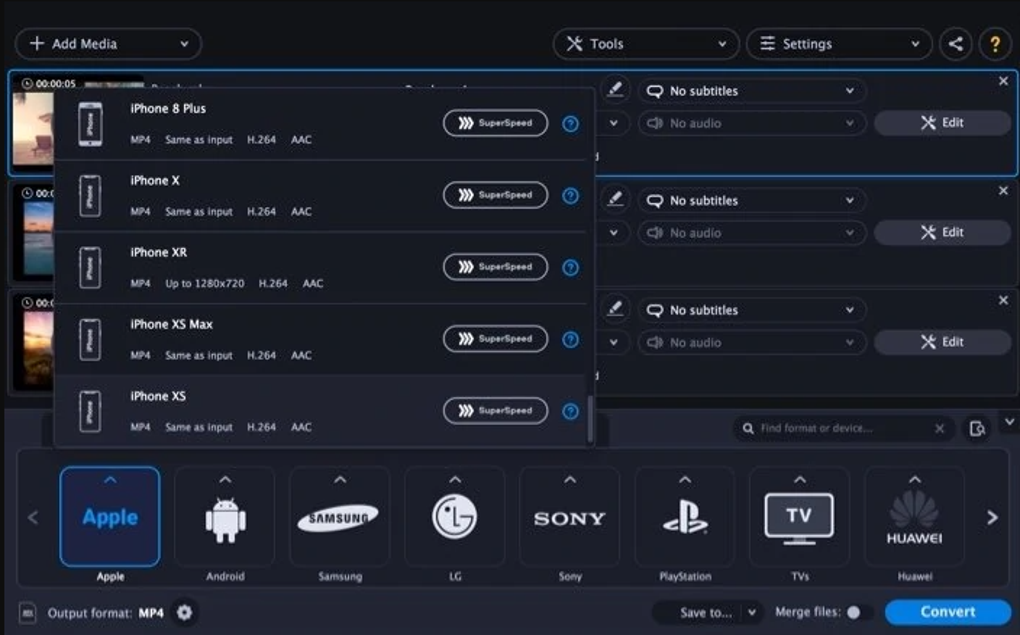
Movavi Video Converter has long been a favorite among Mac users for its clean, intuitive interface and impressive conversion speed. In its 2026 edition, Movavi has doubled down on AI capabilities, introducing an AI upscaling feature that can intelligently enhance lower‑resolution videos up to 8x — a godsend for repurposing old footage or archived screen recordings. The software supports over 180 video and audio formats, including MP4, MOV, MKV, AVI, MP3, and FLAC, and offers built‑in editing tools such as trimming, cropping, rotating, and subtitle addition.
One of Movavi’s standout strengths is its batch conversion engine. You can load multiple YouTube URLs or local files and convert them all at once, saving significant time. The SuperSpeed mode leverages your Mac’s GPU (including Apple Silicon’s Neural Engine) to accelerate processing without degrading quality. For users who need to compress large videos for email or web upload, Movavi’s lossless compression feature reduces file size while maintaining visual fidelity.
While Movavi is a paid tool, it offers a fully functional free trial with watermarked output. For regular users, the one‑time license (often available at a discount) is reasonably priced, especially given the included AI features.
- Excellent speed and format support
- AI upscaling is genuinely useful for older footage
- Clean, intuitive interface (great for beginners)
- One‑time purchase — no subscription
- Free trial adds watermark
- Some advanced editing features missing
- Occasional glitches with very long playlists
Visit Movavi Official Website →
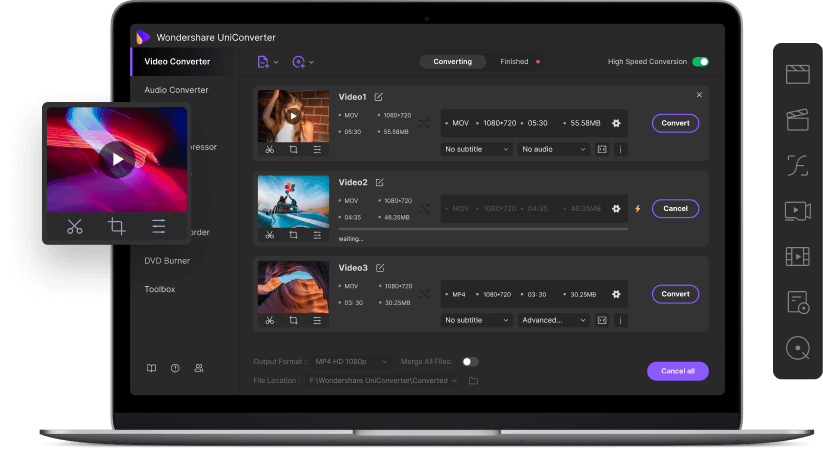
Wondershare UniConverter (formerly known as Wondershare Video Converter Ultimate) is a powerhouse — far more than just a YouTube downloader. It’s a complete multimedia toolkit that includes video conversion, downloading, editing, compression, DVD burning, screen recording, and even a VR converter. For Mac users, UniConverter offers a native Apple Silicon version that fully leverages the M‑series chip’s performance, resulting in lightning‑fast conversions.
When it comes to YouTube to MP4, UniConverter shines with its built‑in video downloader module. Simply paste a YouTube URL, and you can choose from multiple resolutions (up to 4K) and formats. It also supports downloading entire playlists or channels with a single click, making it ideal for content curators. The batch conversion engine can process thousands of files simultaneously, and the GPU‑accelerated conversion (NVIDIA, AMD, Intel, and Apple Silicon) ensures you’re not waiting hours.
Beyond downloading, UniConverter offers a robust video editor. You can trim, crop, add watermarks, apply filters, merge clips, and even adjust audio tracks. The compression tool is particularly useful for shrinking large 4K videos to share via email or social media. Although UniConverter is a paid application, Wondershare frequently offers discounts on lifetime licenses, making it a solid investment for serious video users.
- Unmatched format support (1,000+)
- Batch download entire playlists/channels
- Apple Silicon native – very fast
- Lifetime license option available
- Steeper learning curve due to many features
- Free version is heavily limited
- Premium pricing higher than some competitors
Visit Wondershare UniConverter →
3. Any Video Converter — Classic, Reliable, and Beginner‑Friendly
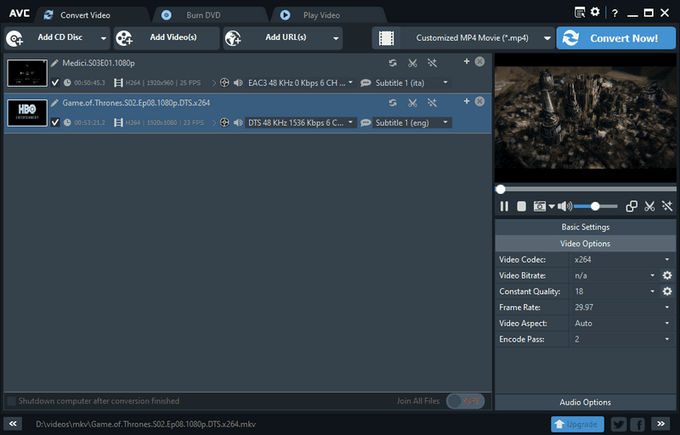
Any Video Converter has been a staple in the video conversion space for over a decade, and its 2026 version remains a solid choice for Mac users who need a straightforward, no‑nonsense tool. The software supports a wide range of input formats — including MP4, AVI, MOV, MKV, FLV, WebM — and allows you to download YouTube videos directly by pasting the URL. It also includes basic editing features such as trimming, cropping, rotating, and adding watermarks.
What sets Any Video Converter apart is its simplicity. The interface is clean and intuitive, making it perfect for users who don’t need advanced AI upscaling or complex editing options. It also offers a free version that, while limited in output quality and speed, is perfectly usable for occasional conversions. For power users, the paid “Professional” version unlocks batch processing, faster speeds, and access to 4K downloads.
Any Video Converter is not the fastest tool on this list, nor does it support Apple Silicon natively (it runs via Rosetta 2 on M‑series Macs). However, for basic YouTube to MP4 conversions on older Intel Macs or for users on a tight budget, it gets the job done reliably.
- Very easy to use – great for beginners
- Free version is genuinely useful
- Low one‑time cost for Pro version
- Stable and reliable
- No native Apple Silicon support (runs via Rosetta)
- Slower than GPU‑accelerated competitors
- Limited to basic editing functions
4. iTubeGo YouTube Downloader — One‑Click Downloads with Playlist Support

iTubeGo YouTube Downloader is a dedicated downloader that prioritizes simplicity and speed. Unlike all‑in‑one converters, iTubeGo focuses exclusively on downloading videos and audio from YouTube and over 10,000 other sites (including Facebook, Instagram, TikTok, and Vimeo). The Mac version is fully compatible with Apple Silicon and offers a clean, uncluttered interface that lets you download entire playlists or channels with a single click.
One of iTubeGo’s most appreciated features is its built‑in browser, which allows you to navigate YouTube and download videos directly without copying and pasting URLs. You can also choose from multiple resolutions (up to 8K) and formats (MP4, MOV, MKV, AVI, MP3, M4A). The batch download engine is robust, handling hundreds of videos without crashing. Additionally, iTubeGo includes a YouTube to MP3 converter, making it easy to extract audio from music videos or podcasts.
iTubeGo is a paid tool, but it offers a free trial that lets you download up to three minutes of any video. For users who regularly download content, the lifetime license is reasonably priced and often includes free updates.
- Super easy to use – great for beginners
- Supports 10,000+ websites
- Batch download entire channels/playlists
- Apple Silicon native – fast and efficient
- No video editing features
- Free trial severely limited (3 minutes)
- Subscription model for monthly plan
Visit iTubeGo Official Website →
5. 4K Video Downloader — The Gold Standard for High‑Resolution Downloads
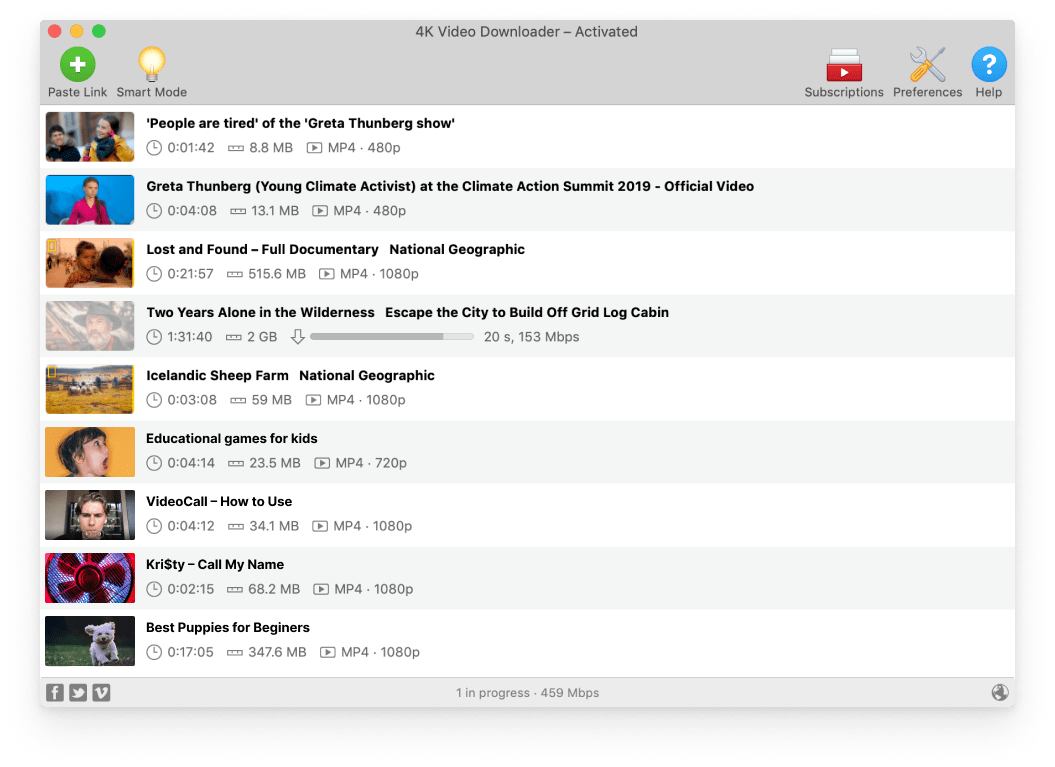
4K Video Downloader has earned its reputation as the go‑to tool for downloading high‑resolution videos from YouTube. As the name implies, it supports up to 8K UHD downloads, making it the top choice for videophiles and content creators who need the absolute best quality. The software is available for macOS (with native Apple Silicon support), Windows, and Linux, and it offers a clean, easy‑to‑use interface.
Key features include the ability to download entire YouTube playlists and channels, save subtitles in multiple languages, and extract audio tracks as MP3, M4A, or OGG. The “Smart Mode” feature lets you apply your preferred settings (format, quality, output folder) automatically to all future downloads, streamlining your workflow. 4K Video Downloader also integrates with your Mac’s clipboard, so copying a YouTube URL instantly prompts a download — a small but significant time‑saver.
The free version allows up to 30 downloads per day and limits playlist downloads to 10 videos per playlist. For heavy users, the paid “Pro” version removes all limits and adds features like downloading from private YouTube videos (if you have the URL) and faster download speeds.
- Best quality: up to 8K resolution
- Free version is very generous
- Smart Mode saves time
- Apple Silicon native – very responsive
- No video editing features
- Pro version required for unlimited downloads
- Occasionally slow on very long playlists
6. YTD Video Downloader — Simple and Widely Used
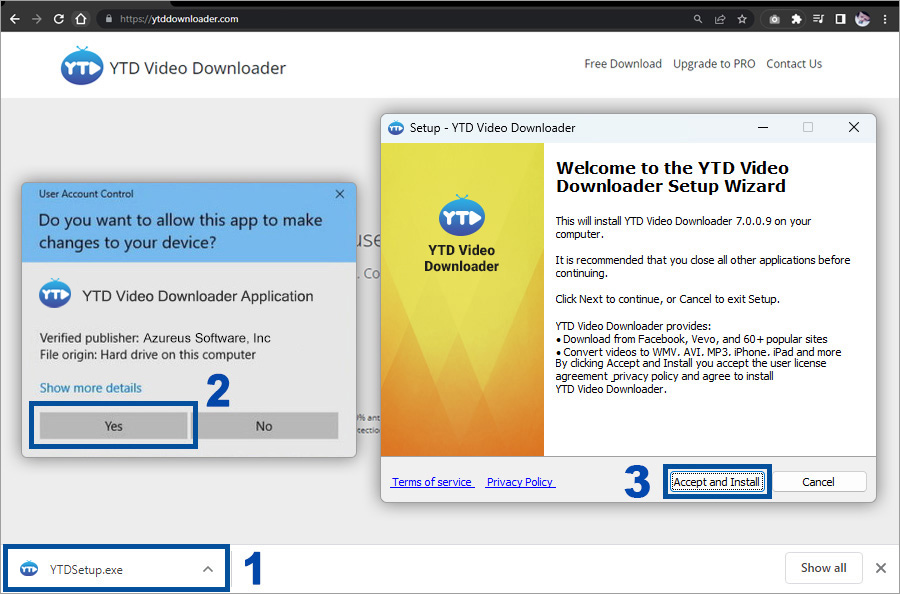
YTD Video Downloader is one of the oldest and most recognized names in the YouTube downloading space. The Mac version offers a straightforward, wizard‑based interface that walks you through the download and conversion process step by step. You can paste a YouTube URL, choose MP4 as the output format, select a resolution (up to 1080p for the free version, 4K for Pro), and let the software do the rest.
YTD also includes a basic video converter that can transform downloaded files into other formats (AVI, MOV, WMV) and a built‑in player for previewing content. While it lacks the advanced features of tools like UniConverter or 4K Video Downloader, its simplicity makes it appealing for casual users who just want to save an occasional video.
One downside: YTD Video Downloader is not optimized for Apple Silicon; it runs via Rosetta 2 on M‑series Macs. Additionally, the free version is ad‑supported and limits download speeds. The Pro version removes ads, unlocks 4K downloads, and adds batch processing.
- Very easy to use – step‑by‑step wizard
- Free version works for basic needs
- Long track record (reliable)
- Built‑in player is handy
- No Apple Silicon native support
- Free version has ads and speed limits
- Outdated interface
7. ClipGrab — Best Free, Open‑Source Converter
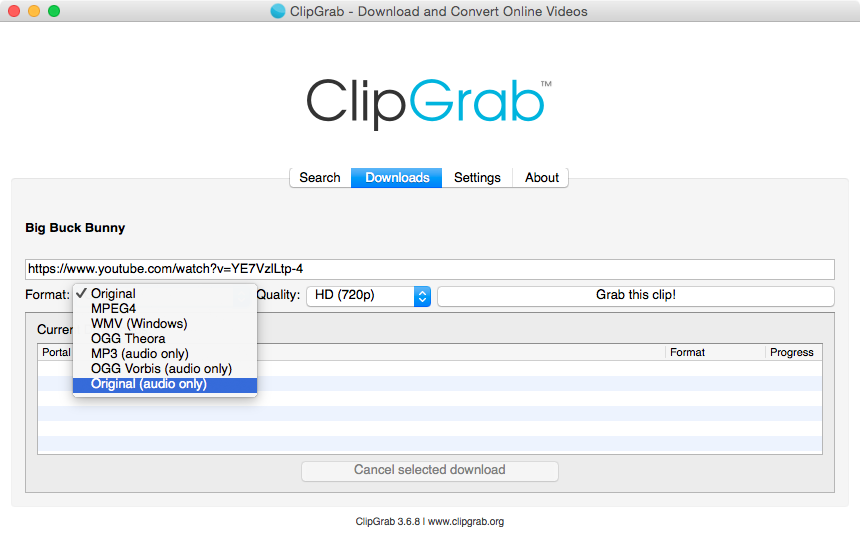
ClipGrab is a free, open‑source YouTube to MP4 converter that has earned a loyal following among Mac users who want a no‑cost solution without sacrificing safety or usability. Unlike many free converters that are ad‑ridden or bundled with malware, ClipGrab is clean, transparent, and regularly updated. The Mac version is available as a standard .dmg installer and works on both Intel and Apple Silicon Macs (via Rosetta 2 for now).
The standout feature of ClipGrab is its integrated search. Instead of copying and pasting URLs, you can search for YouTube videos directly within the application — perfect for users who don’t have the link handy. Once you find a video, you can select the output format (MP4, MP3, OGG, WMV, etc.) and resolution (up to 1080p). ClipGrab also supports batch downloads via playlist URLs, though it’s not as robust as paid tools.
Because ClipGrab is free and open‑source, development can be slower than commercial software. However, the core functionality remains solid, and the lack of ads or paywalls makes it a top choice for budget‑conscious users.
- Completely free with no limitations
- No ads or malware – open source transparency
- Integrated search saves time
- Good for basic 1080p downloads
- No 4K or 8K support
- No native Apple Silicon version (yet)
- Slower than paid alternatives
- Limited batch processing
8. Airy YouTube Downloader — Lightweight and Fast
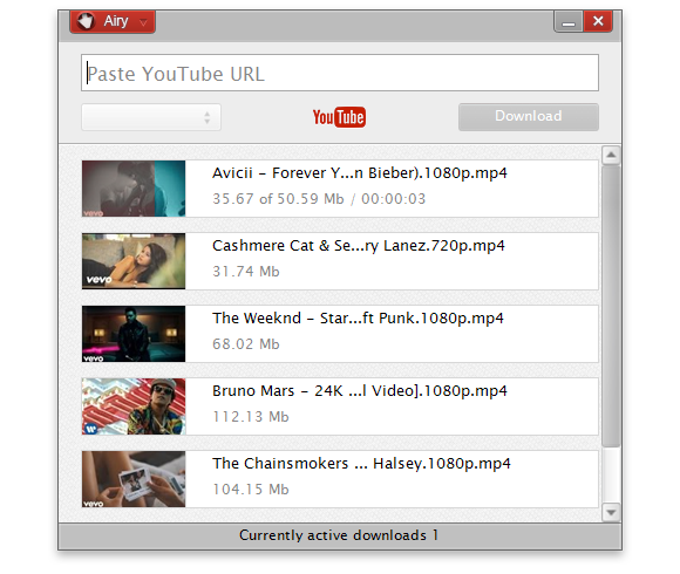
Airy YouTube Downloader lives up to its name — it’s a lightweight, no‑frills tool designed for one thing: downloading YouTube videos as MP4 files quickly. The Mac version is minimalistic: you paste a URL, choose your format (MP4, MOV, AVI, MP3, etc.) and resolution (up to 4K in the paid version), and click download. That’s it. No editing, no conversion wizards, no distractions.
Airy’s simplicity is its greatest strength. It consumes very few system resources, making it ideal for older Macs or users who want a tool that runs in the background without hogging CPU. It also supports batch downloading via playlists, though the free version limits you to 720p and one video at a time. The Pro version unlocks 4K downloads, batch processing, and higher download speeds.
Because Airy lacks any video editing or advanced features, it’s best suited for users who just need a straightforward downloader and nothing else.
- Extremely easy to use
- Very low resource consumption
- Pro version is affordable
- Batch playlist support
- No video editing features
- No native Apple Silicon support
- Free version limited to 720p
Visit Airy YouTube Downloader →
9. Free YouTube to MP4 Converter (Online) — Quick, No Installation
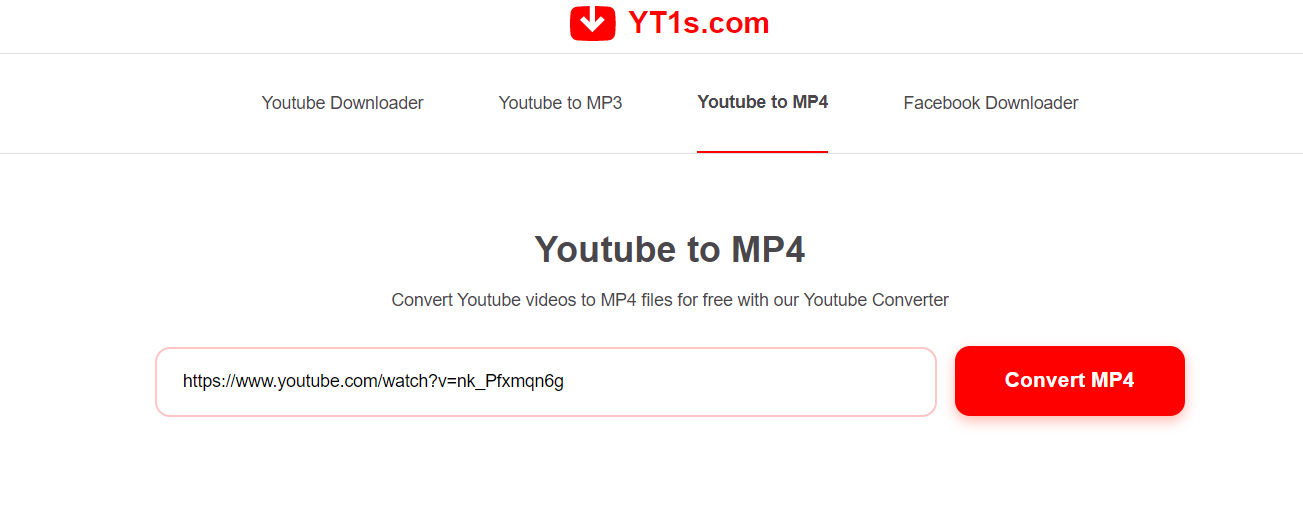
For users who need a one‑off conversion without installing any software, online converters like YT1s, FLVTO, and Y2Mate are the most convenient option. These web‑based tools require no registration or installation — you simply paste the YouTube URL, select MP4 as the output format, and click convert. The converted file is then available for download directly from your browser.
The biggest advantages are speed (no software to download) and cross‑platform compatibility (works on any Mac, regardless of macOS version). However, online converters come with significant downsides: many are riddled with pop‑up ads, some have been known to contain malware or tracking scripts, and they often limit file size or resolution. Additionally, because the conversion happens on remote servers, your privacy is not guaranteed — never use an online converter for copyrighted or sensitive content.
If you choose to use an online converter, stick to well‑known, reputable options like YT1s or FLVTO, use an ad‑blocker, and never provide personal information. For regular use, a desktop converter is always safer and more reliable.
- Super convenient for quick downloads
- No installation or registration
- Cross‑platform (works on any device)
- Often filled with ads and pop‑ups
- Potential malware or tracking risks
- Limited resolution and file size
- Privacy concerns (your IP and data are exposed)
Visit Online Converter (Use Caution) →
10. MacX YouTube Downloader — Optimized for Mac Users
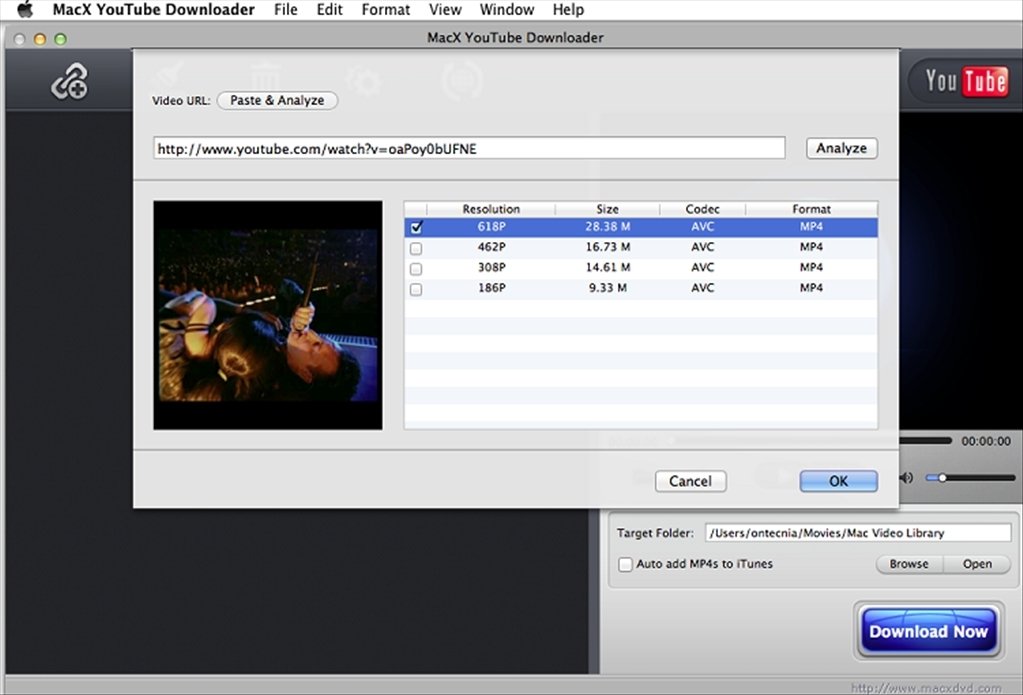
MacX YouTube Downloader is a dedicated downloader built specifically for macOS. It offers native Apple Silicon support, making it one of the fastest tools on this list for M‑series Macs. The software can download videos from YouTube and over 300 other sites, with resolutions up to 4K and 60fps.
Key features include batch downloading of entire playlists or channels, built‑in video editing (trim, crop, add subtitles), and a YouTube to MP3 converter for audio extraction. MacX also offers a “Download Later” scheduler, which is handy for queuing up large playlists overnight. The free version allows up to 1080p downloads with a daily limit; the Pro version unlocks 4K, batch processing, and removes all restrictions.
MacX YouTube Downloader is not as well‑known as 4K Video Downloader or iTubeGo, but its macOS‑first approach makes it a strong contender for Mac‑centric users.
- Optimized for macOS and Apple Silicon
- Good balance of features and simplicity
- Scheduler is unique and useful
- Affordable Pro license
- Less known than competitors
- Free version has daily limits
- Interface feels dated
Visit MacX YouTube Downloader →
11. Total Video Converter — Comprehensive Format Support
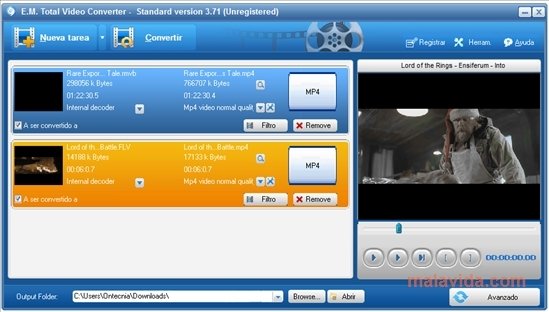
Total Video Converter is a veteran in the video conversion space, known for its extensive format support (over 500 input/output formats). The Mac version allows you to download YouTube videos by URL and convert them to MP4, MOV, AVI, MKV, WebM, and many others. It also includes a basic video editor for trimming, cropping, and merging clips.
While Total Video Converter lacks the AI upscaling or advanced features of newer tools, it remains a reliable workhorse for users who need to convert between many different formats. The interface is straightforward but feels somewhat dated compared to modern applications. Total Video Converter is not optimized for Apple Silicon, so it runs via Rosetta 2 on M‑series Macs.
The software is available as a one‑time purchase with a free trial that adds a watermark to output files.
- Unmatched format compatibility
- One‑time purchase, no subscription
- Stable and reliable
- Basic editing included
- No Apple Silicon native support
- Outdated interface
- No 4K/8K download option
- Watermark in trial version
12. OnlineVideoConverter — Fast Web‑Based Alternative

OnlineVideoConverter (also known as OVC) is another popular web‑based YouTube to MP4 converter. It requires no installation and works on any Mac with a modern browser. Simply paste the YouTube URL, select MP4 as the output format, choose a resolution (up to 1080p), and click “Convert”. Once processing is complete, you can download the file directly.
OVC supports downloads from YouTube, Facebook, Instagram, Vimeo, and other platforms. It also offers a Chrome extension for one‑click downloads while browsing. However, like all online converters, it comes with privacy and security risks. The site displays ads, and some users have reported redirects to suspicious pages. Use an ad‑blocker and avoid downloading copyrighted or sensitive material.
For occasional, low‑stakes conversions, OnlineVideoConverter is a viable option. For anything beyond that, stick with desktop software.
- Very convenient for quick downloads
- No software to install
- Works on any device
- Chrome extension adds convenience
- Ads and potential tracking
- No 4K support
- File size and download limits
- Privacy concerns
Visit OnlineVideoConverter (Use Caution) →
YouTube to MP4 Converter Comparison Table (2026)
Use the table below to quickly compare the top desktop converters at a glance.
| Tool | Best For | Max Resolution | Apple Silicon Native | Batch / Playlist | Price (One‑Time) |
|---|---|---|---|---|---|
| Movavi Video Converter | All‑rounder + AI upscaling | 4K (upscale to 8K) | ✅ Yes | ✅ Yes | ~$59.95 |
| Wondershare UniConverter | Feature‑rich toolkit | 4K | ✅ Yes | ✅ Yes | ~$79.99 |
| Any Video Converter | Casual / budget | 1080p (free), 4K (Pro) | ❌ (Rosetta 2) | ✅ Yes (Pro) | ~$29.95 |
| iTubeGo | Dedicated downloader | 8K | ✅ Yes | ✅ Yes | ~$49.95 (lifetime) |
| 4K Video Downloader | High‑resolution (8K) | 8K | ✅ Yes | ✅ Yes | ~$45 (lifetime) |
| YTD Video Downloader | Simple wizard | 1080p (free), 4K (Pro) | ❌ (Rosetta 2) | ✅ Yes (Pro) | ~$29.95 |
| ClipGrab | Free / open source | 1080p | ❌ (Rosetta 2) | ⚠️ Limited | Free |
| Airy YouTube Downloader | Lightweight | 720p (free), 4K (Pro) | ❌ (Rosetta 2) | ✅ Yes (Pro) | ~$19.95 |
| MacX YouTube Downloader | macOS optimized | 1080p (free), 4K (Pro) | ✅ Yes | ✅ Yes | ~$29.95 |
| Total Video Converter | Format variety | 1080p | ❌ (Rosetta 2) | ✅ Yes | ~$39.95 |
Takeaway: How to Choose the Right YouTube to MP4 Converter for Your Mac
With so many options, selecting the right tool can feel overwhelming. Here’s a simple decision framework based on your primary needs:
- If you need the highest possible quality (4K/8K) for archiving or editing: Choose 4K Video Downloader (up to 8K) or iTubeGo (also 8K).
- If you want an all‑in‑one toolkit with editing, compression, and conversion: Go with Wondershare UniConverter or Movavi Video Converter (the latter includes AI upscaling).
- If you’re on a tight budget or want a free tool: ClipGrab is the best free desktop option (no ads, no watermarks).
- If you need to download entire playlists or channels regularly: 4K Video Downloader, iTubeGo, or MacX YouTube Downloader all excel at batch processing.
- If you only need a one‑off download and don’t want to install software: Use a reputable online converter like YT1s or FLVTO — but be aware of the privacy and security risks.
Key Takeaways
- Desktop converters are consistently safer, faster, and more reliable than online converters. For regular use, always prefer a desktop application.
- Apple Silicon (M1/M2/M3/M4) optimization makes a significant difference in speed and energy efficiency. Prioritize tools that advertise native support.
- Batch downloading and playlist support are essential if you regularly save multiple videos or entire channels.
- Free tools like ClipGrab are excellent for basic 1080p downloads, but paid tools offer 4K/8K, GPU acceleration, and advanced features.
- Always respect copyright and YouTube’s Terms of Service. Only download content you have permission to save.
Summary
Converting YouTube videos to MP4 on a Mac in 2026 is easier than ever, thanks to a wide range of excellent tools. Whether you need a lightweight, free downloader for occasional use or a professional‑grade suite with AI upscaling and batch processing, there’s a solution for you. Our top recommendations — Movavi Video Converter for AI features, Wondershare UniConverter for all‑in‑one functionality, and 4K Video Downloader for high‑resolution downloads — represent the best balance of speed, safety, and features.
Remember to prioritize safety: avoid shady online converters, use ad‑blockers, and stick to well‑known desktop software from reputable developers. By following the guidelines in this article, you’ll be able to download and convert YouTube videos to MP4 safely, efficiently, and in the highest possible quality — perfect for offline viewing, content creation, or archiving.