- The Gutenberg block editor is the fastest method for most users: WordPress 6.x includes a native Buttons block found under the Design section of the block inserter. Add a button, type your label, paste your URL, and customise colours — no plugins or code required.
- Three reliable methods exist in 2026: The native Gutenberg Buttons block (fastest, no plugins), MaxButtons plugin with shortcodes (most design flexibility), and the Forget About Shortcode Buttons plugin (buttons persist even after plugin deactivation).
- CSS custom buttons are still valid for developers: Adding a CSS class to a link and styling it in the Additional CSS panel of the WordPress Customizer gives complete design control without installing any plugin — ideal for developers who want to keep plugins lean.
- Buttons dramatically improve conversion rates: Styled call-to-action buttons consistently outperform plain text links for affiliate clicks, landing page CTAs, and internal link navigation — making this one of the highest-ROI formatting improvements available in WordPress.
- The Gutenberg Buttons block in 2026 supports fill and outline styles, gradient backgrounds, border radius, hover states, custom typography, width settings, and individual button spacing — all without writing a single line of code.
A plain text hyperlink and a well-designed call-to-action button serve the same technical purpose — both take a visitor somewhere when clicked. But they perform very differently in practice. Styled buttons attract the eye, communicate urgency, and signal to visitors that a specific action is being invited. Text links blend into surrounding content. Buttons stand apart from it.
The business implications are measurable. Studies across e-commerce and SaaS landing pages consistently show that replacing text links with styled CTA buttons increases click-through rates by 28–45% depending on button design, colour contrast, and placement. For a WordPress site that uses affiliate links, drives newsletter signups, sells products through WooCommerce, or directs traffic to key internal pages, these conversion improvements translate directly into revenue and engagement outcomes.
Beyond conversion, buttons serve navigation and accessibility functions. Well-designed buttons with sufficient colour contrast, clear labels, and appropriate touch target sizes (minimum 44×44px on mobile) improve the experience for all visitors — including those using screen readers or navigating by keyboard. WordPress’s native Gutenberg Buttons block includes ARIA accessibility attributes automatically, making the built-in method the most accessibility-compliant approach without additional configuration.
Before choosing which method to use, it is worth understanding the common situations where WordPress buttons solve real problems:
- Affiliate link promotion: A prominent, coloured button with a label like “Check Current Price” or “Get This Deal” converts significantly better than a text link embedded in body copy. See our affiliate link cloaking plugins guide for the complete affiliate strategy context.
- Internal navigation CTAs: Guide readers to your most important category pages, cornerstone content, or product pages with buttons that stand out from surrounding text.
- WooCommerce product pages: Custom buttons for “Add to Cart,” “View Product,” or promotional offers beyond WooCommerce’s default styling.
- Landing page CTAs: “Download Now,” “Get Started,” “Book a Free Call,” or any other primary conversion action on dedicated landing pages.
- Newsletter and opt-in forms: Submission buttons that match your brand’s colour palette rather than the generic browser default button style.
- External resource links: When linking to partner sites, tools, or recommended resources, a button communicates the link’s importance more effectively than plain anchor text.
The Gutenberg block editor’s native Buttons block is the fastest, cleanest, and most maintenance-free way to add buttons in WordPress in 2026. It requires no plugin installation, produces no shortcode clutter in your content, and gives you a live visual preview of your button as you design it. For the majority of WordPress users who are not developers, this is the method to use.
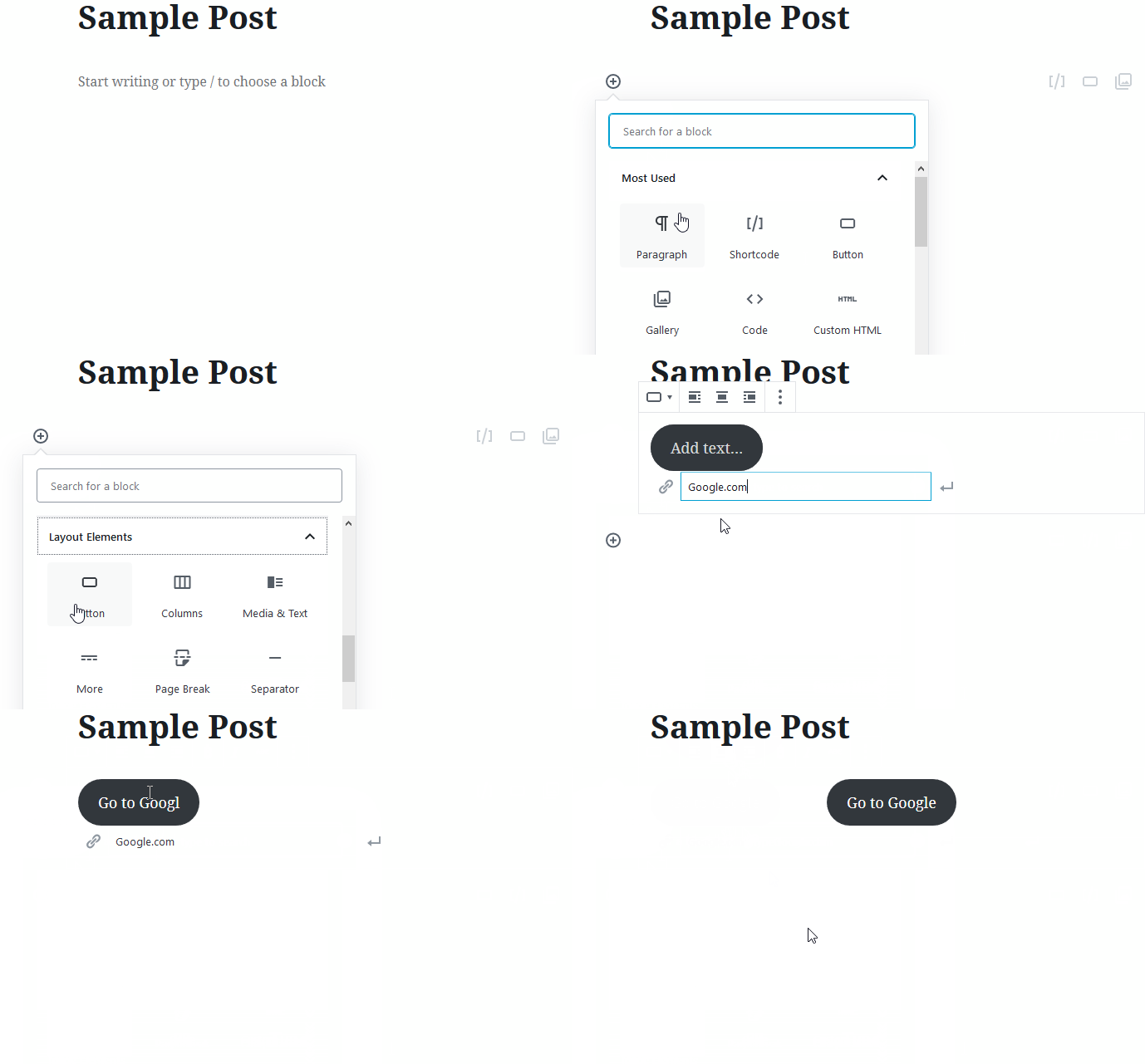
- Open your post or page in the Gutenberg editor and position your cursor where you want the button to appear.
- Click the plus (+) icon to open the block inserter — either the floating one that appears between blocks or the one in the top-left corner of the editor toolbar.
- Type “Buttons” in the search bar at the top of the block inserter. The Buttons block appears under the Design section. Click it to insert the block.
- Type your button label directly in the white button area. Use clear, action-oriented text: “Get Started,” “Download Free Guide,” “Shop Now,” “Learn More,” “Book a Call,” or whatever your specific CTA requires.
- Add your URL: Select all the button text, then press Cmd+K (Mac) or Ctrl+K (Windows) to open the link panel. Paste your destination URL. Toggle “Open in new tab” if linking to an external site.
- Choose your button style: In the block toolbar above the button, you can toggle between Fill (solid background) and Outline (transparent with border). Fill is the higher-converting option for primary CTAs; Outline works well for secondary actions.
- Customise appearance: Open the block settings panel on the right sidebar (click the gear icon if not visible). Here you can set background colour, text colour, border radius (for rounded or square corners), and button width. WordPress will warn you if your colour combination has insufficient contrast for accessibility.
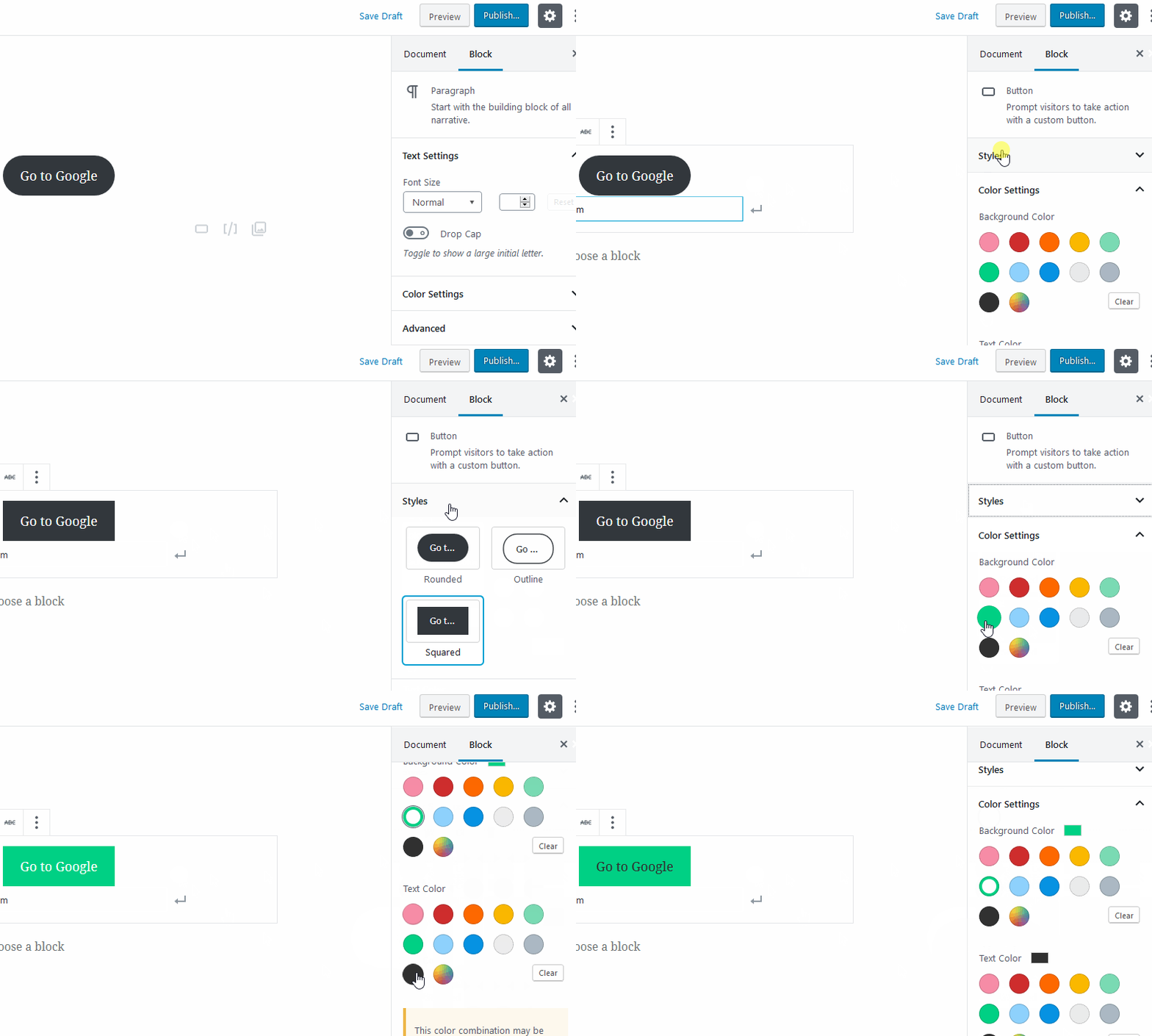
The Gutenberg Buttons block has expanded its customisation options significantly through 2024 and 2025 updates. In WordPress 6.x (current as of 2026), the Buttons block supports:
- Multiple buttons in one block: Click the “Add Button” option within the Buttons block to insert additional buttons side-by-side, useful for primary/secondary CTA pairs like “Get Started” and “Learn More.”
- Width settings: Set buttons to 25%, 50%, 75%, or 100% of the available column width — or leave at auto width to fit the label text. Full-width buttons perform particularly well on mobile.
- Gradient backgrounds: The colour picker supports gradient backgrounds — linear and radial gradients using your theme’s colour palette or custom hex values.
- Border radius control: Slide from 0 (square corners) to higher values (fully rounded, pill-shaped buttons). Most modern designs use 4–8px radius for a professional look; pill-shaped buttons (50px+) work well for hero section CTAs.
- Justification: Align the button group left, center, or right within its container using the justification controls in the block toolbar.
- Typography: Set custom font size for button text independently from your body text settings.
If your WordPress site still uses the Classic Editor (the TinyMCE-based editor that predated Gutenberg), the block-based approach above is not available. Here is the equivalent method for Classic Editor users.
In the Classic Editor, there is no native button option in the toolbar. Your options are:
- Switch to the Text tab in the editor and write the HTML directly:
<a href="YOUR_URL" class="your-button-class">Button Text</a> - Style that class in Appearance → Customise → Additional CSS (see the CSS method below)
- Use a button plugin like MaxButtons or Forget About Shortcode Buttons (both support Classic Editor)
Note: WordPress officially supports the Classic Editor plugin for sites that need it, but Gutenberg has been the default editor since WordPress 5.0 (December 2018) and is the actively developed direction. Migrating to the Gutenberg editor and using the native Buttons block is the recommended path for all new content and most existing sites.
For developers who prefer not to install plugins and want pixel-perfect control over button styling, the CSS approach remains fully valid. This method works in both Gutenberg and Classic Editor, and keeps your plugin list lean.
Step 1: Add a Link With a CSS Class
In the Gutenberg editor, add a regular link. Then click the three-dot menu in the block toolbar and select “Edit as HTML.” This exposes the underlying anchor tag, where you can add a class attribute:
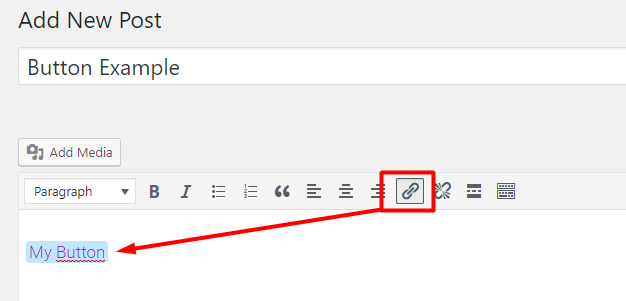
In the HTML view, modify the tag to read:
<a href="https://your-url.com" class="mybutton">Your Button Text</a>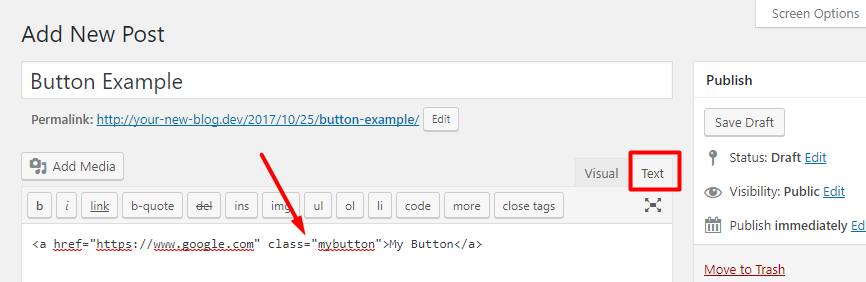
Step 2: Add CSS in the WordPress Customizer
Navigate to Appearance → Customize → Additional CSS and paste your button styles:
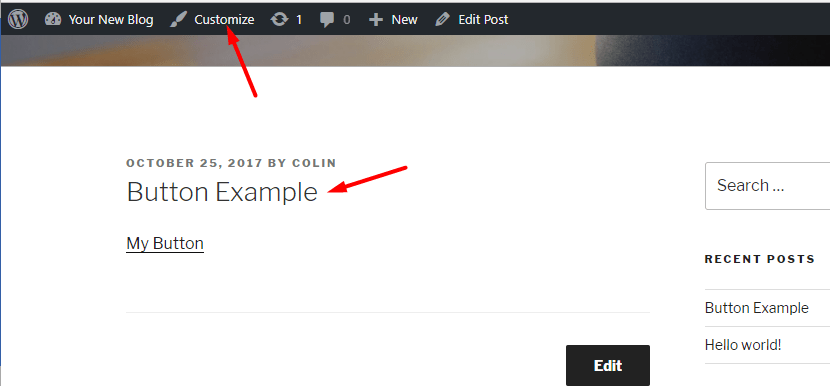
.mybutton {
  display: inline-block;
  background-color: #4285f4;
  border: none;
  border-radius: 6px;
  color: #ffffff;
  padding: 14px 28px;
  font-size: 16px;
  font-weight: 600;
  text-decoration: none;
  cursor: pointer;
  transition: background-color 0.2s ease;
}

.mybutton:hover {
  background-color: #2c6fd9;
  color: #ffffff;
}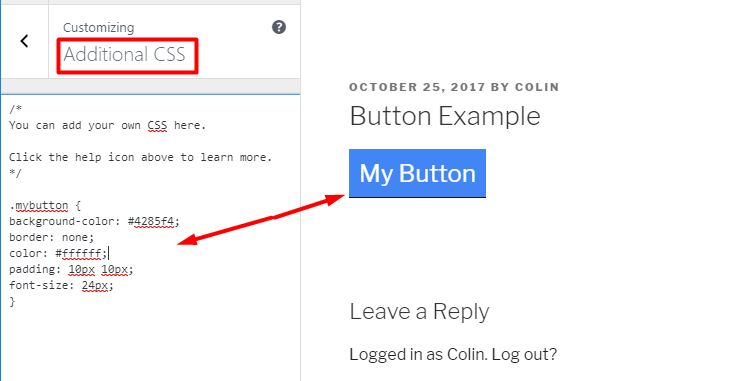
As you type CSS into the Additional CSS panel, you will see the button’s appearance update in real-time in the Customizer preview. Adjust the hex codes, padding values, font size, and border radius until you achieve the look you want.
CSS Properties Explained
| CSS Property | What It Controls | Common Values |
|---|---|---|
| background-color | Button fill colour | Hex codes (#4285f4), RGB, or named colours |
| color | Button text colour | #ffffff (white) on dark buttons; #000000 on light |
| padding | Space between text and button edge | 12px 24px (top/bottom left/right) |
| border-radius | Corner rounding | 0 (square), 4–8px (subtle), 50px (pill shape) |
| font-size | Button text size | 14px–18px for most buttons |
| font-weight | Text boldness | 600 or 700 for readable button text |
| display | How the button sits in the layout | inline-block (sits inline), block (full width) |
| transition | Smooth hover colour change animation | background-color 0.2s ease |
| text-decoration | Removes underline from link text | none (always add this for buttons) |
A basic CSS button works, but production-quality buttons need additional considerations:
- Responsive design: Add a media query to adjust padding and font size on mobile. Buttons that look balanced on desktop can feel cramped on a 375px phone screen.
- Hover state: Always add a
.mybutton:hoverrule that slightly darkens or lightens the background. This provides visual feedback that the button is interactive — a critical usability signal. - Focus state: Add
.mybutton:focusstyling with a visible outline for keyboard navigation accessibility compliance. - Containers: Wrap buttons in a
<div>withtext-align: centerto centre them without affecting the surrounding content flow.
MaxButtons is a freemium plugin that eliminates the need to write CSS by providing a graphical interface for designing buttons. Once a button style is created, it inserts into content via shortcode — making it easy to reuse the same design with different URLs and labels across your site.
- Go to Plugins → Add New and search for “MaxButtons.” Install and activate the free version.
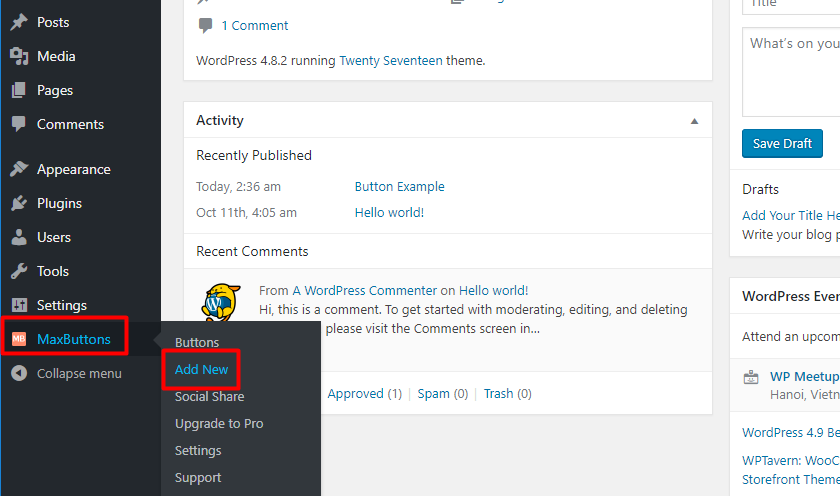
- Navigate to MaxButtons → Add New in the WordPress sidebar.
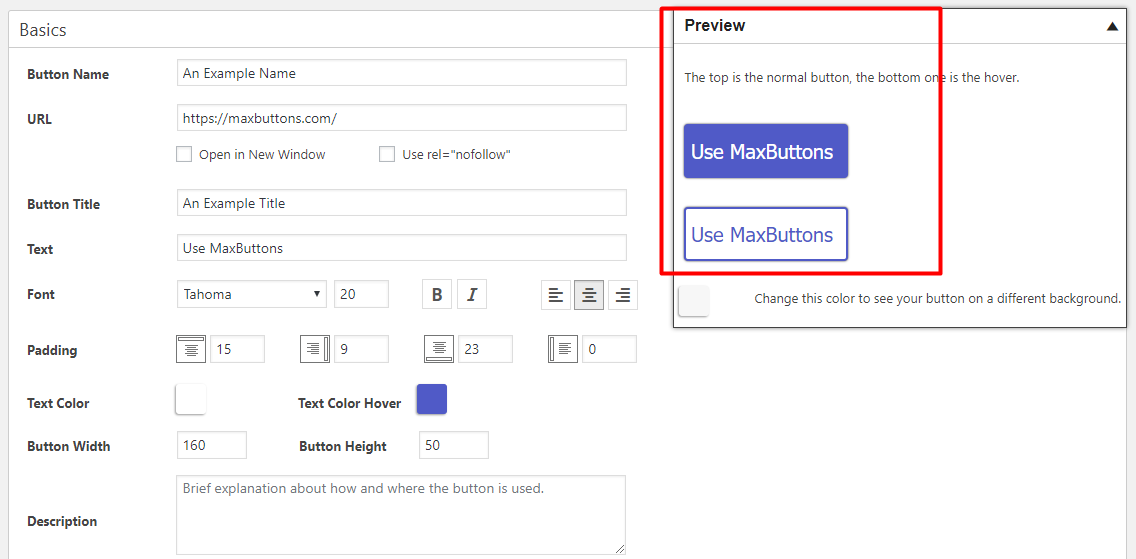
The MaxButtons interface is divided into logical sections. Here is what each controls:
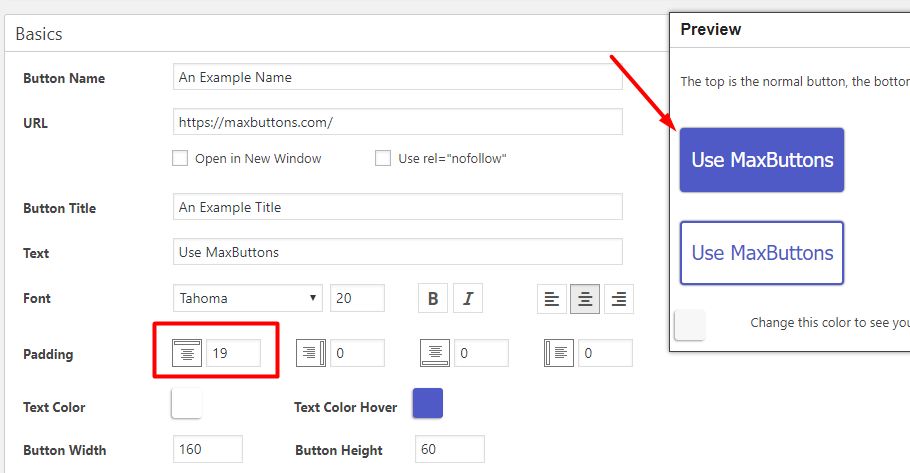
- Basics: Enter the button name (internal reference), URL, button text, font, font size, and text styling. A live preview updates on the right as you make changes.
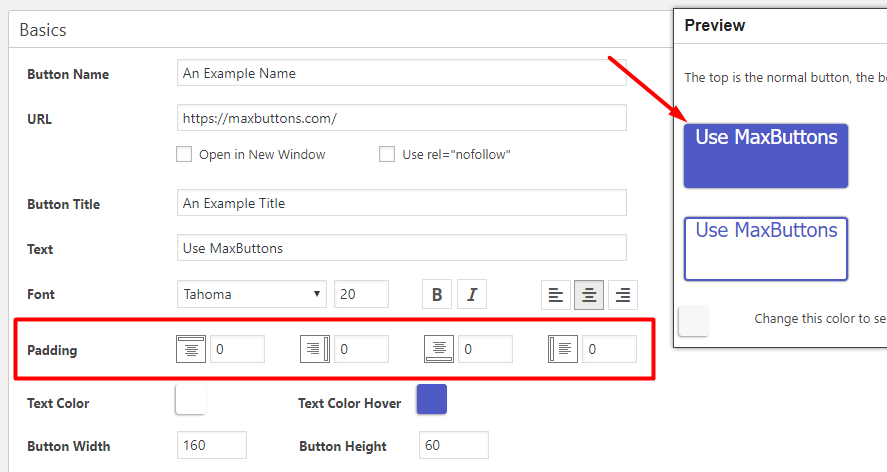
- Padding: Adjust spacing between the text and the button edges on all four sides. If all padding is zero, button text clusters awkwardly at the top edge — add equal top and bottom padding to vertically centre the text.
- Button Width / Height: Set explicit dimensions if you want consistent button sizes regardless of text length. Leave at auto for text-fitted sizing.
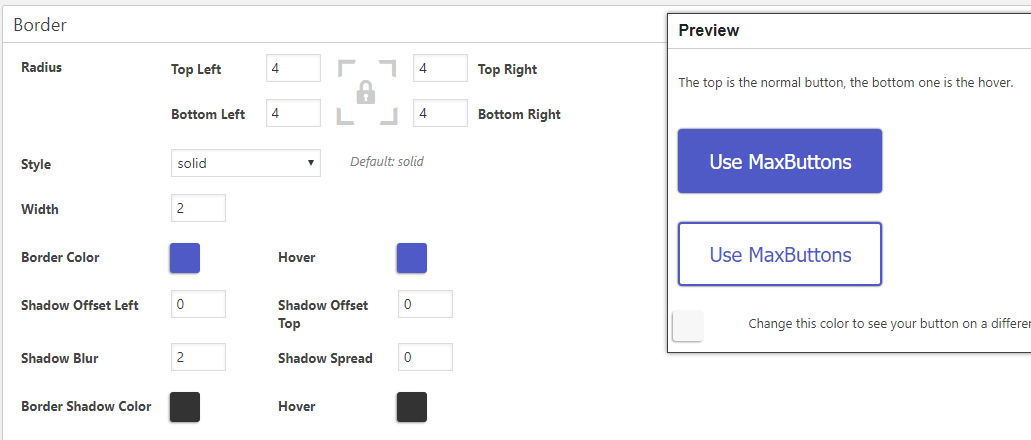
The Border section controls corner radius (0 = square, higher = rounded), border colour and style (for outlined button designs), and shadow effects. The shadow options let you add directional drop shadows — adding shadow to the bottom and right edges creates a subtle 3D depth effect that makes buttons feel more clickable.
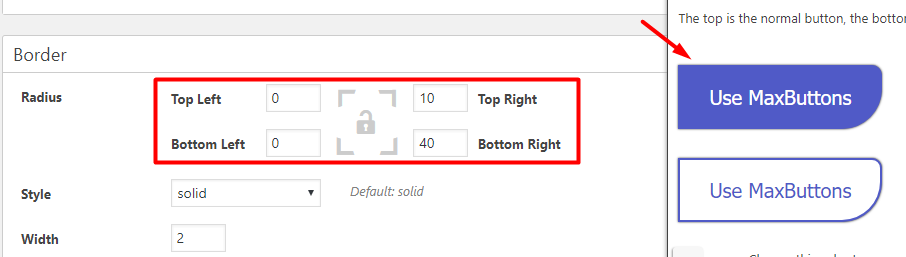
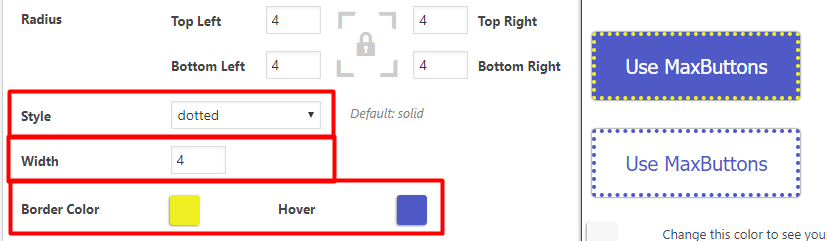
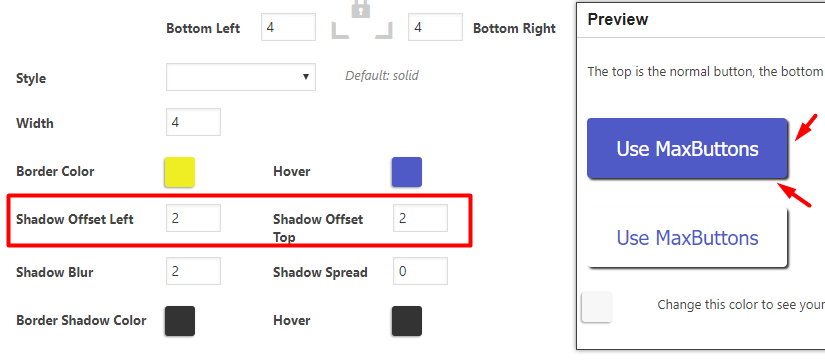
Once your button is saved, inserting it uses one of two methods:
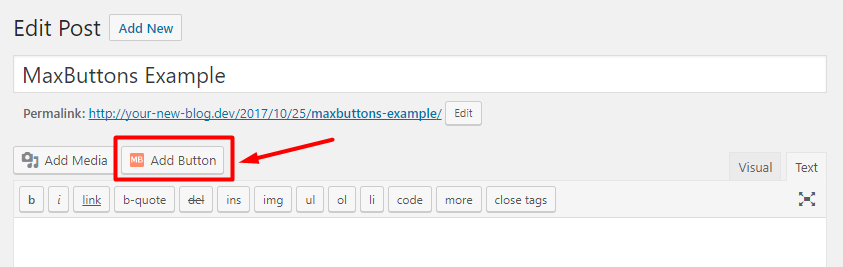
Method A — Add Button Interface: In the post editor, click the Add Button option that appears in the toolbar after MaxButtons is activated. Select your saved button style, then change the URL and label for this specific placement:
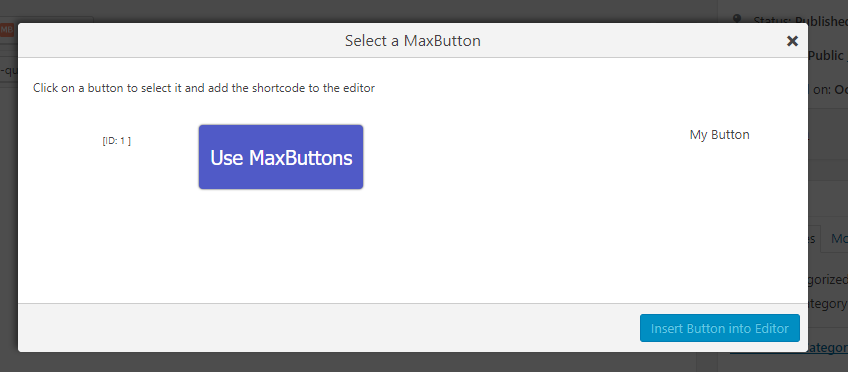
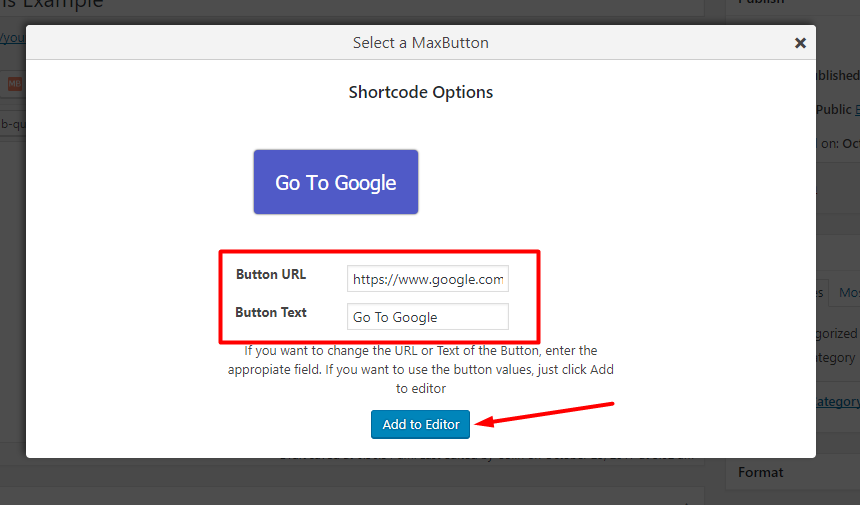
Method B — Shortcode Parameters: Use the base shortcode with parameters to customise URL and text inline:
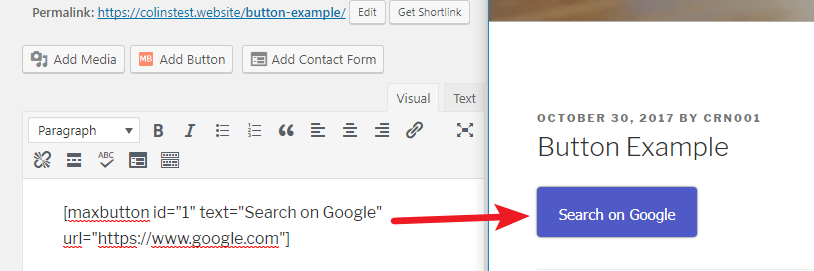
[ maxbutton id="1" text="Download the Guide" url="https://your-url.com" ]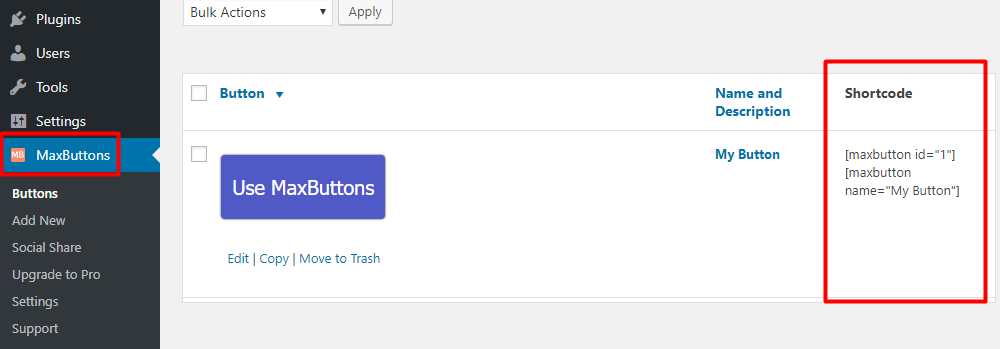
Key shortcode parameters:
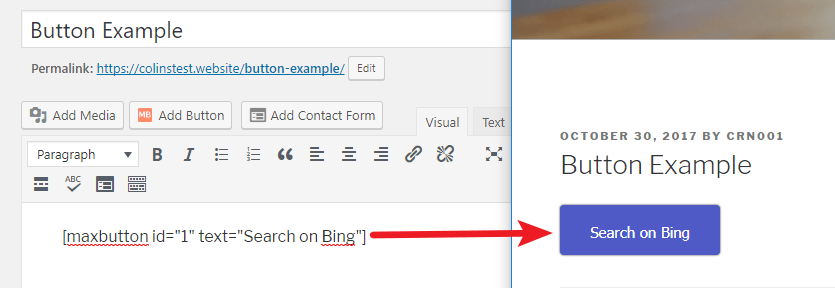
text="YOUR_TEXT"— Override button labelurl="YOUR_URL"— Override destination URLwindow="true"— Open link in a new tabnofollow="true"— Add rel=”nofollow” (for affiliate or sponsored links)
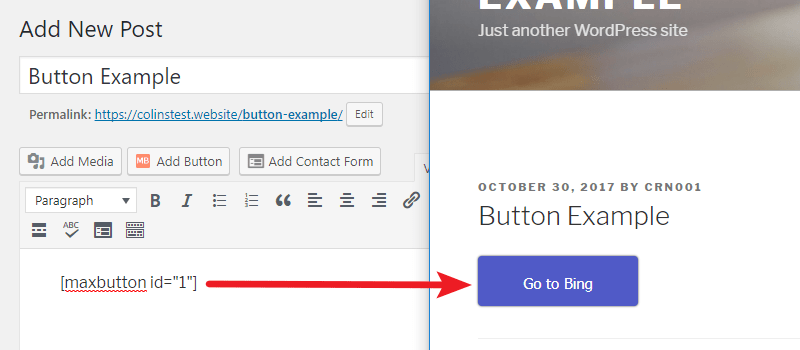
Here is the shortcode in action with different text parameters, all using the same base button design (ID 1):
The free version of MaxButtons covers most needs. MaxButtons Pro adds:
- Pre-built professional button packs ready to use immediately
- Icon support (Font Awesome integration) for icon-plus-text buttons
- Multi-line button text for longer CTAs
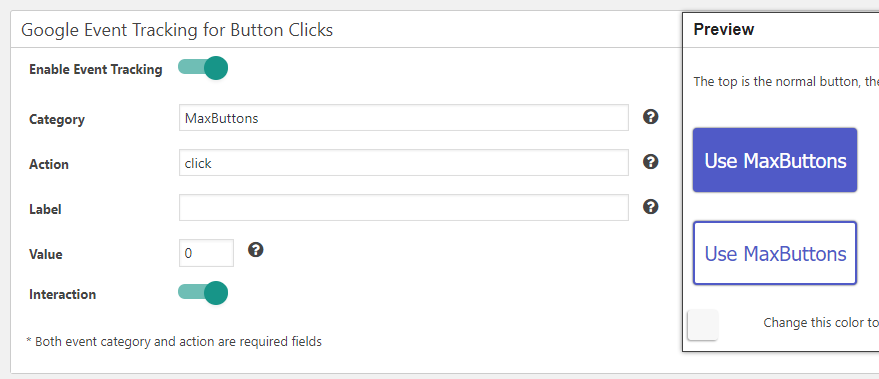
- Google Analytics Event Tracking to measure button click rates
The Forget About Shortcode Buttons plugin solves a problem that trips up many WordPress users: plugin dependency. With shortcode-based button plugins, if you ever deactivate or uninstall the plugin, all your buttons across the site revert to displaying raw shortcode text — broken content throughout your site. The Forget About Shortcode Buttons plugin bypasses this by embedding the button directly as standard HTML in the post content, not as a shortcode. This means the button persists even if you deactivate the plugin later.
- Go to Plugins → Add New and search for “Forget About Shortcode Buttons.” Install and activate.
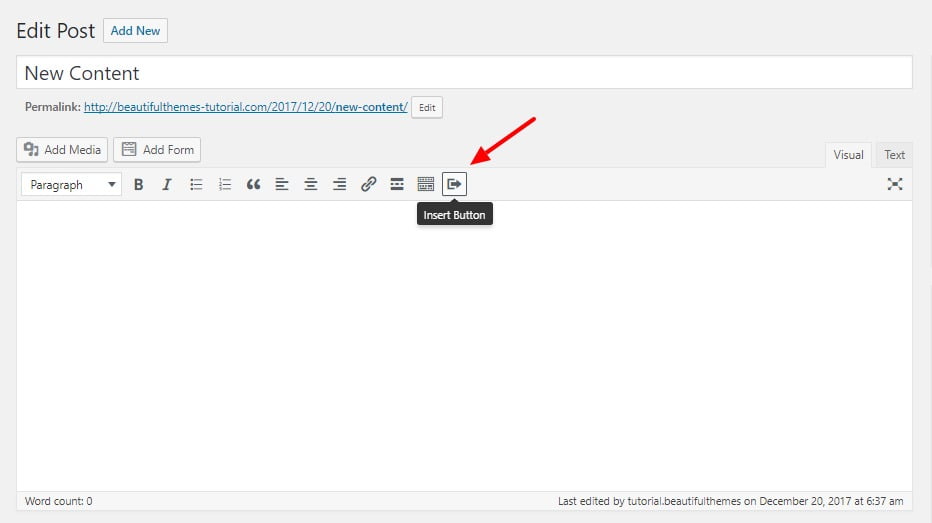
- Open a post or page in the Classic Editor. You will see a new Insert Button icon in the editor toolbar.
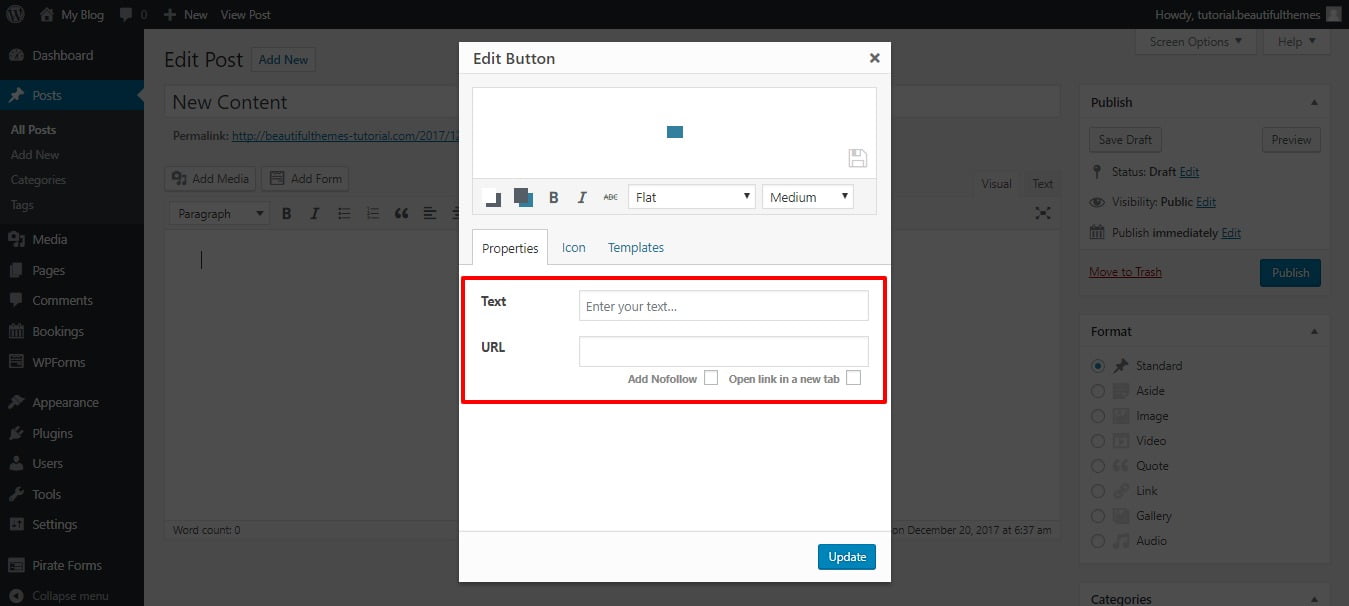
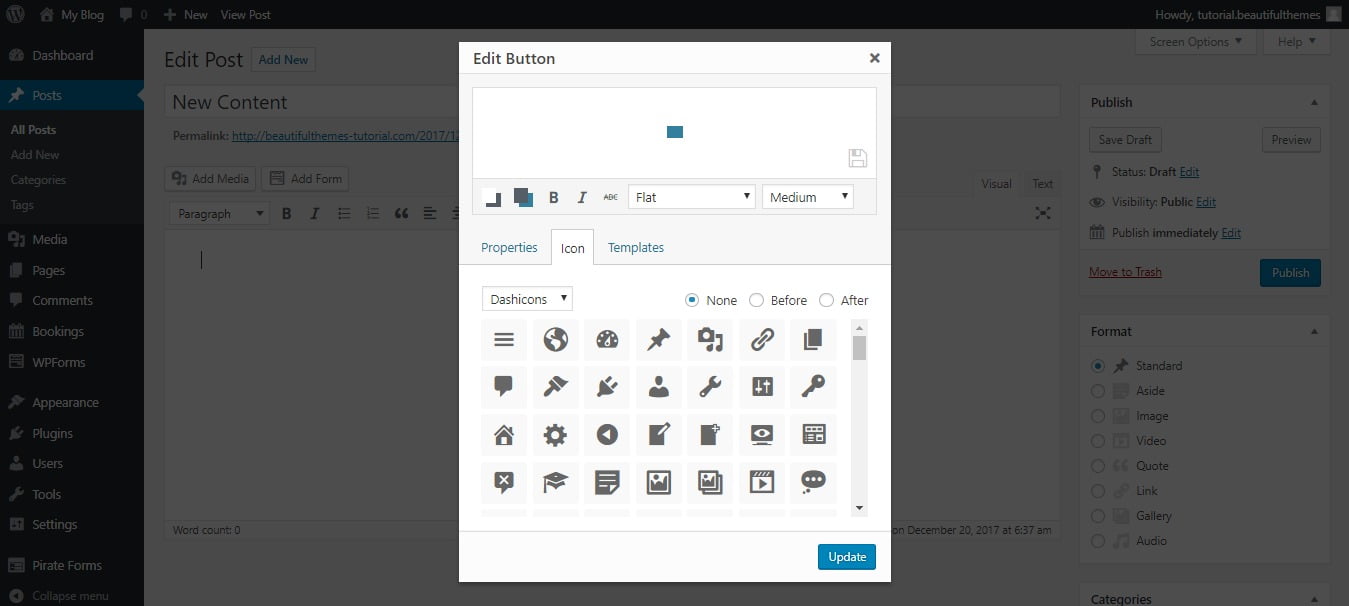
The button design panel lets you configure the button name, URL, label text, colours, sizing, and style. Crucially, you can also add icons from the icon tab and save button templates for reuse.
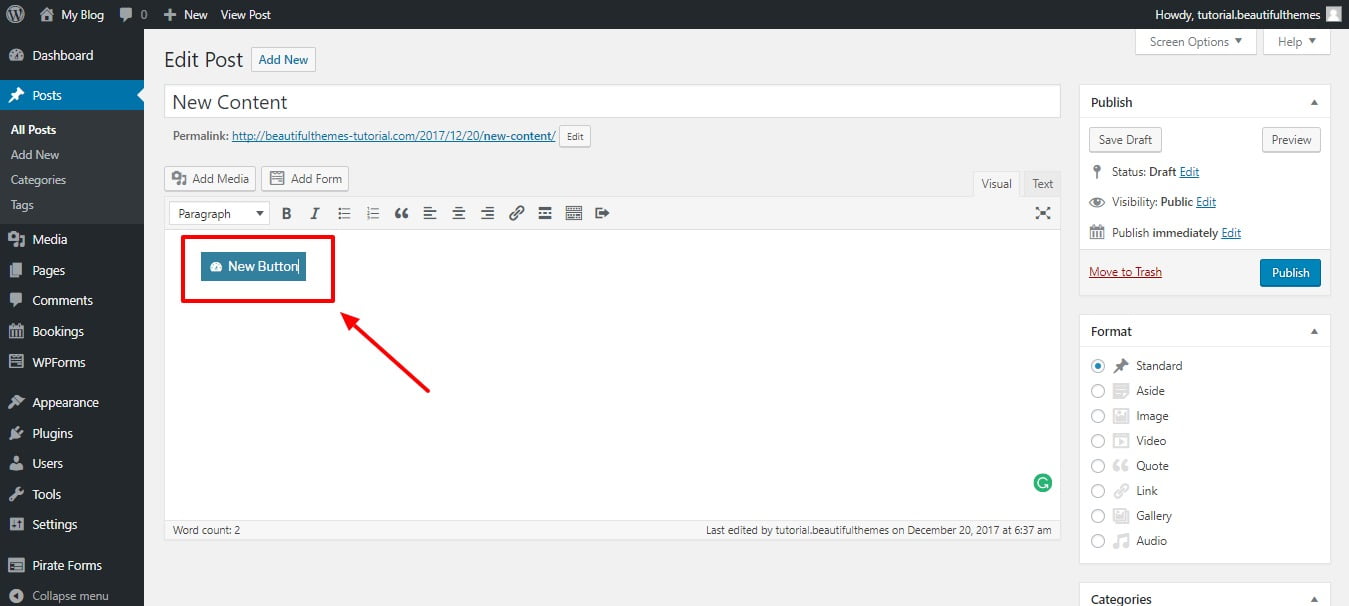
Once you click Insert, the button appears directly in your post content as styled HTML — not a shortcode. This is the key advantage: the button’s visual appearance is embedded in the content itself, making it immune to plugin deactivation.
| Method | Best For | Requires Plugin? | Persists After Plugin Removal? | Design Flexibility | Difficulty |
|---|---|---|---|---|---|
| Gutenberg Buttons Block | Most users in 2026 — fastest, cleanest | No | Yes — native block | Good (colour, radius, width, gradient) | ⭐ Very Easy |
| CSS in Customizer | Developers; consistent site-wide styling | No | Yes (if in child theme) | Unlimited | ⭐⭐⭐ Moderate |
| MaxButtons (free) | Classic Editor users; reusable button styles | Yes | No — shortcodes break if deactivated | Excellent (visual builder) | ⭐⭐ Easy |
| Forget About Shortcode Buttons | Client sites; buttons that must persist | Yes | Yes — HTML embedded in content | Good (visual builder + icons) | ⭐⭐ Easy |
| MaxButtons Pro | Advanced needs — analytics, icons, packs | Yes (paid) | No — shortcodes break if deactivated | Excellent + pre-built packs | ⭐⭐ Easy |
Adding a button is straightforward. Making it convert is where the real work lies. These evidence-based design principles apply regardless of which method you use to create your WordPress buttons:
| Design Element | Best Practice | What to Avoid |
|---|---|---|
| Button Colour | High contrast with page background; matches brand but stands out | Same colour as background; colours with insufficient contrast ratio (<4.5:1) |
| Button Label | Specific action verbs: “Download the Guide,” “Start Free Trial,” “Get Instant Access” | Generic: “Click Here,” “Submit,” “More Info,” “Learn More” (overused) |
| Button Size | Minimum 44×44px touch target on mobile; proportional to surrounding content | Tiny buttons that are hard to tap on mobile; oversized buttons that dominate the layout |
| Button Placement | Above the fold for primary CTAs; after benefit descriptions for secondary CTAs | Buried in body text; more than 2 CTAs competing on a single page section |
| Hover State | Slightly darker or lighter background on hover to confirm interactivity | No hover state (button feels static and unresponsive) |
| White Space | Adequate margin above and below the button to isolate it from body text | Button immediately touching adjacent text with no breathing room |
In 2026, over 60% of WordPress site traffic arrives on mobile devices. A button that looks balanced and professional on a 1440px desktop monitor can feel cramped, oversized, or poorly proportioned on a 375px phone screen. Both the Gutenberg Buttons block and the MaxButtons plugin include responsive settings — use them.
In the Gutenberg Buttons block, the Width setting allows you to set full-width (100%) buttons specifically for mobile viewports — a common pattern that makes primary CTAs much easier to tap on small screens without requiring users to aim at a small target. In MaxButtons, the Responsive Settings panel lets you create separate CSS query rules for different device sizes, overriding padding, font size, and width for specific breakpoints.
For CSS-based buttons, add a media query:
@media (max-width: 600px) {
  .mybutton {
    display: block;
    width: 100%;
    text-align: center;
    padding: 16px 20px;
  }
}
This rule makes the button full-width on screens narrower than 600px — the threshold below which most smartphone browsers render at.
- Boost Your WordPress SEO with Rank Math: Complete 2026 Tutorial — Optimise your buttons for SEO by adding nofollow attributes to affiliate and sponsored button links through Rank Math’s link settings.
- Top 10 Divi WordPress Templates for 2026 — Divi’s visual builder includes its own button module with advanced design options that complement the methods in this guide.
- Affiliate Link Cloaking Plugins for WordPress — Pair styled buttons with link cloaking for a professional, click-worthy affiliate marketing setup.
- How to Create a WordPress Website Offline — Test button designs in a local development environment before pushing to your live site.
- How to Increase WordPress Website Speed — Optimise your WordPress site’s loading performance so your buttons load fast on every device.
Summary
Adding buttons to WordPress in 2026 is genuinely easy regardless of your technical background. The Gutenberg block editor’s native Buttons block is the recommended starting point for most users — no plugins, no code, immediate visual feedback, and a growing feature set that now includes gradients, border radius control, width settings, and multiple buttons per block. For Classic Editor users, MaxButtons provides a visual design interface with shortcode-based reuse across the site. For situations requiring buttons that survive plugin deactivation, Forget About Shortcode Buttons embeds the HTML directly into content. For developers who want complete CSS control without plugins, the CSS class approach in the Customizer remains a clean, maintainable solution.
Whichever method you choose, the conversion and user experience benefits of adding styled buttons to your WordPress content are significant. A well-designed, high-contrast button with a specific, action-oriented label consistently outperforms plain text links for every CTA type — affiliate clicks, downloads, sign-ups, purchases, and internal navigation alike. The five minutes invested in setting up your first WordPress button pays dividends in engagement metrics across every page where it appears.
FAQ
A: The easiest plugin-free method is the native Gutenberg Buttons block. Click the plus (+) icon in the block editor, search “Buttons,” insert the block, type your label, add your URL, and customise colours and border radius in the right sidebar. No plugin, no CSS, no code required. Alternatively, for CSS-based buttons: add a CSS class to a link in the HTML view, then add the button styling to Appearance → Customize → Additional CSS.
A: The Buttons block is found under the Design section of the block inserter. Click the (+) icon to open the block inserter, then either scroll to the Design category or type “Buttons” in the search bar. Note that WordPress uses “Buttons” (plural) as the block name — searching “Button” (singular) works equally well. Once inserted, you can add multiple individual buttons within one Buttons block by clicking the Add Button option that appears when the block is selected.
A: For most users, the native Gutenberg Buttons block eliminates the need for a dedicated button plugin entirely. If you need a plugin, MaxButtons (free) is the most established option with over 300,000 active installs, providing a visual button builder with shortcode-based insertion and reuse. For buttons that must persist even if the plugin is deactivated, Forget About Shortcode Buttons embeds button HTML directly into content. For client sites, Forget About Shortcode Buttons is the safer choice because buttons remain visible regardless of future plugin management decisions.
A: In the Gutenberg Buttons block: click the link icon in the block toolbar, add your URL, and toggle the “Open in new tab” switch in the link panel. In MaxButtons: enable the “New Window” option in the Basics section. In the Forget About Shortcode Buttons plugin: check the “Open in new window” option in the button design panel. For CSS-based buttons: add target=”_blank” rel=”noopener noreferrer” to the anchor tag in the HTML view. Always add rel=”noopener noreferrer” alongside target=”_blank” for security reasons.
A: For affiliate or sponsored button links, adding rel=”nofollow” is important for SEO compliance. In the Gutenberg Buttons block, you currently need to switch to HTML view and add the rel attribute manually to the anchor tag. In MaxButtons, use the shortcode parameter nofollow=”true” to add it automatically. In the CSS method, add rel=”nofollow” directly to the anchor tag in the HTML view. The Rank Math SEO plugin also offers a link settings panel that can add nofollow attributes to selected links across the Gutenberg editor.
A: This is expected behaviour specifically with the MaxButtons shortcode plugin. Because MaxButtons uses shortcodes rather than native blocks, the button renders on the front-end (published page) but appears as a shortcode placeholder in the editor view. This is normal — click Preview or visit the published page to see the rendered button. The Gutenberg native Buttons block does not have this issue — the button renders visually in the editor exactly as it appears on the published page.