Facebook Cover Photo Size 2026: Exact Dimensions for Profile, Page, Group & Event
Every pixel that matters — safe zones, device differences, file formats, video covers, and design best practices all in one authoritative guide. Stop guessing and start designing covers that look perfect on every screen.
Group: 1640×856px
Event: 1200×628px
Video: 820×462px
📌 KEY TAKEAWAYS — WHAT YOU’LL LEARN
- One universal size fails: Desktop shows 820×312px; mobile crops sides to 640×360px. Design at 820×360px with a 640×312px safe zone for cross-device perfection.
- Groups are different: Upload at 1640×856px — desktop hides the bottom 194px, so keep critical content in the top 662px.
- Video covers are silent movies: 820×462px, 20-90 seconds, no sound. Mobile sees only your chosen thumbnail.
- Compression is king: Files under 100KB in sRGB trigger Facebook’s lighter compression — sharper images, faster loads.
- Profile picture overlap: Keep the bottom-left 170×170px clear on profiles and pages — your avatar lives there.
You’ve spent an hour designing the perfect Facebook cover photo. The colors are on-brand, the typography is sharp, and your call-to-action sits exactly where you want it. Then you upload it — and Facebook crops out your logo on mobile. Sound familiar? You’re not alone, and it’s not your fault.
This is the most common frustration marketers and creators face on the platform in 2026, and it has a simple cause: Facebook displays your cover photo at completely different dimensions depending on the device. What looks flawless on desktop gets aggressively cropped on mobile, where over 80% of Facebook’s 3+ billion monthly active users actually browse. The gap between intention and reality is measured in pixels — and this guide closes that gap forever.
This guide fixes that problem permanently. You’ll find exact dimensions for every Facebook cover type — personal profile, business page, group, and event — plus safe zones, file format guidance, video cover specs, upload tips, and a complete set of design best practices drawn from the top-performing pages in 2026. No guesswork, no outdated advice, no more cropped logos.

1. Quick Reference: All Facebook Cover Photo Sizes at a Glance
Bookmark this table — it’s the fastest way to grab the spec you need. All dimensions are verified against live Facebook placements as of February 2026. We update this data quarterly to reflect any silent changes in Facebook’s display algorithms.
| Cover Type | Upload Size | Desktop Display | Mobile Display | Safe Zone | Ratio |
|---|---|---|---|---|---|
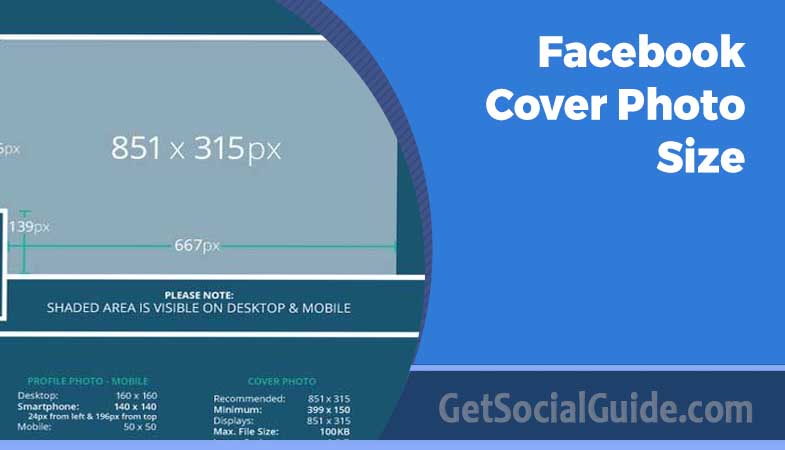
| Personal Profile | 851×315px |
820×312px |
640×360px |
640×312px |
16:9 |
| Business Page | 851×315px |
820×312px |
640×360px |
640×312px |
16:9 |
| Facebook Group | 1640×856px |
1640×662px |
1640×856px |
1640×662px |
1.91:1 |
| Facebook Event | 1200×628px |
1200×628px |
1200×628px |
1080×566px |
1.91:1 |
| Video Cover | 820×462px |
820×312px |
640×360px |
640×312px |
16:9 |
💡 PRO TIP — The Universal Safe Size
For personal profiles and business pages, design your canvas at 820×360px. This single size displays without awkward cropping on both desktop and mobile — it’s the closest thing to a universal Facebook cover dimension. Keep all key content within the centered 640×312px safe zone and you’re fully covered on every device.
2. Personal Profile & Business Page Cover Photo Size
The cover photo at the top of your personal timeline and business page is the most valuable screen real estate on your entire Facebook presence. First-time visitors’ eyes move straight to it — before your page name, bio, or any post. Getting the dimensions exactly right is non-negotiable for making a strong first impression. In 2026, with the platform’s continued emphasis on visual storytelling, your cover is your digital storefront.
851 × 315
Facebook’s official recommendation
820 × 312
Full width, slight height trim
640 × 360
~90px cropped from each side
640 × 312
Keep all key content here
Desktop vs. Mobile: What Actually Gets Cropped
On desktop, Facebook shows your cover photo nearly full width — it displays at 820×312px with only a slight trimming at the very top and bottom. On mobile, the crop is far more dramatic: roughly 90 pixels get removed from each side of your image, narrowing the visible area to 640px wide while showing slightly more height (360px). This asymmetric cropping is why so many covers look professional on a laptop and confusing on a phone. The left and right margins are sacrificed for the vertical aspect ratio of mobile screens.
- Width shown: 820px
- Height shown: 312px
- Profile pic position: Bottom-left corner
- Full sides visible: Yes
- Width shown: 640px
- Height shown: 360px
- Profile pic position: Centered, lower area
- Sides cropped: ~90px each side
⚠️ WARNING — Profile Picture Overlap
On both desktop and mobile, your circular profile picture overlaps the bottom-left area of your cover photo — roughly a 170×170px zone. Keep this area completely clear of any text, logos, or important design elements. This is the single most common cover photo design mistake on Facebook, and it’s completely avoidable with proper planning. Always overlay a profile picture placeholder in your design software to check for conflicts.
Personal Profile vs. Business Page: Are the Dimensions Different?
No — cover photo dimensions are identical for personal profiles and business pages in 2026. Both use the same 851×315px upload spec, display at 820×312px on desktop, and crop to 640×360px on mobile. The difference is strategic context: a personal cover can be expressive and decorative, while a business page cover should serve a purpose — driving conversions, reinforcing brand identity, or communicating a clear value proposition to first-time visitors. Business pages also have the option to add action buttons directly below the cover, so ensure your cover design doesn’t visually compete with that interactive element.
3. The Safe Zone: Your Most Critical Design Rule
The safe zone is the central region of your cover photo that remains fully visible on every device — desktop, mobile, and tablet. Think of it as the protected inner rectangle where nothing will ever be cropped, blocked by your profile picture, or obscured by Facebook’s overlaid UI elements. Mastering the safe zone is the difference between a cover that communicates and one that frustrates.
For Facebook profiles and pages, the safe zone is 640×312 pixels centered within your 851×315px canvas. This means you need roughly 105px of padding on the left and right edges where no important content should live. Background color, texture, pattern — all fine at the edges. Text, your logo, phone number, website URL — keep them squarely in the center safe zone. The same principle applies, with different numbers, to groups and events.
Safe zone rules by cover type: Personal/Business Page → center 640×312px. Group cover → center 1640×662px (top-aligned, avoid bottom ~194px on desktop). Event cover → center 1080×566px, avoiding outer 60px on each side. These are non-negotiable if you want your message to reach all viewers.
Setting Up Safe Zones in Your Design Tool
| Design Tool | How to Add Safe Zone Guides | Canvas Size |
|---|---|---|
| Canva | Use official “Facebook Cover” template — safe zone is pre-marked | 851×315px template |
| Adobe Photoshop | View → New Guide Layout → set 105px margin left & right | 851×315px canvas |
| Figma | Create 851×315px frame; add centered 640×312px guide rectangle, lock it | 851×315px frame |
| Adobe Illustrator | File → Document Setup → Bleed → 105px left/right, 1.5px top/bottom | 851×315px artboard |
| Adobe Express | Built-in Facebook cover template with safe zone baked in | Pre-sized template |
💡 PRO TIP — The Center-Lock Method
In any design tool, draw a 640×312px rectangle centered on your 851×315px canvas and lock it as a non-printing guide layer. Design everything important inside that rectangle, then delete or hide the guide before exporting. This takes 30 seconds to set up and works in every design application, ensuring your critical elements never get cropped. For groups, use a 1640×662px guide rectangle instead.
4. Facebook Group Cover Photo Size
Facebook Groups use completely different dimensions from profiles and pages — a fact that catches most designers off guard. Groups have a much larger, nearly square canvas compared to the wide banner format used elsewhere. This extra vertical space gives community admins a richer canvas for communicating the group’s purpose and personality. In 2026, with the explosive growth of niche communities, getting your group cover right is essential for attracting the right members.
Group Upload Size
Upload at this resolution for maximum clarity. Never upload smaller — Facebook will stretch it and lose sharpness.
Desktop Display
Bottom ~194px are hidden on desktop. Design critical content above this line.
Mobile Display
Mobile shows the full 856px height — more visible than desktop. This is a key reversal.
This is an interesting reversal from profile/page behavior: whereas desktop shows more width on regular covers, the group cover shows less height on desktop than on mobile. Design your group cover from the top down — place your most important content in the upper 662px, and use the lower portion for supplementary elements that enrich the mobile experience without being critical to the core message. Many top-performing groups now use the bottom area for member spotlights or visual calls to join discussions.
⚠️ WARNING — No Profile Picture Overlap on Groups, But…
Unlike personal profiles and business pages, Facebook Group cover photos do not have a profile picture overlapping them — giving you the full width to work with. However, the group name and member count text overlay appears in the bottom-left section. Avoid placing your own text in the bottom-left corner to prevent visual conflict with Facebook’s automatic overlays. This overlay is semi-transparent but can still obscure fine print.
What Makes an Effective Group Cover?
Group covers serve a distinct purpose — they need to communicate community identity, not just brand identity. The most effective group covers do one of these three things immediately and visually:
- State who the group is for — a quick visual or text signal that helps newcomers self-identify (e.g., “for solopreneurs” or “pasta lovers only”).
- Show what the group is about — imagery or iconography that signals the niche or topic, from hiking trails to digital art.
- Create a sense of belonging — color palettes, photography, or illustration that generates an emotional pull toward membership, often featuring diverse member avatars.
💡 PRO TIP — Preview Groups on Mobile First
Since groups are predominantly accessed on mobile (where the full 856px image shows), always preview your group cover on a real smartphone before publishing. A design that looks clean on desktop may feel sparse or oversized on mobile if you haven’t considered the full vertical canvas. Use Facebook’s “View as” feature or simply ask a group member to send you a screenshot.
5. Facebook Event Cover Photo Size
Your Facebook event cover is the visual equivalent of a poster or flyer — it needs to convince people in a fraction of a second whether to click “Interested” or keep scrolling. Unlike a permanent profile cover, event covers need to communicate essential information immediately: what, when, where, and why they should care. In 2026, with events increasingly hybrid (in-person + virtual), your cover must work for both audiences.
Recommended Upload
Optimal for both desktop and mobile event pages. 1.91:1 aspect ratio.
Minimum Acceptable
Below this, Facebook stretches the image and it appears blurry.
What to Include on an Event Cover
✅ Do Include:
- Event name or headline — large, legible, center-safe-zone placement
- Date and time — secondary typography, still visible at thumbnail size
- Location or “Online” indicator for virtual events
- Brand logo or organizer mark — consistent with other event marketing
- A compelling visual that represents the event’s energy or subject matter
❌ Avoid:
- Too many details — description belongs in the description field, not the image
- Small fonts under 24px — unreadable at mobile dimensions
- Text near the image edges — these get cropped on some device/OS combinations
- Low-contrast text over busy photo backgrounds — readability collapses on mobile
💡 PRO TIP — Update the Cover After Your Event
When your event concludes, update the cover with a “Thanks for attending!” message or a highlight photo from the event. Facebook keeps event pages live indefinitely. Stale covers with past dates signal an inactive organizer and undermine credibility for future events that new visitors may discover through search. A fresh cover also encourages attendees to share their photos, extending your event’s reach.
6. Facebook Video Cover Specs
Facebook allows pages to use a short looping video instead of a static image as the cover photo — one of the most underutilized features for brands and creators in 2026. A video cover auto-plays silently when visitors land on your page, creating a far more dynamic first impression than any static image. It’s like having a 20-second commercial for your brand, playing on repeat for every new visitor.
820 × 462px
16:9 aspect ratio
20 seconds
Short enough to loop cleanly
90 seconds
Aim for under 30s in practice
1.75 GB
MP4 or MOV format
Video Cover Best Practices
Video covers play without sound by default — Facebook’s own guidelines confirm this behavior. Your video needs to communicate completely visually, without any reliance on audio. Use text overlays, motion graphics, or purely visual storytelling to convey your message. Think of it as silent cinema for your brand.
- Design for silent viewing — captions, text overlays, or pure visual storytelling
- Keep important content in the center 640×312px safe zone (same as static covers)
- Use a clean, seamless loop so the end-to-start transition feels natural — jarring loops look unprofessional
- Front-load your brand identity in the first 3 seconds for brief-glance visitors
- Select a compelling thumbnail frame during upload — this is what mobile users see (and they are the majority)
⚠️ WARNING — Video Covers Are Pages-Only
Video cover photos are available exclusively on Facebook business Pages. They cannot be used on personal profiles or groups. Additionally, video covers only display on desktop browsers — mobile visitors see the static thumbnail frame you selected during upload, not the video itself. Plan your static thumbnail as carefully as your video, because for over 80% of your audience, that thumbnail is the cover.
7. File Format, Size & Quality Settings
Uploading at the correct dimensions is necessary — but not sufficient. Facebook compresses every image you upload, and the degree of compression depends directly on your file format, file size, and color profile. These variables determine whether your cover looks crisp and professional or muddy and pixelated. Understanding the technical backend gives you a significant edge over competitors who simply upload whatever they have. According to Facebook’s Developer documentation, the platform applies a specific compression algorithm that favors smaller, optimized files.
| Spec | Recommended | Why It Matters |
|---|---|---|
| Format (Photos) | JPG |
Smaller file size; fast loading; Facebook recommends for photographic images without text |
| Format (Graphics) | PNG |
Lossless compression preserves sharp text edges and flat color blocks; best for logos and branded graphics |
| Max File Size | Under 100 KB |
Files below 100KB trigger Facebook’s lighter compression pass, resulting in noticeably sharper output |
| Color Profile | sRGB |
Facebook converts everything to sRGB; uploading non-sRGB files causes color shifts during automatic conversion |
| Resolution | 72 PPI |
Screen displays use 72 PPI; higher DPI inflates file size without adding any visible quality on screen |
| JPG Quality | 90–95% |
Keeps image sharp through Facebook’s additional compression layer |
PNG vs. JPG: The Clear Decision Rule
The choice comes down to one question: does your cover contain text, a logo, or flat-color graphic elements? If yes, PNG. If it’s a pure photograph with no text overlay, JPG at 90–95% quality produces a visually identical result at dramatically smaller file size — which means faster page loading for mobile visitors on slower data connections. For hybrid designs (photo with text overlay), test both: sometimes a high-quality JPG preserves text well enough, but PNG is the safer bet. Resources like Smashing Magazine offer deep dives into web image optimization that complement these guidelines.
💡 PRO TIP — Compress Before Uploading
Use TinyPNG or Squoosh by Google to compress your cover to under 100KB before uploading. This triggers Facebook’s lighter compression algorithm and produces a noticeably sharper final image compared to uploading a large uncompressed file and letting Facebook perform all the compression work. This single step can dramatically improve perceived image quality.
8. How to Upload & Reposition a Cover Photo
Even with perfect dimensions, the upload process has a few nuances. Here’s the complete step-by-step for adding, replacing, or repositioning a Facebook cover photo in 2026. Follow these steps exactly to avoid the most common upload pitfalls.
First-Time Upload
- Navigate to your Facebook profile, page, or group. Make sure you’re logged in as the owner or an admin with editing permissions.
- In the cover area at the top of the page, click the “Add Cover Photo” button (visible when no cover exists yet).
- From the dropdown, click “Upload Photo” and select your prepared cover photo file from your device.
- Facebook loads a preview with a repositioning handle. Drag the image up or down to adjust how it crops — especially important if your design isn’t exactly 851×315px.
- Click “Save Changes.” Always verify immediately on both a desktop browser and a real mobile device before sharing the page link anywhere.
Replacing an Existing Cover Photo
- Hover over the existing cover photo. An “Update Cover Photo” button appears in the bottom-right corner of the cover area.
- Click the button. Choose “Upload Photo” for a new image, or “Choose Photo” to select from your existing Facebook library.
- Reposition if needed, then click “Save Changes.”
Repositioning Without Re-Uploading
- Hover over the cover photo and click the camera icon or “Update Cover Photo.”
- Select “Reposition” from the dropdown menu.
- Drag to adjust the vertical (up/down) position only — horizontal position cannot be changed manually.
- Click “Save Position.”
⚠️ WARNING — Horizontal Repositioning Is Not Possible
Facebook only allows vertical (up/down) repositioning of cover photos. Horizontal centering is fixed and automatic. If your design has critical content off-center horizontally — near the left or right edges — repositioning will not rescue it. The solution is redesigning with the horizontal center as your primary compositional anchor. Always check your design with the safe zone guide before uploading.
9. Design Best Practices for Maximum Impact
Having the correct dimensions is the technical foundation. Building a cover photo that actually drives results — more followers, click-throughs, or event sign-ups — requires design strategy, visual hierarchy thinking, and audience psychology. Here’s what separates high-performing Facebook covers from average ones in 2026.
Visual Hierarchy: Where the Eye Goes First
Because your cover photo is almost always the widest image on the entire page, it commands visual authority. Viewers process it before anything else. Within the wide horizontal space, eyes naturally move left to right. However, Facebook’s UI elements anchor the bottom-left, effectively pushing visual attention toward the center and right-center of the composition. The practical implication: place your hero visual or most compelling element slightly right of center for maximum impact on desktop, while keeping all textual elements within the safe zone regardless of their horizontal position.
Typography Rules That Survive Compression
Text on a Facebook cover must survive three simultaneous tests: readable on a large desktop monitor, legible on a small phone screen, and still clean after Facebook’s image compression. All three push toward the same solution — simplicity and contrast.
- Minimum 24px font size — smaller becomes unreadable at mobile thumbnail scale
- Limit text to one or two short lines maximum — covers are read in 1–2 seconds
- High-contrast color pairings — white on dark, or dark on light backgrounds
- Semi-transparent overlay behind text if your background image is complex or busy
- Display or heading fonts, not body fonts — cover text needs immediate legibility
Color Strategy and Brand Consistency
Your cover photo should use your primary brand colors consistently with your logo, profile picture, and page theme. Nielsen Norman Group research on digital brand cognition consistently shows that color consistency is the single most powerful driver of unconscious brand recognition — users who encounter the same palette repeatedly build familiarity far faster than those seeing visually inconsistent pages. In 2026, with AI-driven content flooding feeds, consistent branding is your anchor.
Cover Photo Goals Mapped to Design Strategy
| Business Goal | Design Strategy | Key Elements |
|---|---|---|
| Drive website traffic | Include a clear URL or CTA in the safe zone | URL, directional arrow, short action phrase |
| Launch a product | Product hero shot + launch date + tagline | Countdown feel, excitement language |
| Brand awareness | Brand imagery + consistent palette + logo | On-brand photography, tagline |
| Grow email list | Lead magnet visual + “Free Download” language | Benefit statement, visual of the asset |
| Promote an event | Event date + venue + key speaker visual | Date highly prominent, exciting tone |
| Social proof | Customer review + product imagery | Star rating, short quote, attribution |
“Your cover photo is the only piece of content on your Facebook page that visitors see before they decide to engage. Every other element only gets read if your cover photo earns that first click.”
💡 PRO TIP — Update Seasonally for Maximum Relevance
A static cover that hasn’t changed in 18 months signals stagnation. A page that updates for the holidays, product launches, or community milestones signals an active, engaged presence. Pages with freshly updated covers also tend to show slightly higher organic reach in the weeks following a cover change, as the update generates a notification-style post in followers’ feeds. Mark your calendar to refresh your cover at least quarterly.
10. Free Design Tools for Facebook Cover Photos
You don’t need a professional designer or expensive subscription to produce a sharp, on-spec Facebook cover. These tools are free or have generous free tiers, and all include pre-sized Facebook cover templates at correct dimensions. We’ve tested each for 2026 compatibility.
Canva
Best for non-designers. Hundreds of Facebook cover templates at exact dimensions. Excellent free tier with drag-and-drop simplicity.
Figma
Preferred by design-savvy marketers. Free tier supports unlimited personal projects with precise guide control and real-time collaboration.
Adobe Express
Adobe’s free quick-design tool. Pre-sized Facebook cover templates with safe zones built in, plus access to Adobe Fonts.
Snappa
3 free downloads per month. Purpose-built for social graphics with Facebook-exact specs baked in and a huge stock photo library.
TinyPNG
Essential for compression. Reduces PNG and JPG file sizes up to 70% with no visible quality loss. Web-based and free.
Squoosh
Google’s advanced image compressor. Fine-grained quality control and side-by-side comparison preview. Open source and free.
11. Troubleshooting Blurry & Cropped Cover Photos
Even when you follow every guideline, Facebook can still surprise you. Here are the most common problems — and their verified solutions for 2026. Bookmark this section for when things go wrong. For persistent issues, consult Facebook’s official Help Center, which offers real-time updates on platform behavior.
| Problem | Likely Cause | Solution |
|---|---|---|
| Blurry or pixelated cover | Image too small or Facebook over-compressed a large file | Upload at 851×315px exactly; compress to under 100KB before uploading; use PNG for graphics with text |
| Logo or text cut off on mobile | Content placed outside the 640×312px safe zone | Redesign with all key content strictly inside the centered safe zone; always test on a real phone |
| Wrong display on mobile after upload | Browser cache showing old version | Force-refresh mobile browser; clear app cache; ask someone else to view your page to confirm |
| Colors shifted after upload | Image exported in CMYK or non-sRGB color profile | Re-export in sRGB; Facebook converts all images to sRGB and the conversion shifts non-sRGB colors unpredictably |
| Profile picture blocks content | Content placed in bottom-left ~170×170px zone | Redesign to keep bottom-left area clear; move logos and text to center or right side |
| Cover appears stretched or distorted | Wrong aspect ratio uploaded | Stick to 851×315px (16:9). Square or portrait images get forcibly stretched to fit the banner slot |
| Group cover cropped at bottom on desktop | Design extends into the bottom 194px desktop hides | Keep all critical content in the upper 662px of your 856px group cover canvas |
⚠️ WARNING — Never Upscale Small Images
If your source image is smaller than the recommended dimensions, do not artificially enlarge it to 851×315px in a design tool before uploading. Upscaling creates a specific type of blurriness that no post-upload adjustment can fix. Always start with a high-resolution source file and scale down, never up. If no large source exists, recreate the graphic from scratch at the correct dimensions.
FAQ
A: The recommended upload size for personal profiles and business pages is 851×315 pixels. Facebook displays this at 820×312px on desktop and crops it to 640×360px on mobile. For a single size that works on both devices, design at 820×360px and keep all important content within the centered 640×312px safe zone.
Q: Why does my Facebook cover photo look different on mobile?
A: Facebook crops your cover photo differently on desktop vs. mobile. On mobile, approximately 90 pixels are removed from each side of the image, reducing the visible width from ~820px down to ~640px. The height shows slightly more on mobile (360px). Content near the left or right edges is invisible to mobile users — who represent over 80% of Facebook’s active user base.
Q: What size is the Facebook group cover photo in 2026?
A: Facebook Group covers should be uploaded at 1640×856 pixels. On desktop, only the upper 662px of height is visible. Mobile shows the full 856px. Always keep critical content in the upper 662px safe zone, and test on a real smartphone since groups are predominantly browsed on mobile.
Q: Should I use JPG or PNG for a Facebook cover photo?
A: Use PNG for covers containing text, logos, or flat-color graphic elements — PNG’s lossless compression maintains crisp, sharp edges. Use JPG at 90–95% quality for pure photographic covers without text overlay. In both cases, compress the final file to under 100KB using TinyPNG or Squoosh before uploading to minimize Facebook’s recompression.
Q: What is the Facebook event cover photo size?
A: The recommended Facebook event cover size is 1200×628 pixels (aspect ratio 1.91:1). This displays consistently on both desktop and mobile event pages. Keep critical content — event name, date, key visuals — within the centered 1080×566px safe zone to avoid cropping on any device or OS.
Q: How do I stop my Facebook cover photo from being blurry?
A: Cover photo blurriness has three main causes: uploading at too-small dimensions (Facebook stretches the image), uploading a very large file (Facebook applies heavy compression), or exporting in the wrong color profile. Fix all three: upload at exactly 851×315px, compress to under 100KB using TinyPNG before uploading, and export in sRGB color profile from your design tool.
Q: Can I use the same cover photo for my profile and business page?
A: The dimensions are identical (851×315px), so technically yes. However, context differs significantly — personal covers can be expressive while business covers should be strategic. Additionally, the profile picture overlaps in slightly different positions on personal profiles vs. business pages. Test both placements independently before committing to a shared design.
Q: Can I use a video as my Facebook cover photo?
A: Yes — but only on Facebook business Pages, not personal profiles or groups. Video covers should be 820×462px (16:9), between 20 and 90 seconds long, in MP4 or MOV format, under 1.75GB. Videos auto-play silently on desktop. Mobile visitors see the static thumbnail frame you selected during upload — design this frame as carefully as your video itself.
13. Future Trends: Facebook Covers in 2026 and Beyond
As we move through 2026, Facebook’s cover photo is evolving from a static branding element into a dynamic, interactive touchpoint. Understanding these trends will keep your page ahead of the curve.
- AI-Generated Personalization: Some beta tests show covers that subtly change based on viewer interests (e.g., a sports brand showing different gear to different demographics). While not yet standard, designing with modularity in mind prepares you for this shift.
- AR-Integrated Covers: Facebook is experimenting with covers that have augmented reality triggers. A visitor could point their phone at the cover and see a 3D product or a virtual try-on. Designing with a clear focal point will be crucial for AR triggers.
- Short-Form Video Dominance: Video covers are becoming more popular as bandwidth improves. Expect the recommended video duration to trend shorter (15-30 seconds) for better retention.
- Accessibility-First Design: With increasing legal and ethical focus on web accessibility, expect Facebook to introduce alt-text requirements for covers and better screen reader support. Designing with high contrast and clear text hierarchies is no longer optional.
Staying informed about these trends ensures your Facebook presence remains modern and effective as the platform evolves.
Summary: Pro Tips & Warnings Recap
✅ Top Pro Tips for 2026
- Design at 820×360px for the best cross-device result without complex dimension management.
- Keep all logos, text, and CTAs inside the centered 640×312px safe zone for profiles and pages.
- Compress to under 100KB before uploading — triggers lighter Facebook compression and sharper output.
- Use PNG for graphics/text, JPG for pure photographs, and always export in sRGB color profile.
- Update your cover photo regularly — seasonal and campaign-specific covers signal an active, engaged presence.
- Always test the final cover on a real smartphone before publishing — desktop previews don’t reveal mobile cropping.
- For groups, design from the top — keep all critical content in the upper 662px that desktop always shows.
⚠️ Warnings to Avoid
- Never place important content in the bottom-left ~170×170px zone — your profile picture will overlap it.
- Do not use the same cover photo across profiles, pages, and groups without testing each separately — cropping rules differ.
- Never upload a small image upscaled to correct dimensions — always start large and scale down.
- Don’t upload large uncompressed files and let Facebook do all the compression — pre-compress for sharper results.
- Avoid excessive text overlay — more than 2 short lines significantly degrades visual impact at mobile scale.
- Don’t skip mobile testing — over 80% of your Facebook audience sees your cover photo on a phone first.
Conclusion
Getting your Facebook cover photo right in 2026 is one of the highest-leverage improvements you can make to your page’s first impression. The dimensions are well-established — but the stakes have increased. With mobile-first browsing completely dominating and visual content competing harder than ever for attention, an improperly sized cover photo carries a real cost: in perceived professionalism, in mobile user experience, and in the effectiveness of every marketing message you try to communicate through that prime screen real estate.
The solution is methodical but entirely learnable: use the exact specs from this guide, design within the safe zone for your cover type, compress to under 100KB before uploading, choose the right file format, and always test on a real mobile device before publishing. Apply these practices consistently across your profiles, business pages, groups, and events, and every visitor to your Facebook presence will see exactly what you intended — on every device, every time.
Bookmark this guide and revisit the dimensions table whenever you’re creating a new page or refreshing an existing cover. We verify all specifications monthly against live Facebook placements so you’re always working with current, accurate information when it matters most.