How to Add Products to Google Shopping: The Complete Step-by-Step Guide for 2025
What fraction of all product searches is it that made on Google first? 46%. The importance of product promotion on Google should be understood from just one fact, shouldn’t it? After all, who would want to lose 46% of potential customers? There is simply no other way to utilize this chance but to advertise products via the Google Shopping platform. However, you need to know how to upload products to Google Shopping first if you are going to promote them on the site. We will explain Google Shopping, list the benefits of having products in the marketplace, and then share the details of the method in this article. We have already started.
📌 Key Takeaways: What You’ll Learn
- The power of Google Shopping: 46% of product searches start on Google—missing out means losing nearly half your potential customers.
- Free vs. paid listings: Understand the difference and how to leverage both for maximum visibility.
- Step-by-step process: From creating a Merchant Center account to launching your first Shopping campaign.
- Image optimization secrets: Google’s strict requirements and how to meet them without stress.
- Ongoing management: How to monitor performance, optimize bids, and scale your success.
📊 Industry Insight
According to Think with Google, product listing ads (Shopping ads) have a 30% higher conversion rate compared to text ads. The visual nature of Shopping ads allows customers to see exactly what they’re getting before they click, leading to more qualified traffic and higher ROI.
What is Google Shopping?
In 2002, Craig Nevill-Manning Started Google Shopping, which was initially called Froogle or product listing advertising.
Basically, it’s a specially Google service designed to give users a better purchasing experience. Actually, online stores of different kinds are the tenants of this shopping platform that is also used to show a product list based on users’ search terms. Customers can browse the products of various sellers and compare them with the help of the platform.
Firstly, if you intend to promote your products on the Google advertising platform, you must set up a Google Shopping campaign. Such campaigns will enable your products to be more visible on the Google display platform.
This is a visual representation of the Google ads network where your products will be displayed.

Google will start marketing your items after you’ve created the shopping campaign. Here is a sample Google Shopping advertisement.
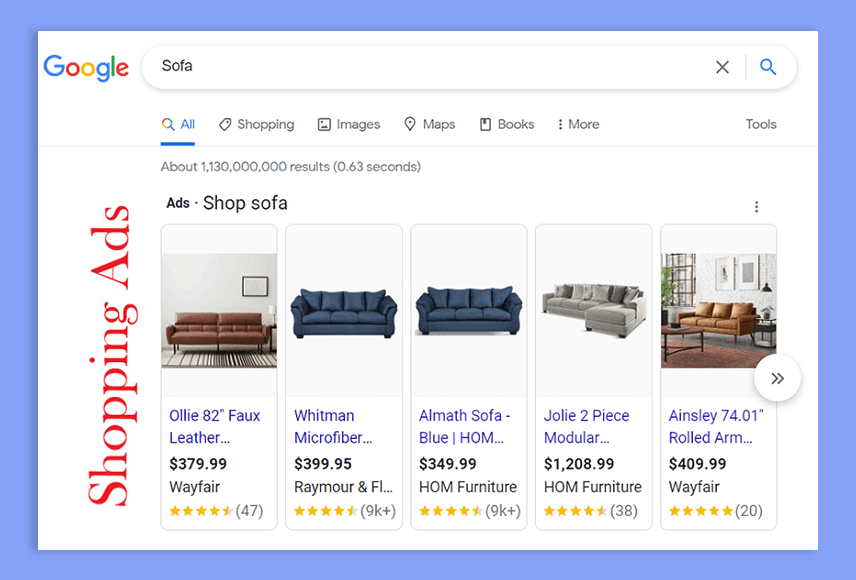
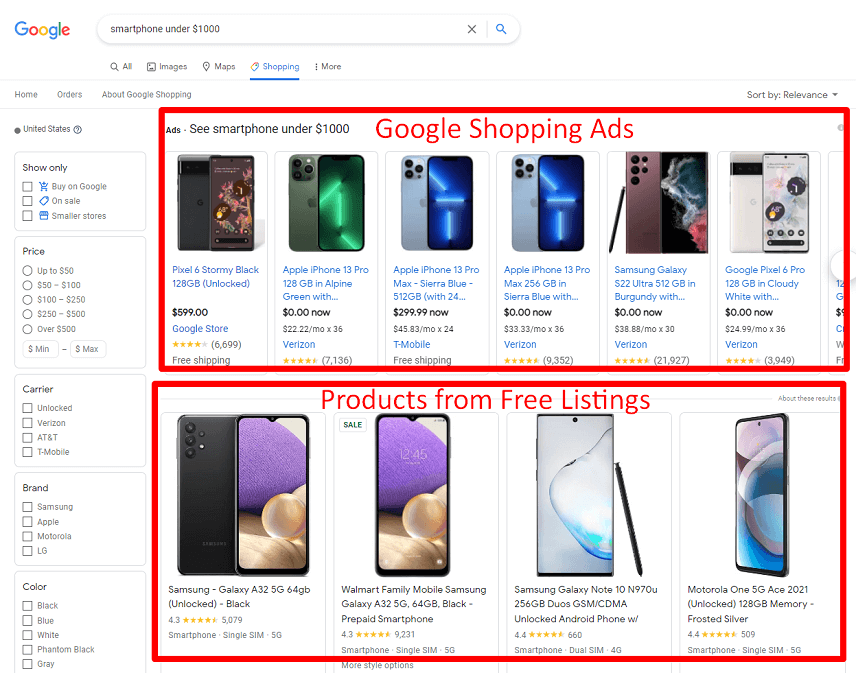
Prior to this, the Google Shopping platform only displayed goods from companies that were engaged in sponsored Google Shopping ads. However, Google just recently made it possible to list things for free. Google will only show the openly listed items in the Shopping tab, though. On the other hand, paid campaign goods will be displayed on both the search results page and the shopping tab.
Why Should You Add Products to Google Shopping?
The advantages of Google Shopping for online retailers are numerous. A couple of those are listed below.
- Free Google Shopping product listing
- increases the quality of the traffic to your website and increases ROAS.
- reduced CPC costs compared to other advertisements
- Remarketing is simpler, overall SEO performance is improved, etc.
The most popular advantages of the Google Shopping platform are those listed above. Please see our list of the top 20 advantages of Google Shopping Ads if you’re interested in learning more.
How to Add Products to Google Shopping Network?
If we want to get the benefits of Google Shopping, there’s no alternative to promoting products on Google. But, you must add your products to the Google platform to promote those. 5 steps of adding products to Google Shopping.
- Setting up a Google Merchant Center account
- Optimizing the product images and videos
- Uploading product data on GMC
- Link Google Ads with GMC
- Create a Google Shopping campaign
Now, we will walk you through the complete process of adding products to Google Shopping. Let’s start with the account creation section.
1. Setting up a Google Merchant Center Account
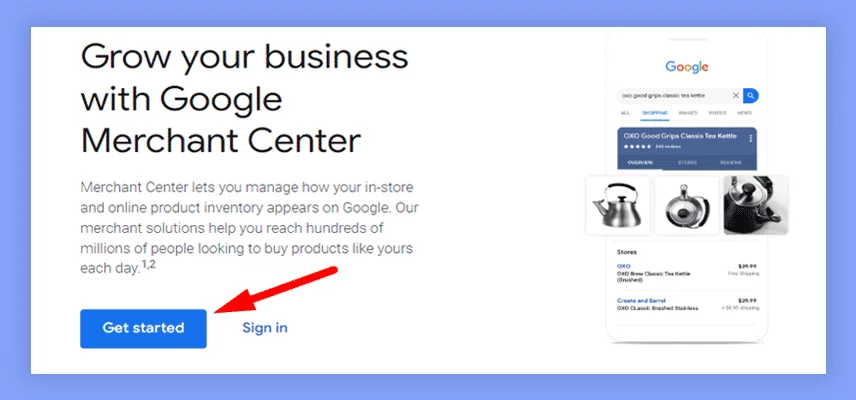
To add items to Google Shopping, a Google Merchant Centre account must first be created. You must log into the Google Merchant Centre in order to complete this. Easily click the blue Get started icon on the Google Merchant Centre homepage. Use the Sign in option to log in if you are already a user. We’ll go over the entire process of adding goods to Google Shopping with you right now. Let’s begin with the part on creating accounts.
You must include a few business-related details on the next page, like –
- The official company name
- Country of business Local time zone eCommerce tools, etc.
The Create account button will turn on when you’ve entered all of this data and have agreed to Google Merchant Center’s Terms of Service. When you click the button, your account will be prepared. You must confirm the ownership of your website after activation. There are two phases in this verification procedure. These include
- Claiming your website on GMC and confirming website ownership
To understand the verification procedure, watch the video below. There are other ways to validate your website on Google Merchant Centre, though.
2. Optimizing the Product Images and Videos
Online shopping is entirely dependent on a product’s outside look. Therefore, you must employ eye-catching and top-notch product images on your website. Prior to optimising them for the product feed, you must first optimise the product photos on your own website. It is advised that you correctly abide by Google’s image criteria in order to optimise the image. Here are a couple of Google’s picture requirements:
- Avoid adding logos to product images.
- Keep any borders or tags advertising out.
- Images must be brief and clear.
- Make the background translucent or completely white.
- 64 megapixels is the highest possible image resolution.
- Image file size won’t exceed 16 MB.
- Image dimensions of 800 × 800 pixels are recommended.
- Minimum image size is 100 × 100 pixels (for garment goods, 250 x 250 pixels), etc.
These are the standard rules that you ought to follow when including product photos. However, you can watch Google’s official how-to video for a fast rundown of the image standards: These specifications don’t only apply to Google. These requirements are beneficial to adhere to even if you sell your goods on other websites like eBay, Etsy, Amazon, Walmart, etc.
💡 Pro Tip: Image Optimization Beyond Google
While meeting Google’s requirements is essential for approval, think about the customer experience too. High-quality images with zoom functionality, multiple angles, and lifestyle shots showing the product in use can dramatically increase conversion rates. Consider investing in professional photography or using tools like Canva to create consistent, on-brand visuals that stand out in search results.
3. Uploading Product Data on GMC
The main step in this procedure is uploading the product data to GMC. You may submit a product feed that contains all of your items in one file, or you can add products to GMC one at a time. There are, however, 4 ways to add product feeds to GMC. These include
- using Google Sheets to upload the feed
- FTP uploading a feed
- Utilising the content API and uploading a feed file
So, before uploading the feed to GMC, let’s construct a product feed. To create product feeds for your WooCommerce store, all you need is a good product feed generator plugin. The CTX Feed is the best product feed plugin, as you may already be aware.
Uploading a feed via FTP
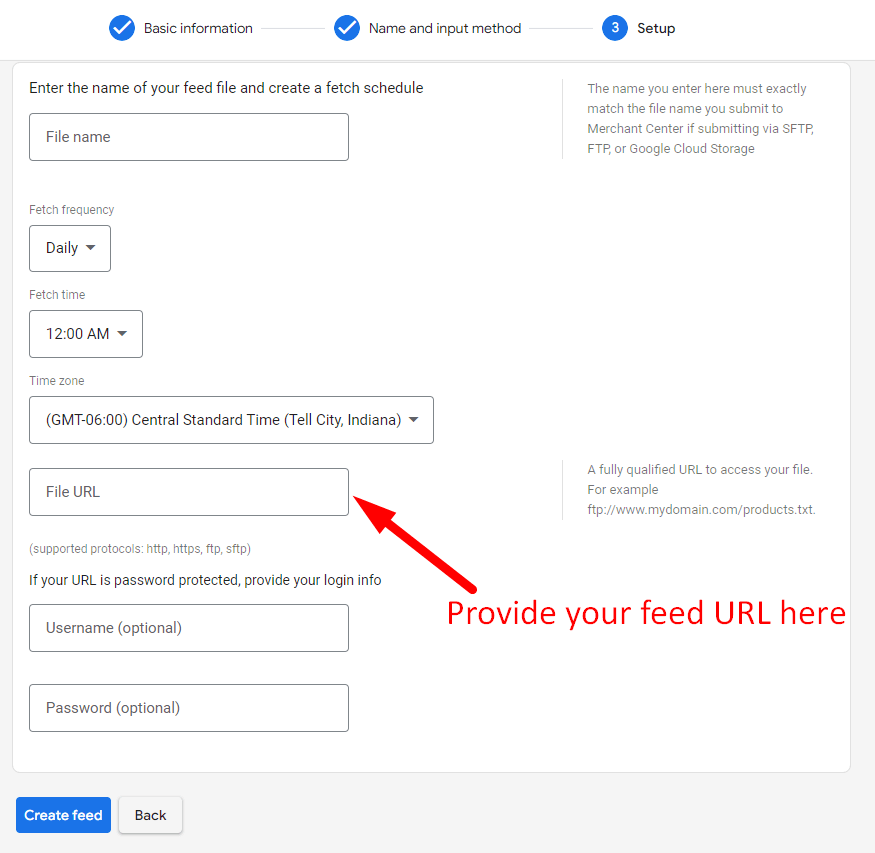
Adding items to Google Shopping may be made as convenient and simple as possible by uploading the product feed using a URL. You must choose the Scheduled fetch option for the feed input method and then click the proceed button below to do it. Following that, you must input the following choices:
- The product feed file’s name
- Fetching regularity
- Time to fetch and the URL of the feed file
4. Link Google Ads with GMC
It’s time to connect your Google Ads account with Google Merchant Centre after you’ve uploaded the items to GMC. You simply need to take two actions to do it.
Sending a connecting request to Google Ads from GMC and approving it from your Google Ads account.
You must click the gear ( ) button and choose Linked accounts to submit the connecting request from GMC to Google Ads. The advertisements account is located under the Google advertisements tab on the following page. There, select the Link option. By the way, you must carefully select the right choice if you have many ad accounts.
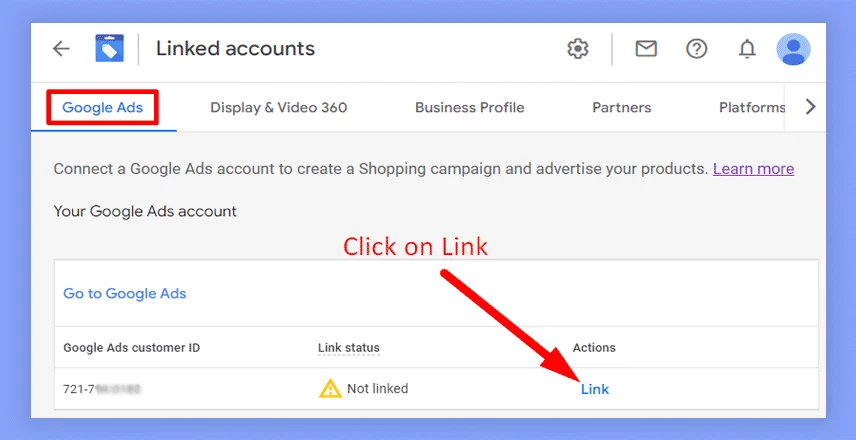
Simply accept the request from your Google Merchant Centre account after submitting it. Go to Google Merchant Centre > Linked accounts > Google Ads to verify the linking status. If everything was done correctly, you would see an Active tick under the Link status tab.
5. Create a Google Shopping Campaign
The user may market their items across the Google Shopping platform by setting up a Google Shopping campaign. Users may monitor the effectiveness of their products when executing Google Shopping ads, though. Here is how to create a Google Shopping campaign step-by-step:
- Access your Google Ads account.
- Campaigns may be selected using the left menu.
- Select “+New campaign”
- Choose “Shopping” under “Campaign type.”
- Select your advertising choices by clicking Next.
- Select Save and carry on.
- Create ad groups
- Place a bid.
- Click Save
This is how you set up a Google Shopping Campaign to advertise your goods throughout the Google platform.
⚠️ Common Mistakes to Avoid
- Incorrect product data: Mismatched prices between your website and feed can lead to disapprovals. Always keep your feed synced.
- Ignoring Google’s policies: Prohibited content (like certain supplements or weapons) will get your account suspended. Review the policies before uploading.
- Poor image quality: Blurry images or those with text overlays are often rejected. Stick to Google’s specifications exactly.
- Not tracking performance: Launching a campaign and forgetting it is a recipe for wasted budget. Regularly review metrics and adjust bids.
- Skipping feed optimization: Use all available attributes—brand, GTIN, color, size—to improve your product’s visibility and relevance.
Advanced Tips for Google Shopping Success
Once your products are live and your campaign is running, the work doesn’t stop. Here are some advanced strategies to maximize your return on investment:
Use Negative Keywords
Even though Shopping campaigns don’t use keywords in the traditional sense, you can still add negative keywords at the campaign level. This prevents your products from showing for irrelevant searches. For example, if you sell luxury watches, you might add “cheap” as a negative keyword to avoid budget shoppers clicking your high-priced items and bouncing.
Optimize Your Product Titles
Your product title is one of the most important factors in whether your ad shows for a given search. Include key attributes like brand, color, size, material, and model number. For instance, instead of “Men’s Running Shoes,” use “Nike Men’s Air Zoom Running Shoes Size 10 Blue.” The more descriptive, the better.
Segment by Performance
Create separate campaigns for your best-selling products, high-margin items, or seasonal inventory. This allows you to allocate budget more effectively and bid aggressively on what works while testing new products with smaller budgets.
Use Custom Labels
Google allows you to create up to five custom labels (0-4) in your product feed. Use these to segment products by season, margin, bestseller status, or any other criteria that matters to your business. Then, in Google Ads, you can bid differently based on these labels.
Leverage Merchant Center Promotions
If you’re running a sale or offering free shipping, add these promotions directly in Merchant Center. They can appear as special badges on your Shopping ads, increasing click-through rates.
Frequently Asked Questions (FAQ)
How long does it take for products to appear in Google Shopping after upload?
Typically, products appear within 3-5 business days, but it can take up to two weeks for new feeds to be fully processed. For ongoing updates, changes usually reflect within 24-48 hours.
Do I need a Google Ads account to use Google Shopping?
For free listings, you only need a Merchant Center account. For paid Shopping ads, you must link a Google Ads account and create a campaign.
What happens if my product feed has errors?
Google will flag errors in Merchant Center and may disapprove individual products or your entire feed. Check the Diagnostics tab regularly and fix issues promptly to maintain visibility.
Can I sell services on Google Shopping?
Google Shopping is primarily for physical products. However, some service-based industries (like travel or local services) have specialized campaign types. For standard retail, stick to tangible goods.
How much do Google Shopping ads cost?
Costs vary by industry, competition, and product price. You control your budget and bids. On average, CPCs for Shopping ads range from $0.50 to $2.00, but competitive niches can be higher.
Conclusion
Essentially Google Shopping is like a real-time, virtual shopping center that is specially built for the web-based retail market. It makes available a smooth and visually attractive medium to the buyers through which they can easily shop around, do up-to-date research, and compare products. Unlike the conventional online shopping experiences that are usually inconvenient and full of unnecessary text, Google Shopping has a user-friendly interface. Customers are able to perform quick searches for the products they want, see the product pictures, read the product details, and the most helpful thing of all to them is that they can in one single place check the prices of different retailers and choose the lowest price.
The innovation is to the maximum extent how people can find and buy goods online. To give a pertinent example, if a user enters the phrase “buy shoes,” Google Shopping would return a very appealing display that consists of images, and prices, and each product’s information together with the seller’s name. Opening the links on the web pages one can get full details about the product.
By following the five steps outlined in this guide—setting up Merchant Center, optimizing images, uploading your feed, linking Google Ads, and creating a campaign—you’ll be well on your way to tapping into that 46% of product searches that start on Google. Whether you choose free listings, paid ads, or a combination of both, the key is to start. The longer you wait, the more potential customers you’re leaving for competitors who are already visible.
Remember, success with Google Shopping isn’t a one-time setup. It requires ongoing attention to feed quality, bid management, and performance analysis. But with the foundation you’ve built here, you’re equipped to grow your online sales and reach customers exactly when they’re searching for what you sell.
Thank you for your time and engagement!
You can also check following urls:
https://getsocialguide.com/tips-to-starting-as-a-freelancer-on-fiverr/
https://getsocialguide.com/how-to-make-money-on-fiverr/
https://getsocialguide.com/best-fiverr-profile-description-with-examples/
https://getsocialguide.com/how-to-earn-money-on-fiverr-easy-way-full-guide/
https://getsocialguide.com/top-selling-best-gigs-on-fiverr/
https://getsocialguide.com/side-hustle-portfolio/