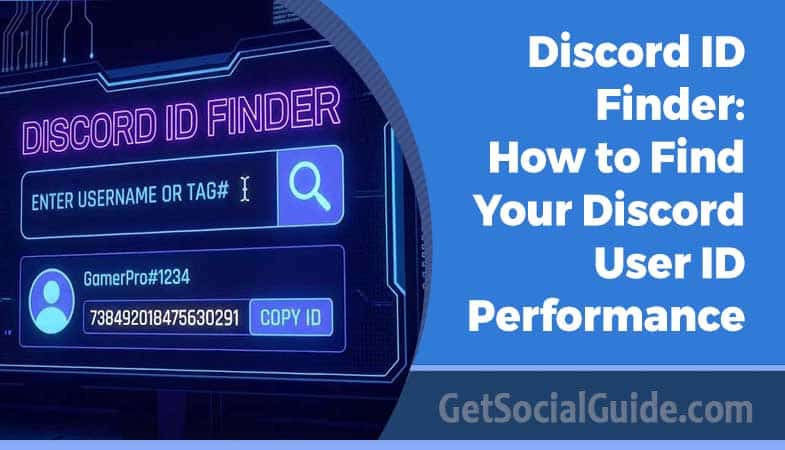
Discord ID Finder: How to Find Your Discord User ID in 2026 (Complete Guide)
Introduction
Discord has become one of the most popular communication platforms for gamers, communities, and professionals worldwide. With over 150 million monthly active users, understanding how to navigate Discord’s features is essential. One of the most frequently asked questions is “How do I find my Discord ID?” Whether you need your Discord user ID for bot commands, server management, or verification purposes, this comprehensive guide will show you exactly how to find it.
In the vast universe of Discord servers, where millions of users, communities, and conversations coexist, how does the platform keep everything perfectly organized? The answer lies in a simple string of numbers: the Discord ID. Often called a “Snowflake ID” due to its unique generation method, this numeric identifier is the fundamental building block of Discord. Whether you’re a server administrator configuring a sophisticated bot, a gamer reporting a serious issue to support, or a developer creating an integration, understanding how to find and use Discord IDs is an essential digital skill.
This comprehensive guide is your master key. We will move beyond basic queries like “discord id” or “how to find discord id” and delve into the practical, ethical, and advanced applications of User IDs, Server IDs, Channel IDs, and Message IDs. By the end, you’ll be proficient in locating these identifiers on both desktop and mobile applications and understand their crucial role in the Discord ecosystem.
In this detailed tutorial, you’ll learn multiple methods to locate your Discord ID, understand what a Discord ID is, why you might need it, and how to find other users’ Discord IDs. We’ll cover everything from desktop to mobile applications, including troubleshooting tips and advanced use cases.
Key Takeaways: Discord ID Finder (2026 Guide)
- Discord IDs Are Permanent & Unique: Every Discord account, server, channel, and message is assigned a fixed 18-digit numeric ID. Unlike usernames, these identifiers never change.
- Enable Developer Mode First: You must activate Developer Mode in your settings before the “Copy ID” option becomes visible on desktop or mobile devices.
- Desktop = Right-Click | Mobile = Long-Press: On desktop, right-click a username, server, channel, or message to copy its ID. On mobile, long-press to access the same “Copy ID” option.
- Multiple ID Types Exist: Discord assigns different identifiers for:
- User IDs
- Server IDs
- Channel IDs
- Message IDs
Each ID type serves a specific backend or administrative purpose.
- Essential for Bots & Automation: Moderation bots, logging tools, and custom automation systems rely on numeric IDs — not usernames — for precise targeting and execution.
- Critical for Reporting & Support: When contacting Discord Trust & Safety or filing abuse reports, sharing exact User IDs or Message IDs ensures faster and more accurate investigations.
- Powering API & Integrations: Developers use Discord IDs in API calls, OAuth authentication flows, webhook setups, database storage, embeds, and bot command structures.
- IDs Contain Embedded Timestamps: Discord’s Snowflake system encodes account or object creation time within the ID itself, which can be decoded using ID-to-date converter tools.
- Generally Safe to Share (With Context): A Discord ID cannot be used to log into or compromise your account. However, avoid posting it publicly without a clear purpose.
- Best Practice for Server Admins: Moderators should log important User IDs inside secure staff channels to maintain records, especially before members leave the server.
- IDs vs. Usernames: Usernames are customizable and publicly visible. IDs are permanent, hidden by default, and used for technical accuracy across Discord systems.
- Troubleshooting Reminder: If “Copy ID” does not appear, confirm Developer Mode is enabled and fully restart the Discord application.
The “Why” Behind the ID: Core Use Cases
Before we learn the “how,” let’s establish the “why.” Knowing your Discord unique identifier serves several legitimate and important purposes:
- Bot Configuration & Administration: Most advanced Discord bots, like MEE6, Carl-bot, or Dyno, require Server IDs or Channel IDs to function correctly. When you set up automated moderation, leveling systems, or welcome messages, you’ll often need to paste these IDs into a bot’s dashboard.
- Direct Support & Reporting: If you encounter harassment, spam, or need to report a critical bug to Discord’s Trust & Safety team, they will almost always ask for the relevant User IDs or Message IDs. Providing these numeric identifiers is the most precise way to pinpoint issues.
- Developer & Integration Work: If you’re building a Discord bot or an application that connects to Discord’s API, Snowflake IDs are the primary way your code will reference users, servers, and messages.
- Deep Linking: You can create a direct link to a specific message or channel using its ID, which is invaluable for sharing context in community guidelines or project documentation.
Understanding these use cases frames our search for the Discord user ID not as a technical chore, but as a step toward better management, safety, and functionality within your communities.
The Golden Key: Enabling Developer Mode
The single most important step to unlocking the ability to copy any Discord ID is activating Developer Mode. Think of it as a special menu that reveals the underlying structure of the app.
On Desktop (Windows/macOS/Web):
- Click the gear icon (User Settings) in the bottom-left corner, next to your username.
- In the left sidebar, click on “Advanced” under APP SETTINGS.
- At the top, you will see the “Developer Mode” option. Simply toggle the switch to ON.
On Mobile (iOS/Android):
- Tap your profile picture in the bottom-right corner to open User Settings.
- Scroll down to “App Settings” and tap “Behavior.”
- Find “Developer Mode” and toggle it ON.
Pro Tip: Enabling Developer Mode is a one-time action. Once it’s on, the “Copy ID” option will be available across the entire application, transforming your right-click (or long-press) menus.
What is a Discord ID?
A Discord ID, also known as a Discord user ID or Discord profile ID, is a unique 18-digit numerical identifier assigned to every Discord account. This number is permanent and never changes, even if you modify your username, discriminator, or display name.
Understanding Discord Identification System
Discord uses a multi-layered identification system:
- Username: Your chosen name (e.g., JohnDoe)
- Discriminator: The four-digit number after your username (e.g., #1234)
- Display Name: Your server-specific nickname
- User ID: Your unique 18-digit identifier (e.g., 123456789012345678)
The Discord user ID is the most reliable way to identify someone on the platform because it never changes, unlike usernames and discriminators which can be modified.
Why Do You Need to Find Your Discord ID?
Understanding how to check Discord ID is crucial for several reasons:
Bot Commands and Automation
Many Discord bots require your user ID to function properly. Whether you’re setting up moderation bots, music bots, or custom automation, knowing your Discord ID is essential.
Server Management
Server administrators often need user IDs for:
- Banning or kicking users
- Assigning specific roles
- Creating custom permissions
- Managing server security
- Tracking user activity
Verification Processes
Some Discord servers require ID verification for:
- Age verification systems
- Anti-spam measures
- Role assignment
- Partnership applications
- Contest entries
Support and Reporting
When contacting Discord support or reporting users, providing the Discord user ID ensures accurate identification and faster resolution.
API Integration
Developers building Discord applications need user IDs for:
- API calls
- Webhook configurations
- OAuth implementations
- Custom bot development
How to Enable Developer Mode on Discord
Before you can see Discord IDs, you must enable Developer Mode. This feature reveals additional technical information, including user IDs, server IDs, and message IDs.
Enabling Developer Mode on Desktop
- Open Discord on your computer
- Click the gear icon (User Settings) next to your username
- Scroll down to “App Settings” section
- Select “Advanced” from the menu
- Toggle on “Developer Mode”
- Close the settings window
Enabling Developer Mode on Mobile (iOS/Android)
- Open the Discord mobile app
- Tap your profile picture in the bottom right corner
- Scroll down and tap “App Settings”
- Tap “Behavior”
- Toggle on “Developer Mode”
- Exit settings
Once Developer Mode is activated, you can access Discord IDs throughout the platform.
How to Find Your Discord User ID (Desktop)
Finding your own Discord ID on desktop is straightforward once Developer Mode is enabled.
Method 1: Using Your Profile
- Open Discord on your desktop
- Click on your profile picture or username
- Right-click on your profile picture in the popup
- Select “Copy User ID” from the context menu
- Your Discord user ID is now copied to your clipboard
Method 2: Through User Settings
- Click the gear icon to open User Settings
- Select “My Account” from the left sidebar
- Your username will be displayed at the top
- Right-click on your username or profile picture
- Choose “Copy User ID”
Method 3: Via Direct Messages
- Open your Direct Messages
- Right-click on your name in any conversation
- Select “Copy User ID”
How to Find Your Discord ID on Mobile
Getting your Discord ID on mobile devices requires a slightly different approach.
Finding Your Discord ID on iPhone (iOS)
- Open the Discord app on your iPhone
- Tap on your profile icon in the bottom navigation
- Tap on your profile picture at the top
- Long-press on your profile picture
- Select “Copy ID” from the menu
- Your Discord user ID is now in your clipboard
Finding Your Discord ID on Android
- Launch Discord on your Android device
- Tap the menu icon (three horizontal lines)
- Tap your profile picture
- Long-press your username or avatar
- Select “Copy ID”
How to Find Another User’s Discord ID
Sometimes you need to find someone else’s Discord user ID for administrative purposes, bot commands, or reporting.
Finding Other User IDs on Desktop
- Locate the user in a server member list or chat
- Right-click on their username or avatar
- Select “Copy User ID” from the dropdown menu
- The user’s Discord ID is copied to your clipboard
Finding Other User IDs on Mobile
- Navigate to the server where the user is located
- Find their message or profile
- Long-press on their username or avatar
- Tap “Copy ID”
Finding User IDs from Direct Messages
- Open your DM conversation with the user
- Right-click (desktop) or long-press (mobile) on their name
- Select “Copy User ID”
How to Find Server IDs and Channel IDs
Beyond user IDs, you might need to find Discord server IDs and channel IDs for various purposes.
Finding Discord Server ID
- Ensure Developer Mode is enabled
- Right-click on the server icon in your server list
- Select “Copy Server ID”
- The 18-digit server ID is copied
Finding Discord Channel ID
- Right-click on any text or voice channel name
- Select “Copy Channel ID”
- Use this ID for bot configurations or API calls
Finding Message IDs
- Hover over any message
- Click the three dots (More options)
- Select “Copy Message ID”
Finding User, Server, and Channel IDs
With Developer Mode active, finding IDs becomes a straightforward process. Here’s a detailed breakdown:
To Find a USER ID:
- Desktop: Navigate to the user in any server member list or direct message list. Right-click their username or profile picture. In the context menu that appears, select “Copy User ID.” The numeric Discord unique identifier is now on your clipboard.
- Mobile: Tap on the user’s profile to open it. In the top-right corner, tap the “…” (More) menu. You will see the “Copy User ID” option. Tap it to copy.
To Find a SERVER ID:
- Desktop: Go to the server whose ID you need. Right-click the server’s name or icon in the top-left server list. Choose “Copy Server ID.”
- Mobile: This requires an extra step. Ensure you are in the target server. Go to Server Settings (tap the server name > “Settings”). Scroll to the very bottom. Under the “Server Boost Status” or “Server Templates” section, you should find the “Copy Server ID” option.
To Find a CHANNEL ID:
- Desktop: In the server’s channel list, right-click the channel name (e.g., #general). Select “Copy Channel ID.”
- Mobile: Long-press on the channel name in the channel list. The context menu will include “Copy Channel ID.”
Locating Specific Message IDs
Sometimes, you need to reference one message in a sea of thousands. This is where the Message ID comes in.
The Easiest Method: Copy Message Link For most users, copying the message link is the best approach, as it contains the ID and creates a direct clickable link.
- Hover over (desktop) or tap and hold (mobile) the message you want to reference.
- Click/tap the “…” (More) menu on the message.
- Select “Copy Message Link.” This link includes the Server ID, Channel ID, and Message ID all in one. You can paste it anywhere, and users with access to that channel can click it to jump directly to the message.
The Developer Method: Copy Message ID If you only need the raw numeric ID (e.g., for a bot command or API call), follow the steps above, but instead choose “Copy Message ID” (this option only appears with Developer Mode enabled).
Advanced Context: IDs in Digital Investigations (OSINT)
A more advanced field where Discord IDs and public data play a role is Open-Source Intelligence (OSINT). Ethical OSINT researchers, journalists, and cybersecurity professionals may use publicly available Discord user IDs to track the spread of misinformation, map out networks of coordinated behavior, or gather evidence for investigations.
It’s critical to understand that while User IDs are unique and persistent, they are not private secrets. If someone shares their ID publicly or it’s embedded in a shared message link, it can be collected. This section underscores the importance of digital literacy-be mindful of what you share and where. Always adhere to ethical guidelines and platform Terms of Service in any investigation.
Common Issues and Troubleshooting
Developer Mode Not Showing
If you cannot find Developer Mode:
- Update Discord to the latest version
- Restart the application
- Check if you’re using the official Discord client
- Reinstall Discord if necessary
Copy ID Option Missing
If “Copy ID” doesn’t appear:
- Verify Developer Mode is enabled
- Restart Discord completely
- Check your Discord permissions
- Try on a different device
ID Not Copying to Clipboard
If the ID won’t copy:
- Try using keyboard shortcuts (Ctrl+C or Cmd+C)
- Clear your clipboard and try again
- Restart your device
- Check clipboard permissions on mobile
Wrong ID Showing
Ensure you’re:
- Right-clicking the correct element
- Not confusing user IDs with server or channel IDs
- Copying from the right location
- Using the most recent method
Advanced Uses for Discord IDs
Using Discord IDs with Bots
Discord bots frequently require user IDs for commands:
!ban <user_id> [reason]
!role add <user_id> <role_name>
!info user <user_id>
API Integration and Development
Developers use Discord IDs for:
- Fetching user information via API
- Creating mentions in embeds
- Building custom Discord applications
- Implementing OAuth authentication
- Managing webhooks
Creating User Mentions with IDs
You can mention users directly using their ID:
- Format:
<@USER_ID> - Example:
<@123456789012345678>
This is useful when usernames contain special characters or when building automated messages.
Database Management
Server administrators often store Discord IDs in databases for:
- Tracking user statistics
- Managing economy systems
- Storing custom user data
- Creating leaderboards
- Implementing verification systems
Discord ID vs. Username: Key Differences
Understanding the distinction between Discord IDs and usernames is important:
| Feature | Discord ID | Username |
|---|---|---|
| Changes | Never changes | Can be changed |
| Format | 18-digit number | Alphanumeric text |
| Visibility | Hidden by default | Always visible |
| Uniqueness | Absolutely unique | Combined with discriminator |
| Use Cases | Technical/Backend | User-facing |
Privacy and Security Considerations
Is Sharing Your Discord ID Safe?
Your Discord ID is generally safe to share because:
- It only reveals your account’s existence
- Cannot be used to log into your account
- Doesn’t expose personal information
- Is already visible to bot developers and server admins
However, be cautious about:
- Sharing IDs on public forums without context
- Providing IDs to suspicious services
- Using IDs for unofficial verification processes
Protecting Your Discord Account
While Discord IDs themselves aren’t sensitive, protect your account by:
- Enabling two-factor authentication (2FA)
- Using strong, unique passwords
- Being careful with third-party Discord bots
- Regularly reviewing authorized applications
- Never sharing your authentication token
Discord ID Tools and Utilities
Several online tools can help you work with Discord IDs:
Discord ID Lookup Tools
These tools allow you to:
- Convert IDs to usernames
- Check account creation dates
- Verify user existence
- Extract timestamp information
Discord ID to Date Converters
Every Discord ID contains a timestamp. Using specialized tools, you can determine when an account was created based on its ID.
Discord User Information APIs
Developers can use Discord’s API to retrieve:
- Username and discriminator
- Avatar URLs
- Account flags
- Bot status
- Creation date
Best Practices for Managing Discord IDs
For Server Administrators
- Store user IDs for moderation logs
- Use IDs instead of usernames in automated systems
- Document ID-based procedures
- Train moderators on proper ID usage
- Implement ID-based verification systems
For Bot Developers
- Always use IDs for user identification
- Cache ID mappings appropriately
- Handle invalid IDs gracefully
- Implement proper error handling
- Document ID requirements clearly
For Regular Users
- Know how to find your own ID
- Keep your ID handy for verification
- Understand when sharing is necessary
- Use IDs for accurate user reporting
- Learn basic ID-related troubleshooting
Discord ID in Different Discord Clients
Discord Desktop App
The desktop application offers the most straightforward ID access with full Developer Mode support.
Discord Web Browser
The web version functions identically to the desktop app for ID operations.
Discord Mobile (iOS/Android)
Mobile apps require long-pressing instead of right-clicking but offer the same functionality.
Discord Console/Bot Clients
Programmatic access uses API endpoints to retrieve IDs automatically.
Future of Discord IDs
As Discord continues to evolve, understanding Discord IDs remains crucial. Recent updates have made IDs more accessible, and future developments may include:
- Improved ID management tools
- Enhanced privacy controls
- Better integration with verification systems
- More user-friendly ID display options
- Advanced ID-based features
In-Depth FAQs and Troubleshooting
Let’s address the most common questions and issues that arise when users try to find their Discord ID.
Q1: I enabled Developer Mode, but “Copy ID” is not showing up!
Solution: The most common fix is to fully restart your Discord client. Close the app completely (check your system tray/task manager) and reopen it. If the problem persists, double-check that the Developer Mode toggle is still ON in your settings.
Q2: What’s the difference between my Username and my User ID?
Your username (e.g., SocialGuide#1234) is what you choose and what others see. You can change it. Your User ID is a permanent, unchanging numeric identifier assigned by Discord when you create your account. Bots and the system itself use the ID.
Your User ID is not a secret password, but it is a persistent identifier. It’s generally safe to share with trusted friends, server admins, or official support. Avoid posting it publicly in large, untrusted spaces to minimize unsolicited contact.
Q4: Can I find someone’s email or personal info from their Discord ID?
Absolutely not. A Discord ID is an internal platform identifier. It does not reveal private personal information like email addresses, IP addresses, or real names. Any service claiming to do so is a scam.
Q5: I’m an admin. Can I find a user’s ID even if they’ve left the server?
No. Once a user leaves a server, you lose the ability to right-click their name to copy their User ID. This is why it’s good practice for moderation teams to log important User IDs in a secure, private channel for future reference if needed.
Q6: Can I change my Discord ID?
No, Discord IDs are permanent and cannot be changed. They’re assigned when you create your account and remain fixed forever.
Q7: What’s the difference between Discord ID and user ID?
They’re the same thing. Discord ID,” “Discord user ID,” and “user ID” all refer to the same 18-digit identifier.
Q8: Do bots have Discord IDs?
Yes, bots have Discord IDs just like regular users. You can find bot IDs using the same methods.
Q9: Can someone hack my account with my Discord ID?
No, your Discord ID alone cannot be used to access your account. It’s simply an identifier, not a credential.
Q10: Why is my Discord ID so long?
Discord IDs are 18 digits long to ensure uniqueness across hundreds of millions of users while encoding creation timestamp information.
Q11: Can I find deleted user IDs?
Yes, if you have the ID saved, it remains valid even if the user deletes their account. However, the account information won’t be retrievable.
Q12: Are server IDs different from user IDs?
Yes, but they follow the same format. Both are 18-digit identifiers, but they identify different objects (servers vs. users).
Q13: How do I use Discord ID for verification?
Many servers ask for your Discord ID to verify your identity. Simply copy your ID using the methods above and provide it when requested.
Conclusion
Knowing how to find your Discord user ID is an essential skill for anyone using Discord regularly. Whether you’re a server administrator, bot developer, or casual user, understanding Discord IDs helps you navigate the platform more effectively.
Remember these key points:
- Enable Developer Mode first
- Right-click (desktop) or long-press (mobile) to copy IDs
- Discord IDs are permanent and unique
- IDs are safe to share in appropriate contexts
- Use IDs for accurate identification in technical situations
By following this comprehensive guide, you now have all the knowledge needed to find, use, and understand Discord IDs effectively. Whether you need your own Discord ID, another user’s ID, or server and channel IDs, these methods will serve you well in 2026 and beyond. You can also check How to Find your User ID on Discord.
For more Discord tips, tutorials, and social media guides, explore our other articles on GetSocialGuide.com. We’re dedicated to helping you master digital communication platforms and grow your online presence.
Final Thoughts
Understanding how Discord IDs function gives you better control over moderation, automation, reporting, and development workflows. Whether you’re managing a growing community, configuring bots, integrating APIs, or verifying accounts, knowing how to locate and properly use Discord IDs remains a practical and valuable skill in 2026 and beyond.
You can also check How to Find your User ID on Discord